admin

how-to-whatsapp-someone-when-blocked

3 Ways to WhatsApp Call Someone Who Blocked You [Bypass]

WhatsApp, the messaging app billions use globally, has grown beyond just a platform for text conversations.

With the inclusion of call and video call functionalities, it has become an indispensable tool for digital communication. However, things get tricky when someone blocks you.

Can you WhatsApp call someone who blocked you? Can you still reach out to them in some way?

In this blog post, we will explore the intricacies of WhatsApp’s block feature and provide you with effective methods to contact someone who has blocked you.


Quick Answer

So, to answer the burning question, can you WhatsApp call someone who blocked you?

The straightforward response is no, you can’t directly call or send a message to someone who has blocked you on WhatsApp.

When a person blocks you on WhatsApp, they essentially become invisible to you on the app, including calls.


Understanding WhatsApp Blocking Feature

WhatsApp’s blocking feature has been designed with a user’s privacy and security in mind.

When a user decides to block someone, they’re essentially cutting off all forms of communication with that person within the app.

So what really happens when you’re on the receiving end of this feature?

What happens when someone blocks you on WhatsApp?

When someone blocks you on WhatsApp, you can no longer see their last seen or online status.

Their profile picture becomes invisible to you, and any messages or calls you try to send will never be delivered or connected.

Essentially, it’s as though they’ve disappeared from your WhatsApp world.

Can you call or message someone who blocked you?

As we’ve mentioned earlier, any attempts at calling or messaging will be futile when you’re blocked. WhatsApp does not notify the blocked individual about being blocked, but these signs are a strong indication.

If you suspect that you’ve been blocked and your messages are not being delivered, you might find our post on fixing WhatsApp messages not delivered to be helpful.


How to WhatsApp Call Someone When You Are Blocked

Despite the blocking feature’s rigidness, some ways exist to circumvent it.

Here are the three (3) ways you can use;


Method 1. Use a Different Number

One of the most straightforward ways to contact someone who has blocked you on WhatsApp is to use a different number.

Using temporary phone numbers to make a WhatsApp call can be a useful way to maintain privacy and protect your personal phone number.

Various online services provide temporary phone numbers for free or at a small cost. \

Example Services Providing Temporary Phone Numbers:

  • TextNow offers free online phone numbers that can be used for WhatsApp verification and calls. It’s available for both Android and iOS devices.
  • Burner provides temporary phone numbers for short-term use, including WhatsApp verification and calls. It’s available for iOS and Android.
  • Google Voice offers free phone numbers that can be used for calling and messaging, including WhatsApp.
  • Hushed allows you to get temporary phone numbers for privacy purposes, and you can use these numbers for WhatsApp calls.

Method 2. Using a VoIP Number

Using VoIP services to make WhatsApp calls can be a convenient way to protect your personal number while communicating with others.

VoIP (Voice over Internet Protocol) allows you to make calls online instead of a traditional phone line. Here are some examples of using VoIP services for WhatsApp calls:

Sideline: A VoIP service gives users a second phone number for business purposes. It offers features like call forwarding, auto-responders, and team messaging.

Flyp: Flyp provides multiple virtual phone numbers on a single device, allowing users to manage different aspects of their life or business separately.

Telzio: Telzio is a cloud-based business phone system that offers virtual phone numbers with features like call routing, IVR, and voicemail.


Method 3. Reaching Out Via Other Platforms

If someone on WhatsApp has blocked you, it’s often an indicator that they do not wish to communicate via that channel.

However, if reaching out is absolutely necessary, consider doing so through a different platform. Here’s how:

  • Identify other social media platforms where the contact is active. It could be Facebook, Instagram, LinkedIn, or even email.
  • Send a polite, respectful message explaining your intentions and asking for a conversation.

Remember, reaching out on other platforms should be used as a last resort and it’s crucial to remain respectful and understanding of the other person’s space and privacy.


Frequently Asked Questions (FAQ)

While we’ve covered the primary question, can you WhatsApp call someone who blocked you, there are a few related queries that often arise. Let’s answer some of them:

Q: Can I call someone who blocked me?

Directly via WhatsApp, no. If someone has blocked you on WhatsApp, you won’t be able to call them using the app.

However, methods like using a different number or reaching out through mutual contact may allow you to get in touch.

Q: What happens if you call someone who blocked you?

The call will not be connected when you try to call someone who has blocked you on WhatsApp. The call might appear to be ringing from your end, but the person who blocked you will not receive your call.

Q: Are there any signs that I have been blocked on WhatsApp?

Yes, several signs might indicate that you’ve been blocked. You will not see the contact’s last seen status or profile picture.

Additionally, any messages you send will only show one checkmark, indicating that the message was sent but not delivered.


Conclusion

So, there you have it. While WhatsApp has designed its blocking feature to protect users’ privacy, these methods provide some ways to get around it.

However, it’s vital to stress that these methods should be used responsibly, ethically, and only when absolutely necessary.

After all, communication relies heavily on mutual consent and respect for each other’s space and privacy. If someone has chosen to block you, respecting their decision and giving them space might be better.


3 Ways to WhatsApp Call Someone Who Blocked You [Bypass] Read More »
can-whatsapp-notify-you-when-someone-online

3 Ways to Get WhatsApp to Notify You When Someone Is Online

Have you ever found yourself wondering if you could know when a certain someone comes online on WhatsApp?

Maybe a friend who’s been quiet for too long, or a business contact you’re waiting to catch up with. WhatsApp, one of the most popular instant messaging apps globally, is known for its simplicity and privacy features.

But can it actually tell you when someone is online? Let’s dive into this.


How To Get Alerts Notifications When Someone Is Online On WhatsApp?

Here are the three (3) methods you can use;


Method 1: Online Tracker Apps for WhatsApp

Online tracker apps for WhatsApp provide a convenient and efficient method to receive notifications when someone comes online.

These third-party apps monitor the online status of the contacts you’re interested in and notify you as soon as they become active on WhatsApp.

It’s like having a digital assistant that helps you stay updated with your contacts’ WhatsApp activity!

ChatWatch

ChatWatch is an app that claims to provide online/offline tracking of WhatsApp contacts. It monitors activity patterns and provides insights into when contacts are likely to be online.

However, please note that the availability and reliability of ChatWatch may have changed, and it’s important to verify its legitimacy and compliance with privacy policies.

WhatsMonitor

WhatsMonitor is an online tracker app that claims to monitor the online status of WhatsApp contacts and provides notifications when they come online or go offline.


Method 2: Third-Party Apps for Online Notifications

Continuing from the previous point, other third-party apps, besides WhatsDog and WhatsLog, can help you receive notifications when someone comes online on WhatsApp.

Apps like WaStat, available on Google Play Store, can provide detailed analytics of the online-offline cycles of a particular WhatsApp number.

WaStat

“WaStat” is an online tracker app designed to monitor the online status and activity of WhatsApp users.

It allows users to track the time spent by their contacts on WhatsApp, their online and offline status, and even receive notifications when contacts come online or go offline.

It aims to provide insights into the online behavior of your contacts, giving you a better understanding of their availability and activity patterns.


Method 3: Use WhatsApp Web for Online Status Notifications

Another effective method to keep track of someone’s online status on WhatsApp involves using WhatsApp Web.

While this method is not as automatic as using third-party apps, it provides an option that doesn’t require you to check your phone constantly.

Here’s how you can use WhatsApp Web to keep track of a contact’s online status:

  • Open WhatsApp Web in a browser on your computer.
  • Scan the QR code that appears on the screen with your phone’s WhatsApp application.
  • Once logged in, keep the chat with the person of interest open.

With this setup, you can glance at the WhatsApp Web tab in your browser anytime to see if the contact is online. This can be especially useful if you’re working on a computer and don’t want to check your phone constantly.


Frequently Asked Questions (FAQ)

Q1. Can WhatsApp tell you when someone is online?

Yes, WhatsApp does display when a contact is online. You’ll see this information directly in the chat window under the contact’s name.

However, WhatsApp doesn’t send real-time notifications to inform you when a particular contact comes online. This information is available only when you open the chat with that specific person.

Q2. Are third-party WhatsApp online status-tracking apps safe to use?

While third-party apps can provide additional functionality, they also pose potential privacy and security risks.

Always read reviews and app descriptions, understand the permissions they request, and consider the privacy implications before installing these apps.

Q3. Can I respect someone’s privacy while using these methods?

Yes, respecting privacy is crucial while using these methods. These tools are available to help you connect with others more efficiently, but they should always be used responsibly and ethically.

Q4. Does WhatsApp offer a built-in feature to send notifications when someone comes online?

Currently, WhatsApp does not offer a built-in feature to send notifications when a specific contact comes online. However, checking the chat window lets you see if they’re online.


Conclusion

There you have it! While WhatsApp itself does not send notifications when someone comes online, there are several methods you can use to get these alerts.

Just remember, whether you’re using the native features of WhatsApp or relying on third-party apps, it’s crucial to respect the privacy and consent of the people you interact with.

After all, technology serves us best when it’s used responsibly and ethically.


3 Ways to Get WhatsApp to Notify You When Someone Is Online Read More »

does-whatsapp-alert-when screenshot-video-call

Does WhatsApp Alert When You Screenshot a Video Call?

Welcome to our latest deep dive into the world of WhatsApp, the ubiquitous messaging platform owned by Facebook that has revolutionized the way we communicate.

WhatsApp has everything from sending texts and files to conducting voice and video calls.

Today, we’ll explore a hot topic that often generates a lot of discussion: “Does WhatsApp notify when you screenshot a video call?”

There are many reasons why someone might want to take a screenshot during a video call – capturing a memorable moment, saving an important piece of information, or even documenting a conversation.

But the question often arises about privacy: will the other person know that you’ve taken a screenshot?


Quick Answer

To answer the burning question immediately: No, WhatsApp does not send a notification when you take a screenshot of a video call.

Neither the app nor its privacy features currently include this kind of alert. This means that you can capture memorable moments or important information during a video call without the other party being alerted.


Understanding WhatsApp’s Privacy Features

WhatsApp is known for its stringent privacy features – most notably, its end-to-end encryption that secures all messages, calls, photos, and videos you send or receive.

This makes it nearly impossible for anyone, including WhatsApp itself, to see your private communications.

However, as of the time of writing, WhatsApp does not have a feature that notifies users when a screenshot of their video call is taken.

This might be surprising to some, given how apps like Snapchat have such features in place. However, every platform has its unique approach to user privacy and security.

It’s also worth noting that while WhatsApp doesn’t notify users about screenshots taken during video calls, it has various other privacy-related features.

These include hiding “last seen” status, disabling read receipts, or controlling who can see your profile photo or status updates.


How to Take Perfect Screenshots During Video Calls Without Any Distractions

Method 1: Built-in Screenshot Functionality

Your first and most straightforward option to capture a moment from a WhatsApp video call is to use the built-in screenshot functionality of your device.

Here’s how you do it:

For iOS Devices (iPhone/iPad):

  • If you have an iPhone with Face ID: Press the ‘Side button’ and the ‘Volume up’ buttons simultaneously. Release both buttons quickly.
  • If you have an iPhone with a Home button: Press the ‘Side button’ or the ‘Top button’ and the ‘Home button’ simultaneously. Release both buttons quickly.

For Android Devices:

The method can vary depending on your Android device’s brand and model, but the most common way is:

  • Press the ‘Power button’ and the ‘Volume down’ buttons simultaneously.

Note: The screenshot will capture the entire screen of your device, not just the WhatsApp video call. If you want to focus on the video call only, you may need to crop the image later.


Method 2: Screen Recording

Screen recording is a more subtle way to capture moments from a WhatsApp video call.

Instead of capturing a single moment, you record the entire call (or a part of it), and you can later take screenshots from the recorded video.

This method doesn’t cause any flicker on the screen and is thus less noticeable.

For iOS Devices (iPhone/iPad):

  • Add ‘Screen Recording’ to the ‘Control Center’ by going to ‘Settings’ > ‘Control Center’ > ‘Customize Controls’, then tap the ‘+’ icon next to ‘Screen Recording’.
  • Swipe up from the bottom edge of any screen (on iPhone X or later or iPad with iOS 12 or later) or on iPhone 8 or earlier, swipe up from the bottom edge of the screen to open ‘Control Center’.
  • Press deeply on ‘Record’ and tap ‘Start Recording’.

For Android Devices:

The availability and method of screen recording can vary based on the model and manufacturer of your Android device.

It’s important to note that screen recording can take up more storage space than screenshots, and the other party might still notice a slight change in video quality when the recording starts or stops.

But it’s an effective method to capture a video call without being too obvious.


Method 3: Third-Party Screenshot Apps

Our final method involves using third-party screenshot apps. These applications can provide additional features, like scrolling screenshots, annotations, and more discreet ways to capture screens.

Here are two popular choices:

  • Screenshot Easy (Android): This app allows you to take screenshots with an overlay button, a button in the notification panel, or by shaking your device. It’s free and easy to use.
  • TechSmith Capture (iOS): This app lets you capture full-screen, crosshair selected region, or fixed region screenshots. It’s also free, and you can save the screenshots directly to your device or share them from within the app.

Remember: When installing third-party apps, always ensure they are from trusted developers to avoid compromising your device’s security.

It’s important to respect privacy and only take screenshots or screen recordings during a video call when it’s appropriate and agreed upon by all parties involved.


Frequently Asked Questions (FAQ)

Q1. How do you screenshot on a video call?

You can take a screenshot during a video call by using your device’s built-in screenshot functionality, screen recording, or a third-party screenshot app.

The specific steps can vary depending on your device model and operating system.

Q2. Does WhatsApp tell you when someone screenshots your status?

No, WhatsApp doesn’t notify you when someone takes a screenshot of your status. This applies to both text and media-based status updates.

Q3. Does WhatsApp notify when you screenshot a video call?

Currently, WhatsApp does not send notifications if someone takes a screenshot during a video call. However, always respect privacy and seek consent before capturing screenshots during a video call.

Q4. Can you record a WhatsApp video call?

Yes, you can record a WhatsApp video call using your device’s built-in screen recording feature or a third-party app.

Please note that legal considerations for recording a call vary, and you should always obtain consent from all parties involved before recording a call.


Conclusion

Navigating the world of WhatsApp video calls and screenshots can seem tricky, but with the methods we’ve discussed, you’ll be screenshotting those precious moments in no time!

From using built-in screenshot functionalities, screen recording to using third-party apps, there’s a method that’ll suit your needs.

Remember, while WhatsApp doesn’t currently notify users when a screenshot of a video call is taken, it’s crucial to respect the privacy of your call participants.

Always ensure you have the necessary permissions before screenshotting or recording a call. For more information about your privacy and security on WhatsApp, don’t hesitate to check out our other articles.


Does WhatsApp Alert When You Screenshot a Video Call? Read More »

how-to-translate-whatsapp-instantly

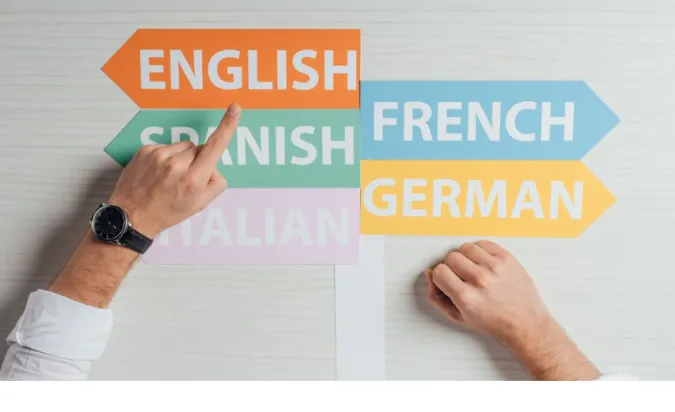
3 Ways to Translate WhatsApp Messages Automatically

Every day, we connect with people around the globe through platforms like WhatsApp. But language barriers can sometimes turn an exciting conversation into a challenging task.

Do you find yourself communicating with individuals who speak different languages? Or are you an avid traveler trying to keep up with multiple dialects?

Luckily, we can easily tackle this problem. With technology, we have various methods to translate WhatsApp messages instantly and automatically.

Let’s dive into the different methods that allow you to break the language barriers on WhatsApp.

How to Translate WhatsApp Messages Instantly?

Here are the five (5) methods you can use;


Method 1: Using Microsoft SwiftKey Keyboard

Microsoft SwiftKey Keyboard is a remarkable tool for breaking down language barriers.

This versatile keyboard has an in-built translation feature that enables you to translate your WhatsApp messages automatically. Sounds fantastic, right?

Here’s how it works:

  • Install the Microsoft SwiftKey Keyboard app from your device’s app store.
  • Set it up as your default keyboard.
  • Open a WhatsApp chat and tap the ‘+’ icon on your SwiftKey Keyboard.
  • Select the ‘Translator’ option and choose your desired language.

And voila! You can now type in your language, and SwiftKey will translate it into the chosen language in real-time. It’s like having an instantaneous translator right at your fingertips!


Method 2: Using WhatsApp Web with Browser Extensions

WhatsApp Web is a great tool for those of us who prefer typing on a keyboard rather than a small screen.

But did you know you can also use it to translate your WhatsApp messages instantly? All you need is a browser extension.

Here’s how to do it:

  • Install a translation extension in your browser such as “Google Translate” for Chrome.
  • Open WhatsApp Web on your computer and scan the QR code with your phone.
  • Now, whenever you receive a message in a different language, highlight the text, right-click, and select the “Translate” option.

With this method, you can have your messages translated in real time without leaving your WhatsApp conversation.

Remember to always stay safe while online and only install trusted browser extensions.


Method 3: Using AI-Powered Translation Bots

AI-powered translation bots are becoming increasingly popular due to their convenience and efficiency.

For our WhatsApp users, these bots can be a game-changer, offering the ability to translate messages in a chat automatically.

One of the popular bots is the Langbox bot. Once added to a WhatsApp group chat, it instantly translates incoming messages into your chosen language.

Here are the steps to use an AI-Powered Translation Bot:

  • Add the bot to your WhatsApp group chat.
  • Send a command to set your desired language.
  • Watch as the bot automatically translates all incoming messages.

Method 4: Using Google Translate App

Google Translate is a household name for language translation, and for good reason. With its vast language support and accuracy, it can also be used to translate WhatsApp messages.

While it might not be as automatic as the previous methods, it’s a reliable tool that comes in handy.

Here’s how to use it:

  • Install Google Translate on your device from your device’s app store.
  • Open a WhatsApp chat and select the text you wish to translate.
  • Tap on “Copy” and then open the Google Translate app.
  • Google Translate should automatically detect that you’ve copied text and offer to translate it.

Method 5: Using Third-Party Translation Apps

Besides the big names, other third-party apps are dedicated to providing seamless translation services, and many of them integrate well with WhatsApp.

These apps offer unique features such as voice, text, and image translation.

A popular choice among users is the “TransKey” app. TransKey integrates directly with your keyboard, allowing you to translate messages on WhatsApp.

Here’s how to set it up:

  • Download and install the TransKey app from your device’s app store.
  • Set it as your default keyboard in your device’s settings.
  • Open WhatsApp, start typing in your language, and TransKey will automatically translate your text into the chosen language.

How Instant Translation Works in WhatsApp

Understanding how instant translation works in WhatsApp is straightforward.

When you receive a message in a different language, these translation tools automatically convert the foreign text into your chosen language or with a few clicks.

All methods mentioned here utilize the power of machine learning and artificial intelligence, which have been trained on large volumes of text data in multiple languages.

These technologies can recognize patterns and grammatical rules in different languages, thus providing reliable and accurate translations.


    Conclusion

    The ability to translate WhatsApp messages instantly and automatically is a boon for those who communicate with people from diverse language backgrounds.

    Whether you choose the Microsoft SwiftKey Keyboard, WhatsApp Web with a browser extension, AI-powered translation bots, the Google Translate app, or third-party translation apps, you now have a solution to the language barrier issue on WhatsApp.

    Each method has its strengths, so choosing the right one for you depends on your needs. The important thing is that thanks to these tools, language is no longer a barrier to communication.

    So go ahead, pick the method that suits you best, and start connecting with the world, no matter the language.


    3 Ways to Translate WhatsApp Messages Automatically Read More »

    fix-whatsapp-not-delivered-not-blocked

    9 Ways to FIX Whatsapp Messages Not Delivered [Not Blocked]

    WhatsApp, one of the world’s most popular instant messaging apps, has become an integral part of our daily communication.

    However, have you ever found yourself in a situation where your WhatsApp message is not delivered, yet the recipient hasn’t blocked you? This situation might leave you puzzled and possibly concerned.

    But worry not! This blog post aims to demystify this issue, providing you with practical solutions and answering your burning questions.

    By the end of this guide, you should be able to troubleshoot this issue effectively and continue your seamless online chats on WhatsApp.


    Understanding WhatsApp’s Message Delivery System

    To troubleshoot effectively, it’s essential to understand how WhatsApp’s message delivery system works. When you send a message on WhatsApp, it goes through several stages, each indicated by a different symbol:

    • Single grey tick (✓): This indicates that your message has been sent from your device, but it has not yet been delivered to the recipient’s device. This could be due to the recipient’s device being offline, or the message is still in the process of being delivered.
    • Double grey ticks (✓✓): This shows that your message has been delivered to the recipient’s device. This doesn’t mean they’ve read your message, only that it’s arrived on their device.
    • Double blue ticks (✓✓): When the ticks turn blue, it signifies that the recipient has opened and read your message. This is unless they’ve turned off read receipts, in which case, the ticks will remain grey even after they’ve read the message.

    Notably, this process relies on a functional internet connection, correct settings, and an up-to-date app. We’ll delve deeper into each of these aspects in our troubleshooting methods.

    If you ever wondered, “What does it mean if only one check mark appears on WhatsApp?”, now you know that it’s all about the message delivery stages.


    How to Fix WhatsApp Messages Not Delivered But Not Blocked

    Here are the nine (9) methods you can use to rectify the problem;


    Method 1: Checking Phone’s Date and Time Settings

    Believe it or not, incorrect date and time settings on your phone can actually interfere with the delivery of your WhatsApp messages.

    This is because WhatsApp synchronizes data on your phone’s date and time settings.

    To ensure this isn’t the problem, check your phone’s date and time settings and make sure they are set to update automatically. Here’s how:

    • Open your device’s settings.
    • Look for the ‘System’ option, then tap ‘Date and time’.
    • Ensure the ‘Automatic date & time’ and ‘Automatic time zone’ options are enabled.

    Method 2: Disable VPN or Proxy

    Using a VPN or Proxy can sometimes interfere with WhatsApp’s ability to send messages. If you have any VPN or Proxy apps installed on your device, try disabling them and see if that solves the issue.

    Here’s how to disable a VPN or Proxy on your device:

    • Navigate to your device’s settings.
    • Search for ‘VPN’ or ‘Proxy’ in the settings search bar.
    • Click on the VPN or Proxy setting and then tap ‘disconnect’ or ‘disable’.

    Remember to send a test message on WhatsApp after disabling the VPN or Proxy to see if it gets delivered.


    Method 3: Reducing Media File Size

    When you’re trying to send a large media file over WhatsApp, it might prevent your message from being delivered. This could be due to a slow internet connection, or perhaps the recipient’s device doesn’t have enough storage space.

    Here’s what you can do:

    • Before sending, compress your media file to reduce its size. There are numerous online tools and apps available for this.
    • Alternatively, you can also send a link to the file if it’s stored on a cloud service like Google Drive or Dropbox.

    By reducing the size of your media file or sending a link instead, you should have no problem delivering your message.

    Remember, large media files can cause issues in other areas as well. For instance, if you’re trying to share a bulky video on “WhatsApp polls“, it could lead to complications.


    Method 4: Check WhatsApp Permissions

    Like many apps, WhatsApp requires certain permissions to operate properly. If these permissions are disabled, you might run into issues, such as messages not being delivered.

    Here’s how to check and enable permissions for WhatsApp on your device:

    • Open your device’s settings.
    • Scroll down and tap on ‘Apps’ or ‘Applications’.
    • Scroll down to find WhatsApp and tap on it.
    • Tap on ‘Permissions’.
    • Make sure all necessary permissions, such as Contacts, Storage, and others, are enabled.

    Method 5: Disable Battery Optimization

    Battery optimization features on your phone can sometimes cause problems with apps like WhatsApp.

    These features can limit the app’s background activity, which might prevent messages from being sent or delivered. Disabling battery optimization for WhatsApp could solve the issue.

    Here’s how to disable battery optimization for WhatsApp:

    • Go to your phone’s settings.
    • Tap ‘Apps’ or ‘Applications’.
    • Find WhatsApp and tap on it.
    • Look for ‘Battery’ or ‘Battery Usage’.
    • Tap on ‘Battery Optimization’ or a similar option.
    • Select ‘Don’t Optimize’ for WhatsApp.

    Method 6: Clearing WhatsApp’s Cache

    Every app you use generates temporary files, also known as cache. This cache can, over time, cause performance issues.

    Clearing it could solve your WhatsApp message delivery problem.

    Here’s how to clear WhatsApp’s cache:

    • Open your device’s settings.
    • Navigate to ‘Apps’ or ‘Applications’.
    • Find WhatsApp and tap on it.
    • Tap on ‘Storage’.
    • Tap on ‘Clear Cache’.

    It’s important to note that clearing the cache will not delete any of your chats or personal data, but it will refresh the app.


    Method 7: Checking If WhatsApp Servers Are Down

    Lastly, the issue might not be on your end at all. Occasionally, WhatsApp servers go down, causing disruptions in service and preventing messages from being delivered.

    To check if this is the issue, you can:

    • Visit a website like Downdetector or Outage.Report which provides real-time reports on the status of various services, including WhatsApp.
    • Check social media platforms like Twitter. Users typically report issues with services like WhatsApp here, and you can check for trending hashtags related to WhatsApp outages.

    If it turns out that WhatsApp servers are down, you can only wait for the issue to be resolved. You can continue to check the status on the websites mentioned above.


    Method 8: Check Your Internet Connection

    Before we go further, the first step in troubleshooting is to ensure you have a stable internet connection. WhatsApp messages can’t be delivered without a reliable internet connection.

    Here’s how to check:

    • WiFi: Make sure you’re connected to a WiFi network and that the network has internet access. Try loading a webpage or a video to confirm this.
    • Mobile Data: If you’re using mobile data, ensure it’s turned on and has sufficient data balance. You can also try toggling the data off and on, or switching to airplane mode and then back, to refresh the connection.
    • Restart Router/Modem: If you’re connected to WiFi and having issues, try restarting your router or modem. Unplug the device, wait a few minutes, then plug it back in.

    Method 9: Update & Restart WhatsApp

    If you’re using an outdated WhatsApp version, it might cause your message delivery issues. Developers continually update apps to fix bugs and improve functionality.

    Failing to update your apps can sometimes lead to performance issues.

    Here’s how to update WhatsApp on your device:

    • Open the app store on your device (Google Play Store for Android, Apple App Store for iOS).
    • Tap on ‘My apps’ or ‘Updates’.
    • Scroll to find WhatsApp and click ‘Update’ if available.

    Also, sometimes the best solution to tech issues is the simplest one—restarting your device.

    This can help clear any temporary software glitches that may prevent your messages from being delivered on WhatsApp.


    Frequently Asked Questions (FAQ)

    Q1: Why would a WhatsApp message not get delivered?

    A1: There could be several reasons why a WhatsApp message is not delivered. This includes issues with the recipient’s phone, their internet connection, the WhatsApp server, or even your own internet connection or phone settings.

    Q2: What does it mean if only one check mark appears on WhatsApp?

    A2: If only one check mark appears next to your WhatsApp message, it means that the message has been sent from your device but has not been delivered to the recipient’s device. This could be due to the recipient’s device being switched off, or they could be experiencing internet connectivity issues.

    Q3: Why are some WhatsApp broadcast messages not delivered?

    A3: If a WhatsApp broadcast message is not delivered, it could be due to the recipient not having your number saved in their contacts. WhatsApp only sends broadcast messages to recipients who have saved your number in their contacts.

    Q4: How can I ensure my WhatsApp messages are always delivered?

    A4: To ensure your WhatsApp messages are always delivered, always maintain a stable internet connection, keep your app updated, regularly clear the app’s cache, and ensure your device has enough storage space.

    You should also avoid sending large media files over WhatsApp, as this can cause delivery issues.

    To dive deeper into WhatsApp functionalities, check out "Can WhatsApp Replace SMS?".

    Conclusion

    While a reliable and user-friendly platform, WhatsApp can sometimes present you with puzzling scenarios, such as messages not being delivered even though you’re not blocked.

    This issue could stem from various factors, including connection problems, device settings, app updates, or even server issues.

    Following the nine methods we’ve detailed, you should be able to diagnose and solve this problem efficiently. Remember, the key is to be patient and methodical.


    9 Ways to FIX Whatsapp Messages Not Delivered [Not Blocked] Read More »

    sms-or-whatsapp-for-business-use-communication

    WhatsApp or SMS: Which Fits Your Business Communication?

    Choosing the right communication channel is a key decision in the journey of establishing your business.

    When it comes to mobile messaging, two of the most prominent platforms are SMS and WhatsApp for Business.

    Both of these platforms have unique advantages that can boost your customer engagement and overall business communication.

    In this blog post, we’ll delve into what these platforms offer, their advantages and disadvantages, their costs, and how they handle customer engagement.

    By the end, you’ll be well-equipped to decide whether to use SMS or WhatsApp for business.


    Quick Answer: Choosing between SMS and WhatsApp for Business

    Deciding between SMS and WhatsApp for business ultimately comes down to your specific business needs and target audience.

    If you’re targeting a global audience heavily reliant on internet access, WhatsApp for Business might be the better choice. It offers advanced features like group chats, media sharing, and end-to-end encryption.

    On the other hand, if you need a reliable communication channel with a broad reach, and doesn’t require internet access, SMS for Business might be the ideal choice.

    It’s particularly effective in regions where internet connectivity is challenging or for audiences less accustomed to internet-based apps.


    Understanding SMS for Business

    What is SMS for Business?

    SMS for Business, also known as Business SMS or Text Message Marketing, is a method of communicating with customers and potential clients through text messages.

    These messages can include anything from promotional offers and alerts to appointment reminders and customer service updates.

    Advantages of SMS for Business

    • Broad Reach: SMS doesn’t require internet access, which makes it a viable option for reaching customers who might not have consistent internet connectivity.
    • High Open Rates: Given the directness of SMS, it’s reported that over 90% of text messages are opened and read within the first three minutes.
    • Flexibility: SMS can be used for various purposes, including marketing promotions, reminders, alerts, and customer service.

    Disadvantages of SMS for Business

    • Limited Features: Unlike WhatsApp, SMS is primarily text-based. Businesses can’t send multimedia content like images, videos, or documents through SMS.
    • Cost Considerations: Depending on your location and the scope of your operations, sending SMS messages can be more expensive than using internet-based platforms like WhatsApp.
    • Regulatory Restrictions: In many regions, strict regulations govern the use of SMS for business purposes, which businesses must adhere to.

    Exploring WhatsApp for Business

    What is WhatsApp for Business?

    WhatsApp for Business is a free-to-download app built specifically for small and medium businesses.

    It’s designed to help businesses interact with their customers more efficiently, with features like quick replies, label organization, and automated messaging.

    For larger companies, WhatsApp offers an API solution that allows them to connect the platform with their existing customer service infrastructure.

    Advantages of WhatsApp for Business

    • Media Sharing: Unlike SMS, WhatsApp allows businesses to send images, videos, documents, and even voice messages. This opens up a multitude of possibilities for creative marketing and customer service.
    • Global Reach: With over 2 billion users globally, WhatsApp can help businesses tap into a massive, global user base.
    • End-to-End Encryption: All WhatsApp messages are end-to-end encrypted, ensuring the security and privacy of your business communication.

    Disadvantages of WhatsApp for Business

    • Internet Dependent: Unlike SMS, WhatsApp requires an internet connection to function. This can be limiting in areas with poor or inconsistent internet access.
    • Less Direct: While WhatsApp does boast a large user base, there’s no guarantee that your message will be seen immediately. It’s dependent on when users check their app, whereas an SMS pops up directly on the phone’s screen.
    • Setup Complexity: Setting up WhatsApp for Business, especially the API solution, can be more complex than SMS.

    Direct Comparison: SMS vs. WhatsApp for Business

    When comparing SMS and WhatsApp for Business, several factors come into play. Let’s break them down:

    Cost

    While both SMS and WhatsApp involve costs, they occur in different areas. With SMS, you’re typically paying per message sent, especially for international messages.

    The costs can add up, particularly for larger businesses.

    On the other hand, WhatsApp is a free platform, but it does require an internet connection, which may be a cost factor for some users.

    Plus, if you’re integrating with the WhatsApp Business API, there may be additional costs associated.

    Features

    In terms of features, WhatsApp for Business has the upper hand. It allows for sending not just text messages but also photos, videos, documents, and voice messages.

    Additionally, it provides business profiles, automated responses, and catalog features.

    While limited to text, SMS offers the advantage of directness and high open rates. It’s a reliable way of ensuring your message reaches the customer, as long as they have a mobile network signal.

    Reach

    Both platforms have the potential for broad reach. SMS can reach any mobile phone, regardless of the model or internet connectivity.

    WhatsApp, however, has a vast global user base of over 2 billion people.

    Integration

    WhatsApp for Business, especially with its API, can be integrated into other business systems like your CRM or customer service tools.

    This could be a significant advantage for businesses looking to streamline their customer communications.

    While less sophisticated, SMS can also be integrated into various marketing platforms. However, it might not offer the same level of functionality as WhatsApp.


    Frequently Asked Questions (FAQ)

    Q1. What is the difference between SMS and WhatsApp for Business?

    The main difference between SMS and WhatsApp for Business is the platform they operate on. SMS, or Short Message Service, is a text messaging service that operates without an internet connection, allowing messages to be sent directly to a mobile phone number.

    On the other hand, WhatsApp for Business is an internet-based service that requires the user and the receiver to have the app installed on their devices.

    Q2. Why do people use WhatsApp instead of SMS?

    Many people use WhatsApp instead of SMS because it allows for richer communication. You can send images, videos, documents, and even phone calls.

    Additionally, it can be more cost-effective, especially for international communication.

    Q3. Should a business use WhatsApp?

    A business could benefit from using WhatsApp, particularly if it has an international customer base. With over 2 billion users, it offers a large potential audience.

    Features like automated responses and business profiles can enhance customer interaction. However, it’s essential to consider the nature of your business and your customers’ preferences.

    Q4. SMS or WhatsApp for business?

    Choosing between SMS or WhatsApp for business depends on your business’s specific needs and circumstances.

    Consider your target audience’s demographics, preferences, your operational region’s internet connectivity, and the nature of the messages you wish to send.


    Conclusion

    Choosing between SMS and WhatsApp for Business is a significant decision that can impact your business communication strategy.

    Each has its strengths and weaknesses, and the choice ultimately depends on your business needs and the preferences of your target audience.

    Remember that you aren’t necessarily restricted to one or the other. Many businesses successfully use a mix of both to communicate with their customers effectively.

    The key is to understand the nuances of each platform and use them strategically to your advantage.


    WhatsApp or SMS: Which Fits Your Business Communication? Read More »

    whatsapp-busy-status-quotes

    21 “Can’t Talk Whatsapp Only” Quotes [Ultimate Status Guide]

    If you’ve landed here, you’re likely searching for the perfect “Can’t Talk WhatsApp Only” quote.

    Whether you’re ducking an annoying call, focusing on an important task, or prefer texting over talking, these quotes can serve as your digital Do Not Disturb sign.

    In this blog post, we’ve curated 21 unique and creative “Can’t Talk WhatsApp Only” quotes just for you.

    These quotes are relatable and designed to balance wit, humor, and polite refusal. So let’s jump right in!


    Why Use a “Can’t Talk WhatsApp Only” Quote?

    Using a “Can’t Talk, WhatsApp Only” quote as your WhatsApp status is a fun way to express yourself and a simple and efficient method to convey your availability to your contacts.

    Here’s why:

    • Clarity: It leaves no room for ambiguity. Your friends and colleagues will know immediately that you’re unavailable for calls but open to text communication.
    • Convenience: It’s easier than individually informing everyone who might try to call you.
    • Creativity: It allows you to express your current status in a unique, fun, and creative way, showing off your personality.
    If you're curious about the other uses of WhatsApp, our articles on "How anonymous are WhatsApp polls" and "can WhatsApp replace SMS" could provide you with some interesting insights.


    List of WhatsApp Status Quotes To Indicate You Are Currently Busy

    Here are the 21 “Can’t Talk WhatsApp Only” similar quotes you can use.


    • Quote 1: “My tongue is tied, but my fingers are lightning fast on WhatsApp. Let’s type away! 🤐⚡💬
    • Quote 2: “Phone on mute, vibes on WhatsApp. Let’s chat in the land of 📱🔇💬
    • Quote 3: “In a world of endless chatter, I choose the realm of WhatsApp silence. 🌍🤫💬
    • Quote 4: “In silent mode. Talk to text only! 🤫”
    • Quote 5: “Reserving my voice for the soliloquy of my thoughts. Talk to text only! 🧠”
    • Quote 6: “Engrossed in the world of letters. Talk to text only! 🌐”
    • Quote 7: “Communicating in codes, one text at a time. Talk to text only! 💬”
    • Quote 8: “In my text-only territory. Talk to text only! 🚧”
    • Quote 9: “In the midst of a texting marathon. Talk to text only! 🏁”
    • Quote 10: “Carving out my world in texts. Talk to text only! ✍️”
    • Quote 11: “Plugged into the text matrix. Talk to text only! 🎧”
    • Quote 12: “Surfing on waves of texts. Talk to text only! 🏄‍♀️”
    • Quote 13: “Powering up in the text-only mode. Talk to text only! 🔋”
    • Quote 14: “Concert in the shower in progress, so texting preferred! 🎤”
    • Quote 15: “Hopping between tasks like a busy bunny, text me! 🐇”
    • Quote 16: “Screening calls like a movie critic. Text, don’t call! 🎬”
    • Quote 17: “Amplifying the sound of silence. Text, please! 🤐”
    • Quote 18: “Recharging in quiet mode. Text over talk! 📴”
    • Quote 19: “My voice is on a break. Text me, please! 🗣️”
    • Quote 20: “On a vocal vacation. Text messages welcomed! 🏖️”
    • Quote 21: “At a dreamy meeting. Text, don’t call! 💭”

    How to Change Your WhatsApp Status and Include Quotes

    If you’ve found the perfect quote and now want to set it as your WhatsApp status, this section is for you. Follow these simple steps to change your WhatsApp status to reflect your current communication preference:

    • Open WhatsApp on your smartphone.
    • At the bottom of the screen, you’ll see several tabs. Tap on the ‘Status’ tab.
    • You’ll see a ‘+’ sign or ‘My Status’ option. Click on it.
    • You’ll now have two options: to take a new photo or select one from your gallery. But for text status, just tap on the pencil icon at the bottom right.
    • Now, type in your desired quote. You can use any of the ‘Texting Preferred’ quotes we’ve listed above.
    • Choose a background color for your status message by tapping on the color palette icon.
    • Once you’ve typed your quote and selected a background color, tap on the send icon (looks like a paper airplane) at the bottom right.
    For more tips and tricks about WhatsApp, be sure to visit our articles on how anonymous are WhatsApp polls and whether WhatsApp calls are stored. These resources will give you a better understanding of the popular communication app.

    Tips for Crafting Your Own ‘Texting Preferred’ Quote

    Creating your own quote for WhatsApp status can be a fun and rewarding experience. Here are some tips to guide you in crafting your unique ‘Texting Preferred’ quote:

    • Keep It Short and Sweet: WhatsApp status quotes should be concise yet meaningful. People often skim through statuses, so make sure your quote can be understood at a glance.
    • Use Emojis Wisely: Emojis are a great way to express emotions and make your quote more interesting. However, don’t overload your quote with emojis as it can make the quote hard to understand.
    • Show Your Personality: Your quote is a chance to express your unique personality. Be creative, humorous, or profound – whatever reflects you best.
    • Stay Positive: Keep your quote positive or neutral. Remember, all your contacts can see your WhatsApp status, so it’s best to avoid anything that might be taken negatively.
    • Test It Out: Before setting a quote as your status, send it to a few close friends. Ask them for feedback. Do they understand what you’re trying to convey?

    Common Questions Around ‘Texting Preferred’ Status

    This section covers some common queries about changing WhatsApp status. Whether you’re a seasoned WhatsApp user or a novice, these questions and answers might provide valuable insights.

    Q1: Can everyone see my WhatsApp status?

    A: By default, all your contacts can view your WhatsApp status. However, you can adjust your privacy settings to limit who can see your status updates.

    Q2: How long does my WhatsApp status last?

    A: WhatsApp statuses last for 24 hours from the time they’re posted. After that, they disappear automatically.

    Q3: Can I set a status quote for specific people?

    A: Currently, WhatsApp doesn’t allow you to set different statuses for different contacts. Your status will be visible to everyone, or the contacts you select in your privacy settings.

    Q4: How often can I change my status on WhatsApp?

    A: There’s no limit to how often you can change your status. You can update it as many times as you want, keeping in mind that each update lasts for 24 hours.

    Q5: Can I use special characters in my WhatsApp status?

    A: Yes, you can use emojis, symbols, and even special characters like hashtags and asterisks in your WhatsApp status.


    Wrapping It Up

    There you have it! We’ve covered a variety of unique and creative ‘Texting Preferred’ quotes that you can use for your WhatsApp status.

    We also guided you on setting your WhatsApp status and shared some handy tips for creating your custom quote.

    Remember, your WhatsApp status is a creative outlet for expressing your current state of mind, availability, or simply your personality.

    Feel free to use the quotes we’ve provided, tweak them, or even come up with your own.


    21 “Can’t Talk Whatsapp Only” Quotes [Ultimate Status Guide] Read More »

    whatsapp-qr-code-for-business-and-personal-use

    Guide on WhatsApp QR Codes [for Business & Personal Use]

    Welcome to the fascinating world of QR codes in WhatsApp.

    QR codes, those little black-and-white squares you’ve probably seen in various places, have become an integral part of the world’s most popular messenger app, WhatsApp.

    From simple chat exchanges to sophisticated business interactions, QR codes have introduced convenience and efficiency to our communication.

    WhatsApp QR codes can be used both for personal and business purposes. These codes let you quickly share your contact details or access someone else’s, just by scanning the code using your phone’s camera.

    Whether it’s about adding a new friend or connecting with a potential business partner, QR codes have made the process a breeze.


    Quick Answer: What are WhatsApp QR Codes and Their Main Uses

    WhatsApp QR codes are two-dimensional barcodes that contain a pattern of black squares arranged on a white background.

    The QR stands for “Quick Response,” a nod to the speed at which these codes can transmit information.

    Some main purposes of using WhatsApp QR codes are;

    • Ease of Adding Contacts
    • Business Connectivity
    • Group Invitations
    • WhatsApp Web/Desktop

    Understanding What a WhatsApp QR Code Is

    WhatsApp QR codes are, in essence, a bridge between the digital and physical world.

    These QR codes are unique identifiers that provide a quick and simple method to share contact information or initiate conversations on WhatsApp.

    A WhatsApp QR code is a two-dimensional barcode like any other QR code. It contains a pattern of black squares arranged on a white square grid, which an imaging device, such as a camera can read.

    When the WhatsApp camera scans this pattern, it translates into an action, like adding a contact or starting a conversation.

    Think of WhatsApp QR codes as digital business cards. They contain encoded contact information – your phone number and the name you’ve chosen for yourself on WhatsApp.

    However, unlike business cards, they are easily shareable and don’t get lost in your wallet!

    While the information within a WhatsApp QR code isn’t visible to the human eye, it’s readily accessible with a QR code reader.

    But here’s a quick reassurance – Does WhatsApp QR code share your phone number? It shares a link to your WhatsApp account, not the actual phone number.


    For Personal Use

    How to Generate and Scan Your Personal WhatsApp QR Code

    A WhatsApp QR code simplifies adding new contacts to your chat list. No more manually entering phone numbers! Here’s how you can generate your own QR code and scan others:

    • Generate Your QR Code: Open WhatsApp and tap the three dots on the top right corner to access the ‘Settings.’ Here, you’ll see a tiny QR icon next to your name. Tapping this will reveal your personal QR code.
    • Scan a QR Code: You’ll see a ‘Scan Code’ tab in the same QR code screen. Tap it, and your phone’s camera will open, ready to scan any WhatsApp QR codes in its view.
    • Sharing Your QR Code: You can share your QR code with others by tapping the ‘Share’ button. This can be done via email, messaging apps, or even directly in person by showing them the QR code on your phone.

    Remember, What does a QR code allow you to do? It allows you to share your WhatsApp contact details quickly and securely, without revealing your phone number directly.

    Benefits of Using WhatsApp QR Code in Personal Communication

    WhatsApp QR codes aren’t just a novelty. They offer several benefits, especially when it comes to personal communication:

    • Speed and Convenience: Adding a contact on WhatsApp has never been easier. No more manual entry of phone numbers – just scan and chat!
    • Privacy: When you share your QR code, you’re not directly revealing your phone number. This adds an extra layer of privacy to your interactions.
    • International Friendliness: Whether you’re meeting a local friend or making new friends abroad, WhatsApp QR codes work universally. There’s no need to worry about country codes or incorrectly entered numbers.

    Troubleshooting: What to Do If Your Personal WhatsApp QR Code Isn’t Working

    WhatsApp QR codes are generally trouble-free. However, if you encounter any issues, such as no valid QR code for WhatsApp, try these simple steps:

    • Ensure your phone’s camera lens is clean and unobstructed.
    • Check the lighting. QR codes require good contrast between the black and white areas to be read correctly.
    • Update your WhatsApp to the latest version. Sometimes, the issue could be a bug that’s already fixed in the newest update.
    • If the problem persists, you might want to check out this article on how to fix a non-working QR code on WhatsApp.

    For Business Use

    How to Generate and Use a WhatsApp Business QR Code

    A WhatsApp Business QR code can be a game-changer if you own a business. This simple tool can streamline your communication and elevate customer experience.

    Here’s how you can generate and use a QR code for your WhatsApp Business profile:

    • Generate Your Business QR Code: Open your WhatsApp Business app and go to ‘Settings.’ Tap ‘Business Tools,’ then ‘Short Link.’ At the bottom of the screen, you’ll find your unique QR code. You can view, share, or even reset your QR code from here.
    • Share Your Business QR Code: Share your QR code on your business cards, promotional materials, website, or social media platforms. Customers can then scan your QR code to initiate a conversation without needing to save your number.
    • Automate a Greeting Message: By scanning your QR code, you can set a default greeting message that customers will see when they start a chat. This can help provide immediate context and set expectations for the conversation.

    Benefits of Using a WhatsApp Business QR Code

    Using a WhatsApp Business QR code can bring a multitude of benefits:

    • Enhanced Customer Convenience: Customers can start a conversation with your business without saving your phone number or typing a message. All they need to do is scan your QR code.
    • Improved Efficiency: The QR code can direct customers to your WhatsApp Business profile, freeing up your time to focus on customer service rather than administrative tasks like sharing contact details.
    • Greater Reach: By displaying your QR code on various platforms, you increase the chance of reaching more customers.
    • Automation and Context: By setting up a default greeting message for QR code scans, you can guide the conversation and provide immediate context to the customer.

    Frequently Asked Questions (FAQ)

    Q1. Does WhatsApp QR Code Share Your Phone Number?

    No, when someone scans your WhatsApp QR code, they are not directly accessing your phone number. Instead, the QR code allows them to chat with you on WhatsApp without manually inputting your phone number.

    Q2. Can WhatsApp Calls Be Traced Through QR Codes?

    No, the QR codes in WhatsApp are solely for initiating chats. They have no bearing on call tracking. However, WhatsApp does use end-to-end encryption for both messages and calls.

    If you’re interested, here’s a post explaining how traceable WhatsApp calls are.

    Q3. Can I Use WhatsApp Without a Phone if I Have a QR Code?

    While a QR code allows easy access to chat with a contact or join a group, you still need a phone with an active WhatsApp account to use the service.

    If you’re curious about how to access WhatsApp without a phone, you might find this article helpful.

    Q4. What Happens If My WhatsApp QR Code Is Scanned by Someone I Don’t Know?

    When someone scans your QR code, they can initiate a chat with you on WhatsApp. However, they don’t get any additional information like your phone number.

    You can block the contact or report it on WhatsApp if you’re uncomfortable.


    Conclusion

    In this digital age where convenience is key, QR codes have emerged as a simple yet powerful tool to streamline various processes.

    In WhatsApp, QR codes can serve as a bridge connecting you to your contacts, your business to its customers, or community members in a group chat, all without the need to type in a phone number or a group invite link.

    From personal use, where you connect with friends and family, to business use, where you engage with customers and even group chats for your various communities, the utility of WhatsApp QR codes is clear.

    It’s a testament to how technology, when harnessed correctly, can make our lives that much easier.

    As we explored the various use cases and benefits of WhatsApp QR codes, we hope this guide has equipped you with the knowledge to harness this powerful feature to enhance your WhatsApp experience.

    Don’t hesitate to explore and use QR codes – they are here to simplify your digital journey.


    Guide on WhatsApp QR Codes [for Business & Personal Use] Read More »

    access-whatsapp-without-phone

    5 Ways to Access WhatsApp Without Your Phone [Here’s How]

    Have you ever found yourself in a tricky situation where you need to access your WhatsApp, but your phone isn’t within reach?

    Fret not, because I’m here to guide you on how to get WhatsApp QR code without phone.

    You’ll be surprised how many ways there are to circumvent this hurdle, and today, we will explore different methods to get you back on track.

    Now, I hear you asking, “Is there a way to access WhatsApp without phone?“.

    The short answer is, absolutely yes! You can employ several strategies; we’ll discuss them in detail in this post.


    How to Access WhatsApp Without Your Phone

    Here are the five (5) ways you can do so;


    Method 1: Using WhatsApp Web

    WhatsApp Web is the first method we will explore. This handy service allows you to access your WhatsApp account on any computer through a web browser, without having your phone nearby.

    Here’s a step-by-step guide on how to do this:

    • Borrow a friend’s phone and install WhatsApp, if it isn’t already there. Ensure you’re logged out of their account.
    • Register using your own phone number. You’ll receive a verification code via SMS. Enter this to log in.
    • Once logged in, visit the WhatsApp Web section within the app.
    • On your computer, navigate to the WhatsApp Web site.
    • A QR code will appear on the screen. Scan this using the friend’s phone where you logged into your account.
    • Voila! You’re now logged into your WhatsApp account on your computer.

    Always log out from the borrowed device for privacy and security reasons after use.

    You may wonder, “Can I login to WhatsApp Web without scanning the QR code?“. Unfortunately, this isn’t currently possible as the QR code acts as a unique identifier to securely log you in.


    Method 2: Using WhatsApp Desktop App

    Much like WhatsApp Web, the WhatsApp Desktop app allows you to access your messages on a larger screen, adding a layer of convenience for those who prefer typing on a physical keyboard.

    Follow these steps to use the WhatsApp Desktop app:

    • Similar to the previous method, use a friend’s phone to install and log in to your WhatsApp account.
    • Download and install the WhatsApp Desktop app on your computer.
    • Launch the app, and you will see a QR code on the screen.
    • Scan this QR code using your friend’s phone where your WhatsApp account is logged in.
    • And there you go! You are now logged into your WhatsApp account on your desktop.

    Just like with WhatsApp Web, always ensure to log out of your WhatsApp account on the borrowed device after use.


    Method 3: Using Screen Mirroring

    Screen mirroring is another effective method to access WhatsApp without having your phone in hand. This method relies on mirroring your WhatsApp interface from a friend’s phone onto your computer.

    Here’s how you can do it:

    • Borrow a friend’s phone and install WhatsApp, if it isn’t already there. Remember to log out of their account.
    • Register using your own phone number. You’ll receive a verification code via SMS, which you will need to input.
    • Install a screen mirroring app on your friend’s phone. Applications such as ApowerMirror, TeamViewer, or AirDroid work great for this purpose.
    • Open the screen mirroring app and follow the instructions to connect it with your computer.
    • Once connected, your friend’s phone screen will be mirrored onto your computer. You can now access your WhatsApp account directly from your computer.

    Don’t forget to log out from the borrowed device after use.


    Method 4: Using Remote Access Software

    Remote access software allows you to control another device from your computer. This can be useful if you have your phone at a different location and someone to help you set it up.

    Here’s how you can use remote access software to access WhatsApp:

    1. Have someone you trust at the location of your phone. Ask them to install remote access software such as TeamViewer on your phone.
    2. Install the same remote access software on your computer.
    3. Ask the person at your phone’s location to open the software and share the access code with you.
    4. Input the access code on your computer’s software. You should now be able to see and control your phone screen from your computer.
    5. Navigate to WhatsApp on your phone screen. You can now use WhatsApp as if you had your phone with you.

    Remember, this method grants total access to your phone, so using it with someone you trust completely is crucial.


    Method 5: Using Android Emulators

    If you’re an enthusiast for testing applications or playing Android games on your computer, you might already be familiar with Android emulators.

    Emulators like BlueStacks or Nox allow you to run Android applications on your computer, including WhatsApp.

    Here’s how you can do it:

    • Download and install an Android emulator on your computer. BlueStacks and Nox are both great choices.
    • Open the emulator and navigate to the Google Play Store.
    • Search for WhatsApp and install the app.
    • Open WhatsApp and register with your phone number. You’ll receive a verification code via SMS. Input this to log in.
    • Now you can use WhatsApp just as you would on your phone, right from your computer.

    This method offers a mobile-like experience and is a great way to access WhatsApp without a phone.

    Remember, this method might be a bit more resource-intensive than others, as running an emulator can consume significant computer resources.


    Frequently Asked Questions (FAQ)

    Q1. Can I login to WhatsApp Web without scanning the QR code?

    Unfortunately, the QR code is an essential security feature for logging into WhatsApp Web. It ensures that only you can access your WhatsApp account on your computer.

    So, there’s no way to bypass it within the application itself. However, the methods mentioned in this guide can help you overcome this challenge if you don’t have your phone.

    Q2. Is there a way to access WhatsApp without phone?

    Yes, there are several ways to access WhatsApp without your phone, as detailed in this guide.

    You can use options like WhatsApp Web, WhatsApp Desktop app, Android emulators, third-party QR code scanners, screen mirroring, and remote access software.

    Q3. How can I get someone’s WhatsApp barcode?

    For security and privacy reasons, it’s not advisable, and it’s against WhatsApp’s terms of service to try and get someone else’s WhatsApp barcode.

    The barcode is personal and protects the user’s messages and personal data.


    Conclusion

    Accessing WhatsApp without your phone may seem difficult, but it’s entirely possible with the right tools and a little know-how.

    Whether you’re using WhatsApp Web, the WhatsApp Desktop app, Android emulators, third-party QR code scanners, screen mirroring, or even remote access software, there’s a way to keep up with your WhatsApp conversations even when your phone isn’t readily available.

    Remember, the security of your WhatsApp data is crucial. Always be sure to log out of any devices you’re borrowing and don’t share your personal QR code.

    Following these steps will ensure you can access your messages whenever you need them, while still keeping your personal information secure.

    That wraps up our discussion for today. If you’re interested in more tips and tricks for navigating the digital world, check out some of our other articles, like how to know if your WhatsApp QR code has been scanned.


    5 Ways to Access WhatsApp Without Your Phone [Here’s How] Read More »

    can-whatsapp-replace-sms

    Can WhatsApp Replace SMS? [7 Features Compared & Analyzed]

    In the world of mobile communication, two names often come to the forefront – traditional SMS and the popular messaging app, WhatsApp.

    The question we often grapple with is, can WhatsApp replace SMS altogether? With the rise in the use of internet-based messaging apps like WhatsApp, this seems like a natural progression.


    Quick Answer

    WhatsApp has indeed brought a revolution in the world of mobile communication, offering features that surpass traditional SMS.

    From instant messaging, sharing multimedia files, to encryption for better security – it has it all.

    However, while WhatsApp needs a data plan or Wi-Fi to function, SMS is ubiquitous, working even without an internet connection. So, can WhatsApp replace SMS?

    In areas with robust internet access, yes. But, considering places with limited or no internet access worldwide, SMS still holds a crucial role.


    Comparing Whatsapp Over SMS

    Here are the comparison of seven (7) features between the two;


    1. Superior Features of WhatsApp Over SMS

    When we compare WhatsApp with traditional SMS, several features make WhatsApp stand out:

    Rich Media Sharing

    Unlike SMS, WhatsApp allows users to share photos, videos, voice messages, documents, and even locations seamlessly.

    This is a significant advantage of WhatsApp over traditional SMS, limited to text and simple graphics.

    Group Conversations

    WhatsApp enables you to create group chats, allowing simultaneous conversation with multiple contacts.

    This feature is virtually nonexistent in the SMS world, making WhatsApp an excellent personal and professional communication tool.

    Voice and Video Calls

    WhatsApp isn’t just a messaging app; it’s a comprehensive communication platform. Besides texting, it also provides voice and video call capabilities – features not found in the SMS sphere.

    Read Receipts and Last Seen

    WhatsApp lets you know if your message was delivered and read. The “last seen” feature indicates when the recipient was last online. In contrast, SMS does not provide such interactive features.


    2. Pros and Cons of Using WhatsApp vs. SMS

    As we compare WhatsApp and SMS, it’s essential to understand the advantages and disadvantages of both. Let’s break it down:

    Pros of Using WhatsApp:

    • Offers end-to-end encryption, ensuring your messages, calls, and shared files are secure.
    • Enables diverse content sharing, including text, images, videos, documents, and more.
    • It provides voice and video calling features, making it more than just a text messaging platform.
    • Supports group chats for effortless coordination with multiple contacts.

    Cons of Using WhatsApp:

    • Requires an active internet connection (data or Wi-Fi).
    • Your conversations are tied to your device, and transferring your chat history to a new phone can be tricky.

    Pros of Using SMS:

    • It doesn’t require internet connectivity, making it universally accessible.
    • It is pre-installed on every cell phone, making it readily available.

    Cons of Using SMS:

    • Lacks advanced features like media sharing, voice/video calling, and group chats.
    • Limited to 160 characters per message.
    • Doesn’t provide the same level of security encryption as WhatsApp.

    While WhatsApp is more feature-rich, SMS still stands its ground due to its wide accessibility and simplicity. Is it possible for WhatsApp to completely replace SMS in the future?


    3. Future Outlook: Can WhatsApp Really Replace SMS?

    The debate of WhatsApp versus SMS often boils down to the question, “Can WhatsApp completely replace SMS in the future?” As it often is with technology, the answer is yes and no.

    Yes, because WhatsApp and similar internet-based messaging apps provide superior features, better security with end-to-end encryption, and the ability to share rich media.

    As internet connectivity becomes more ubiquitous worldwide, the reliance on these apps may increase.

    But it’s also no because there are still many areas worldwide where internet connectivity is poor or non-existent.

    In these places, SMS remains a reliable form of communication that doesn’t require Wi-Fi or data.

    SMS is universally accessible as it’s pre-installed on every cell phone, whereas WhatsApp needs to be downloaded and installed.

    Furthermore, SMS is critical in two-factor authentication (2FA) processes, emergency alerts, and provider service messages, which are areas where WhatsApp doesn’t currently dominate.

    For these reasons, it’s unlikely that WhatsApp will replace SMS anytime soon. The future might hold a more integrated approach, combining both benefits.

    Do you wonder about where WhatsApp stores your data? Our blog post on "Are WhatsApp Stored on Phone or SIM?" might be of interest.

    4. Accessibility and Usage Requirements: WhatsApp vs. SMS

    Understanding the accessibility and usage requirements of both WhatsApp and SMS is crucial to determine their feasibility as communication methods.

    WhatsApp

    You need a smartphone with an active internet connection (data or Wi-Fi) to use WhatsApp. Additionally, the application must be downloaded and installed, and you must register an account using a valid mobile number.

    It’s also important to note that both sender and receiver must install the WhatsApp app on their phones for successful communication.

    SMS

    On the other hand, to use SMS, you only need a mobile phone, even a basic one without internet capabilities. There’s no need to download or install any app, and no account registration is required.

    As long as the mobile phone has cellular network access, SMS can be sent and received.

    While the accessibility and usage requirements of WhatsApp may seem more complex than those of SMS, the advanced features and capabilities offered by WhatsApp make it an attractive choice for many.

    Plus, the growth in smartphone usage and internet connectivity worldwide leads to wider adoption of apps like WhatsApp.

    If you're having issues scanning your WhatsApp QR code, you might find our guide on "Fix No Valid QR Code WhatsApp" useful.

    5. Privacy and Security: WhatsApp vs. SMS

    When discussing WhatsApp vs. SMS, privacy and security aspects cannot be overlooked.

    WhatsApp

    This platform offers end-to-end encryption for all its services. This means that only you and the person you’re communicating with can read your messages and listen to your calls, and nobody else in between.

    This encryption extends to photos, videos, and file attachments.

    Moreover, WhatsApp also has two-step verification for an additional layer of security. This prevents others from using your WhatsApp account, even if they get access to your SIM or phone number.

    For a more in-depth understanding, you can check our article, "Can WhatsApp Calls Be Traced?".

    SMS

    On the other hand, traditional SMS does not offer the same level of security as WhatsApp. While your messages might be safe from casual snooping, they are not encrypted like WhatsApp messages.

    Therefore, they could potentially be intercepted or read by third parties.

    In terms of privacy, anyone can read SMS messages with access to your phone unless you have specifically installed an app to password-protect them.

    In contrast, WhatsApp has an app lock feature that allows you to secure your messages with fingerprint or face recognition.

    In conclusion, WhatsApp has the upper hand over SMS from a privacy and security perspective due to its robust encryption and security features.


    6. Costs Involved: WhatsApp and SMS Compared

    When comparing WhatsApp and SMS, understanding the costs involved for each can provide more clarity.

    WhatsApp

    Using WhatsApp is essentially free, as it uses your phone’s internet connection to send messages, make calls, video chats, and share media.

    However, it’s important to note that WhatsApp does consume data, which might incur costs depending on your data plan. On Wi-Fi, no additional costs are involved, unless you exceed your internet package limit.

    SMS

    The cost of sending SMS messages can vary significantly, depending on your mobile carrier and plan. Some providers offer unlimited texting, while others may charge per message sent, especially for international texts.

    In summary, while WhatsApp can often be cheaper, especially for international messaging and calls, it requires a stable internet connection.

    SMS, while potentially more expensive, particularly for international communication, can be accessible anywhere with cellular service, regardless of internet availability.


    7. User Experience: SMS or WhatsApp?

    Let’s dive into the user experience offered by both SMS and WhatsApp, as it’s one of the significant factors influencing users’ preference.

    SMS

    SMS is straightforward to use, with no need for an internet connection. Its text-only platform allows users to send and receive short text messages.

    While MMS (Multimedia Messaging Service) enables sending pictures, videos, and audio, it’s not as seamless or reliable as on internet-based platforms.

    WhatsApp

    WhatsApp provides a rich user experience with a plethora of features. Besides texting, you can share photos, videos, documents, and even your location.

    You can also make voice and video calls, create group chats, and post status updates. Moreover, WhatsApp supports end-to-end encryption, offering a more secure communication channel.

    WhatsApp’s interface is also more flexible and interactive. You can easily search for messages within chats, mute conversations, block contacts, and customize notifications.

    If you're wondering about the anonymity of WhatsApp's features, check out our article on "How Anonymous Are WhatsApp Polls?".

    Frequently Asked Questions (FAQ)

    In this section, we address some frequently asked questions about the WhatsApp vs. SMS debate.

    Q1. Can WhatsApp be used as default SMS?

    No, WhatsApp cannot be used as a default SMS application. Although it serves as a messaging platform, it operates differently from SMS and requires an active internet connection to work.

    Q2. Is WhatsApp more reliable than SMS?

    It depends on the context. WhatsApp offers more advanced features, including media sharing and group chats, and it provides end-to-end encryption for better security. However, SMS is more reliable in areas with poor or no internet connectivity since it only requires a cellular network to function.

    Q3. Can you send a text via WhatsApp?

    Yes, you can send text messages via WhatsApp, just like SMS. But it also allows for sharing multimedia content like photos, videos, and voice messages.


    Conclusion

    Determining if WhatsApp can replace SMS involves a variety of factors.

    While WhatsApp has the advantage regarding features, flexibility, privacy, and cost, SMS shines in its simplicity, reliability, and accessibility without an internet connection.

    The rise of internet-based communication platforms like WhatsApp signals a shift in how we communicate, with a preference for feature-rich platforms that can accommodate various media types.

    However, SMS still holds a crucial role, especially in areas with limited internet access or for individuals who prefer a simpler, no-frills mode of communication.

    In the end, it boils down to personal preferences, needs, and resources. Both WhatsApp and SMS have their own strengths and shortcomings.

    So, while WhatsApp may not completely replace SMS for everyone, it certainly offers a compelling alternative that many people are finding beneficial.


    Can WhatsApp Replace SMS? [7 Features Compared & Analyzed] Read More »