admin

Does-Digital-Forensics-Require-Coding-Programming-Skills

Does Digital Forensics Require Coding or Programming Skills?

A career as a digital forensics analyst sounds exciting, especially when it involves uncovering digital evidence, helping to apprehend suspects, and testifying in a court of law as an expert witness giving expert opinions.

But what are the prerequisites involved?

Do you need Python coding skills, assembly language, or C++ language before you can become a digital forensics expert?

This article will answer all the questions relating to this specialized niche field of study as a career.

Are Coding and Programming Skills Necessary in Digital Forensics?

When learning digital forensics or pursuing a career in this field, it is not necessary to have coding and programming skills. You do not need these prerequisites to get started with digital forensics.

In fact, most commercial and open-source forensic tools have fully automated features, e.g., automated file carving, automatic parsing of system artifacts, etc., using the graphical user interface (GUI) that enables forensic analysts to focus more on the data analysis portion.

Forensic analysts do not need to code their own applications or do any form of programming.

Digital forensics software is built and designed to be GUI-friendly to facilitate point-and-click file analysis.

When it comes to attending digital forensics courses and certifications, there are no coding and programming tests or requirements as well.

The main competency of any digital forensic analyst lies in their ability to perform file analysis, e.g., finding out where a certain file comes from or using metadata to tell a story of what really happened.

What are the actual topics being taught in the field of Digital Forensics?

These are the actual technical skills required by forensic analysts (most of which can still be learned while on the job);

  • General knowledge of basic file systems (e.g., NTFS, exFAT, APFS)
  • General knowledge of operating systems (e.g., Windows, macOS, Linux)
  • Disassembly and assembly of hardware (e.g., removal of hard drives from desktop PCs)
  • Understanding of system artifacts (e.g., Windows Registry, system log files)
  • The usage of commercial and open-source forensic tools (e.g., how to use the features)

What academic qualification (e.g., degree) do you need to apply for a digital forensics job?

For academic qualifications, this largely depends on the recruiting company.

The field of digital forensics largely depends on getting relevant forensic training (which can be done after you get the job) and spending time on the job analyzing data extraction (obtaining experience along the way).

Although a computer science or technology-related degree can certainly help in terms of better understanding forensic technology, there is no direct correlation between the two.

In short, anyone can learn digital forensics regardless of the academic discipline he/she had previously obtained, as long as the passion and interest are there.

Tools used in Digital Forensics

Digital forensics software can be broadly classified into two (2) types, namely commercial and open-source tools.

Commercial Forensics Tools

These paid tools include technical & customer support, as well as frequent new updates. Some of them are;

  • OpenText EnCase
  • Exterro FTK
  • Cellebrite UFED

Open-Source Forensics Tools

They are free to use; however, they lack customer support and frequent version updates to support newer devices. Some of them are;

  • Autopsy
  • Sleuthkit
  • SIFT Workstation

Does Digital Forensics Require Coding or Programming Skills? Read More »

benefits-challenges-pros-cons-digital-forensics

7 Advantages & Disadvantages of Digital Forensics [Pro Cons]

Digital forensics is a discipline of forensic science and is commonly used to collect, preserve, analyze, and present data in a scientifically sound manner.

Not to be confused with data recovery, digital forensics itself does include the ability to recover data, in addition to its unique preservation and collection capabilities.

This article will focus on the benefits and challenges involved when it comes to digital forensics.

What are the Pro and Cons of Digital Forensics

The benefits and pitfalls of digital forensics are listed down below.


Advantages

Here are the seven (7) advantages of using digital forensics.


1. Better than relying on memory

Having the exact file on hand is always better than basing it on memory.

Using digital forensics techniques to recover files always serve as a better way, as compared to relying solely on memory.

For example, retrieving emails or conversations that happened some years ago can prove the intention and implication of certain parties involved.

Digital forensics can also reconstruct full or partial files, such as a previously-visited webpage that is no longer available.

The ability to uncover the actual file beats all other descriptions or collaborative evidence.

2. Preservation of Data

When using digital forensics, a forensic image is acquired from a physical device (e.g., phone, laptop, etc.).

This image is an exact bit-by-bit copy of the contents of the device extracted, and it cannot be altered in any way.

A forensic analyst can safely examine the image without worrying about contaminating the data integrity or changing its timestamps.

In short, there will be no changes done to the image, and data is therefore preserved.

3. Admissibility in Court

Forensic images are admissible in a court of law as digital evidence because it preserves the data, no one can alter any files, and it is a bit-by-bit exact copy of the extracted data from the physical device.

The digital forensics methodology is a scientific process based on computer science that will result in a constant, repeatable outcome every time.

Therefore it is a reliable and consistent means of producing digital evidence.

4. Better Analysis of Data

Files, folders, and system artifacts can be examined in detail.

  • Metadata analysis can collaborate findings and results, such as looking at file timestamps (e.g., data modified/created), author of a document, location based on a photo taken by the phone, etc.
  • File association can be determined quickly, for example, by tracing a PDF document found in the Downloads folder that is the result of the user visiting a certain website and downloading it from the web browser.
  • System files such as from the operating system used can be used to determine when is the last time the computer was shut down, how many users were there and log files showing user activity.

5. Identifying a User to a Person

Forensic analysts can use the files found to tie the person as the owner of the physical device.

This can be done in several different ways;

  • The logins and passwords found in Notes or documents that identify the owner
  • The photos and videos of the owner found inside the device
  • The files and metadata bearing the name of the owner

6. Recovery of Deleted Files

Digital forensics can recover certain deleted files, depending on how much of the file reside remains.

When conditions are favorable, it is technically possible to recover files that had been previously overwritten or deleted in a full or partial state.

Most digital forensics tools can do this, and you can go specifically to file carving tools if you have more in-depth file recovery needs.

7. Crime Deterrence

Law enforcement agencies who use digital forensics to retrieve digital evidence, are using their findings and statistics to educate the public on the risks and pitfalls of falling prey to hackers and misuse.

Prevention and education serve as crime deterrence purposes, in a bid to lower the future cybercrime rate.

The forensic tools and technical capabilities used in digital forensics can also be used to deter others from even trying to commit certain crimes.


Disadvantages

Here are the seven (7) disadvantages of using digital forensics.

1. Too Specialized

When it comes to studying and training in this area, this field of study can be too specialized and too niche.

Digital forensics started with the invention of digital devices, such as mobile phones and personal computers. Therefore it only starts somehow from the late 1990s to the early 2000s onwards.

From an academic point of view, schools are not well-equipped with the right lecturers as the professionals are currently still working in the workforce.

From a training standpoint, it can be confusing where to start as there are several sub-disciplines of digital forensics. Some of the common ones are;

  • Computer forensics (PCs, Mac, mass storage devices. etc)
  • Mobile forensics (phones and tablets)
  • Cloud forensics (Gmail, iCloud, etc)
  • Network forensics (intranet)
  • Memory forensics (examining RAM dumps)

To get into this field, you are likely required to be recruited by law firms, law enforcement, or even private investigative companies.

2. Expensive Tools

Commercial forensic software and hardware tools are generally expensive in terms of cost since they are very specialized and require lots of research & development to come out with forensic capabilities.

Commercial software typically requires recurring annual renewal as well and the cost can add up to a substantial amount over a long period of time.

Moreover, it is a good forensic practice to compare two (2) different tools when it comes to extracting digital evidence from devices as no one software can do everything.

In doing so, the cost of owning multiple software can add up.

It is also possible to rely on free, open-source forensic tools. However, most do not come with technical support if you need assistance or a proper guide and some may be using a command-line interface.

Unless you are technically competent, you are likely to rely on commercial tools since they are easier to use.

3. Expensive Training

Digital forensics training is known to be expensive as it is taught by the current forensic practitioners who are still working in the current workforce.

There are two (2) types of digital forensics training one can choose from;

  • Vendor-specific training (e.g. by EnCase or Cellebrite and taught using their own tools)
  • Vendor-neutral training (e.g. by SANS Institute and taught using a variety of different forensic tools)

Most digital forensics courses tend to travel internationally and one should be prepared to cater to travel and accommodation costs as well.

Prior to attending these training courses, it is also recommended that participants have some hands-on experience with the software or hardware first to familiarise themselves.

4. Difficult to Learn

You will be learning file systems (e.g. NTFS, exFAT), operating systems (e.g. Windows, macOS), system artifacts (e.g. Windows registry), and the features of the software or hardware being taught.

Most of this knowledge can be very hard to self-taught without attending any courses since it requires hands-on with these commercial tools.

You need to have a certain level of computer proficiency before deciding to learn digital forensics.

5. Longer Processing Time

Data is ever-increasing on mobile phones and computers. It is now common to have 1 TB of data storage on our devices.

Since digital forensics involves examining data, it will take a longer processing time as data increases.

For example, it is common for a mobile phone to have at least 20 different apps or more. This means having to process and analyze more data types for forensic analysts.

6. Need for Custom-built Forensic Computers

To acquire forensic images from devices and to analyze these large data, you require a powerful custom-built computer to handle the processing requirements.

Technical requirements may include;

  • Larger storage drive for forensic images
  • Faster CPU processors to acquire and analyze data faster
  • More RAM memory for data processing

This additional cost has to be catered into the budget.

7. Processes, Documentation, and Presentation

If the purpose of using digital forensics is to admit the digital evidence in Court, the forensic analyst may have to take the stand to present his/her evidence.

This also means the possibility of cross-examination by the other legal counsel.

The chain of evidence, custodians involved, and proper forensic methodology used are crucial here.

The process of retrieving the evidence may be questioned, and the parties involved in handling the physical device may be called upon to give evidence in Court.

In gist, be prepared to explain and account for the entire process of handling and retrieving evidence. Forensic analysts need to be competent in their understanding of what they are doing.



7 Advantages & Disadvantages of Digital Forensics [Pro Cons] Read More »

mac-resource-forks-system-metadata-files

3 Ways to Compress ZIP on Mac Without _MACOSX and .DS_Store

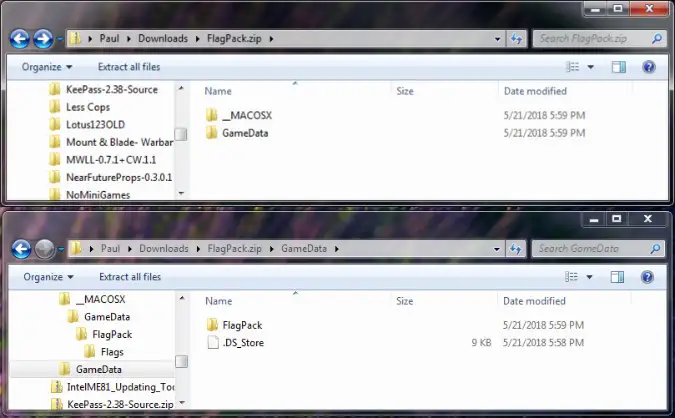
When you create a ZIP archive on your Mac using the built-in archive utility or other 3rd party software, the compressed file may contain a folder named “_MACOSX”.

This “_MACOSX” folder contains metadata about the archive and is visible when extracting on non-Mac systems, such as on Windows PC.  

Other metadata files created by Mac include.DS_Store, AppleDouble, etc.

In Apple’s terms, these are called Mac resource forks.

This article will show you how to remove and avoid having these Mac resource forks (system) files when compressing (zipping) files and folders.

How to ZIP Files on Mac without having the .DS_Store and _MACOSX folders

Here are the five (5) ways to do so.


Method 1. Delete Within the ZIP File

The fastest and easiest way is to delete the Mac system files from the ZIP file itself.

This is useful If you already have the compressed file containing the Mac system files and do not want to redo the whole compression process again.

Follow the steps below to do so.

  • Open the Terminal app. You can search “Terminal” using the magnifying glass icon in the top-right corner.
  • Navigate to the compressed file you already had. For example, if it is on the Desktop, use the command below;
cd Desktop
  • Now use the command below to delete the hidden system folder “__MACOSX folder”
zip -d compressed.zip __MACOSX/\*

Replace <compressed.zip> with the actual zip file you have.


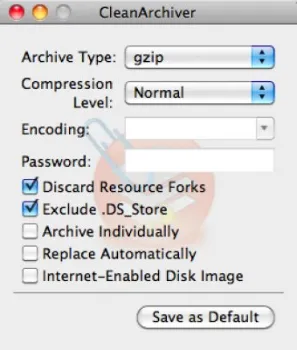
Method 2. Use CleanArchiver

cleanarchiver-compress-without-ds.store-resource-forks

CleanArchiver is a simple and effective archiving utility for macOS and you will need to install this small application to compress files and folders into a ZIP package.

It supports standard archive types such as gzip, bzip2, and zip as well as compressed disk images.

The compression tool can exclude macOS system files, such as .DS_Store, _MACOSX, and custom icon file (Icon\r) in your zipped archive.


Method 3. Compress using Mac Terminal

When you use the Mac Terminal app to compress files and folders, there will not be any Mac-related system files created.

All you need to do is use a few simple commands.

  • Place the file/folder in an easy directory, e.g. Desktop, and navigate to it.
cd Desktop/newfolder
  • Use the following command to ZIP the folder WITHOUT __MACOSX, _DS_Store, and other Mac system metadata files.
zip -r compressed.zip . -x '.*' -x '__MACOSX'

From the example above, you have compressed “newfolder” located on your Desktop and named it “compressed.zip”.

Optional Step: You can verify the contents inside the zip file (ensure that no system files are included) using the command below;

zipinfo compressed.zip

Once done, you can now copy this zipped file to any Windows PC to unzip it.


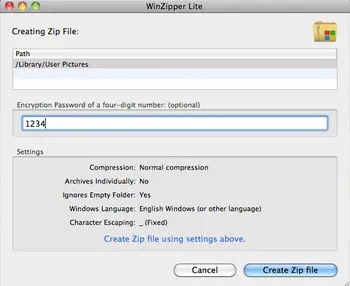
Method 4. Use WinArchiver Lite

winarchiver-lite-zip-without-macosx-ds_store

WinArchiver Lite is a macOS application that can create zip folders fully compatible with Microsoft Windows Operating System.

During compression, the tool can exclude any Mac OS X files (.DS_Store, AppleDouble, etc.) from a Zip file automatically.

Some of the main features include;

  • Set 4-digit password protection on the zipped file (optional)
  • Supports multibyte characters (e.g. Japanese, Korean, Chinese)
  • Drag & Drop interface for quick file compression

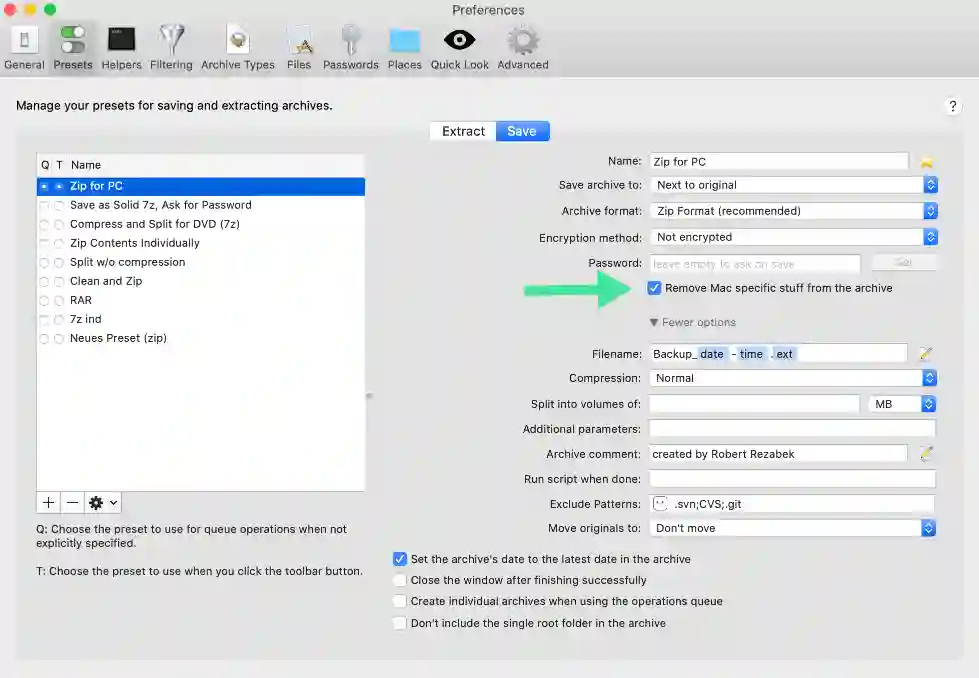
Method 5. Use BetterZip

betterzip-compress-file-mac-without-system-files

BetterZip is a macOS archiving application that can create archives in popular formats, such as ZIP, DMG, TAR, 7-ZIP, and many others.

The compression tool allows you to filter out unwanted files during archive extraction. This includes Thumbs.db, .DS_Store and other Mac system files.

Some of its main features include;

  • Support opening and extracting of over 30 archive formats
  • Ability to join split files with enumerated file extensions, e.g, 001, 002, etc
  • Ability to preview files before the actual extraction

3 Ways to Compress ZIP on Mac Without _MACOSX and .DS_Store Read More »

7 Ways to FIX Telegram Banned Number [Recover Account Unban]

When using the Telegram app, specific mobile numbers have been found to have been subsequently disallowed and banned from using its service.

This banned situation could happen to any existing Telegram user or someone who wants to register for a new account.

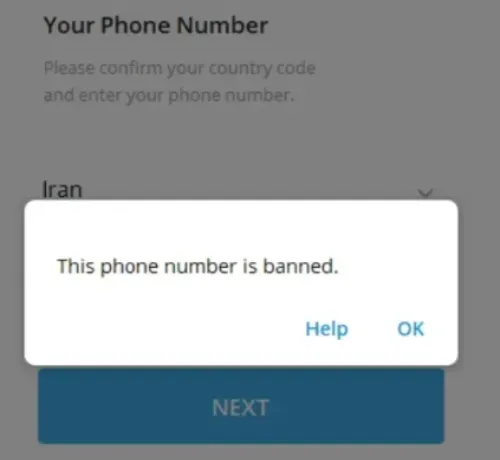
The banned message says;

This phone number is banned.”

Typically, this happens when the mobile number is found, suspected, or reported to have violated Telegram’s terms of service.

Depending on the type of violation, it is likely that someone had reported your number to [email protected] or [email protected] or directly on the app itself.


Reasons for Telegram banning mobile numbers

Several account behaviors and third-party reporting actions will result in your account being banned. Here are the most common ones below;

  • Previous Owner Ban: If you are using a new number, chances are that the last owner of this number had gotten themselves banned from Telegram.
  • Suspicious account logins: E.g., keying wrong passwords multiple times and Telegram will safeguard your account from being hacked by banning and locking your account.
  • Reported for Harassment: Your account/mobile number has been reported for stalking/harassment-related activities
  • Reported as having sexual content & nudity: Promoting or sharing illegal and inappropriate materials.
  • Engaging in illegal activities: This can be, for example, the selling and buying of drugs and involvement in Ponzi schemes.
  • Discriminatory views: Spreading falsehood information and hate speech.

This article will focus on what you can do to resolve the problem when Telegram bans your mobile number, making you unable to recover your account or register for a new one.

How to Fix and Recover Account from Telegram Banned Number?

If you believe your Telegram number has been mistakenly banned, you can use the seven (7) methods here to recover your account.


Method 1. D.M. to Telegram Support Team on Twitter

Send a direct message (D.M.) to the official Twitter account of Telegram Login Help.

This account belongs to the Telegram Messenger Support Team, which deals with wrongful bans.

All you need to do is to D.M. the Twitter profile and provide them with your telegram username or phone number associated with the account.


Method 2. Use the “Help” option

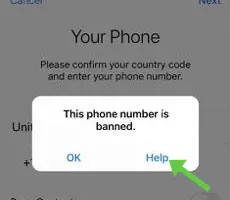
telegram-phone-number-banned-click-help-option-email

Click the <Help> button below the error message.

This will open your email, allowing you to compose and explain our situation to the Telegram support team.

Be prepared to wait between 12 – 24 hours for their response.


Method 3. Email Telegram

Email Telegram stating your banned situation and explaining that you did not violate any of their terms of service.

You can send it to either of these three (3) email addresses (or include them in the email cc list);

The waiting time is generally between one (1) to five (5) working days.

Make sure you check your inbox regularly.


Method 4. Ask a Telegram Volunteer

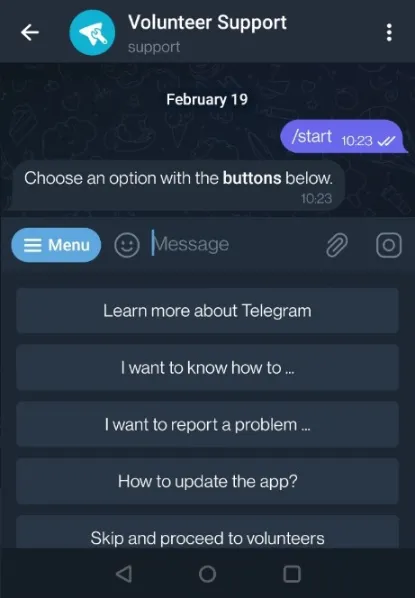
telegram-volunteer-chatbot-option-banned-number-fix

You can reach out to any of the Telegram volunteer support members.

These are people who volunteer their assistance to help others when they encounter any technical issues.

Find them via;

  • Open Telegram app
  • Go to Settings > Ask a Question
  • Click <Ask a volunteer>
  • A chatbot will appear with options you can choose. Select the issue you face to begin the chat with a Telegram volunteer.

Method 5. Write to Telegram Support Page

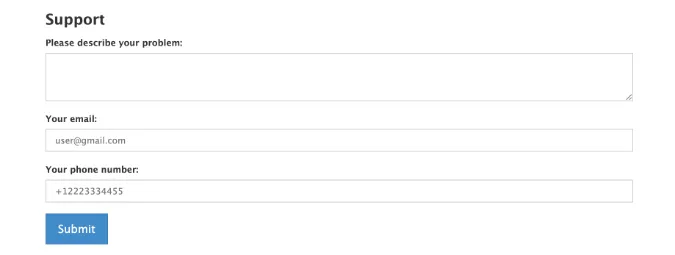
telegram-support-page-submit-problem-unban-fix

Telegram has a dedicated Support Page on its website for users to report technical issues and difficulties.

From here, every user’s issues will be diverted to the relevant departments to look into.

You can use this webpage to submit your request so that the correct technical staff can look into your matter.


Method 6. Get a new Virtual number

Sometimes after trying all methods, the next best way is to register for a new Telegram account while waiting for Telegram’s reply to arrive.

One helpful way is to get a virtual mobile number without needing a physical SIM card.

Hushed

Hushed offers several features, including call forwarding, custom voicemail greetings, receiving SMS verification codes (OTP), and making and receiving phone calls.

This secondary line app allows users to quickly get their chosen mobile number, e.g., in seven days.

This is suitable for those who want to register accounts for a short period.

  • Install the Hushed app on your mobile phone.
  • Choose the country of the mobile number you want, e.g., from Canada or the U.K.
  • Every purchased mobile number is renewable before the expiry date.

Online SMS Service

Certain online web services offer free temporary mobile numbers for receiving SMS text messages.

Since these virtual numbers are free to use on their websites, you can use them to receive OTP codes and register for a new Telegram account.

Here are some reliable sites where you can receive SMS OTP codes.


Method 7. Wait for the Ban to be Over

Lastly, if you can afford to wait and you do not want to lose that account, the logical way now is to wait for the ban to be over.

This is provided that you have already used and tried all the abovementioned methods.

Based on users’ reports that they had reinstated back their accounts through unbanning, the unbanning duration can range from a week to a few months.


7 Ways to FIX Telegram Banned Number [Recover Account Unban] Read More »

[7 Ways] You May Not Have a Proper App for Viewing this Content

When you are trying to open certain files on your Android device or using other apps, e.g. WhatsApp, you may encounter the following error message;

You may not have a proper app for viewing this content

This article will list down all the troubleshooting solutions that you can use to fix the issue.

How to FIX the “You may not have a proper app for viewing this content” error message

Here are the seven (7) methods you can use.


Method 1. Add a File Extension at the end

Make sure the file has a proper file extension at the end of it.

There are instances where certain files lack the proper file extension during the transferring or downloading process.

Original File = movie
Edited File = movie.mp4

To add the correct file extension, you need to use a file manager app to do so.

  • Open the file with <Files by Google> file manager app.
  • Browse to the file’s location.
  • Click on the three (3) dots menu icon on the right
  • Select <Rename>
  • Add a file extension to the file, for example, adding .mp4 at the end if you know it is a video file.

Method 2. Install 3rd Party File Viewer

Sometimes it is because you do not have the correct file viewer installed on your device to open it.

All you need to do is to install the right viewer for the file format.

Viewing APK file

This is an Android-specific installation file format; you just need to click on it, and it will install automatically onto your device.

You can use APK Viewer to open and see the contents of the file. If you cannot open it using the viewer, your APK file is corrupted.

Always verify the source of the APK file before installing any app on your device. For security purposes, always use the Google PlayStore for app installation and avoid using manual APK installation.

Viewing DOC file

This is a Microsoft Office word document format, and you can use Microsoft Word to open the file.

Search for the term <Microsoft Word> in the Apple App Store or the Google Play Store.

Viewing PDF file

This is a common Portable Document Format (PDF) that is used worldwide.

As there are plenty of PDF readers out there, just search for the term <PDF reader> in the App Store or Play Store.


Method 3. Update your existing Apps

You may encounter this error message when trying to use an outdated app to open and view a file.

The best way is to perform an update on all your existing apps through your Play Store or App Store.

Update Apps on Apple App Store

  • Open the App Store app
  • On the left pane, choose <Updates>
  • Click <Update All> to perform updates on all available apps.

Update Apps on Google Play Store

  • Open the Play Store app
  • Click the profile icon on the top-right
  • Select <Manage apps & device>
  • Choose <Update all> to perform updates on all available apps.

Method 4. Check your device storage capacity

When your device’s storage capacity is almost fully used up, you may also encounter this error message.

The fix is easy for this method.

Make sure that you clean up and free up some free space on your device.

Try not to use more than 80% storage capacity.


Method 5. Check Broken URL links

When you try to visit a website that has been taken down or is temporarily unavailable, e.g. due to heavy web traffic or web hosting down, you will encounter this error message.

Check Website Status

You can check if the website is currently offline on IsItDownRightNow.

Check Cached Site

Whenever you perform a Google search, each result has a cached page that had been saved previously by Google.

You can use this cached page to look at how the site looked in the past.

On your search result, click on the three dots menu on the right side. Choose <Cached> to see its cached page.


Method 6. Parallel / Clone WhatsApp

Check if you have dual apps (also known as parallel apps or clone apps) installed on your device.

For example, you may be using two (2) WhatsApp accounts on your device.

Cloned apps usually have restricted system permissions allowed, and they may encounter this error message.

To fix this, go to Settings > Apps > App Manager > Whatsapp (or any other apps you are using dual-mode on > App Permissions and allow all necessary permissions to storage.

Restart your device and try opening the file again.


Method 7. Check if the File is Corrupted

Sometimes the file itself is corrupted, or it is an incomplete file (e.g., due to partial download)

Use another device to open the file to see if the problem persists.

Lastly, you should try to restart your device and try opening it again.


[7 Ways] You May Not Have a Proper App for Viewing this Content Read More »

whatsapp-generate-fake-chat-group-messages

5 Ways to Create a Fake WhatsApp Group Chat [Screenshot]

There are times when you want to create a screenshot of a fake WhatsApp conversation between two persons or more, especially in a group chat setting.

This could be part of making a funny prank or is used as a prop in a video or movie.

There are several websites and third-party apps that can allow you to write, generate fake conversation messages, and simulate two (2) or more persons communicating using WhatsApp.

This article will list down the different ways you can use to create a fake WhatsApp group chat.

How to Create a Fake WhatsApp Group Chat?

Here are the five (5) ways to do so.


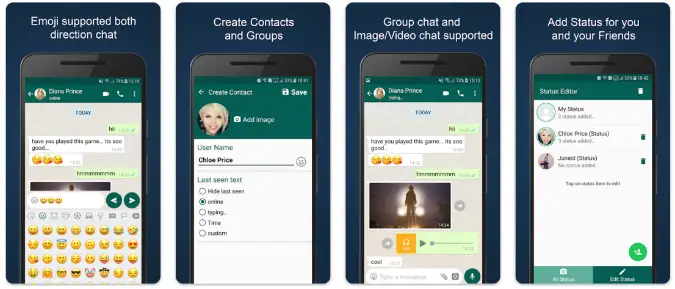
Method 1. WhatsMock

whatsmock-generate-create-fake-whatsapp-group-chat-conversation-message

This Android app can allow you to create and generate multiple fake users engaging in a WhatsApp group chat.

Some of the WhatsMock features are;

  • Create a Group chat and add multiple fake participants by giving them names.
  • Ability to add images and play videos inside the group chat
  • Create contacts with profile pictures and add their last seen status, e.g., online, typing, custom.
  • Add a real contact from the phonebook in the fake WhatsApp conversation.

In addition, you can use the app to fake an incoming or outgoing WhatsApp voice call by having a realistic-looking calling screen.

When creating an incoming fake voice call, you can pretend to pick up the call, and there will be a realistic call timer running in the background.


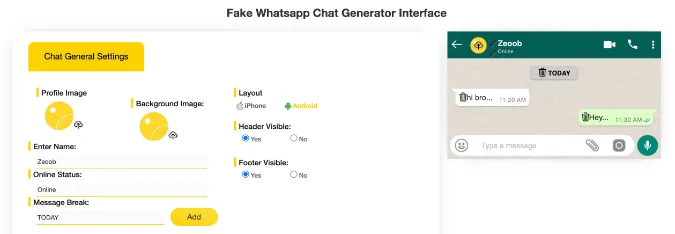
Method 2. Zeoob

zeoob-generate-fake-whatsapp-group-chat-message

Zeoob provides a realistic WhatsApp chat design and allows users to create as many fake chats as they want.

The WhatsApp chat generator allows you to choose a fake WhatsApp layout for iPhone or Android.

Some of the main features include;

  • Add a custom background image to your fake WhatsApp chat.
  • Option to use built-in emoji or add emoji from your own device
  • Add a profile picture
  • Choose the message status (e.g., seen or unseen) for each message

Chat images are saved in PNG image file format.


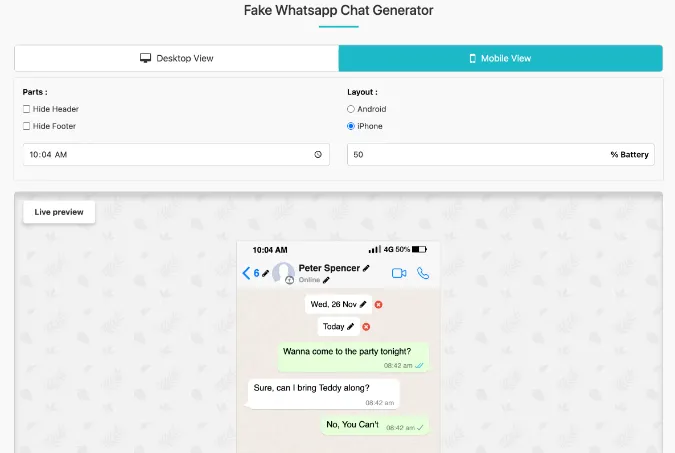
Method 3. Fake WhatsApp Chat Generator

fake-whatsapp-chat-generator

This web-based site allows you to create fake conversations that look like WhatsApp chats.

You can use any web browser to access the Fake WhatsApp Chat Generator webpage. The output given will be in the form of a PNG image file.

There are a lot of customization to perform here, including;

  • Phone Settings – editing the name, online status, profile picture, operator name, phone clock timing, etc
  • Battery Options – battery percentage level
  • Connection – e.g., WiFi, 4G, signal level
  • Chat Messages – adding the message content, adjusting the timestamp, and message status (e.g. Read, delivered, etc)

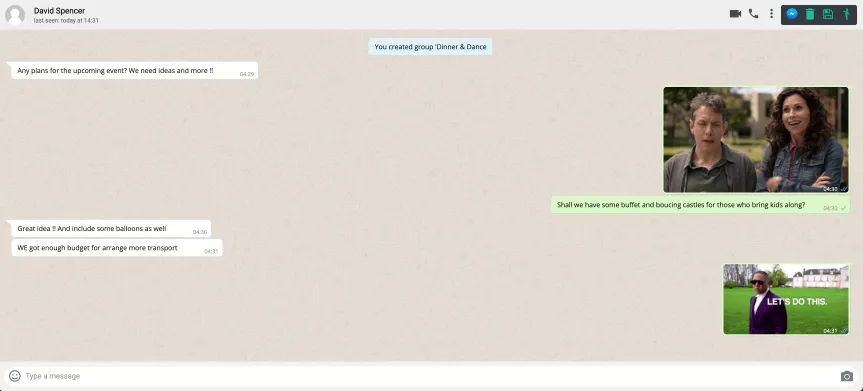
Method 4. Fake Chat App

fake-chat-app-generate-whatsapp-group-message

Fake Chat App is a web-based site that you can use using your web browser.

You can use the site to generate fake WhatsApp chat conversations by changing the name and profile picture of your conversation partner.

Some of the main features include;

  • Easily drag images into the group chat window to attach it
  • Write fake messages as the user, the other party, or an admin in a group chat setting.
  • Ability to add a wide range of built-in emoticons
  • Change the timestamp of each message.

Method 5. FakeDetails

fakedetails-create-fake-whatsapp-group-messages

FakeDetails offers an online generator for creating various fake screenshots, including WhatsApp Chat and WhatsApp Video Calls.

One of the key features is its ability to create fake WhatsApp chat using either an iPhone layout or an Android layout.

This is especially useful if you want to have both layouts for pranking purposes.

Some of its features include;

  • Option to hide or un-hide the header (i.e. time, battery level, network status)
  • Edit the name of the fake user
  • Edit the online status
  • Edit the chat conversations of both parties

You can export the final fake output image as a PNG file format.


5 Ways to Create a Fake WhatsApp Group Chat [Screenshot] Read More »

Whatsapp-file-formats

21+ Supported File Formats You Can Send In WhatsApp [TESTED]

When sending files using WhatsApp, you can send videos, audio, or document files. However, not all file extensions are supported by WhatsApp.

When you attempt to send an unsupported file format, you will encounter the following error message;

The file format is not supported.

This means that WhatsApp does not support the sending of this file extension.

In this article, we tested several file formats to determine which ones are supported by WhatsApp.

What are all the different file formats that WhatsApp supports?

Our test is conducted using three (3) different file types, namely;

  • Video files
  • Audio files
  • Document files

Supported Video File Formats

Here is the complete list of video file formats we have tested.

Based on our test results, Whatsapp only supports the following video file formats; MP4, M4V, MKV, MOV, WEBM, 3G2, and RMVB.

S/noFile ExtensionAble to Send?Able to View?
1MP4YesYes
2M4VYesYes
3MKVYesYes
4MOVYesYes
5WEBMYesYes
63G2YesYes
7RMVBYesNo, use external media player
8MPEG*NoNo
9MPEG-2*NoNo
10FLV*NoNo
11WMV*NoNo
12DIVX*NoNo
13RM*NoNo
14OGV*NoNo
153GPNoNo

Supported Audio File Formats

Here is the complete list of audio file formats we have tested.

Based on our test results, Whatsapp supports most audio file formats. They are AAC, AMR, FLAC, M4A, M4R, MP3, OGG, WAV, and WMA.

S/noFile ExtensionAble to Send?Able to View?
1AACYesYes
2AMRYesYes
3FLACYesYes
4M4AYesYes
5M4RYesYes
6MP3YesYes
7OGGYesYes
8WAVYesYes
9WMANoNo

Supported Document File Formats

Here is the complete list of document file formats we have tested.

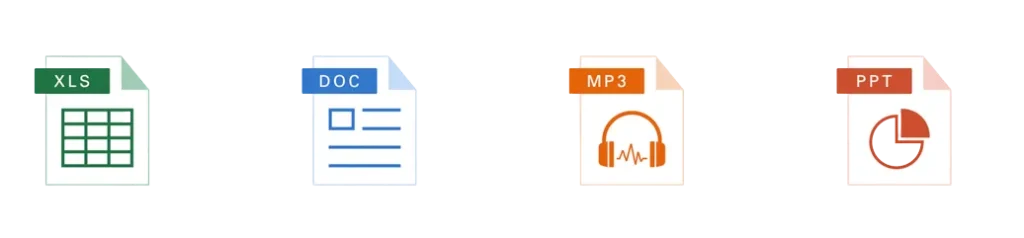
Based on our test results, Whatsapp supports sending all the document file formats we used to test it. They are DOC, XLS, PPT, PDF, TXT, HTML, and EPUB.

However, you must install an external document viewer to view them, especially on a mobile device.

For example, you need to install an EPUB reader and PDF viewer to view these files.

S/noFile ExtensionAble to Send?Able to View?
1DOCYesNo
2XLSYesNo
3PPTYesNo
4PDFYesNo
5TXTYesNo
6HTMLYesNo
7EPUBYesNo

Summary

We tested three (3) different file types: video, audio, and document.

Thirty-one (31) file extensions are used to test WhatsApp to determine how many file formats it can support.

Out of which, our test concluded that a total of twenty-two (22) file extensions are supported and allowed to be sent to the Whatsapp recipient through its server.


21+ Supported File Formats You Can Send In WhatsApp [TESTED] Read More »

fix-whatsapp-file-format-type-not-supported-unable-send-attachment

7 Ways to FIX WhatsApp File Format Is Not Supported [Solved]

WhatsApp supports various popular file formats, including video formats such as MP4, AVI, MOV, MKV, and 3GP, and document file types such as Word, Excel, and PDF formats.

When sending attachments, the maximum file size per attachment allowed is 16 MB.

Sometimes when you attach a file, WhatsApp will give you an error message that says;

The file format is not supported.

This could be due to several reasons, and there are surely workarounds you can do to ensure that your file gets delivered to your intended recipient.

This article will list down all the different methods you can use to fix this WhatsApp error message.

How to FIX WhatsApp File Format Not Supported Problem

Here are the seven (7) ways to do so.


Method 1. Check the list of WhatsApp Supported File Formats

WhatsApp supports various popular file types, including video, audio, and document formats.

The common ones most people will be using are;

  • Video formats such as MP4, AVI, MOV, 3GP
  • Audio formats such as MP3, WAV, AMR
  • Image formats such as JPEG, PNG, WEBP
  • Document formats such as DOC, PDF, and TXT

Always refer to the full list of supported WhatsApp file formats and check if your file is listed there.


Method 2. Convert it into a different File Format

file-convert-format-types-whatsapp-attachment

The best way to convert the file into a supported file type format.

This method ensures you can successfully send the file to your WhatsApp recipient.

There are several ways to do so.

Using an Online Converter

When the file itself is not sensitive (e.g. non-official work document or personal file), you can convert it by uploading it onto online converters services.

Installing a File Converter

When the file is personal and sensitive in nature, you will want to use an offline application that can be installed onto your computer.

You can consider any of the following;


Method 3. Upload the File Online

You upload the file online to a cloud storage service and send the URL link via WhatsApp to the recipient.

The recipient will download and play the file via a third-party media or document viewer. This can be easily installed on both mobile and computer devices.

You can consider using the following file-hosting services;


Method 4. Changing the location of the file

The file’s directory path may cause certain problems with WhatsApp.

To rectify this problem, you must change the file’s location on your device. You should move it to another main directory, e.g. under the Downloads main folder.

To change a file’s location in Android, use the native File Manager app or use 3rd party apps like Google Files or ES Explorer.

  • Open the File Manager app.
  • Navigate to the file’s location.
  • Choose <Move to>
  • Navigate to your new directory location and click <Move here>

Your file has now changed to a new directory location.


Method 5. Update WhatsApp version

playstore-search-whatsapp-update-new-version-release-option

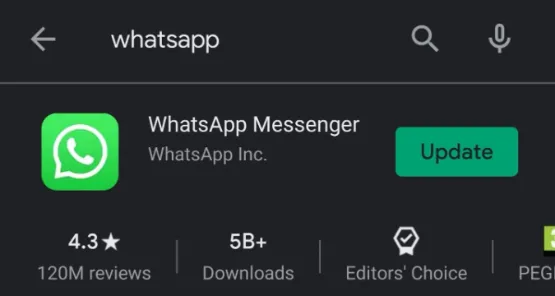
Upgrading WhatsApp can fix technical bugs and introduce new features to the app.

This can involve having newer supported file formats for sending attachments in WhatsApp.

To update your WhatsApp;

  • Go to PlayStore or AppStore
  • Search for “WhatsApp
  • The option to update will appear if there is a new version release

Method 6. Is the File stored in an External Storage Media

Sometimes the file you intend to send is a corrupted file or is an incomplete file due to an earlier download error.

If the file resides in your device’s external storage space, such as a microSD memory card, you may want to open the file using another computer to test it out.

This is to ensure that the file is in good working condition. This can be a video, audio, or document file.

If the file is corrupted, you should attempt to repair it or replace it with a new one.


Method 7. Correcting Device Date & time

When your device has an incorrect system date and time, this can cause your apps to crash or not to be working properly, including WhatsApp.

Devices with incorrect dates and times can have conflicts with WhatsApp servers, resulting in many app failures.

Make sure your device is in sync with the right date and time

Correcting System Date & Time on Android

  • Go to Android Settings
  • Search the word “time zone” using the magnifying glass icon
  • Click on <Use network-provided time zone>
  • Make sure both options are ON for <Use network-provided time> and <Use network-provided time zone>
  • Check that your time zone is set correctly to your country.

Correcting System Date & Time on iPhone

  • Go to iPhone Settings
  • Select <General>
  • Click on <Date & Time>
  • Turn ON <Set Automatically>

7 Ways to FIX WhatsApp File Format Is Not Supported [Solved] Read More »