admin

how-to-know-teelgram-account-creation-join-date

3 Ways To Check Your Telegram Account Creation Date

Telegram is a well-known instant messaging app that allows users to send and receive messages, photos, videos, and other types of content.

If you use Telegram, you might be curious about the exact date you created your account.

You may require this information for a variety of reasons, including troubleshooting issues with your account or for security purposes.

In this blog post, we will go over several methods for determining the creation date of your Telegram account.

We’ll look at both manual methods, like checking your chat history, and automated methods, like using a Telegram bot.

Whether you’re a seasoned Telegram user or new to the platform, this guide will provide you with the knowledge you need to determine your Telegram account creation date.

How To Check Telegram Account Creation Date

Here are the three (3) different ways to know the date that you join and start using the Telegram app.


Method 1. Using Telegram Settings

Using the Telegram app itself, you can know the account creation date via its Settings.

To find out, follow the steps below;

  • Open the Telegram app on your device.
  • Go to the <Settings> section by tapping on the three-line icon at the top left corner of the screen.
  • Select <Data and Storage>
  • Choose <Data Usage>

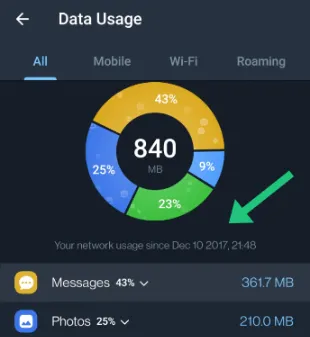
You will be able to see all your network data used in the app since you joined Telegram until date.

At the top of the page, you will see your Telegram account creation date when you first joined the app.


Method 2. Using Telegram Bot

telegram-bot-check-account-creation-date

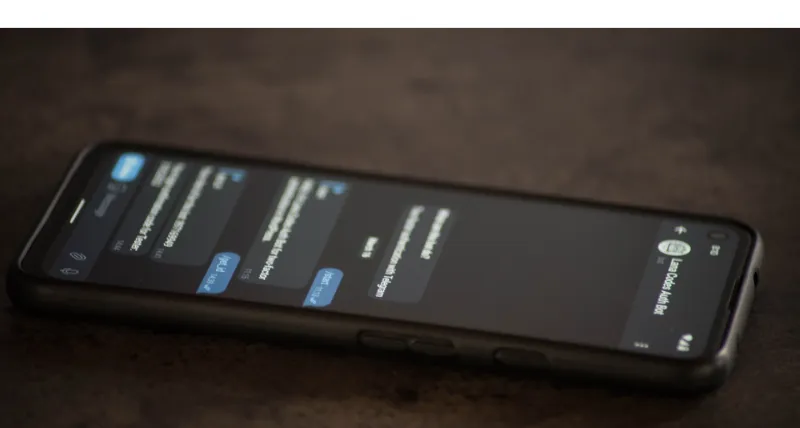
There is a Telegram bot called “Creation Date Bot.”

This bot allows users to find out the creation date of any Telegram account, including your own account or the account of other users.

To use the bot, open the link from @creationdatebot and click on the <Start> button to initiate a conversation with the bot.

By default, the bot will automatically display the account creation date of the logged-in Telegram account in the day, month, and year format.


Method 3. Check Your Old Chats

If you want to determine the approximate creation date of your Telegram account, you can check the date of the oldest message in your chat history.

Here’s how you can do it:

  • Open the Telegram app on your device.
  • Go to your chat list and find your oldest chat in your chat history. This could be a chat with a friend or a group chat.
  • Scroll up to the very first message in the chat.
  • You are specifically looking for messages that were sent by you. Check the timestamp on the message to determine the date it was sent.
  • Use this information to estimate the date when you created your Telegram account.

Keep in mind that this method will only give you an approximate creation date, as you may have deleted older chats.

If you want a more accurate account creation date, you can use Method 1 or Method 2 mentioned above.


3 Ways To Check Your Telegram Account Creation Date Read More »

What-to-do-with-old-computer-monitors

11 Useful Ideas on What To Do With Old Computer Monitors

Old computer monitors can take up a lot of space in your home or office, and you may be wondering what to do with them.

Fortunately, many creative ways to repurpose or recycle your old monitors can help reduce waste and save you money.

In this blog post, we’ll explore 11 useful ideas on what to do with old computer monitors that you might find helpful.

What Can You Do With Old Computer Monitors?

Here are the eleven (11) creative ways to repurpose them;


1. Donate Your Old Monitor to a Local Charity or Nonprofit Organization

If your old monitor is still in good working condition, you might consider donating it to a local charity or nonprofit organization.

Many schools, libraries, and community centers may be in need of monitors for their computer labs or educational programs.

This is a great way to give back to your community while also reducing e-waste.

2. Recycle Your Old Monitor Properly

If your old monitor is broken or outdated and can’t be donated, it’s important to recycle it properly to prevent harmful materials from ending up in landfills.

Many electronics retailers and recycling centers offer free e-waste recycling programs. You can also check with your local government to see if they offer e-waste disposal services.

3. Repurpose Your Old Monitor as a Secondary Display

You can repurpose your old monitor as a secondary display if you have a desktop computer or laptop.

This can be especially useful if you’re a gamer, graphic designer, or multi-tasker who needs more screen real estate.

Simply connect your old monitor to your computer using an HDMI, VGA, or DVI cable, and adjust your display settings to extend your desktop across both screens.

4. Turn Your Old Monitor into a Digital Picture Frame

Another creative way to repurpose your old monitor is to turn it into a digital picture frame.

You can display your favorite photos, artwork, or even videos on your old monitor by connecting it to a media player or computer.

Also, software programs can turn your old monitor into a slideshow display. This is a great way to showcase your memories and add a personal touch to your home or office decor.

5. Convert Your Old Monitor into a Television or Gaming Display

You can also convert your old monitor into a television or gaming display.

This is especially useful if you have an old monitor with a good display resolution and you want to watch TV shows or movies or play video games on a bigger screen.

You can do this by connecting your old monitor to a TV tuner or gaming console using an HDMI or VGA cable.

You can turn your old monitor into a high-quality entertainment center with the right connections.

6. Create a DIY Standing Desk with Your Old Monitor

If you want to improve your posture and reduce sitting time, you can create a DIY standing desk with your old monitor.

All you need is a standing desk converter, an adjustable desk riser, and a mount or bracket to attach your old monitor.

With your old monitor mounted at the right height, you can work, browse, or game in a comfortable standing position.

This is a great way to improve your health and productivity while repurposing your old monitor.

7. Transform Your Old Monitor into a Smart Mirror

Another unique and tech-savvy way to repurpose your old monitor is to transform it into a smart mirror.

You’ll need a two-way mirror film, a Raspberry Pi, and a smart mirror software program to make this happen.

With a few technical tweaks, your old monitor can display your calendar, weather updates, news feeds, and more while functioning as a regular mirror.

This is a great way to add a modern touch to your home or office while also reusing your old monitor.

8. Use Your Old Monitor for Home Security Monitoring

You can use your old monitor as a dedicated home security monitoring station if you have an old monitor and a home security system.

Simply connect your old monitor to your security camera system using an HDMI or VGA cable, and adjust your display settings to view your camera feeds.

This is a great way to keep an eye on your home and property without having to purchase an expensive new monitor or security system.

9. Sell Your Old Monitor Online or Locally

If you don’t want to repurpose or recycle your old monitor, you can also sell it online or locally.

There are many online marketplaces, such as eBay or Craigslist, where you can list your old monitor for sale.

You can also check with local electronics stores or computer repair shops to see if they buy used monitors.

This is a great way to earn some extra cash and make sure your old monitor is put to good use by someone else.

10. Turn Your Old Monitor into a Retro Gaming Console

If you’re a fan of retro games, you can turn your old monitor into a retro gaming console.

This will require technical know-how and additional equipment, such as emulator software and gaming devices like Raspberry Pi or PC.

Once set up, you can play classic arcade games and console games on your old monitor.

This is a fun and nostalgic way to repurpose your old monitor and enjoy some old-school gaming.

11. Use Your Old Monitor as a Digital Whiteboard

If you’re an educator, business professional, or someone who enjoys drawing and brainstorming, you can turn your old monitor into a digital whiteboard.

You’ll need a stylus and a software program that allows you to draw on the screen, such as Microsoft Whiteboard or OpenBoard.

With a few adjustments to your old monitor’s settings, you can start sketching out ideas, collaborating with others, and creating digital presentations or diagrams.

This is a great way to repurpose your old monitor for professional or personal use.

Conclusion

Many creative and useful ways exist to repurpose or recycle your old computer monitor.

Whether you choose to donate it to a local charity, repurpose it as a digital picture frame, or turn it into a retro gaming console, you can give new life to your old monitor and reduce e-waste in the process.

With these 11 creative ideas, you’re sure to find a solution that fits your needs and helps you get the most out of your old monitor.


11 Useful Ideas on What To Do With Old Computer Monitors Read More »

check-telegram-login-active-session-activity

How to Check Your Telegram Login History [Privacy Guide]

In this blog post, I’ll show you how to view your Telegram login history.

With rising privacy concerns, it’s critical to understand who is accessing your account and from which device. “Can someone log into my Telegram without my knowledge?” you may wonder.

That is a possibility, but by the end of this post, you will understand how to track your own Telegram activity.

Telegram is a popular, secure messaging app known for its end-to-end encryption and features such as self-destructing messages, secret chats, and channels.

However, having an extra layer of security to protect your account from unauthorized access is always a good idea.

By reviewing your Telegram login history, you can ensure the security of your account and be alerted to any suspicious activity.

So, let’s get started with checking your Telegram login history.


Why Check Telegram Login History?

You might be wondering why checking your Telegram login history is important.

Well, there are a few reasons why you should keep track of your login sessions:

  • Security: Checking your Telegram login history can help you identify any unauthorized access to your account. If you notice any suspicious activity, you can take immediate action and change your password to secure your account.

  • Privacy: By monitoring your login sessions, you can protect your privacy. You can see who has access to your account and from which devices.

  • Peace of mind: By regularly reviewing your login sessions, you can know that your account is secure and that you’re the only one who has access to it.

So, with these reasons in mind, let’s dive into the steps to check your Telegram login history.


Steps to Check Telegram Login History

Now that you understand why it’s important to check your Telegram login history, let’s go through the steps to do so:

Step 1: Open Telegram App

The first step is to open the Telegram app on your device. If you’re not already logged in, enter your phone number and verification code to access your account.

Step 2: Go to Settings

Once you’re logged in, click on the three horizontal lines in the top left corner of the screen to access the Telegram menu. From there, click on <Settings>

Step 3: Select Privacy and Security

In the <Settings> menu, scroll down and select <Privacy and Security>

Step 4: Choose Active Sessions

Under <Privacy and Security>, look for the <Active Sessions> option and click on it.

Step 5: Review Login History

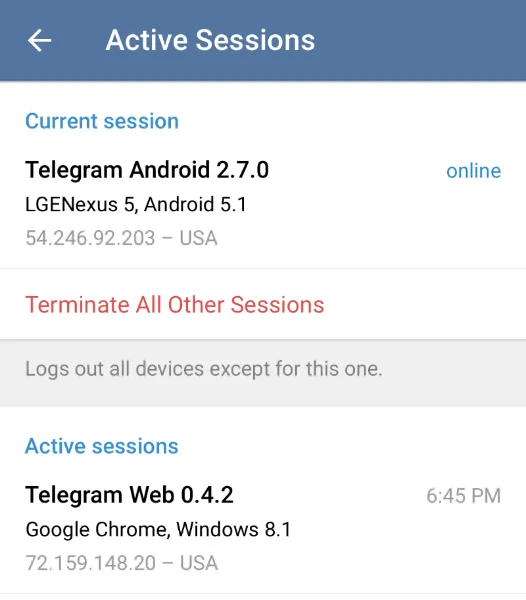
You’ll now see a list of all the active sessions that are currently logged into your account. You can see each active session’s device type, IP address, and location here.

If you notice any suspicious activity, you can click <Terminate All Other Sessions> to log out of all sessions except for the one you’re currently using.


How to Interpret Telegram Login History

Now that you know how to check your Telegram login history, it’s important to understand how to interpret the information provided. Here are some things to keep in mind:

  • Device Type: The device type tells you which device was used for logging in to your Telegram account, such as a mobile phone or desktop computer.

  • IP Address: The IP address is a unique identifier that tells you the location of the device used to log in. Seeing an IP address from an unfamiliar location could be a sign of unauthorized access.

  • Location: The location shows you the city and country of the device used to log in. If you see a location that doesn’t match your location, it could indicate unauthorized access.

By regularly reviewing your Telegram login history, you can ensure that your account is secure and take action if you notice any suspicious activity.

If you notice any unauthorized access, you must change your password immediately to protect your account.


Conclusion

In conclusion, checking your Telegram login history is an important step in ensuring the security and privacy of your account.

By following the simple steps outlined in this post, you can easily review your login history and keep track of any unauthorized access to your account.

Remember, regularly monitoring your login sessions can give you peace of mind and prevent any potential security breaches.

If you ever notice any suspicious activity, take immediate action to protect your account by changing your password and terminating all other sessions.

We hope you found this guide helpful and informative. If you have any questions or comments, feel free to leave them below. Thank you for reading!


How to Check Your Telegram Login History [Privacy Guide] Read More »

How-to-know-if-someone-saved-your-contact-on-whatsapp-secretly

3 Ways To Know If Someone Saved Your Number On Whatsapp Secretly

WhatsApp is a popular messaging app used by millions of people around the world. It offers a wide range of features, including voice and video calls, file sharing, and end-to-end encryption for secure messaging.

One important aspect of using WhatsApp is knowing if someone has saved your number in their contacts.

This information can be useful for various reasons, such as confirming if someone has received your message or knowing if someone is intentionally ignoring you.

In this post, we’ll explore how to know if someone saved your number on WhatsApp without them knowing.

How To Know If Someone Had Saved Your Number in their WhatsApp Contact

Here’s everything you need to know.


How Does WhatsApp Save Contact Information?

When you first install WhatsApp, it will automatically sync with your device’s contact list.

If anyone in your contact list uses WhatsApp, their name and phone number will be added to your WhatsApp contacts.

However, just because you have someone’s phone number in your device’s contact list does not mean they have it saved on their WhatsApp account.

WhatsApp saves contact information in two places: on your device and within the app.

If you save someone’s contact information on your device, such as in your phone’s address book, it will automatically appear in your WhatsApp contacts.

When you save someone’s phone number on WhatsApp, it is only saved on the app and not in your device’s contact list.

This means that while you may have someone’s phone number saved on your device, they may not save it on their WhatsApp account.


How to Check if Someone Saved Your Number on WhatsApp

If you’re curious to know if someone has saved your number on WhatsApp, you can try a few methods.

Keep in mind that these methods are not foolproof, and there’s no guarantee that they will work in all situations.


Method 1: Check the Profile Picture

One way to know if someone has saved your number on WhatsApp is by looking at their profile picture.

If you can see their profile picture, it means that they have your number saved on their WhatsApp account.

However, if their profile picture is not visible to you, it doesn’t necessarily mean that they don’t have your number saved.

They may have hidden their profile picture from certain contacts or everyone.


Method 2: Check the About Section

whatsapp-about-section

Another way to check if someone saved your number on WhatsApp is by looking at their About section.

If they have added any information to their About section, such as a status message or a bio, it means that they have your number saved.

However, if their About section is blank, it doesn’t necessarily mean that they don’t have your number saved.


Method 3: Send a Message

Finally, you can try sending a message to the person in question.

If your message is delivered and you can see two checkmarks next to it, it means that they have your number saved on their WhatsApp account.

However, if your message remains undelivered or only shows one checkmark, it doesn’t necessarily mean that they don’t have your number saved.

They may have their notifications turned off or may not have seen your message yet.


Can You Really Know If Someone Saved Your Number on WhatsApp?

While the methods described in the preceding section may indicate whether someone has saved your WhatsApp number, they are not conclusive.

According to WhatsApp’s privacy policies, the app does not notify users when someone adds or removes them from their contacts list.

This means there is no surefire way to know if someone has saved your phone number to their WhatsApp account.

Furthermore, some users’ privacy settings may be set up so that they do not share their profile picture or About section with specific contacts.

In this case, just because you can’t see their profile picture or About section doesn’t mean they don’t have your phone number saved.

While it’s natural to be curious about whether someone has saved your WhatsApp number, keep in mind that there’s no foolproof way to know for sure.

The methods described in this post are only a starting point for your investigation; you should always proceed with caution and respect for the other person’s privacy.


Conclusion

In conclusion, knowing whether someone has saved your number on WhatsApp can be useful in certain situations.

While you can try a few methods to get an idea of whether someone has saved your number on their WhatsApp account, these methods are not definitive and may not always work.

WhatsApp’s privacy policy ensures that users can maintain their privacy and control who sees their profile picture and other information.

Ultimately, if you’re curious about whether someone has saved your number on WhatsApp, the best way to find out is to ask them.

However, be respectful of their privacy and don’t pressure them into sharing information they’re uncomfortable with.

If you are more privacy-focused, you should consider using a VPN service when using WhatsApp, to protect your traffic connection, your data and prevent malicious attacks.

Choose from the following reliable VPN services;

  • NordVPN (Has the most number of servers, over 5000+, in 60 countries to choose from. Uses a unique Onion Over VPN feature to mask your online traffic for maximum anonymity.)

  • Surfshark VPN (One of the few providers that allow unlimited device connections with just a single subscription. You can connect all your devices with no logs policy)

  • IPVanish (Supports all platforms, routers and TV. Uses SOCKS5 web proxy feature for faster anonymous connection speed)

At the end of the day, WhatsApp is a tool for communication, and it’s important to use it to foster positive and respectful relationships with others.


3 Ways To Know If Someone Saved Your Number On Whatsapp Secretly Read More »

screen-recording-quicktime-player

How to Stop Screen Recording with QuickTime Player [Guide]

Screen recording is a useful tool for capturing video footage of your computer screen, making it ideal for developing tutorials, walkthroughs, and presentations.

And if you’re a Mac user, you can get started right away with QuickTime Player.

In this blog post, I’ll teach you how to start and stop screen recording in QuickTime Player and some recording optimization recommendations.

You’ll be able to generate high-quality screen recordings in no time, whether you’re a seasoned pro or a newbie. So let’s get started!

How to Start & Stop Screen Recording Using QuickTime Player?

Below are the instructions to start and stop screen recording and a section on troubleshooting issues with the QuickTime player if you encounter any technical problems.


Starting a Screen Recording With QuickTime Player

To start a screen recording with QuickTime Player, follow these simple steps:

  1. Open QuickTime Player on your Mac.
  2. Click on “File” in the menu bar, and select “New Screen Recording.”
start-new-screen-recording-quicktime-player
  1. You can choose to record your entire screen or just a portion of it. Simply click and drag to select the area you want to record.
  2. You’ll see a screen recording toolbar appear. Click the <Record> button to start recording.
screen-recording-quicktime-player-record-full-selected-portion

That’s it! QuickTime Player will begin recording your screen and audio (if you choose to enable it).

Make sure to test your microphone beforehand if you plan to record audio. You can pause or stop the recording at any time by clicking on the “Pause” or “Stop” button on the recording toolbar.

If you need to cancel the recording altogether, click the “x” button in the corner of the toolbar.


Stopping a Screen Recording with QuickTime Player

Once you’re done recording, it’s important to know how to stop the recording and save it for future use.

Here’s how to stop a screen recording with QuickTime Player:

  1. Look for the <Stop> button in the menu bar. It looks like a square inside a circle.
  2. Click the <Stop> button to end your recording.
  3. Your screen recording will automatically open in a new QuickTime Player window.

That’s it! Now you can edit your recording, save it, or export it to share with others.

Keep in mind that if you recorded audio along with your screen recording, it would be saved as a separate audio file.

You can easily merge the audio and video files together in QuickTime Player or any other video editing software.


Troubleshooting Screen Recording Issues with QuickTime Player

Despite its ease of use, screen recording with QuickTime Player can sometimes encounter issues.

Here are some common issues you may face and how to troubleshoot them:

  • The recording won’t start: If you’re having trouble starting the recording, try closing other apps or restarting your computer. Also, make sure that you have enough storage space on your computer to save the recording.

  • The recording is laggy or choppy: This is usually a result of your computer’s processing power struggling to keep up with the recording. Try closing other apps and windows to free up processing power. You can also try reducing the quality of the recording by selecting a smaller area to record or lowering the resolution.

  • The audio quality is poor: If you’re recording audio and your screen recording, ensure your microphone is working properly and positioned correctly. Also, try recording in a quiet environment to avoid background noise.

  • The recording won’t save or export: This could be due to a lack of storage space on your computer or an issue with the file format. Try exporting the recording in a different file format or freeing up space on your computer.

By following these troubleshooting tips, you should be able to resolve most issues with screen recording using QuickTime Player.

If you’re still encountering issues, you can try reaching out to Apple support for further assistance.


Conclusion

This tutorial covered everything you need to know to start and stop screen recording with QuickTime Player on your Mac.

This article covers step-by-step instructions for starting a screen recording, stopping a screen recording, and troubleshooting common issues.

We also covered some tips for optimizing your screen recording and getting the best possible results.

By now, you should be able to create high-quality screen recordings using QuickTime Player with ease.

Remember to check your settings before recording, keep an eye on your storage space, and troubleshoot any issues that may arise. You’ll become a pro at screen recording in no time with practice!

If you have any questions or suggestions, feel free to leave them in the comments below. Happy screen recording!


How to Stop Screen Recording with QuickTime Player [Guide] Read More »

Set-Screen-Lock-Time-Using-Mac

How to Set The Screen Lock Time On Macbook [Delay Timeout]

If you’re a Mac user, you’ve probably noticed that your screen locks after a certain amount of inactivity.

While this is an important security feature, it can be inconvenient if the screen locks too quickly, interfering with your work.

Fortunately, you can change the screen lock time on your Mac to suit your needs.

In this blog post, we will walk you through the process of setting the screen lock time on your Mac.

In addition, we’ll give you some pointers on improving your device’s security. Let’s get started!


Why Setting Screen Lock Time on Mac is Important

Setting the screen lock time on your Mac is an important security measure to prevent unauthorized access to your device.

When you step away from your computer, the screen lock feature prevents unauthorized access to your computer.

Setting the screen lock time allows you to control how long your computer remains unlocked after inactivity, lowering the risk of someone gaining unauthorized access to your device.

It also aids in keeping your confidential information safe from prying eyes. As a result, setting the screen lock time on your Mac is critical to ensuring your privacy and security.


How to Set the Screen Lock Time on Mac

mac-system-preferences-lock-screen-options

Now that you know why setting the screen lock time on your Mac is essential, let’s dive into how to do it.

Here are the three (3) steps to set the screen lock time on your Mac:

  1. Open System Preferences: Click on the Apple icon in the top-left corner of your screen and select “System Preferences” from the drop-down menu.

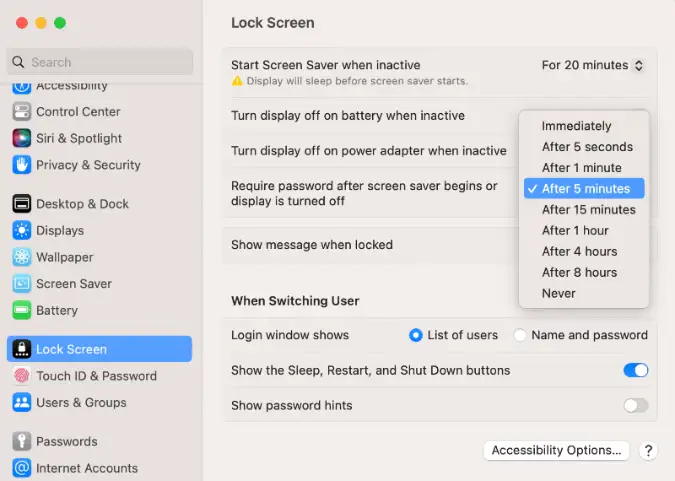
  1. Click on “Lock Screen”: You will see all the available options here for customizing your lock screen.

  1. Set the Screen Lock Time: Choose from the dropdown menu to select your preferred timing (e.g., 5 minutes or Never) for the screensaver to kick in after the specified timing.

Once you have set the screen lock time, your Mac will automatically lock the screen after the specified period of inactivity.

This feature is especially helpful when you need to step away from your computer for a brief period and want to keep your information secure.


Additional Tips to Secure Your Mac

Apart from setting the screen lock time, you can take other security measures to protect your Mac from potential threats.

Here are some additional tips to enhance the security of your Mac:

  • Enable Two-Factor Authentication: Two-factor authentication adds an extra layer of security to your Mac by requiring a password and a verification code to access your account.

  • Install Antivirus Software: Installing antivirus software can help protect your Mac from viruses and malware that could potentially compromise your device’s security.

  • Keep Your Operating System Up-to-Date: Apple regularly releases security updates for macOS. Keeping your operating system up-to-date is crucial to ensure that you have the latest security features and protection against potential threats.

  • Disable Automatic Login: Disabling automatic login means you need to enter your password every time you want to access your computer, which adds an extra layer of security to your device.

By following these additional security tips, you can enhance the protection of your Mac and keep your information safe from potential threats.


Conclusion

Setting the screen lock time on your Mac is an essential security feature that can help protect your device from unauthorized access.

Following the simple steps outlined in this blog post, you can adjust the screen lock time to suit your needs and secure your confidential information.

In addition, implementing the additional security measures we’ve outlined can enhance the overall security of your device and provide added peace of mind.

Remember to stay vigilant and take necessary precautions to protect your Mac from potential threats. We hope you found this guide helpful!


How to Set The Screen Lock Time On Macbook [Delay Timeout] Read More »

how-to-split-large-CSV-file-into-multiple-smaller-files-using-Mac

3 Ways to Split Large CSV File into Multiple Files Using Mac

Handling large datasets is an essential part of data analysis and processing. However, working with large CSV files can often be challenging, especially when importing or manipulating the data.

One common solution to this problem is to split the large CSV file into multiple smaller files that are easier to manage, especially helpful if you have limited storage space or need to share the data with others.

This blog post will explore how to split a large CSV file into multiple smaller files using a Mac computer.

How to Split a Large CSV File into Multiple Smaller Files Using Mac?

Here are the three (3) ways to do so.


Method 1. Using Mac Terminal

Using the Mac terminal is an efficient way to accomplish this task.

Split CSV file using Terminal

Here’s a step-by-step guide on how to do it:

  1. Open the Mac Terminal

Use the Spotlight Search to find “Terminal” or click on the “Finder” icon on your dock, navigate to “Applications,” then “Utilities,” and finally, “Terminal.”

  1. Navigate to the folder containing the large CSV file.

For example, if your CSV file is on your desktop, you can navigate to it by typing “cd ~/Desktop” and pressing <Enter> on your keyboard.

cd ~/Desktop
  1. Split the CSV file into smaller files.

Use the <split> command to divide the CSV file into smaller files. The basic syntax for the <split> command is as follows:

split -l [number of lines per file] [name of large file] [prefix for new files]

Here’s an example command:

split -l 5000 largefile.csv smallerfile-

This command will split the large CSV file into smaller files that contain 5000 lines each. The new files will be named “smallerfile-aa,” “smallerfile-ab,” “smallerfile-ac,” and so on.

That’s it! Using the Mac terminal, you’ve successfully split a large CSV file into multiple smaller files. This method is incredibly efficient and can save you a lot of time and storage space.

Merge CSV files using Terminal

After you’ve split a large CSV file into multiple smaller files, you may need to merge them back together for further analysis or processing.

Here’s how you can merge the smaller files back into one larger CSV file using the Mac terminal:

  1. Open the Mac Terminal
  2. Navigate to the directory containing the smaller files.
  3. Merge the smaller files

To merge the smaller files back into one larger CSV file, use the <cat> command with a wildcard character (*). The basic syntax for the <cat> command is as follows:

cat [prefix for smaller files]* > [name of larger file].csv

Here’s an example command:

cat smallerfile-* > mergedfile.csv

This command will merge all the files in the directory that start with “smallerfile-” into one larger CSV file named “mergedfile.csv.”

You’ve successfully merged the smaller files back into one larger CSV file using the Mac terminal.


Method 2. Using MacUncle

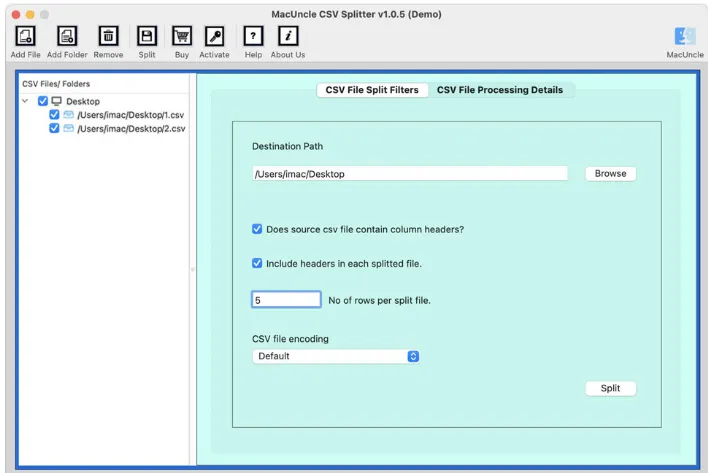
macuncle-software-split-large-csv-file-into-multiple-files-using-Mac

MacUncle CSV Splitter is a software tool designed specifically for Mac computers to split large CSV files into smaller, more manageable files.

You need to download and install this macOS application.

Here are the customizable splitting options available in the tool;

Split by a number of rows:

This feature allows users to split their CSV files into smaller files based on the number of rows.

For example, if a user has a CSV file with 10,000 rows and they want to split it into 5 smaller files, they can use this feature to split the file into 5 files with 2,000 rows each.

Split by file size:

This feature allows users to split their CSV files into smaller files based on the file size.

For example, if a user has a CSV file that is 10 MB in size and wants to split it into 5 smaller files, they can use this feature to split the file into 5 files that are approximately 2 MB each.

Preset splitting options:

The tool offers several preset splitting options that allow users to quickly split their CSV files into smaller files based on common sizes, such as 1 MB, 2 MB, 5 MB, and 10 MB.


Method 3. Using SplitCSV

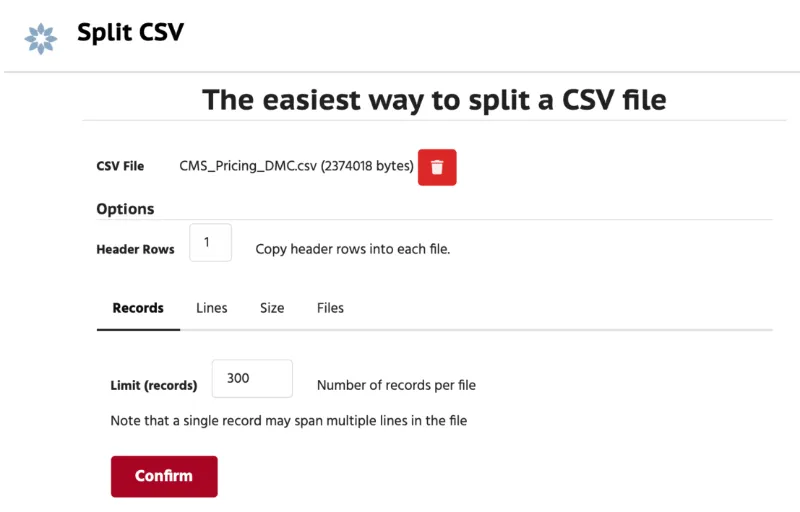
SplitCSV is a web-based software tool allowing users to split their large CSV files into smaller, more manageable ones.

To use SplitCSV, users need to visit the website and upload their CSV file.

The tool will then guide them through the splitting process, allowing them to choose the splitting options that work best for their needs.

The splitting options are;

Split by the number of rows

Users can choose the number of rows they want for each smaller file and the prefix and suffixes for the file names.

Split by file size

Users can choose the maximum file size they want for each smaller file and the prefix and suffixes for the file names.

Preset splitting options

Several preset splitting options that allow users to quickly split their CSV files into smaller files based on common sizes, such as 1 MB, 2 MB, 5 MB, and 10 MB.


3 Ways to Split Large CSV File into Multiple Files Using Mac Read More »

How-to-combine-split-zip-files-using-Mac

3 Ways to Combine Multiple ZIP Files Into One Using Mac

In this blog post, I will show you how to combine split files on a Mac.

Whether you’ve downloaded a large file that has been divided into multiple parts or created a split archive for easier storage and transfer, combining the pieces back into the original file can sometimes be difficult

Fortunately, several methods exist for merging split files on a Mac, and I’ll walk you through each. 

Related Post
How to Split Large ZIP file into Smaller Parts

Understanding Split Files

It is common practice to divide a large file into smaller parts to make it easier to transfer or store. When you split a file, it is divided into multiple segments, each of which is saved as a separate file.

This is also referred to as file fragmentation.

Split files are frequently used when transferring large files over the internet or saving them to external storage devices.

When sending a large file via email, for example, it may be too large to attach as a single file. In this case, the file is divided into sections and sent as individual attachments.

Split files are frequently compressed to facilitate transfer or storage. Zip compression is a popular method for compressing split files.

Split zip files use the.zip file extension and are frequently labeled as filename.zip.001, filename.zip.002, and so on.

To open and use a split file, you must first merge the individual parts back into the original file.


How to Combine Multiple Split ZIP Files using Mac

Here are the three (3) ways to merge these individual files.


Method 1. Using Terminal

The Terminal app is a native built-in application that comes with every Mac. This means you do not need to download or install it.

Because it is a lightweight application, this method is the fastest when merging ZIP files together on a Mac.

Here’s how to combine split zip files using Terminal:

  • Open Terminal

To open Terminal, go to Applications > Utilities > Terminal, or use Spotlight Search to locate it.

  • Navigate to the Directory.

For example, use the command below if your split files are located in the Desktop folder.

cd ~/Desktop
  • Combine the Files

To combine the split files, use the command below and press <Enter> on your keyboard to run it.

cat filename.zip.* > outputfilename.zip

Replace <filename> with the name of your split file and <outputfilename> with the name you want for the merged file.

The Terminal command will merge all the split files into a single zip file. Once the process is complete, you’ll have the original file ready to use.


Method 2. Use Archive Utility

Another method to combine split files on a Mac is by using the built-in Archive Utility app.

It is a built-in Mac app that allows you to extract and create archives. A compressed archive is a file that contains one or more compressed files or folders.

It can extract files from a variety of archive formats, including ZIP, TAR, and GZIP.

Here’s how to merge split zip files using Archive Utility:

  • Right-click on one of the split files and select “Open With” > “Archive Utility.
  • Combine the Files

Archive Utility will extract the contents of the first split file and automatically detect the other parts. Once the extraction is complete, you’ll have a single file with the original file name and extension.

Note: If Archive Utility doesn’t automatically detect the other parts, you can manually select all the split files and open them at once using Archive Utility. To do this, select all the split files, right-click, and select “Open With” > “Archive Utility.”

Using Archive Utility to merge split zip files is a simple and straightforward method without additional software or Terminal commands.


Method 3. Using Online Merging Tool

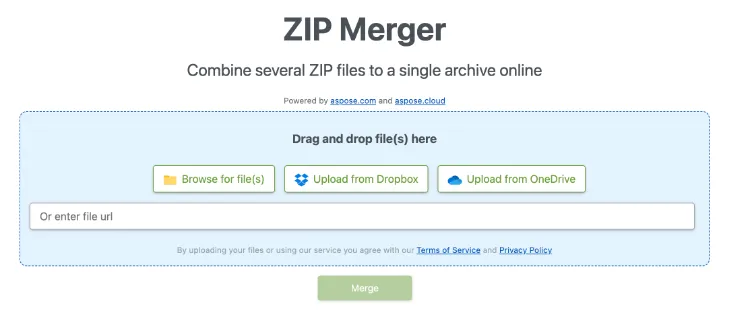
aspose-ZIP-merger-online-tool-combine-split-ZIP-files-using-Mac

Aspose Zip Merger is a web-based application that allows users to combine multiple split zip files into a single file. The tool supports a variety of split file formats, including .zip,.001,.002, and.part1.rar.

Go to Aspose Zip Merger’s website and upload the split zip files you want to merge. After uploading the files, you can select the output format for the merged file, such as ZIP or RAR.

One advantage of using Aspose Zip Merger is that it’s an online tool, which means that you don’t need to download and install any software on your computer.

This makes it a great option for users who need to merge split zip files on the go or from a computer without administrative privileges.


Conclusion

We’ve discussed three different methods to combine split zip files on a Mac.

Terminal commands are a powerful and flexible option allowing you to merge split files quickly and efficiently.

On the other hand, the built-in Archive Utility app is a convenient and easy-to-use option that doesn’t require any additional software.

Alternatively, if your ZIP contents are not sensitive in nature, there is always an online uploading solution, like Aspose ZIP Merger, for ease of use.


3 Ways to Combine Multiple ZIP Files Into One Using Mac Read More »

Skills-You-Need-As-A-Digital-Forensics-Expert-Analyst-Career

Career GUIDE: 7 Skills To Become A Digital Forensics Expert

Digital forensics is a sub-discipline of forensic science and a very specialized and niche field of study.

This niche involves retrieving evidence from phones, laptops, the cloud, and other storage means.

The purpose of using digital forensics to examine data from devices is to maintain complete transparency and prevent any form of data contamination and data alteration.

This is particularly useful when applying digital forensics to uncover digital evidence in criminal investigations and private lawsuits in a court of law.

This article will focus on all the skills you need to be a digital forensics expert.

What are the Skills Required for a Career in Digital Forensics

Here are the seven (7) skills needed in this career.


1. Having a Meticulous Mind

Forensic analysts must meticulously examine digital evidence because the entire analysis process can take a long time due to the increasing amount of data being analyzed and the increasing number of devices.

Having a meticulous mind that is both patient and observant is very important when facing a large amount of data.

Important evidence may slip through the analysts’ eyes if they are not sharp enough.

For example, a mobile phone cannot be treated as just one device now. It is, in fact, a combination of different apps, each having its data to analyze.

Laptops and PCs usually have many emails and document files to go through. All these require patience, time, and effort.


2. Ability to Articulate Technical Concepts

Explaining technical knowledge and know-how in a simple layman’s explanation requires time and effort.

This skill is very important because you may need to present your forensic findings in a court of law before the judge if you are in law enforcement or must explain it to your senior management in your company.

Most forensic analysts start off their career diving straight into technical skills, e.g., encryption, file metadata analysis, system artifacts, etc.,

While they know how to work on their forensic tasks, they often find it hard to articulate these in layman’s language that the public can understand easily.


3. Having an Analytical Mind

This is an important skill to have because there is no single forensic tool that can identify critical evidence for forensic analysts. After all, every case is different, and every piece of evidence is different.

Therefore the evidence is always discovered through the analysis of the forensic analyst.

You can piece together different files based on clues left behind by metadata, system logs, or even the content within the file document itself.

Maybe you are analyzing an email message and noticed a suspicious unique keyword being mentioned. As a result, you search through the entire device and find a piece of substantial evidence in it.

These are examples of an analytical mind a forensic analyst should ideally possess.

In short, you should be able to link files together based on, e.g., commonality, patterns, etc., as you go along with your forensic examination.


4. Likes to Explore Technology

The main reason there are so many sub-disciplines of digital forensics (e.g., mobile forensics, cloud forensics, memory forensics, etc.) is that these are the different technologies out there.

Having the playful mindset to try and the interest to explore new technologies are the primary keys to having a meaningful digital forensics career.

Remember, digital forensics is the aftermath of what has already happened. Therefore, discovering evidence is really about examining files and reverse-engineering technologies to see more data.

When a piece of substantial evidence lies in an unfamiliar technology the forensic analyst is unsure of, they should be curious to learn more and conduct their own research and development (R&D) before anything.


5. Extended Screen Time

Be prepared to spend long hours on the computer screen to analyze and go through document files, emails, images, videos, apps, etc.

Forensic analysts should be comfortable looking at computer screens for an extended period, depending on the current tasks on hold and the storage capacity involved.

Digital forensics depends mainly on commercial and open-source forensic tools.

These software applications are designed to work well on a wide-screen monitor, allowing forensic analysts to examine more data and make software features more accessible.


6. Multi-Tasking Between Devices

It is common for forensic analysts to be working on two (2) or more devices at any given time.

Juggling between examining different devices is considered a time-saving and more efficient way of performing digital forensics work.

You could be working on a laptop here, and you may need to work on another PC there.

Forensic extraction takes time, and processing applications takes more time too. Instead of waiting, time can be used to do forensic examinations on the next device.


7. Fundamentals of Law or Cyber Security Knowledge

Depending on where you work, if you are in government law enforcement, you may need to learn the law and criminal investigation.

Thankfully this knowledge will be provided through training once you join the agency.

If you are from the private sector, e.g., Big Four (4) accounting firms, you may need to know basic cyber security knowledge in addition to the digital forensics knowledge required.

This is because, in the private sector, they take on cyber security cases, e.g., breaches and data thefts.

Having related cyber security knowledge will surely help in this regard.


What is the Career Path

Digital forensics is employed mainly in law enforcement agencies, law firms, and private investigation companies. However, in recent years, more industry sectors have used forensic experts.

The Big Four (4) accounting firms, e.g., KPMG and Deloitte, all have their digital forensics experts in their teams as it is now common to audit and safeguard digital data and digital assets.

Getting professional forensic certifications from EnCase, Cellebrite, and SANS Institute would be best to gain more technical knowledge and be open to more job opportunities.

Career Progression

Typically, you will start as a junior forensic analyst in your company or government agency before moving on to more senior roles such as forensics consultant, forensics manager, and forensic expert in some organizations.

You may get the chance to learn more than one specialized area of digital forensics. For example, learning both computer forensics (examining laptops and PCs) and mobile forensics (investigating mobile phones and tablets)

The more you learn in this niche, the more valuable you will become.

Besides staying in your organization, you can consider moving to bank institutions or big accounting firms, which need forensic experts to analyze and audit data.

What is the Salary range like as a Digital Forensics Analyst?

According to Glassdoor, the average annual salary of a digital forensic analyst is about USD 78,000/-.

This largely depends on who you work for, government law enforcement or private corporations.

As a newly-recruited junior forensic analyst, you can expect a salary range of around USD 53,000/-.

As you gain more knowledge and experience in this field, you can expect a top-tier salary range of up to USD 150,000/– as a digital forensic expert.

You can move on to a higher pay scale if you move sideways into a senior management role or sales role.


Career GUIDE: 7 Skills To Become A Digital Forensics Expert Read More »