admin

featured-image-astra-wordpress-theme-speed-test-results

How FAST is Astra WordPress Theme (Speed Test Results + Data)

Astra is the most downloaded WordPress theme, and the speed test data in this article will tell you why.

With over 1 million+ downloads, Astra is easily the most popular and the most used WordPress theme.

Astra has over 180+ starter WordPress themes (both free and paid) for you to choose from. Once you have installed Astra in your WordPress, activate the [Importer Plugin] to download your preferred Starter Templates.

In this article, we are going to conduct speed tests on the Astra theme to see how well it fares across 5 different test sites.

Speed Test – Environment

WordPress Theme used: Astra WordPress Theme version 3.7.5

Web Hosting: We are using a fast & reliable web hosting service called WPX Hosting

Installation: We reset our entire WordPress database and settings to achieve a clean start. We used our dedicated test domain for this experiment (https://www.testedsite.com).

Configuration: To make the speed test as accurate as possible, there will be no extra posts, pages, media or even plugins to influence our experiment. The aim is to use a clean Astra theme, making it as lightweight as possible.

Speed Test – Sites Used

These are the five (5) sites that we used to conduct speed tests;

  1. PageSpeed Insights
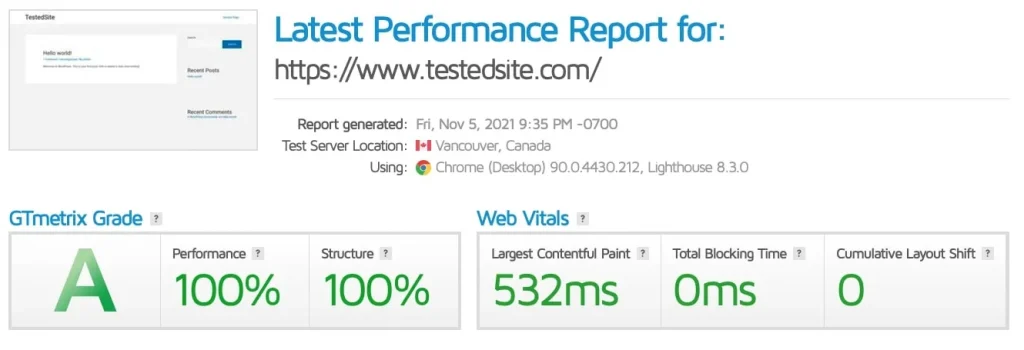
  2. GTMetrix
  3. Pingdom Tools
  4. WebPageTest
  5. ByteCheck

Below are the screenshots of the test results for each site.


PageSpeed Insights
astra-theme-pagespeed-insights-speed-test-results

GTMetrix

astra-theme-gtmetrix-speed-test-results

Pingdom Tools

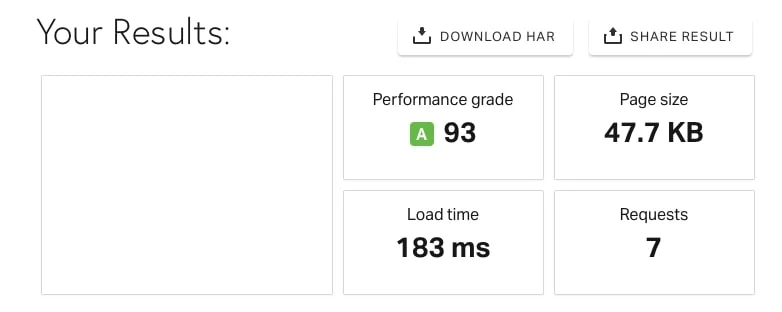
astra-theme-pingdom-speed-test-results

WebPageTest

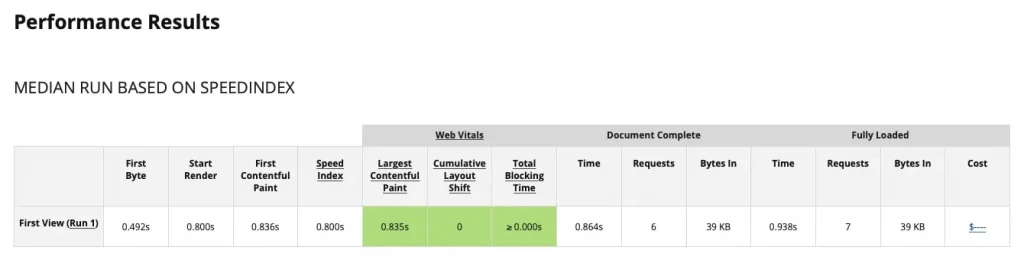
astra-theme-webpagetest--speed-test-results

ByteCheck

astra-theme-bytecheck-speed-test-results

Overall Results

Here are all the speed test results displayed in one table.

S/noSpeed Test – Sites usedResults
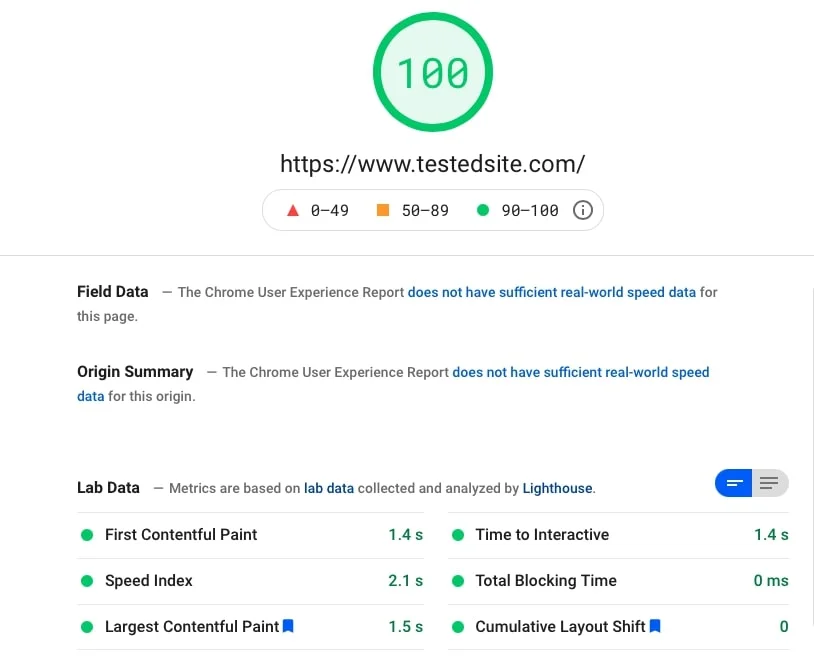
1PageSpeed InsightsScore 100,
FCP 1.4 sec, Speed Index 2.1 sec, LCP 1.5 sec
Time to Interactive 1.4 sec, TBT 0ms, CLS 0
2GTMetrixGrade A,
Performance 100%, Structure 100%,
LCP 532ms, TBT 0ms, CLS 0
3Pingdom ToolsGrade A 93,
Page Size 47.7 KB,
Load Time 183ms, Requests 7
4WebPageTestFirst Byte 0.492 sec
FCP 0.836 sec, Speed Index 0.8 sec, LCP 0.835 sec,
TBT 0ms, CLS 0
5ByteCheckTTFB 393ms,
Total Time 559ms, Header Size 541 bytes,
Request Size 188 bytes

Conclusion

The Astra WordPress Theme is one of the fastest themes out there we have tested.

It scored a perfect 100 on Google’s PageSpeed Insights and GTMetrix tests, with commendable FCP and LCP timing.

FCP measures how your visitors perceive the performance of your website, as opposed to what a speed test tool measures.

LCP tells us the time it takes to load the most significant capacity piece of content on your site, and it can be an image or graphic.

It is not easy to score a high A 93 on Pingdom Tools, and Astra is definitely one of the few themes out there that can do it.

Time To First Byte (TTFB) is a blazing fast speed of 393 milliseconds. For this test, the lesser time, the better it is.

TTFB is the total duration between when your web browser requests the web page and when that first byte arrives.

To install Astra, you can either;

  • Search for “Astra” in your WordPress interface via Appearance – Themes – Add New.
  • Visit the Astra Officlal website

The entire speed test experiment and results can also be seen here in this video.

How FAST is Astra WordPress Theme (Speed Test Results + Data) Read More »

featured-image-hello-elementor-speed-test-results

Hello Elementor WordPress Theme Speed Test – How Fast Is It?

A truly versatile and speedy WordPress Theme based on our tested data.

Ever wondered to know precisely how WordPress themes fare in terms of putting them into different speed test sites?

We conducted a series of individual speed tests on several popular WordPress Themes.

So how do we do that?

We used our dedicated domain name (https://www.testedsite.com), reset and started a brand new WordPress database, and finally, installed each WordPress theme we wanted to test out.

This article will focus on the highly-rated Hello Elementor WordPress theme.

Speed Test – Environment

WordPress Theme used: Hello Elementor version 2.4.1

Web Hosting: We used a fast & reliable web hosting service called WPX Host.

Installation: To ensure our speed test experiment is as accurate as possible, we reset our WordPress database to revert to its basic default settings and installed the Hello Elementor theme onto it.

Configuration: Again, to minimize any speed test disruptions, there will be no CDN used, no other WordPress plugins, no additional or removal of any posts, pages and media.

Speed Test – Sites Used

These are the five (5) sites that we used to conduct speed tests;

  1. PageSpeed Insights
  2. GTMetrix
  3. Pingdom Tools
  4. WebPageTest
  5. ByteCheck

Speed Test – Results

S/noSpeed Test – Sites usedResults
1PageSpeed InsightsScore 99,
FCP 1.5 sec, Speed Index 2.1 sec, LCP 1.6 sec
Time to Interactive 1.5 sec, TBT 0ms, CLS 0
2GTMetrixGrade A,
Performance 100%, Structure 100%,
LCP 233ms, TBT 0ms, CLS 0
3Pingdom ToolsGrade A 92,
Page Size 26.5 KB,
Load Time 1.02 second, Requests 7
4WebPageTestFirst Byte 0.313 sec
FCP 0.521 sec, Speed Index 0.5 sec, LCP 0520 sec,
TBT 0ms, CLS 0
5ByteCheckTTFB 164ms,
Total Time 343ms, Header Size 563 bytes,
Request Size 188 bytes

Conclusion

The Hello Elementor theme scored very well on all five (5) speed tests.

It has achieved full marks of 100 for GTMetrix and 99 for PageSpeed Insights.

For most speed measurement metrics, the lower the timing, the faster the WordPress theme is.

The First Contentful Paint (FCP) is at a low of 1.5 seconds, and the Largest Contentful Paint (LCP) is also at a low of 1.6 seconds.

FCP measures how your visitors perceive the performance of your website, as opposed to what a speed test tool measures.

LCP tells us the time it takes to load the biggest capacity piece of content on your site, and it can be an image or graphic.

The “Time To First Byte” (TTFB) is also at a low of 164 milliseconds.

TTFB is measured from when your web browser requests the web page to when that first byte arrives.

In summary, you should consider installing the Hello Elementor theme on your blog or even for your business site. There is plenty of customization available.

Visit Hello Elementor official homepage

Hello Elementor WordPress Theme Speed Test – How Fast Is It? Read More »

how-fast-is-twenty-twenty-one-wordpress-theme-speed-test

How FAST is Twenty Twenty-One WordPress Theme: Speed Test Results

We put the default WordPress theme into our speed tests and are pleased with the results.

twenty-twenty-one-webpage-interface

WordPress offers its default theme, Twenty Twenty-Three, for every new user.

So just how fast is this theme?

We put it to the ultimate speed test in this article and show you the results.

Speed Test Environment

WordPress Theme used; Twenty Twenty-Three version 1.0

Web Hosting; We are using a fast and reliable WordPress host called WPX Hosting

Installation; We installed the theme on our dedicated test domain (https://www.testedsite.com) on top of a newly reset WordPress configuration.

Considerations; No CDN used, no additional WordPress plugins, no amendments or removal of posts, pages or media, no configuration of WordPress Settings and the WordPress database newly reset.

Speed Test – Sites used

These are the five (5) sites that we used to conduct speed tests;

  1. PageSpeed Insights
  2. GTMetrix
  3. Pingdom Tools
  4. WebPageTest
  5. ByteCheck

Speed Tests – Results

The table below shows all the speed test results from all five (5) sites.

S/noSpeed Test – Sites usedResults
1PageSpeed InsightsScore 97,
FCP 1.3 sec, Speed Index 4.4 sec, LCP 1.5 sec
Time to Interactive 1.3 sec, TBT 0ms, CLS 0
2GTMetrixGrade A,
Performance 100%, Structure 98%,
LCP 577ms, TBT 0ms, CLS 0
3Pingdom ToolsGrade A 91,
Page Size 47.9 KB,
Load Time 1.16 sec, Requests 8
4WebPageTestFirst Byte 0.199 sec
FCP 0.702 sec, Speed Index 0.7 sec, LCP 0.693 sec,
TBT 0ms, CLS 0
5ByteCheckTTFB 378ms,
Total Time 532ms, Header Size 555 bytes,
Request Size 188 bytes

Conclusion

The default WordPress theme, Twenty Twenty-One, scored a very high-performance grade (A) for both PageSpeed Insights and GTMetrix tests.

Provided that your domain is hosted on a fast & reliable web hosting service, this theme has proven itself from these speed tests that it is worth using.

The Time to First Byte (TTFB) is a fast 378 milliseconds which means visitors can expect a quick web page loading on your site.

Twenty Twenty-One is recommended to be used by anyone if they want a clean and speedy WordPress theme.

If you had previously uninstalled the theme, you could always get it back via the official WordPress website.

The entire speed test experiment and results can also be seen here in this video.

How FAST is Twenty Twenty-One WordPress Theme: Speed Test Results Read More »

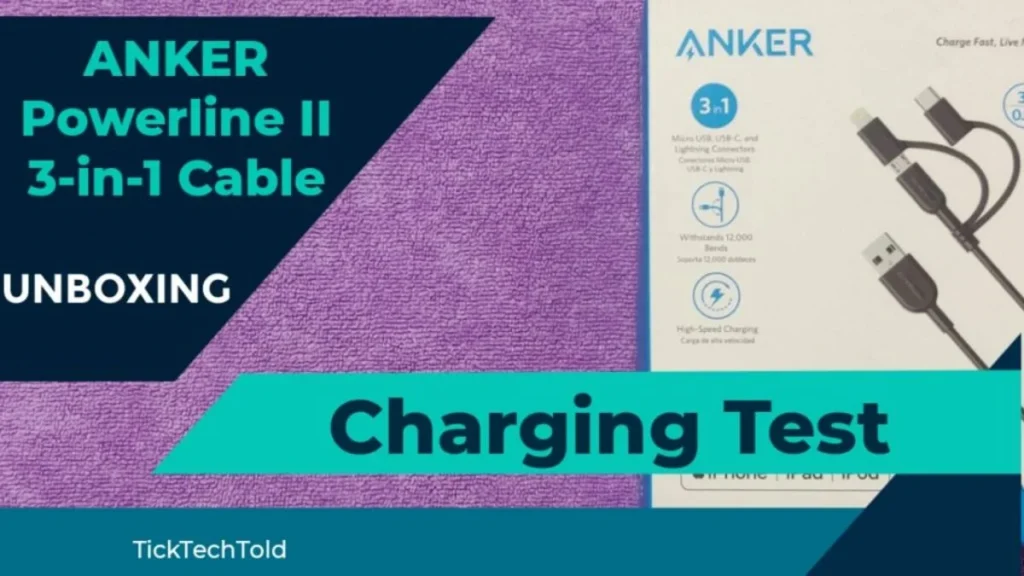
featured-image-anker-powerline-ii

Charging Speed Test Review: Anker Powerline II 3-in-1 Cable

Need to charge both Android and Apple devices? It’s time to get a reliable cable that charges.

In this article, we will unbox the Anker Powerline II 3-in-1 cable and give it a charging speed test on a mobile phone to see if it works well.

You can watch the unboxing and charging test here as well.

When facing a mixture of Android and Apple devices, there is a real need to get a reliable and trustworthy 3-in-1 cable that charges them without giving any problems.

Do you really need a 3-in-1 cable?

Nowadays, iPhones and iPads all require their lightning cables to be MFi-certified to charge correctly. This is especially so for the latest models, such as iPhone 12 and 13.

Android devices mainly come in USB-C connectors; some even come with a faster-charging specification called the Power Delivery (PD) that only selected cables support.

Other digital devices like speakers, microphones and portable fans still rely primarily on MicroUSB connectors.

Why is having a trusted & reliable 3-in-1 cable necessary?

On the physical aspect, your cable should be sturdy in durability to prevent degradation. Furthermore, it should carry a warranty for your purchase. Lastly, the different connectors must be charged, even as with the latest iPhone devices, which require cables to be MFi-certified.


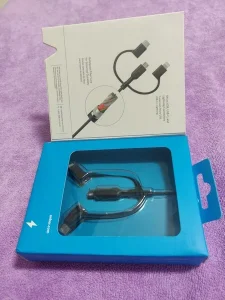
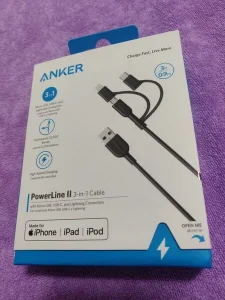
Unboxing the Anker Powerline II 3-in-1 cable box

Let’s look closely at the contents inside the Anker Powerline II 3-in-1 cable box.

Product Release Date

June 2017.

Available Colors

Either in Black or White colour choice.

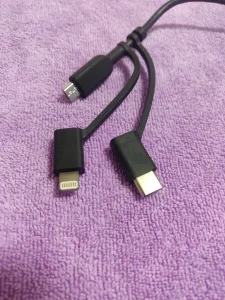
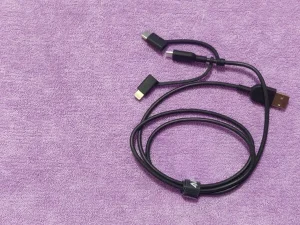
Cable Components

On one end;

  • USB Type-A


On the other end;

  • USB Type-C
  • MicroUSB
  • Lightning

Cable Length

The cable length is about 35 inches or 90 centimetres.

Cable Weight

The cable weight is about 0.96 ounces or 27 grams.


Charging Speed Test on Anker Powerline II

Here’s the speed test conducted.

Charging Speed Test

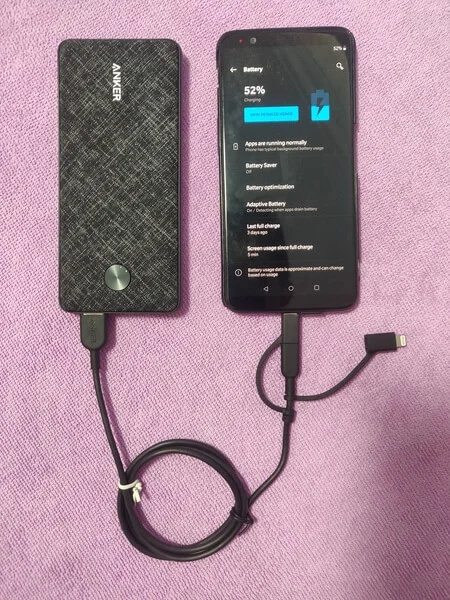
Now, use the Anker Powerline II to do a charging speed test using a good power bank called the Anker Powercore 3 Sense 10K

I had previously made a separate video on this amazing Anker power bank. 

Be sure to check the description below for the link to this video.

The phone here is an Android phone that also uses a USB-C connector. 

charging-test-Anker-Powerline-II-3-in-1-Cable

As we can see from here, the phone is being charged successfully by the Anker Powerline II 3-in-1 cable via the Anker power bank.

Warranty

Anker products come with a lifetime warranty.

Compatibility

Compatible With:

– iPhone 11/ 11 Pro/ 11 Pro Max/ X / 8 / 8 Plus / 7 / 7 Plus 6s / 6s Plus / 6 / 6 Plus / 5s / 5c / 5

– iPad Air / Air 2 / Pro, iPad mini / mini 2 / mini 3 / mini 4, iPad (4th generation)

– iPod nano (7th generation) and iPod touch (5th / 6th generation)

– Galaxy Note 8

– Galaxy S8 / S8+ / S9

– HTC 10

– Sony XZ

– LG V20 / G5 / G6

– Xiaomi 5

– Virtually ALL Android & Windows phones & tablets

– Samsung, HTC, Motorola, Nokia, LG, Sony, PS4, Xbox, PS Vita, GoPro

– GPS devices, portable chargers, Bluetooth speakers, wireless keyboards, e-readers, cameras & camcorders

Conclusion

We unboxed the contents, examined the physical cables, and tested the Anker cable’s charging capabilities.

The Anker Powerline II 3-in-1 cable is strong and durable in physical appearance. It is built to withstand degradation to a certain extent of usage.

For charging-wise, we tested it on both iPhones and Android devices, and it delivers charging capabilities successfully without any problems.

It works with the most reliable power banks, such as the Anker PowerCore III Sense 10K used in this article.

For the price of USD 19.99, the Anker cables are a big bargain and worth the buy for anyone who needs to charge both iPhone and Android devices.

Charging Speed Test Review: Anker Powerline II 3-in-1 Cable Read More »

review-anker-powercore-III-sense-10k

Review: Anker PowerCore III Sense 10K Power Bank (Unboxing)

10,000 mAh that fits slimly in your pocket.

The Anker PowerCore III Sense 10K power bank is one of the slimmest power banks out there in the market that offers Power Delivery (PD) mode.

This device successfully combines high-capacity (10,000 mAh) with remarkable portability. 

All You Need to Know About the Anker PowerCore III Sense 10K Power Bank

Here are the full specifications, unboxing details and accessories inside the box.

Date Of Release

February 21, 2020

Unboxing

Watch our detailed unboxing video here.

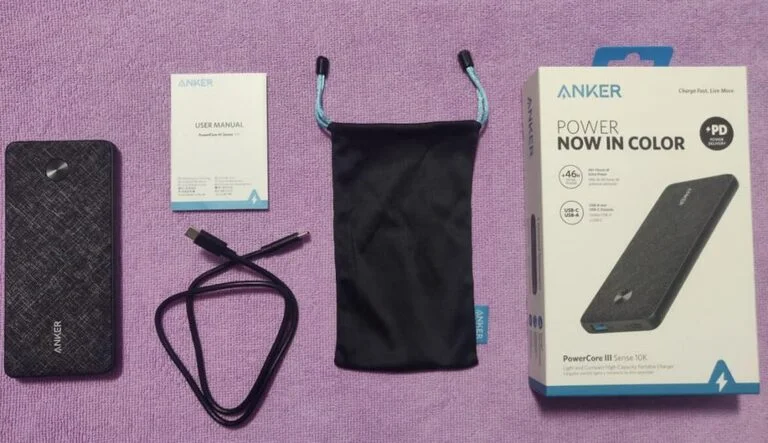
What’s in the box?

  • Anker PowerCore III Sense 10K Power Bank
  • Instructional manual
  • Cloth-material Travel Pouch (black)
  • Type-C to Type-C cable (black)
unboxing-inside-anker-powercore-iiii-sense-10k

Charging Capacity

This battery pack has a maximum charge capacity of 10,000 Milliamp Hours (mAh)

This means it can perform approximately 2 full charges for an iPhone or Android phone. 

It is also capable of giving one full charge for an iPad Pro device.

Physical Size (Dimensions)

The length is about 5.89 inches or 15 centimetres. 

The breadth is about 2.7 inches or 6.8 centimetres.

The thickness is about 0.57 inches or 1.4 centimetres. 

Weight

It weighs about 7.5 ounces or 212 grams.

Ports (Connectivity)

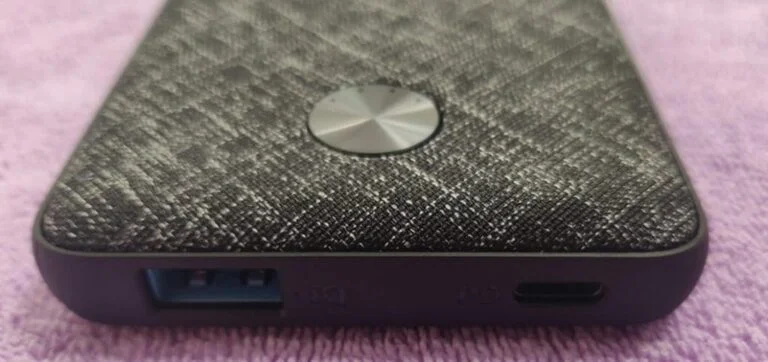
The Anker PowerCore 3 has two different ports. 

One is the 12 watts USB-A PowerIQ port. 

The other is the 18 watts USB-C Power Delivery (PD) port.

The voltage it uses is 15 volts.

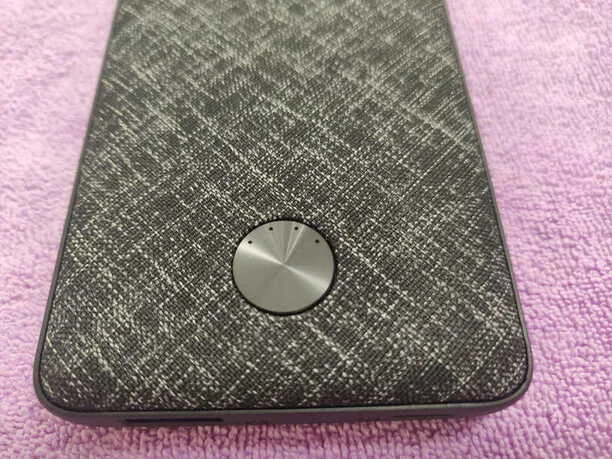
Physical Button

charging-buttons-on-anker-powercore-iii-sense-1ok

When pressed or during charging, the circular physical button displays the amount of charge it currently has.

Upon fully charged, it will show a maximum of 4 lighted dots.

Physical Feel

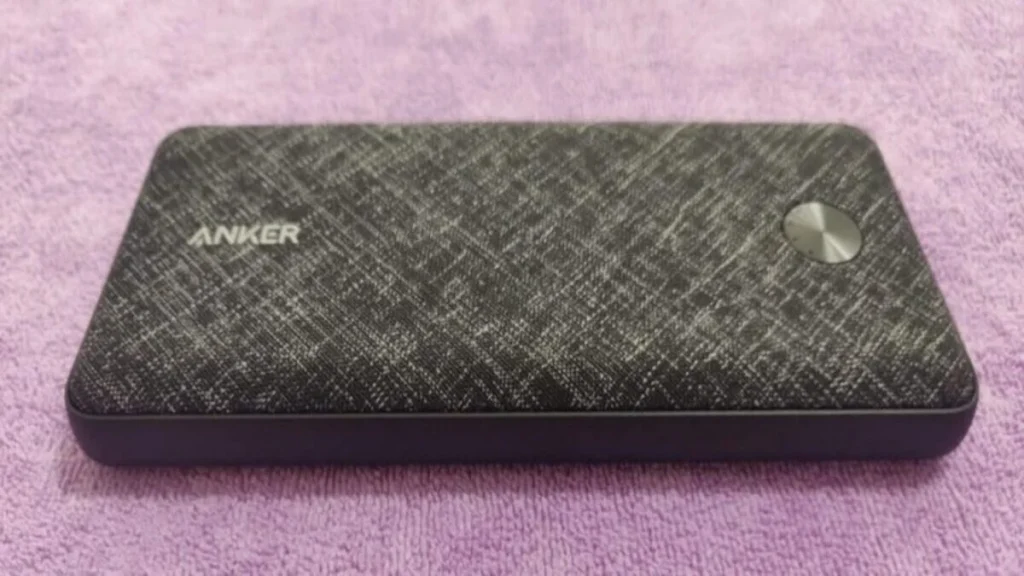
The first thing you will notice when you are holding this battery pack is the slim-built it offers on your hands.

Thanks to the padded texture, it also feels premium, which offers another layer of protection from knocks and abrasions.

It feels really slim and lightweight in the hands and can easily slip into the pockets. 

Charging Speed & Test

  • Recharging Time: 4.5 hours (with 18W USB PD charger & USB-C to C cable)
  • USB-C Input (PD): DC 5V=3A, 9V=2A, 15V=1.2A
  • USB-C Output (PD): DC 5V=3A, 9V=2A, 15V=1.2A
  • USB Output: DC 5V=2.4A
  • Total Power Output: 18W

Price

USD 49

Colours Available

  • Steel Blue
  • Venetian Red
  • Winter Sage
  • Sun-kissed Coral
  • Black

Supported Devices

Normal Type-C Charging – Supported Devices:

• Apple iPhones 

• Apple iPad Mini & Pro 

• Android Phones

* Nintendo Switch

Power Delivery (PD) – Supporting Devices:

• iPhone XS, XS Max, XR, X, 8 Plus, 8

• iPad Pro 2018

• Galaxy S10/S10+/S10e

• Google Pixel

• Nexus 6P

Conclusion

The Anker PowerCore III Sense 10K power bank is indeed value for money. At USD 49, you get one of the slimmest and sleekest power banks right now in the market.

It supports charging for most devices, such as Apple iPhones, Samsung phones and even Nintendo Switch.

It has a premium feel and plenty of good reviews.

Get it here.

Review: Anker PowerCore III Sense 10K Power Bank (Unboxing) Read More »
featured-image-how-to-prove-2-files-same

How To Prove If 2 Files Are Identical (Windows, Mac & Linux)

Check for file verification between 2 files, no matter what operating system you are using.

When verifying if two files are identical, both must be the same, technically speaking, from the first byte to the last.

They can have different filenames, but they are duplicates of each other.

How do we prove that?

It is not practical to, for example, check all the contents of two lengthy Word documents or inspect every pixel for 2 similar file images.

How to know if two files are exactly the same file?

Here are the four (4) different ways to prove if two files are the same.


1. Using a Hashing Algorithm

The fastest and most accurate method is to check if two files are identical, have the same content, and replicate the other.

Legally speaking, in a court of law, the use of both MD5 and SHA-1 hashing algorithms are scientifically accepted and widely used to determine if two digital files are exactly the same.

Both hashes are cryptographic hash functions, using mathematics to generate a 128-bit string value (for MD5) or a 160-bit string value.

You can generate a hash value for any text or paragraph, any digital file, e.g. image, video or document, and even a transaction.

Below is an example of 2 similar images, using MD5 hashes to prove if they are the same file.

MD5 = 1CE434071294B9E7AEC68CA5191E2F87
example-file-for-hashing
MD5 = 1CE434071294B9E7AEC68CA5191E2F87

Both hash values are the same; therefore, both images are duplicate files without any differences or modifications.

Using Windows PowerShell – (for Windows)

Using the Windows PowerShell command-line quickly without installing any additional tools since it is already in-built into the operating system.

Type “Powershell” into the Windows Search bar and open it.

Copy and paste the following code into the command prompt, changing the file path (highlighted in blue).

if((Get-FileHash "path-to-fileA").hash -eq (Get-FileHash "path-to-fileB").hash) {"Both Files Are Identical"} else {"Both Files Are NOT Identical"}

Change the “path-to-FileA” and “path-to-FileB” accordingly to the 2 files you want to test.

windows-powershell-filehash

When 2 files are identical, the output will be “Both Files Are EXACTLY THE SAME”

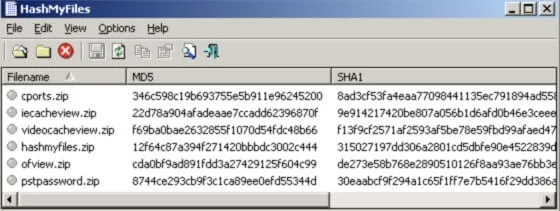
Using HashMyFiles – (for Windows)

hashmyfiles

HashMyFiles is a small utility tool that requires no installation (drag & drop files) and supports up to Windows 10.

It can calculate both MD5 and SHA-1 hash values.

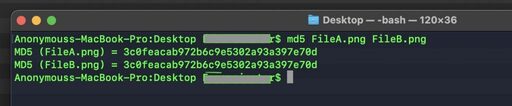
Using Mac Terminal – (for Mac users)

Open Terminal and enter this simple command below (changing the 2 files to your own).

md5 FileA.jpg FileB.jpg
mac-terminal-md5-hash-two-files

When both file hashes match, they are exactly the same file.

You can also calculate the SHA-1 hash using;

shasum -a 1 FileA FileB

Using Linux Shell – (for Linux users)

Open Terminal and enter this short command, pointing to your file, to generate your MD5 hash value.

md5sum filename.jpg

2. Using the Microsoft Word application

Compare feature

Use this method if you want to compare 2 different Word documents.

Regardless of the operating system, you are using, the Microsoft Office Word application itself has a “Compare” feature we can use.

Note: this method is only used to compare the contents of both files and not to prove if they are the exact replicate of each other (exact bit-by-bit).

1) Open Word application,
2) Click on the “Review” tab,
3) Go to the “Compare” dropdown menu,
4) Choose “Compare Documents” and select the 2 Word Documents you want to verify.

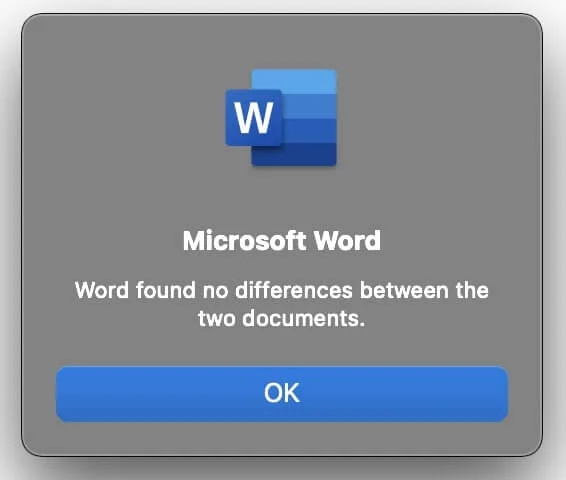
When both files are the same, MS word will return a message box like this (below).

microsoft-word-compare-feature

3. Using the Notepad++ application

Compare plugin

Use this method to compare 2 text files, source files, log files and SQL databases.

Notepad++ is a windows-only application that many programmers use to perform source-code editing.

It is a reliable replacement for the native Notepad application in Windows operating system.

Note: Similar to the MS Word method above, Notepad++ allows for comparing the contents of both files.

1) Open the Notepad++ application
2) Go to [Plugins] – [Plugin Manager] – [Show Plugin Manager]
3) Select the [Compare] plugin and click [Install]

Now, open the 2 files separately in 2 different Notepad++ applications.

From the [Plugins] menu, select [Compare] and again, select [Compare]

You can now see both files side-by-side, and if you notice any yellow highlight portion, these are the content differences between both files.


4. Using Online Tools

If the files or content you want to verify are not sensitive, you can opt to use these online services to check their authenticity.

DiffChecker

DiffChecker

DiffChecker allows for comparing text, images, PDF, Excel and even folders.

It is also available as a desktop app for Windows, Mac and Linux.

CopyLeaks

Like DiffChecker, you can copy the entire text content from 2 different files and paste it on Copyleaks for comparison to see if they are identical.

You can also upload the files or provide the URL address for Copyleaks to check.

OnlineMD5

OnlineMD5 is a simple online service that generates MD5 and SHA-1 hash values.

You can paste your text content or easily upload a file for quick hash computation.

The maximum upload file size is 4GB.

With that, you could even hash an entire ISO image or even a video file.


Summary

To prove if 2 digital files are the exact copy of each other, always use a cryptographic hash like MD5 and SHA-1. It is the most accurate way to prove the authenticity of two digital files.

MD5 & SHA-1 hash algorithms are often used in a court of law to verify digital files.

To compare only the contents of two files, use the rest of the methods stated in this article.

Consider using any of the online hashing services mentioned above when the files & contents are not sensitive to you.

How To Prove If 2 Files Are Identical (Windows, Mac & Linux) Read More »
featured-image-telegram-fix-missing-notifications

11 Ways to Fix Telegram Missing Notifications

It is well known that Telegram is an excellent useful messaging app for secure communications, but there are frustrating times when message notifications are not working correctly.

These could be notifications not showing up on time (delayed) or simply missing notifications. For example, you did not get the push notifications in real-time, and maybe messages did not get through to you at all.

There are broadly two main approaches to tackling this problem: checking against your Mobile OS Settings (your Android / iOS) and App Settings (Telegram).

We will first start with the most common rectifications coming down the list.

How to FIX Telegram’s missing notifications?

Here are the eleven (11) ways to rectify and fix the problem of Telegram’s missing notifications.


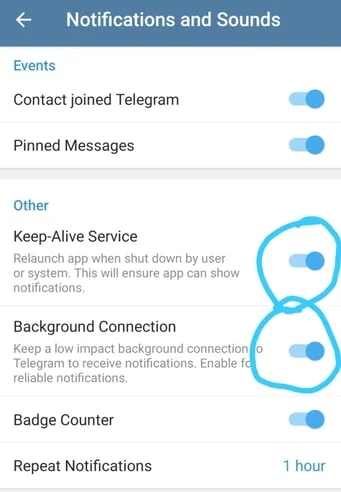
1. Enable Keep-Alive Service and Background Connection

Go to [Settings] – [Notifications and Sounds] within the Telegram app.

Make sure both [Keep-Alive Service] and [Background Connection] are toggled ON.

This ensures that Telegram remains active in the background for incoming messages, even though you kill off the app manually.

telegram-keep-alive-service-background-connection

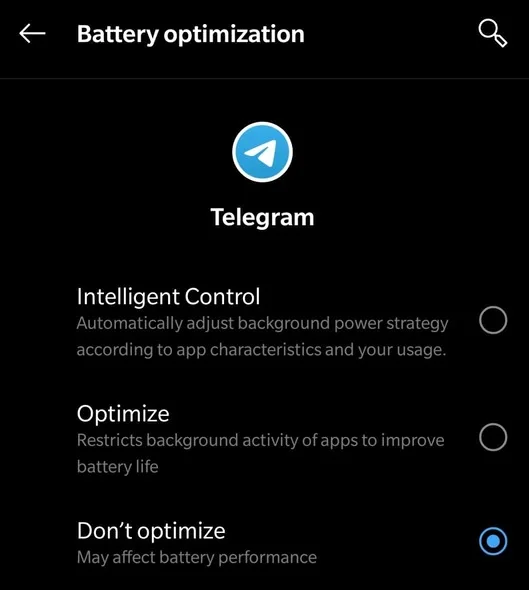
2. Turn OFF Battery Optimization

This only applies to Android devices.

Battery Optimization allows Android devices to save battery performance by restricting background apps like Telegram. We do not want to have this, as it will affect our ability to receive notifications and alerts from Telegram.

For Android users, search for [Battery optimization] under your [Settings] and select [Don’t optimize].

telegram-battery-optimization

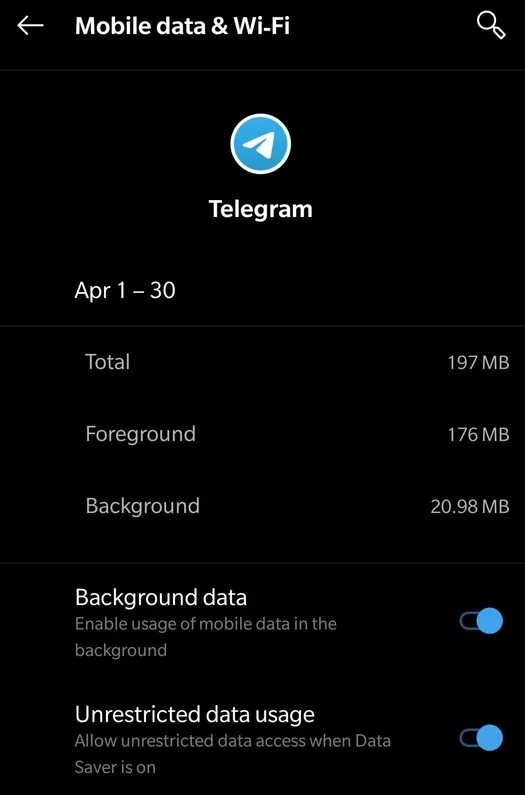
3. Turn ON Background data and Unrestricted data usage

You could also try to turn on both [Background data] and [Unrestricted data usage]

This ensures that Telegram runs in the background with optimum data usage privilege.

telegram-background-data-unrestricted-data-usage

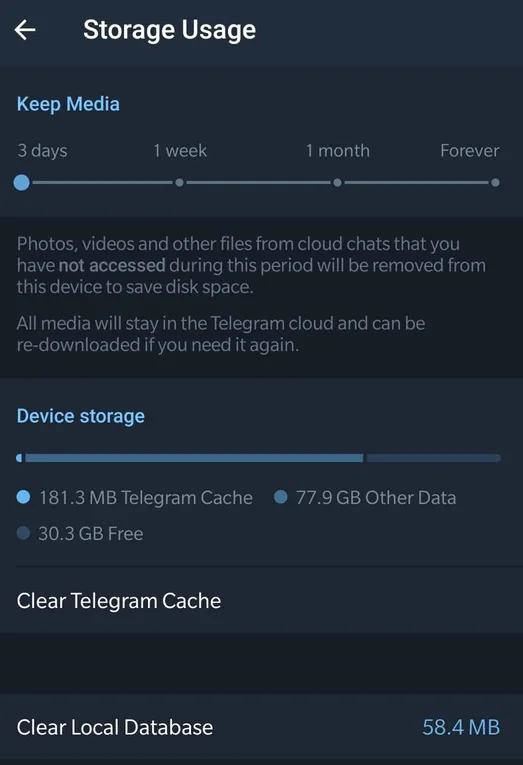
4. Clear Telegram cache and Local Database

The longer we use Telegram, the bigger the cache area becomes.

This contains not only text but images, videos and others as well. Unfortunately, too much cache space can sometimes result in the app behaving slowly and unresponsive.

To ensure Telegram performs at its optimum level, consider clearing the cache and storage area once a month.

Clearing the cache also frees up more space on your overall phone storage capacity.

Open the Telegram app, go to [Settings] – [Data and Storage] and click both [Clear Telegram Cache] and [Clear Local Database].

clear-telegram-cache-local-database

5. Turn ON Notifications for Individual Chats

Within the Telegram app, each individual chat (with someone) and each chat group (with groups of people) has their own settings.

Go to the chat message of your choice and make sure the [Notifications] is toggled ON (slider to the right side).

turn-on-telegram-individual-chat

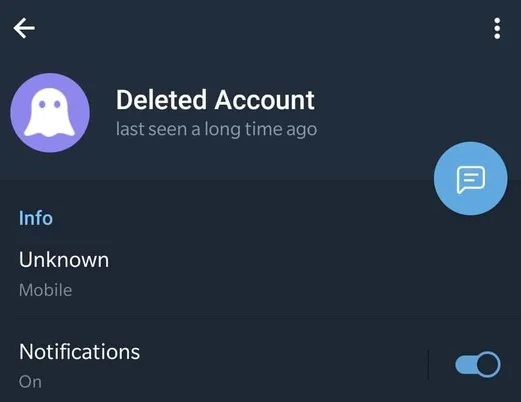
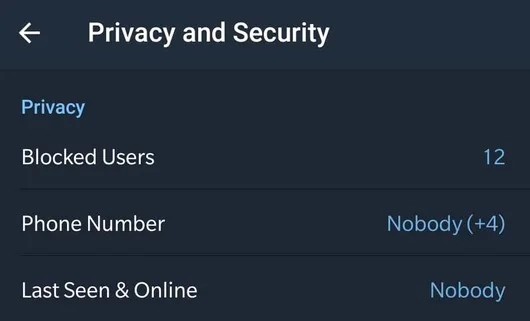
6. Check your Blocked Users

Open the Telegram app, go to [Settings] – [Privacy and Security]

You will see [Blocked Users] here.

Make sure your contact person/s is not under this blacklist, as they will not be able to contact you until you remove them from this list.

telegram-blocked-users

7. Disable Do Not Disturb

Make sure the [Do Not Disturb] mode is disabled.

[Do Not Disturb] mode can silence alerts, notifications, phone calls and text messages.

Search for it under the [Settings] menu for Android and iOS devices.


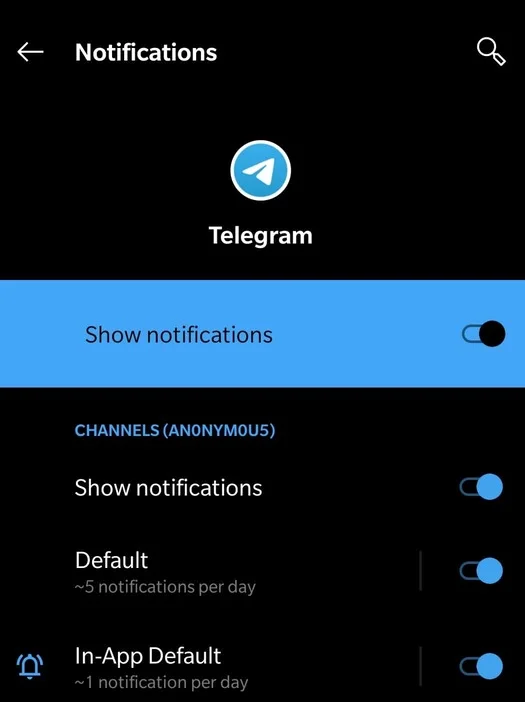
8. Turn ON Notifications for Telegram App

Under your phone’s General Settings, search for [Notifications]. Next, select [Telegram] from the full list of apps installed on your phone.

Ensure the [Show notifications] is turned ON (slider to the right).

telelgram-system-settings-notifications

9. Update to the latest version of Telegram

Go to PlayStore or App Store and check if you are on the latest version of Telegram.

This is a quick and easy way to rectify this problem.

The same goes for the Desktop or Mac version if you are using them for Telegram.


10. Update to the latest Operating System version of your phone

Go to your phone’s Settings and ensure you are on the latest mobile version.

For Android, go to [Settings] – [About Phone] – [Android version].

Click on [Google System Update], and it will check if you need to update your OS.

For iOS devices like iPhones and iPads, go to [Settings] > [General], then tap [Software Update].


11. Restart your Phone

Often largely ignored, simply restarting your phone could potentially solve many minor bugs or glitches relating to 3rd party apps and your mobile operating system (OS).

To do this, terminate the Telegram app in the background, restart your phone and open up Telegram again.


11 Ways to Fix Telegram Missing Notifications Read More »

Home_button_opera-web-browser

3 Ways to Add a Home Button to your Opera Browser Toolbar

When using the default Opera web browser, there is no Home button you can use to enable or configure for your preferred homepage.

The only way to display a Home button is to manually install browser extensions or use the built-in Speed Dial feature.

This post will show you the different ways you can use to set a Home button for your Opera web browser.

How to Add a Home Button in Opera Web Browser?

Here are the three (3) methods you can use to display a Home Button on the Opera browser.


Method 1. Install [Home Button At Top Right] extension

install-opera-browser-extension-home-button-at-top-right

This browser extension will add and display a home button on the top right of your Opera web browser.

The home button will link to the home page URL address you specify.

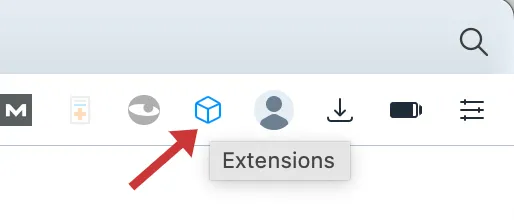
Install the Opera extension and click on the Extensions icon in the browser’s top-right corner.

opera-browser-extension-menu-option

PIN the extension <Home Button At Top Right> so that the home button can be added to your Opera browser.

PIN-opera-extension-home-button-at-top-right

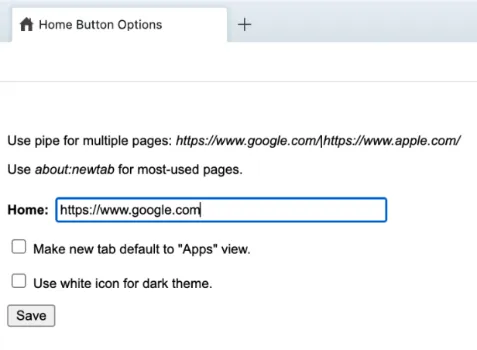
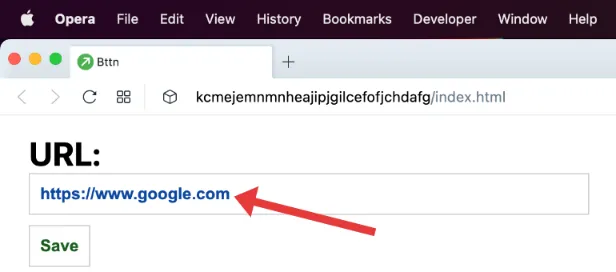
After that, click on the Options (three (3) dots on the right).

opera-extension-home-button-top-right-set-add-homepage-url-address

Input your desired home page URL address and click <Save>.

opera-web-browser-add-enable-home-button-homepage

You will now have a home button on our Opera web browser that will bring you to the URL address you previously specified.

Tip: You can long-press the home button to move its position around the browser menu bar.


Method 2. Install [Custom Shortcut Button] extension

This method allows you to visit your homepage whenever you open a new tab on your Opera browser.

The browser extension is called Custom Shortcut Button.

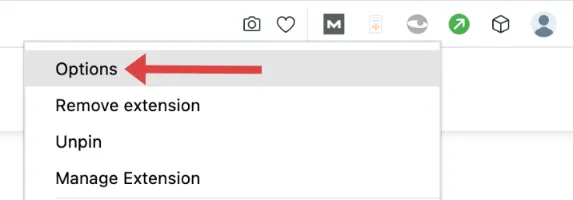
Install the Opera extension, and the extension button (green colour icon) will appear on your menu bar.

Right-click on the green icon and select <Options>.

opera-extension-custom-shortcut-button-options

Input your desired homepage URL address and click <Save>.

opera-browser-extension-custom-shortcut-button-set-URL-address-homepage

Now, pressing the green icon button on your menu bar will bring you to your homepage.


Method 3. Using the built-in Speed Dial feature

Also referred to as “Start Page”, Speed Dial is a built-in feature of the Opera web browser.

Speed Dial is a single-page layout in Opera where you can display all your favourite websites for quick access.

You can use Speed Dial to add your homepage URL address.

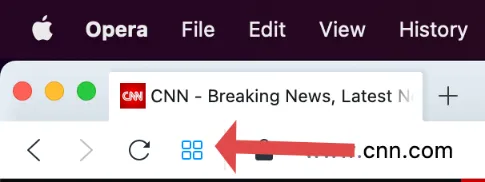
To do so, open Opera browser and click on the Speed Dial button (four squares icons).

opera-web-browser-speed-dial-start-page

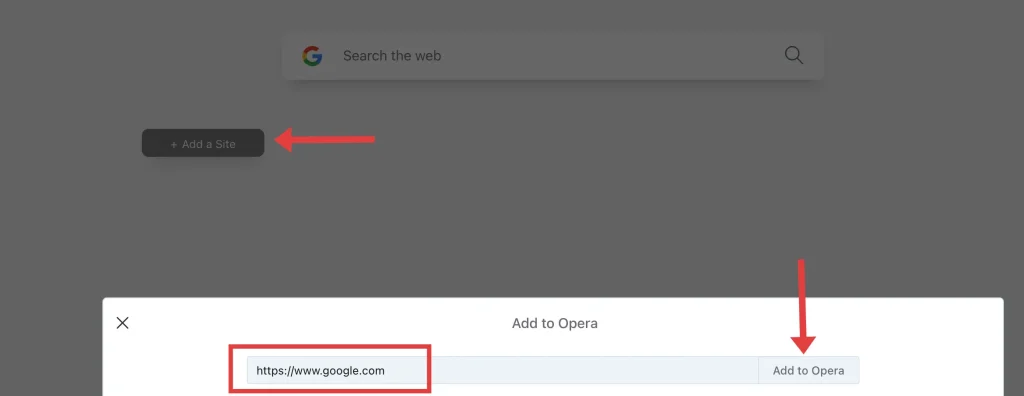
Click <Add a Site>.

Input your desired URL address and click <Add to Opera>.

opera-web-browser-add-homepage-speed-dial-add-a-site

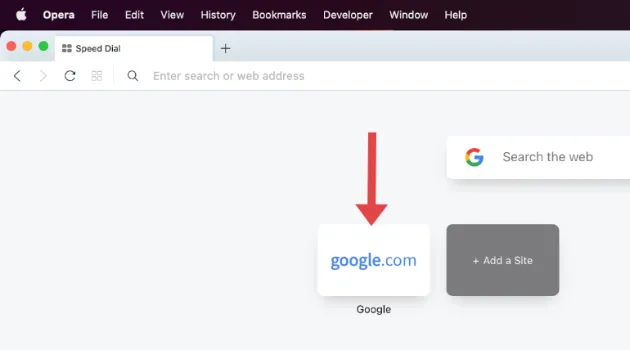
Your URL homepage will appear on your Speed Dial page.

opera-web-browser-speed-dial-feature-homepage-add-site

You can add as many sites as you want on this page.

Whenever you want to access your homepage, click on the Speed Dial button and click on the site name you want.


3 Ways to Add a Home Button to your Opera Browser Toolbar Read More »

view-image-forensics-exifdata-metadata-analysis

7 Ways to View Image EXIF Metadata [Android, iOS, macOS, PC]

The best way to view photo image EXIF data is via specialized image analysis tools or digital forensics software, as they preserve the metadata while displaying all the hidden information, such as GPS location coordinates and file timestamps.

How to Accurately View EXIF Metadata of a Photo Image?

Here are the seven (7) EXIF data analysis and forensic tools you can use to view image metadata correctly.


1. ExifTool by Phil Harvey

Lightweight and Powerful

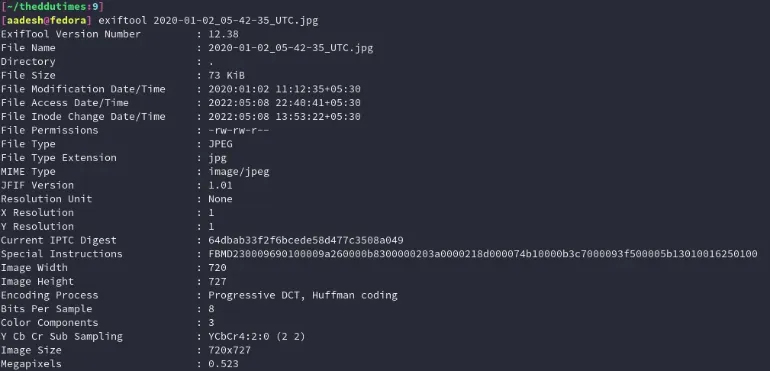
exiftool-metadata-jpg-image-command-line

ExifTool by Phil Harvey is a popular lightweight command line tool used by many forensic examiners and researchers.

You can view, edit and remove all metadata from images, videos and standard file documents, such as Word, Excel and PDFs.

For Windows users, drag and drop the file into the ExifTool application, and your command line application will automatically open (see the example above) and display all its metadata values.

For macOS and Linux users, after installation, type the following (replace <filename> with your target file)

ExifTool <filename>

Operating Systems: Windows (standalone), macOS and Linux

If you want all the powerful features of ExifTool yet have a graphical user interface, try ExifToolGUI, which is the skin for ExifTool.


2. IrfanView

Swiss-army style – All Image Viewer

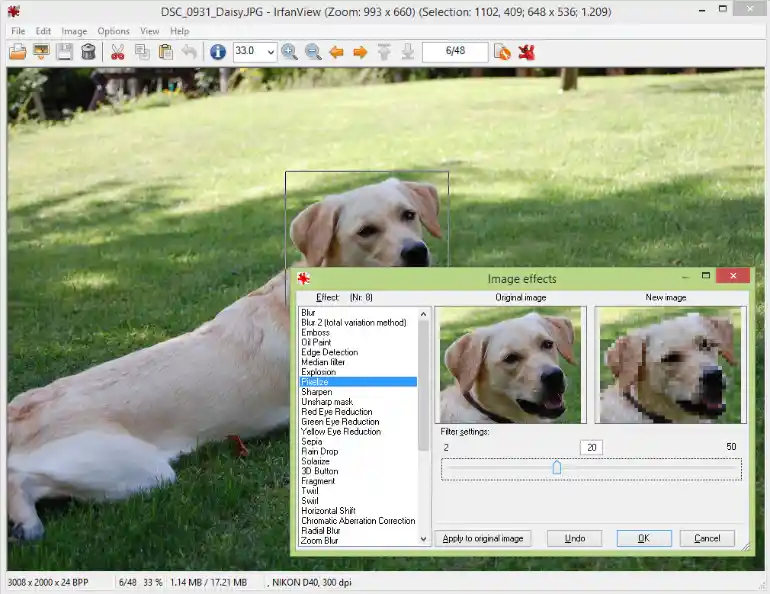
irfanview-image-exifdata-viewer

Since 1996, IrfanView has been a pioneer in opening user image files. In addition, it is the first to have animated GIF support and Multipage TIF support.

Besides having a powerful all-in-one image viewer that supports many different formats, users can install the additional plugin to have features such as metadata tools, effects, icons and many more.

Some of the IrfanView features include;

  • Show EXIF/IPTC/Comment text in Slideshow/Fullscreen
  • Batch conversion (with advanced image processing of all files)
  • Lossless JPG rotation, crop and EXIF date change
  • Multipage TIF editing
  • IPTC editing
  • Extract icons from EXE/DLL/ICLs

Operating Systems: Windows only


3. FotoForensics

Online service for professional investigators and researchers

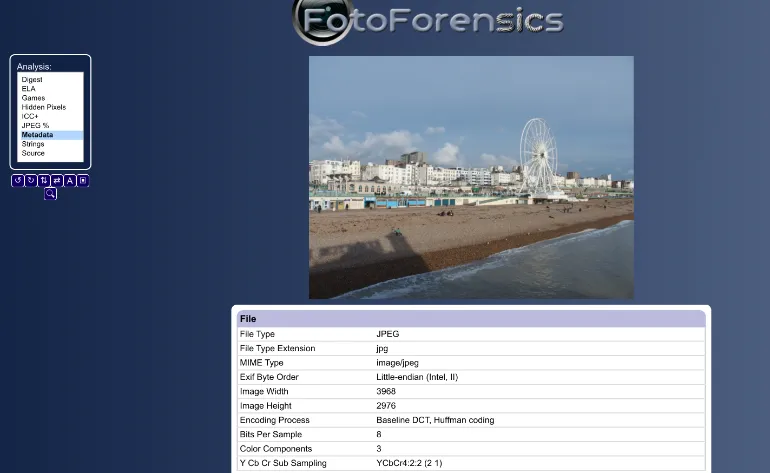
fotoforensics-image-analysis-exifdata-metadata

If you are comfortable uploading your image online (not sensitive/important) material, you should try FotoForensics.

The free online image analysis service supports most image formats, e.g. JPEG, PNG, WebP, HEIC and AVIF. In addition, it displays a wide array of metadata information views, such as Digest Analysis (hash values), Hidden Pixels, Strings and ICC+.

Operating Systems: Online service (Works with any device and operating systems)


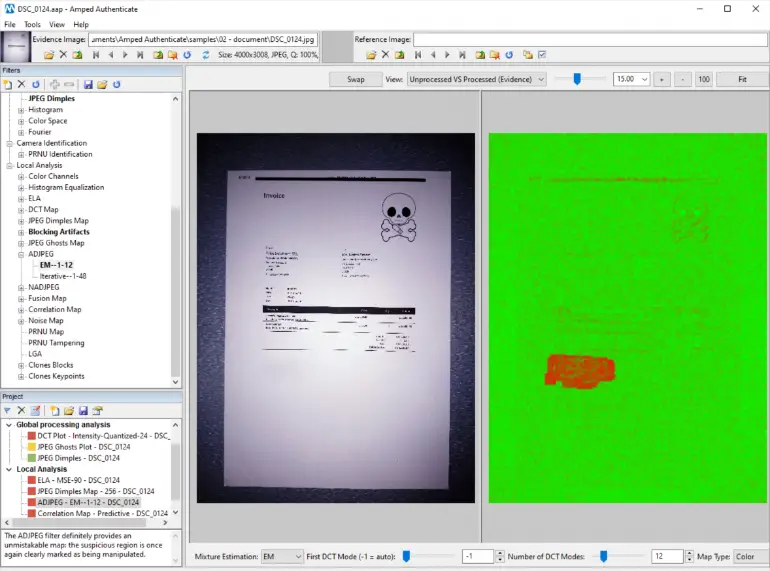
4. Amped Authenticate

amped-authenticate-image-forensic-analysis-exifdata-metadata

Amped Authenticate is a commercial photo analysis and tampering detection software used commonly by law enforcement agencies.

Besides displaying complete EXIF data, the forensic image analysis tool can also detect tampered areas in images and determine the authenticity of photos and documents.

Amped Authenticate provides a robust set of tools for determining whether an image is an unaltered original, was created on a particular device or is the result of tampering with photo-editing software, which is essential for evidence admissibility.

Operating Systems: Windows only


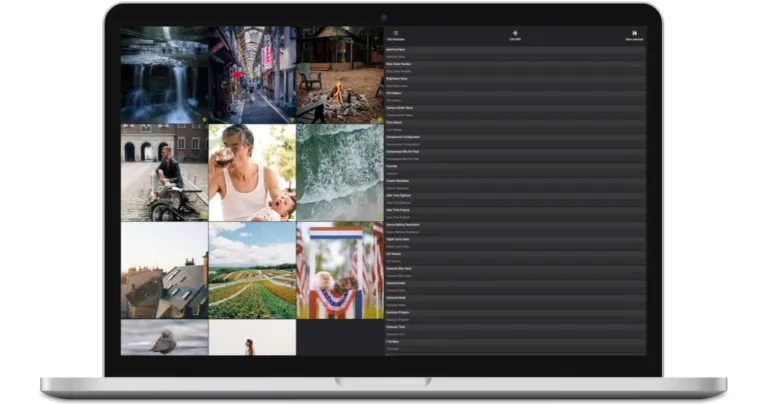
5. Exif Metadata Editor Tool for iOS

exif-metadata-editor-tool-forensic-image-analysis-EXIFdata-metadata

Exif Metadata Editor Tool is a free App Store application that allows iOS users to view and edit EXIF data.

You can easily edit EXIF data from images found in your Gallery album, and edit GPS location coordinates values (longitudes and latitudes).

The metadata editor tool also has a batch mode that allows users to edit multiple files simultaneously, which is a faster and more efficient way of editing EXIF and GPS data.

Operating Systems: iOS (iPhone, iPad)


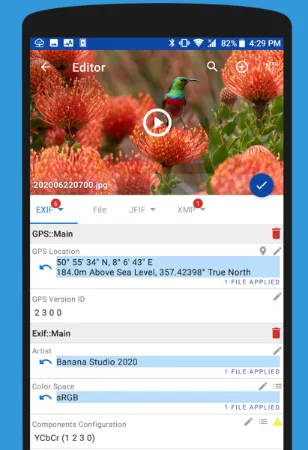
6. EXIF Pro – ExifTool for Android

Exif-Pro-Android-image-analysis-forensics-exifdata-metadata

EXIF PRO is a mobile app that extends the functionality of Phil Harvey’s ExifTool to the Android platform.

It supports editing multiple files at the same time. You can view and modify Exif, XMP, IPTC and other metadata of files (including images, audio and videos such as JPG, GIF, PNG, OGG and MP3)

The app supports several languages, such as English, Korean, Japanese, Spanish, German, French, etc

Operating Systems: Android


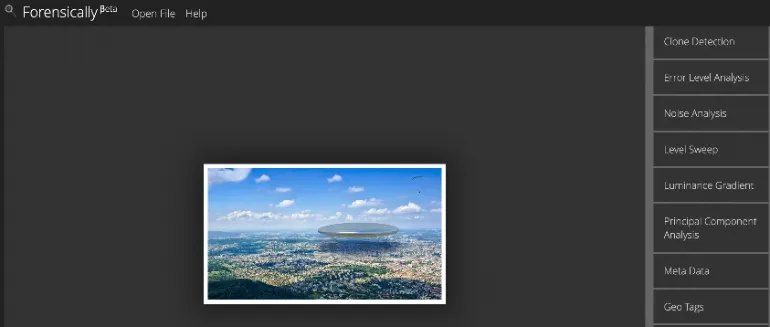
7. Forensically

Forensically-image-forensic-analysis-exifdata-metadata

Forensically is an online digital image forensics tool comprising multiple tools, such as clone detection, error level analysis, EXIF metadata extraction, etc.

The online image analysis service has an offline mode enabled to use it with no internet connectivity.

Some of the features include;

  • Enhancement – Histogram Equalization, Auto Contrast and Auto Contrast by Channel
  • Clone Detection – Minimal Similarity, Cluster size, Minimal detail, etc
  • Error Level Analysis – compares the original image to a recompressed version and makes manipulated regions stand out
  • Luminance Gradient – analyses the changes in brightness along the x and y-axis of the image

Operating Systems: Online service (Works with any device and operating systems)


7 Ways to View Image EXIF Metadata [Android, iOS, macOS, PC] Read More »
Saved_Messages_feature_in_Telegram_app

What is Saved Messages in Telegram & How to Use This Feature

When using the Telegram app, you will notice a feature called [Saved Messages], and you wonder what it is.

This post will explain what is [Saved Messages] and how you can use this feature to bookmark your Telegram chats.


What is the Saved Messages feature in Telegram?

[Saved Messages] is your personal cloud storage folder in Telegram, where you can bookmark, save and favourite interesting content or ideas you have.

You can do the following;

  • Save any text message, emoji, image, video or audio from your Telegram chat conversations.
  • Write any personal notes or to-do lists
  • Save files for future use (e.g. to send to others) by uploading with a max limit of 2GB
  • Store URL links or contacts information

You can also think of [Saved Messages] as a form of cloud sync bookmark for storing files, setting reminders and writing notes.

All [Saved Messages] forwarded here always link back directly to their original chats for easier reference.


How to Use the Saved Messages Feature?

As long as it is a Telegram message, you can save them in the [Saved Messages] folder.

This means you can save a word message, emoji, image, video or audio file.

Step 1. Tap on the Message You Want to Save

telegram-message-forward-as-saved-messages-feature

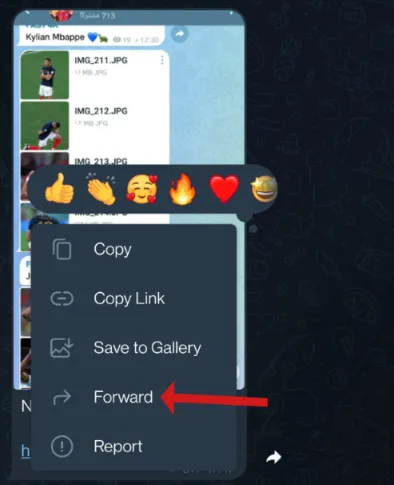
For text messages, tap on it, select <Forward>, and choose <Saved Messages>.

For images, video and audio files, open it, tap on the <Forward> icon on the top-right of the image, and select <Saved Messages>.

telegram-select-saved-messages-feature-bookmark

Step 2. Check your Saved Messages

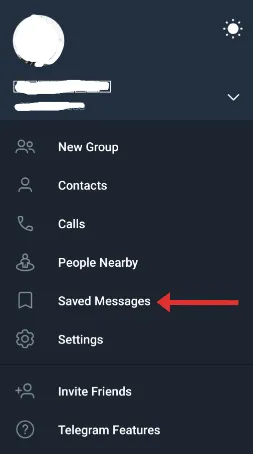
Open Telegram, select the Menu (top-left) and choose <Saved Messages>.

Your saved messages will all be shown here.

telegram-saved-messages-menu

How to trace back your Saved Messages to their Original Chat?

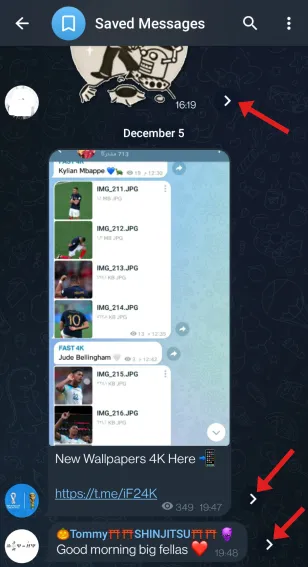
On your selected Saved Message, click on the arrow icon on the right, and you will be brought back to the original chat. This can be a regular one-to-one Chat, a Group Chat, or a Channel.

telegram-saved-message-trace-back-original-chat-message

What happens to my Saved Messages IF the Original Chat is Deleted?

Your Saved Messages will remain there permanently and will not get deleted even when the original chat is deleted.

When you click on the arrow icon on the right, all you get is an error message that says <Message doesn’t exist>.

telegram-saved-messages-message-doesnt-exist

How to write my personal notes and to-do lists using the Saved Messages feature?

Go to the <Saved Messages> folder and begin typing down your ideas, notes or to-do lists.

Once done, press <Enter>, and it will be saved there.


What is Saved Messages in Telegram & How to Use This Feature Read More »