admin

windws-macos-RAM-usage

Comparison: Windows vs. macOS Ram Usage [Pros & Cons]

When it comes to the world of operating systems, the age-old debate of Windows vs. macOS RAM usage is a hot topic.

Whether you’re a die-hard Windows user or a loyal macOS fan, understanding how each operating system manages memory can help you decide which is best for you.

In this blog post, we’ll dive deep into the nitty-gritty details of macOS memory management vs. Windows and answer the burning question:

Does Windows use more RAM than macOS? Or is it the other way around?

Fun Fact #1: Did you know that macOS was initially called "Mac OS X" when it was first released in 2001? It was rebranded as "macOS" in 2016 to align with Apple's other operating systems, like iOS, watchOS, and tvOS.

Understanding RAM Usage

RAM, or Random Access Memory, is a crucial component of any computer. It acts as your computer’s short-term memory, temporarily storing data and instructions that your CPU needs for quick access.

Unlike your hard drive or SSD, which stores data long-term, RAM only holds onto information while your computer is powered on. When you shut down your device, everything stored in RAM is wiped clean.

So, why does RAM usage matter? Well, having enough RAM is essential for your computer to run smoothly.

When your computer runs out of RAM, it starts using your hard drive or SSD to compensate, which is much slower. This can lead to lag, sluggish performance, and a less-than-stellar user experience.

Understanding how Windows and macOS manage RAM will help you determine which operating system is more efficient and better suited to your needs.

Fun Fact #2: In 1951, the first computer to use magnetic core memory, a precursor to modern RAM, was the MIT Whirlwind. The Whirlwind's memory was able to store 2,048 words (equivalent to 8,192 bytes) and had a cycle time of 16 microseconds.

RAM Usage in Windows

How Windows Manages RAM

Windows has come a long way in terms of memory management since its early days.

The operating system intelligently allocates RAM to applications, background processes, and system services to ensure optimal performance.

One of the key features of Windows RAM management is its use of virtual memory.

When your system runs low on physical RAM, Windows creates a “page file” on your hard drive or SSD to store data that would otherwise be held in RAM temporarily.

Pros and Cons of Windows RAM Usage

Pros:

  • Windows is designed to work with a wide range of hardware, making it compatible with both low-end and high-end machines.
  • The operating system’s virtual memory feature can help prevent system crashes when running low on RAM.

Cons:

  • Some users may find that Windows tends to use more RAM than macOS, especially when running multiple applications simultaneously.
  • Windows may require more frequent restarts to free up RAM and maintain optimal performance.

RAM Usage in macOS

How macOS Manages RAM

macOS boasts a different approach to memory management compared to Windows.

Apple’s operating system is known for its efficient RAM usage, which can be attributed to features like memory compression and automatic memory management.

When macOS detects that it’s running low on available RAM, it compresses the data in memory to free up space for other applications.

Additionally, macOS automatically allocates and deallocates memory for applications, ensuring that each app has the resources it needs without hogging RAM.

Pros and Cons of macOS RAM Usage

Pros:

  • macOS is typically more efficient with RAM usage, allowing for smoother performance even with multiple applications open.
  • The operating system’s memory compression feature helps reduce the need for virtual memory, preventing slowdowns caused by accessing data stored on the hard drive or SSD.

Cons:

  • macOS is designed primarily for Apple hardware, which can be more expensive than comparable Windows machines.
  • Some users may experience compatibility issues with certain software or hardware, as macOS doesn’t support as wide a range of devices as Windows.

Comparing Windows and macOS RAM Usage

Head-to-Head: Performance & Efficiency

When it comes to performance and efficiency, the debate of “macOS memory management vs Windows” is a close one.

While Windows is known for its compatibility with a wide range of hardware, macOS is often praised for its efficient RAM usage, which can lead to smoother performance, especially when multitasking.

It’s important to note that individual experiences may vary depending on the hardware and software used.

Impact on Battery Life

Battery life is another factor to consider when comparing Windows and macOS RAM usage.

Efficient memory management can help conserve battery life, as the system doesn’t have to work as hard to shuffle data between RAM and storage.

In general, macOS tends to have better battery life due to its optimized memory management and other power-saving features.

Which One is Better for Different Users?

Ultimately, the decision between Windows and macOS will depend on the user’s specific needs and preferences. Here’s a quick rundown to help you decide:

  • Windows: Best for users who need compatibility with a wide range of hardware and software or those who prefer a more customizable and familiar operating system.
  • macOS: Ideal for users who value efficient RAM usage, longer battery life, and seamless integration with other Apple devices.

Tips for Optimizing RAM Usage

Whether you’re using Windows or macOS, optimizing your RAM usage can help you get the most out of your computer. Here are some tips for both operating systems:

Windows:

  • Close unnecessary applications: Make sure to close any apps you’re not using to free up RAM for other tasks.
  • Adjust performance settings: In the Control Panel, you can adjust your computer’s performance settings to prioritize speed over visual effects.
  • Use a lightweight browser: Some browsers, like Google Chrome, can be resource hogs. Consider using a lighter alternative, such as Microsoft Edge or Firefox.
  • Disable startup programs: Prevent unnecessary programs from running at startup by using the Task Manager to disable them.

macOS:

  • Quit unused apps: Just like on Windows, be sure to quit any apps you’re not using to free up memory.
  • Monitor RAM usage: Keep an eye on your RAM usage with the built-in Activity Monitor, and close apps with high memory usage if necessary.
  • Keep your software up-to-date: Apple regularly releases updates to improve performance and optimize memory usage. Make sure your macOS and apps are up-to-date.
  • Use App Nap: App Nap is a macOS feature that automatically slows down inactive apps to save energy and free up RAM.

Conclusion

In this blog post, we’ve explored the ins and outs of Windows vs. macOS RAM usage, shedding light on the differences in how each operating system manages memory.

While Windows offers greater compatibility with a variety of hardware and software, macOS is often recognized for its efficient RAM usage and longer battery life.

Ultimately, the choice between Windows and macOS comes down to your personal preferences and needs.

By considering factors like performance, efficiency, battery life, and compatibility, you can decide which operating system is right for you.


Comparison: Windows vs. macOS Ram Usage [Pros & Cons] Read More »
does-mac-RAM-work-on-PC

Does Mac Ram Work on a PC? [Depending on Several Factors]

Hey there, tech enthusiasts! Ever wondered, “Is Mac RAM better than PC RAM?” or “Does Mac RAM work in a PC?

Well, you’re in luck. Today, we’re diving deep into the world of Mac and PC RAM to find out if they’re interchangeable and what the differences are between them.

First off, let’s talk about the basics. RAM, or Random Access Memory, is an essential component of any computer system, including both Macs and PCs.

It’s where your computer stores data for quick access, allowing your system to multitask and perform tasks more efficiently.

Fun Fact #1: Did you know that the first commercially available computer, the IBM 701, had only 2 KB of RAM? Today, even a basic laptop comes with at least 4 GB of RAM, which is over 2 million times more!

Mac RAM Compatibility with PCs

So, can Mac RAM work on a PC? The short answer is, it might work, depending on a few factors.

Let’s break it down.

Physical Compatibility

First and foremost, the RAM module must physically fit into the PC’s motherboard.

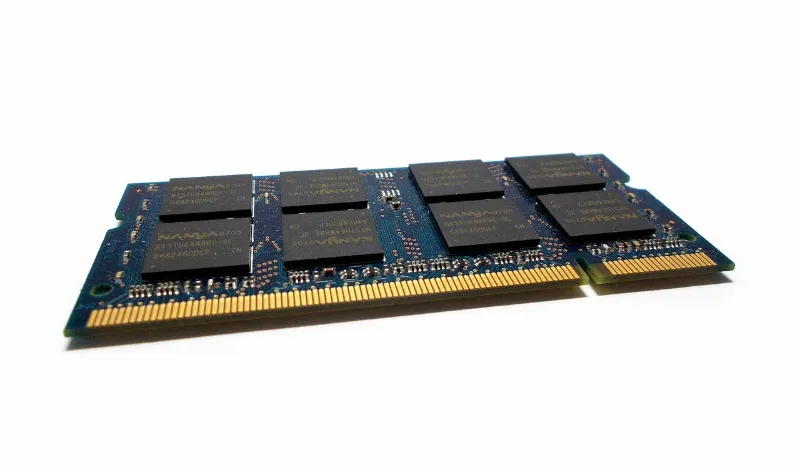
Macs and PCs use the same types of RAM (such as DDR3, DDR4, or DDR5), but they might come in different form factors, like SODIMM for laptops and DIMM for desktops.

If the Mac RAM module’s form factor matches your PC’s motherboard, you’re one step closer to compatibility.

Memory Controller Compatibility

The memory controller, which is part of the CPU or the motherboard chipset, plays a crucial role in determining RAM compatibility.

It’s responsible for managing communication between the CPU and RAM. If the memory controller in your PC supports the Mac RAM’s specifications (type, speed, and timings), there’s a good chance it will work.

Fun Fact #2: Higher RAM speeds don't always mean better performance. Sometimes, lower latency (better timings) can provide a more noticeable performance boost than just having a high-speed RAM module!

Understanding RAM Types and Specifications

Before we discuss compatibility, it’s essential to know the different types of RAM and their specifications. These factors significantly affect whether Mac RAM will work in a PC.

DDR3, DDR4, and DDR5

Over the years, RAM technology has evolved, leading to improvements in speed and efficiency. DDR3, DDR4, and DDR5 are the most recent generations of RAM, with DDR5 being the latest addition.

While DDR3 is now considered outdated, many older Macs and PCs still use it. DDR4 is the current standard for most systems, and DDR5 is gradually making its way into the market.

RAM Speeds and Timings

RAM speeds and timings are other crucial factors that can affect compatibility. The speed of RAM is measured in MHz, while timings refer to the number of clock cycles it takes for the RAM to perform specific tasks.


Potential Issues and Limitations

While it’s possible for Mac RAM to work in a PC, you should be aware of some potential issues and limitations before making any decisions.

Mixing RAM Types

Ideally, you should avoid mixing different types of RAM (like DDR3 with DDR4) in the same system.

It’s not only physically impossible due to the different RAM slots but could also cause instability and compatibility issues. Always stick to using the same type of RAM your system supports.

Performance Impact

Using Mac RAM in a PC may not always provide optimal performance. For example, if the Mac RAM has a lower speed than your PC’s native RAM, it could slow down your system.

Mixing RAM modules with different speeds or timings can also lead to instability or reduced performance.


How to Check RAM Compatibility for Your PC

To avoid potential issues and ensure smooth operation, verifying if the Mac RAM is compatible with your PC before installation is essential.

Here’s how you can do that:

Checking Your System Specifications

Start by looking up your PC’s system specifications. This information can be found in your computer’s user manual or the manufacturer’s website.

Check for details like supported RAM types, form factors, and maximum RAM capacity. Compare this information with the Mac RAM module’s specifications to determine compatibility.

Online Tools and Resources

There are several online tools and resources that can help you check RAM compatibility. One such useful resource is our very own article on the differences between PC and Mac RAM.

You can also use websites like Crucial or Kingston, which offer compatibility-checking tools that let you input your system’s model and suggest compatible RAM modules.


Upgrading Your PC with Mac RAM: A Step-by-Step Guide

Great! So you’ve determined that your Mac RAM is compatible with your PC. Let’s go through the process of upgrading your system.

Required Tools

You’ll need a few tools to get started, including:

  • A clean, static-free workspace
  • A small Phillips-head screwdriver (for desktops) or a spudger (for laptops)
  • An anti-static wrist strap (optional, but highly recommended)

Installation Process

  1. Turn off your PC and unplug it from the power source.
  2. Open the PC case (for desktops) or remove the RAM access panel (for laptops). You may need to consult your user manual for specific instructions.
  3. If you have one, put on your anti-static wrist strap, and attach it to a grounded object.
  4. Locate the RAM slots on your motherboard. If you’re adding a new RAM module, find an empty slot. If you’re replacing an existing module, gently release the clips on the sides of the slot and remove the old module.
  5. Align the notches on the Mac RAM module with those on the slot and gently insert it at a slight angle. Press down firmly until the clips on the sides of the slot snap into place.
  6. Close the case or replace the RAM access panel.
  7. Power on your PC and check if it recognizes the new RAM. You can do this by looking at the system properties or checking the BIOS/UEFI settings.

And there you have it! You’ve successfully upgraded your PC with Mac RAM.


Conclusion

In summary, while Mac RAM and PC RAM share many similarities, verifying compatibility is crucial before attempting to use Mac RAM on a PC.

By understanding RAM types, specifications, and potential issues, you can make an informed decision about whether or not Mac RAM is suitable for your PC.

Remember that mixing different RAM types or using incompatible modules can lead to suboptimal performance or even system instability.

Always double-check compatibility using your system specifications and online resources before making any changes.

Armed with this knowledge, you’re now ready to decide if using Mac RAM in your PC is the right choice for your specific situation. Happy upgrading, and may your system run smoother than ever before!


Does Mac Ram Work on a PC? [Depending on Several Factors] Read More »

Differences-PC-RAM-vs-Mac-RAM

7 Differences Between a PC RAM and a Mac RAM [Explained]

Hey there, tech enthusiasts! If you’ve ever wondered, “Is Mac RAM different from PC RAM?” or “Does Mac RAM work in PC?” you’re in the right place.

Today, we’re diving into the fascinating world of RAM, exploring the key differences between PC and Mac RAM. Get ready to become a RAM connoisseur!

Fun Fact #1: Did you know that RAM stands for Random Access Memory? It's a crucial component of every computer, allowing it to store and quickly access data.

What Are The Differences Between a PC RAM and a MAC RAM?

Here are the seven (7) differences;


1: Memory Architectures

When it comes to memory architectures, PCs and Macs have some noteworthy differences. Let’s take a closer look at both:

PC RAM: DDR, DDR2, DDR3, DDR4, and DDR5

PC RAM is based on the widely used Double Data Rate (DDR) architecture. Over the years, this architecture has gone through multiple iterations, including DDR2, DDR3, DDR4, and the latest DDR5.

Each generation offers increased speed, improved performance, and reduced power consumption. You’ll find these RAM modules in a wide range of PCs, from budget-friendly options to high-end gaming rigs.

Mac RAM: Apple’s Custom Solutions

Macs, on the other hand, have historically used the same DDR-based RAM as PCs. However, with the introduction of Apple’s custom M1 chip, Mac RAM has taken a unique turn.

In the latest M1-powered Macs, the RAM is integrated directly into the processor, resulting in lightning-fast memory access and improved efficiency. This innovative design makes Mac RAM stand out from its PC counterpart.

So, when someone asks you, “Is Mac RAM better than PC RAM?” you can confidently say that it depends on the specific Mac and PC models in question.

Fun Fact #2: The first RAM modules were invented in 1968 by Robert H. Dennard, an American electrical engineer. Talk about a blast from the past!

2. RAM Speeds

Now that we’ve talked about memory architectures, let’s discuss RAM speeds.

How fast your RAM can operate directly impacts your computer’s overall performance.

PC RAM Speeds

PC RAM speeds vary depending on the DDR generation. As we progress from DDR to DDR5, speeds increase significantly:

  • DDR: 200-400 MHz
  • DDR2: 400-800 MHz
  • DDR3: 800-2133 MHz
  • DDR4: 2133-6400 MHz
  • DDR5: 4800-8400 MHz (and beyond)

Keep in mind that these speeds are just general ranges, and individual RAM modules may have slightly different performance specs.

Mac RAM Speeds

Mac RAM speeds have historically been in line with those of their PC counterparts. However, with the introduction of the M1 chip, comparing Mac RAM directly to PC RAM speeds is challenging.

Since M1 Macs have RAM integrated into the processor, they achieve ultra-fast memory access and efficient communication between components.

This integration can result in a noticeable performance boost compared to traditional RAM modules.

So, if you’re wondering, “Can you use normal RAM with a Mac?” the answer is yes, but only for older Mac models. The latest M1 Macs use their unique integrated memory solution.


3. Memory Capacity

Memory capacity is another significant difference between PC and Mac RAM. The amount of RAM in your computer can impact multitasking capabilities and the performance of demanding applications.

PC RAM Capacity

PCs offer a wide range of RAM capacities, depending on the system’s intended use. Budget PCs may come with as little as 4 GB of RAM, while high-end gaming and workstation PCs can support 128 GB or even more.

PCs generally provide greater flexibility when it comes to RAM capacity, allowing you to tailor your system to your needs and budget.

Mac RAM Capacity

Mac RAM capacities have typically been more limited compared to PCs. Older Mac models often started at 8 GB, with options to upgrade to 16 GB or 32 GB.

With the introduction of the M1 chip, Mac RAM capacities have shifted. M1 Macs currently offers 8 GB or 16 GB of unified memory.

While this may seem lower than some PCs, the efficient memory architecture of M1 Macs can still deliver impressive performance.

Ultimately, PC RAM tends to offer a broader range of capacities, while Mac RAM focuses on delivering efficiency with more limited options.


4. RAM Upgradeability

Let’s talk about upgrading RAM. The ability to upgrade RAM can be an essential consideration when purchasing a computer, as it allows you to extend the life of your machine and adapt to changing needs.

Upgrading PC RAM

One of the biggest advantages of PCs is their upgradeability. Most PCs, especially desktops, offer user-friendly access to RAM slots, making upgrading or replacing RAM modules relatively easy.

This flexibility allows you to increase your computer’s performance and lifespan without investing in an entirely new system.

Upgrading Mac RAM

Upgrading Mac RAM has been a mixed bag over the years. Some older Mac models, like the Mac Pro and certain iMacs, had user-accessible RAM slots, making upgrades fairly simple.

However, recent MacBook models and the M1 Macs have integrated RAM, meaning it’s not user-upgradable.

If you’re considering a new Mac, choosing the right RAM capacity upfront is crucial, as you won’t be able to upgrade it later.

In summary, PCs generally offer more RAM upgradeability than Macs, giving you the option to enhance your system as needed.


5. Error-Correcting Code (ECC) Memory

ECC memory is a type of RAM that can detect and correct data corruption. While not necessary for all users, it can be essential in professional environments where data integrity is critical.

ECC Memory in PCs

ECC memory is more commonly found in PCs, particularly in workstations and servers. Many PCs offer support for ECC RAM, giving users the option to choose between standard and ECC memory based on their needs.

ECC RAM can provide added stability and reliability, making it a popular choice for professionals who can’t afford data corruption or system crashes.

ECC Memory in Macs

Historically, ECC memory has been less common in Macs. However, some Mac models, like the Mac Pro, do support ECC RAM.

As for the M1 Macs, they don’t currently offer ECC memory support. Apple’s focus with the M1 chip has been on efficiency and performance rather than the specialized functionality that ECC memory provides.

In conclusion, PCs tend to offer more flexibility when it comes to ECC memory options, while Macs have a more limited selection.


6. RAM Compatibility

Understanding RAM compatibility is essential when upgrading or building a custom computer. Compatibility issues can lead to performance problems or even prevent your system from booting.

PC RAM Compatibility

When it comes to PC RAM, compatibility depends on factors like the motherboard, processor, and RAM type (DDR, DDR2, DDR3, etc.).

To ensure compatibility, you’ll need to check your motherboard’s specifications for supported RAM types, speeds, and capacities.

This information is usually available on the manufacturer’s website or in the motherboard manual.

Mac RAM Compatibility

Mac RAM compatibility is generally more straightforward. Apple has historically used standardized RAM types, making it easier to find compatible upgrades.

However, with the introduction of the M1 chip, Mac RAM compatibility has become a non-issue for new models, as the RAM is integrated and cannot be upgraded.

When someone asks, “Can you use normal RAM with a Mac?” the answer depends on the specific Mac model.

You can typically use standard DDR-based RAM for older Macs, while M1 Macs have their unique integrated memory.

In summary, PC RAM compatibility requires more research, while Mac RAM compatibility is more straightforward but increasingly limited with newer models.


7. Pricing

PC RAM Pricing

Last but not least, let’s talk about pricing. The cost of RAM can vary widely, and it’s essential to consider the price-to-performance ratio when making a purchase.

PC RAM pricing can range from affordable to quite expensive, depending on factors like the RAM type, capacity, speed, and brand.

Generally, PC RAM is more budget-friendly, particularly when it comes to older DDR generations. However, high-capacity, high-speed modules can still be pricey.

Mac RAM Pricing

Mac RAM has typically been more expensive than PC RAM, particularly when purchasing directly from Apple. Additionally, with the introduction of the M1 chip, Mac RAM pricing has become even more complex.

Since the RAM is integrated into the processor, you’ll need to choose the right capacity upfront, and the cost of upgrading can be significantly higher than for PC RAM.

So, is Mac RAM better than PC RAM? The answer largely depends on your specific needs, budget, and device.

While Mac RAM can offer impressive performance, particularly in M1 Macs, it also comes at a premium price.


Conclusion

We’ve explored the 7 differences between PC RAM and Mac RAM, covering aspects like memory architectures, speeds, capacity, upgradeability, ECC memory, compatibility, and pricing.

PC and Mac RAM have unique advantages and limitations, and the best choice depends on your individual requirements and preferences.

Whether you’re a die-hard Mac fan or a dedicated PC user, understanding these differences will help you make informed decisions about your next computer purchase or upgrade.


7 Differences Between a PC RAM and a Mac RAM [Explained] Read More »

how-to-identify-virtual-numbers

3 Ways To Identify Virtual Phone Numbers [How to Tell]

Ever wondered, “Can you trace a virtual phone number?

With the rise in technology and the ease of communication, virtual phone numbers have become increasingly popular.

While they have many legitimate uses, such as running a business or making international calls, they can also be misused by scammers and telemarketers.

In this blog post, we’ll explore three ways to detect and identify virtual phone numbers, helping you stay one step ahead of unwanted callers.

Fun Fact #1: Virtual phone numbers aren't tied to a specific location, making them extremely versatile. This is why many businesses and individuals use them for various purposes, such as providing a local number for their international clients.

How to identify Virtual Phone Numbers

Here are the three (3) methods you can use to detect and tell if it is a virtual number.


Method 1: Reverse Phone Lookup Services

So, how do you identify a virtual phone number? One popular method is using reverse phone lookup services.

These services are designed to provide you with information about the owner of a phone number, like their name, address, and more.

They can help you determine whether a number is virtual by revealing whether it’s associated with a traditional landline or a VoIP service.

There are several reverse phone lookup services available, both free and paid. Some popular options include Whitepages, Truecaller, and Spokeo.

To use these services, enter the phone number you want to investigate, and the service will present you with the available information.

Fun Fact #2: Reverse phone lookup services often rely on databases that contain millions of phone numbers, allowing them to provide a wealth of information about the number in question.


Method 2: Analyzing Call Patterns

Another way to detect virtual phone numbers is by monitoring and analyzing call patterns. Unusual call patterns, such as a high volume of short-duration calls, can be a sign that a number is virtual.

These patterns might indicate that the number is being used for spamming, robocalls, or other malicious activities.

You can use call analytics tools, like CallRail or Phonexa, which provide insights into call duration, frequency, and location to track call patterns.

By monitoring your incoming calls, you’ll be better equipped to identify potential virtual phone numbers and block them if necessary.

Of course, it’s important to remember that not all virtual phone numbers are used for nefarious purposes.

Some businesses and individuals use them for legitimate reasons, so evaluating the context of the calls you receive is crucial before taking any action.


Method 3: Use of Third-Party Services and APIs

If you’re wondering, “How do I find out who owns a virtual number?” third-party services and APIs might be the answer.

These services specialize in identifying and providing information about virtual phone numbers, including VoIP numbers, which can sometimes be harder to distinguish from traditional landlines.

Popular APIs and services for detecting virtual phone numbers include Twilio’s Lookup API, Numverify, and Telnyx.

These tools can be integrated into your system or application, allowing you to automatically identify virtual numbers and take appropriate action, such as blocking or flagging the calls.

Keep in mind that while these services can be effective, they may not cover all virtual phone number providers or be able to identify every virtual number.

That’s why it’s best to use a combination of the methods mentioned in this blog post for more accurate results.


Conclusion

Detecting and identifying virtual phone numbers can be a challenge, but with the right tools and methods, it’s definitely possible. To recap, the three main ways to identify virtual phone numbers are:

  • Reverse phone lookup services
  • Analyzing call patterns
  • Using third-party services and APIs

Remember, no single method is foolproof, so combining these strategies for the most accurate results is best.

By staying vigilant and keeping an eye out for unusual call patterns or suspicious numbers, you’ll be better equipped to protect yourself and your business from unwanted callers and potential scammers.

Now that you know what a virtual phone number looks like and how to find out who owns one, you’re prepared to tackle any virtual number-related challenges that come your way.


3 Ways To Identify Virtual Phone Numbers [How to Tell] Read More »

use-virtual-phone-number-telegram

[5 Ways] How To Get and Use Virtual Number For Telegram App

Are you tired of giving out your real phone number when signing up for messaging services like Telegram? Well, you’re in luck!

In this blog post, we’ll explore 7 awesome ways how to get a virtual number for Telegram. That’s right; you’ll finally be able to join Telegram with a fake number, keeping your privacy intact.

Plus, we’ll even answer the burning question: “How to get a free fake number for Telegram?

So, buckle up and get ready to dive into the world of virtual numbers. 🚀

Fun Fact #1: Did you know that Telegram was created by the same brothers who founded the popular Russian social network VKontakte (VK)? It's true! Pavel and Nikolai Durov launched Telegram in 2013 with a focus on privacy and security.

Why Use a Virtual Number for Telegram?

You might be wondering, “Why would I even need a virtual number for Telegram?

Well, there are several benefits to using a fake number instead of your real phone number. Let’s break down the top reasons:

  • Privacy: With a virtual number, you can hide your phone number, protecting your personal information from potential hackers or scammers.
  • Avoiding Spam: Using a virtual number can reduce the risk of receiving unwanted calls or texts on your real phone number.
  • Multiple Accounts: Want to have separate Telegram accounts for different purposes? A virtual number lets you do just that!
  • International Use: Virtual numbers can make communicating with people in other countries easier without the need for expensive international calling plans.
Fun Fact #2: Telegram hit a whopping 550 million monthly active users by the end of 2021. That's a lot of people looking for secure and private messaging options!

How To Get A Virtual Number For Telegram

Here are the five (5) ways to do so.

1. Mobile Apps for Virtual Numbers

In today’s digital age, our smartphones are the key to staying connected.

That’s why mobile apps for virtual numbers have become increasingly popular, providing users with an easy and convenient way to generate fake numbers for Telegram and other messaging platforms.

Here’s a quick rundown of some popular mobile apps for obtaining virtual numbers:

  • Hushed: Hushed is another app offering virtual numbers, with options for temporary and permanent numbers. The app provides various plans, giving you the flexibility to choose the one that fits your requirements. You can use the virtual number from Hushed to join Telegram with a fake number.

  • Numero eSIM: Numero eSIM is an app that offers virtual numbers using eSIM technology. It supports multiple phone numbers on a single device and has a wide range of available numbers from different countries. With various plans to choose from, you can select the best option for your needs and use the virtual number for Telegram and other services.

These mobile apps make it super easy to obtain a virtual number, ensuring you can join Telegram without compromising your privacy. Just remember to read user reviews and understand the app’s features, limitations, and pricing before making your choice. Happy texting!


2. Virtual Number Providers

If you’re looking for a more reliable and feature-rich solution to obtain a virtual number for Telegram, you might want to consider using dedicated virtual number providers.

These providers specialize in offering virtual phone numbers for various purposes, including messaging, calls, and business communications.

Here’s a brief overview of some popular virtual number providers:

  • Twilio: Twilio is a well-known provider of virtual phone numbers and communication APIs. They offer a wide range of numbers from different countries and area codes, along with features such as SMS, voice calls, and call forwarding. You can use a Twilio virtual number for Telegram and take advantage of their robust infrastructure.

  • Sonetel: Sonetel is another virtual number provider that allows you to purchase local and international phone numbers. With their easy-to-use platform, you can manage your virtual numbers, set up call forwarding, and even integrate with other communication tools. A Sonetel virtual number can be a reliable option for your Telegram account.

3. Using a Virtual Private Network (VPN) with a Virtual Number

Some virtual number providers may have restrictions on using their services in certain countries.

In these cases, you can use a VPN to change your IP address and gain access to virtual number services. This method can also help improve your privacy while using Telegram.

Here are two examples of using a Virtual Private Network (VPN) with a virtual number:

NordVPN with Google Voice

Let’s say you’re in a country where Google Voice isn’t available but want to use it to get a virtual number for Telegram.

First, sign up for a VPN service like NordVPN.

Once you’ve set up the VPN and connected to a server in a country where Google Voice is supported (such as the United States), you can then create a Google Voice account and obtain a virtual number.

This virtual number can be used for Telegram verification while maintaining a higher level of privacy.

ExpressVPN with Sonetel

If you want to use a virtual number provider like Sonetel but face restrictions in your country, you can use a VPN service like ExpressVPN.

After setting up ExpressVPN, connect to a server in a country where Sonetel is accessible. You can then create a Sonetel account and obtain a virtual number, which you can use for Telegram verification.


4. Using Online SMS Receiving Services

For those who prefer a quick and easy solution to obtain a virtual number for Telegram, online SMS receiving services can be a handy option.

These websites provide temporary virtual numbers that can receive SMS messages, allowing you to complete the Telegram verification process.

Here’s a brief introduction to using online SMS-receiving services:

  • Choose a Service: Search the web for online SMS-receiving services, and you’ll come across several options, such as Receive-SMS-Online.info, SMS-Online.co, and FreePhoneNum.com. Keep in mind that these services may have limitations and vary in terms of reliability and privacy.

  • Select a Virtual Number: Browse through the available virtual numbers on the website and choose one that suits your needs. Ensure that the number is from a supported country and can receive SMS messages.

  • Use the Number for Telegram Verification: Enter the selected virtual number when signing up for Telegram. Telegram will send an SMS verification code to this number.

  • Retrieve the Verification Code: Return to the online SMS receiving service’s website and check the messages for the virtual number you chose. Find the verification code from Telegram and enter it in the app to complete the verification process.

5. Landline Forwarding Services

Some landline phone providers offer call forwarding services that can be used to create a virtual number. This option may be useful if you have an existing landline that you want to use for Telegram verification.

Here are a few examples of landline forwarding services that can help you create a virtual number for your Telegram account:

Grasshopper

Grasshopper is a virtual phone system designed for small businesses, but it can also be used by individuals. It offers a range of features, including call forwarding, voicemail, and custom greetings. You can forward calls from your virtual number to your landline, allowing you to use it for Telegram verification.

RingCentral

RingCentral is another popular virtual phone system with a variety of features, including call forwarding, auto-attendant, and voicemail-to-email. You can easily set up a virtual number and forward calls to your landline, giving you the flexibility to use it for Telegram and other messaging services.

eVoice

eVoice is a virtual phone service that provides call forwarding, voicemail, and other useful features. You can select a virtual number and forward calls to your landline, making it perfect for creating a separate number for Telegram.

Please note that these services often charge a monthly fee, and the available features may vary depending on the plan you choose. Make sure to explore each provider’s offerings to find the best fit for your needs.


Important Considerations When Choosing a Virtual Number

Before you jump into getting a virtual number for Telegram, it’s essential to weigh some important factors. Here are a few considerations to keep in mind:

  • Privacy and Security: Not all virtual number providers offer the same level of privacy and security. Make sure to choose a reputable provider that values data protection and keeps your information confidential.

  • Reliability: Some virtual number services may have occasional downtimes or delays in message delivery. Look for a provider with a track record of reliability and prompt customer support.

  • Cost: With varying pricing models, virtual number services can range from free to paid. Consider your budget and whether you’re willing to pay for additional features or a more reliable service.

  • Geographical Restrictions: Some virtual number providers may not be available in your country, or Telegram may not support their numbers. Check for compatibility before committing to a service.

  • Longevity: If you plan to use your virtual number for an extended period, ensure that the provider offers a stable service and won’t suddenly shut down or deactivate your number.

Frequently Asked Questions about Virtual Numbers for Telegram

Here are some common questions and their answers related to virtual numbers and their use with Telegram:

Q1: Can I use the same virtual number for multiple Telegram accounts?

A: Generally, no. Each Telegram account requires a unique phone number for verification. Using the same virtual number for multiple accounts may lead to flagging or restricting one or both accounts.

Q2: How can I join Telegram with a fake number?

A: To join Telegram with a fake number, obtain a virtual number using one of the methods discussed in this blog post.

Then, follow the steps in the “How to Set Up Your Virtual Number on Telegram” section to create your account.

Q3: Is it safe to use a virtual number for Telegram?

A: Using a virtual number can help protect your privacy, but the safety of your information depends on the virtual number provider’s security measures.

Choose a reputable provider that prioritizes data protection to ensure the safety of your personal information.

Q4: How to get a free fake number for Telegram?

A: Some mobile apps and online services offer free virtual numbers. However, these options may not be as reliable or private as paid services.

Explore the different methods mentioned in this blog post to find a free virtual number that works for you.


[5 Ways] How To Get and Use Virtual Number For Telegram App Read More »

youtube-not-remember-where-left-off

3 Ways to Fix Youtube Not Remembering Where You Left Off

Ever find yourself asking, “Why does YouTube not resume where I left off?” or “How do you continue watching from where you left off on YouTube?

Well, you’re not alone. Many of us have experienced the frustration of losing our spot in a video and having to find it again manually.

But worry not, my friends! In this blog post, we’ll explore 7 ways to fix this issue and make sure YouTube remembers your video progress.

Fun Fact #1: Did you know that over 500 hours of video content are uploaded to YouTube every minute? That's a whole lot of videos to watch!

How to Fix Why YouTube Is Not Remembering Where You Left Off

Here are the seven (7) ways to rectify the problem.


1. Enable Watch History

First, let’s ensure your YouTube watch history is enabled. This feature allows YouTube to keep track of the videos you’ve watched and where you left off.

If it’s disabled, YouTube won’t remember your progress.

How to Enable Watch History

Follow these simple steps to enable watch history on your YouTube account:

  • Sign in to your YouTube account.
  • Click on your profile picture in the top-right corner.
  • Select “Settings” from the dropdown menu.
  • In the left sidebar, click on “Privacy.”
  • Find the “History & Privacy” section.
  • Make sure the box next to “Pause watch history” is unchecked. If it’s checked, click on it to uncheck it.
Fun Fact #2: YouTube was created by three former PayPal employees in 2005, and just a year later, Google bought it for a whopping $1.65 billion in stock.

2. Sign in to Youtube (Google) Account

Sometimes, simply signing out and signing back into your Google account can fix the issue of YouTube not remembering where you left off.

This process refreshes your account settings and can resolve any syncing issues between your account and YouTube.

Troubleshooting Google Account Issues

Follow these steps to sign out and sign back into your Google account:

  • Go to YouTube and click on your profile picture in the top-right corner.
  • Select “Sign out” from the dropdown menu.
  • Close your browser, then reopen it.
  • Go back to YouTube and click “Sign in” in the top-right corner.
  • Enter your Google account email and password, then click “Next.”

3. Use Incognito Mode

If none of the previous solutions have worked, you can try using Incognito Mode (also known as Private Browsing) in your browser. This mode disables extensions, doesn’t save browsing data, and can sometimes help with issues like YouTube not remembering where you left off.

How to Enable Incognito Mode in Different Browsers

Here’s how to enable Incognito Mode in some popular browsers:

Google Chrome:

  1. Click the three vertical dots in the top-right corner.
  2. Select “New incognito window.”

Mozilla Firefox:

  1. Click the three horizontal lines in the top-right corner.
  2. Select “New Private Window.”

Safari:

  1. Click “File” in the top-left corner.
  2. Select “New Private Window.”

Once you’re in Incognito Mode, sign in to your YouTube account and see if it remembers your video progress. Keep in mind that Incognito Mode doesn’t save your browsing history, so you’ll need to sign in to your account each time you use it.


4. Reset YouTube App on Mobile Devices

If you’re experiencing this issue on your mobile device, it’s possible that the YouTube app itself is causing the problem.

Resetting the app can help fix any glitches or bugs that might be preventing YouTube from remembering where you left off.

How to Reset the YouTube App

Here’s how to reset the YouTube app on Android and iOS devices:

Android:

  1. Go to “Settings” on your device.
  2. Scroll down and tap on “Apps” or “Applications.”
  3. Find the YouTube app in the list and tap on it.
  4. Tap on “Storage,” then click “Clear Cache” and “Clear Data.”
  5. Restart your device.

iOS:

  1. Go to “Settings” on your device.
  2. Scroll down and tap on “YouTube.”
  3. Tap “Reset App.”
  4. Restart your device.

5. Disable Browser Extensions

Browser extensions can sometimes interfere with YouTube’s ability to remember where you left off in a video. Disabling these extensions can help identify if they are causing the problem.

Guide to Disabling Extensions on Popular Browsers

Here’s how to disable extensions on some common browsers:

Google Chrome:

  1. Click the three vertical dots in the top-right corner.
  2. Go to “More tools” and select “Extensions.”
  3. Toggle off the extensions one by one to see if any of them are causing the issue.

Mozilla Firefox:

  1. Click the three horizontal lines in the top-right corner.
  2. Select “Add-ons” and then click “Extensions.”
  3. Click the blue toggle switch next to each extension to disable them one by one.

Safari:

  1. Click “Safari” in the top-left corner.
  2. Select “Preferences.”
  3. Go to the “Extensions” tab.
  4. Uncheck the box next to each extension to disable them individually.

6. Clear Browser Cache and Cookies

Sometimes, the culprit behind YouTube not remembering where you left off could be your browser’s cache and cookies.

These temporary files can cause issues with YouTube’s functionality, so clearing them might just do the trick!

Steps to Clear Browser Cache and Cookies

Here’s how you can clear your browser’s cache and cookies on some popular browsers:

Google Chrome:

  • Click the three vertical dots in the top-right corner.
  • Go to “More tools” and select “Clear browsing data.”
  • Choose a time range, or select “All time” to clear everything.
  • Check the boxes for “Cookies and other site data” and “Cached images and files.”
  • Click “Clear data.”

Mozilla Firefox:

  • Click the three horizontal lines in the top-right corner.
  • Select “Options.”
  • Go to the “Privacy & Security” tab.
  • Scroll down to the “Cookies and Site Data” section.
  • Click “Clear Data.”
  • Check the boxes for “Cookies and Site Data” and “Cached Web Content.”
  • Click “Clear.”

Safari:

  • Click “Safari” in the top-left corner.
  • Select “Preferences.”
  • Go to the “Privacy” tab.
  • Click “Manage Website Data.”
  • Click “Remove All” and confirm.

After clearing your cache and cookies, restart your browser and try watching a YouTube video to see if it now remembers where you left off. If not, let’s move on to the next solution.


7. Update Your Browser

An outdated browser might be causing YouTube to forget your video progress. Keeping your browser up-to-date ensures compatibility with the latest features and security updates, which can help resolve issues like this.

How to Update Different Browsers

Here’s a quick guide on updating some of the most popular browsers:

Google Chrome:

  1. Click the three vertical dots in the top-right corner.
  2. Hover over “Help” and click on “About Google Chrome.”
  3. Chrome will automatically check for updates and install them if available.
  4. Restart your browser if prompted.

Mozilla Firefox:

  1. Click the three horizontal lines in the top-right corner.
  2. Select “Help” and click on “About Firefox.”
  3. Firefox will automatically check for updates and install them if available.
  4. Restart your browser if prompted.

Safari (macOS):

  1. Click the Apple logo in the top-left corner.
  2. Select “App Store.”
  3. Click “Updates” in the left sidebar.
  4. If a Safari update is available, click “Update” to install it.

3 Ways to Fix Youtube Not Remembering Where You Left Off Read More »

netflix-cannot-install-found-in-play-store

5 Ways to Fix Netflix [This app won’t work for your device]

Are you a movie and TV show enthusiast eager to binge-watch your favorite series on Netflix but can’t seem to find the app on the Play Store?

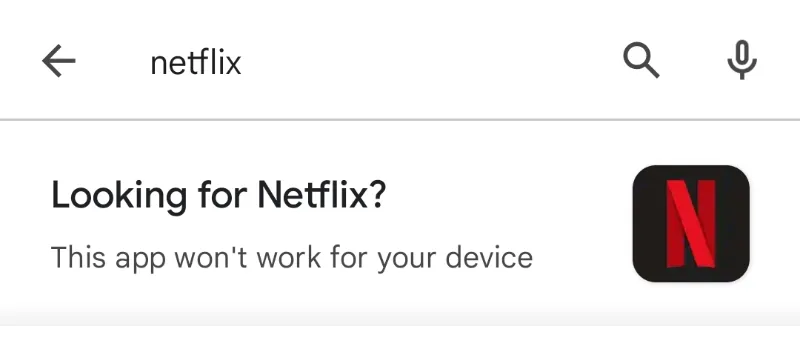
You encounter an error message in Play Store: “This app won’t work for your device.”

Fret not; you’re not alone! Sometimes, the Netflix app can be a bit elusive in the Google Play Store, making it difficult to install and enjoy its wide range of content.

In this blog post, we’ll dive into five effective ways to fix the issue of Netflix not being found or installed on the Play Store.

By following these simple steps, you’ll be ready to kick back and dive into your favorite shows in no time. So, grab your popcorn, and let’s get started!

How to Fix NetFlix Error Message “This app won’t work for your device’

Here are the five (5) methods you can try to resolve the problem.


Method 1. Install the Netflix APK file

This is the fastest and more effective method here.

Sometimes, when the Netflix app is unavailable on the Play Store, or you’re facing issues with the app, you might consider installing the Netflix APK file from a legitimate and trustworthy third-party website like APKPure.com.

An APK (Android Package Kit) is a file format allowing you to install apps on Android devices manually.

Here’s how to safely install the Netflix APK from APKPure.com:

  • Go to the APKPure site and search for Netflix.
  • Download the APK file: On the Netflix app page, tap the “Download APK” button. The APK file will be downloaded to your device.
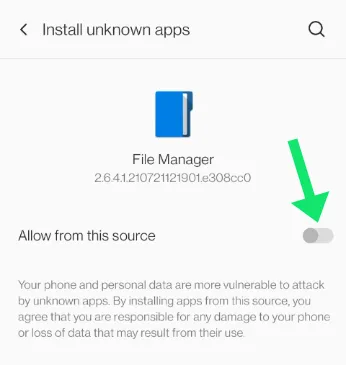
  • Install the APK file: Follow the on-screen instructions. During installation, you may encounter a message asking you to allow the installation of unknown apps from this source.

Allow it by toggling ON. As long as an app is outside the Google Play Store, Android will, by default, block it from installation until you allow it.

netflix-allow-install-unknown-apps-android
  • Complete the Installation: Tap “Install” and wait for the installation to complete. Once the installation is finished, you can launch the Netflix app and sign in with your Netflix account.

Method 2. Check Your Device’s Compatibility

One of the primary reasons you might encounter the error message is due to device compatibility issues.

Netflix aims to be accessible on a wide range of devices, but sometimes specific devices or older models might not be fully supported. Here’s how to check if your device is compatible with the Netflix app:

  • Visit the Netflix Help Center: Open your device’s web browser and go to the Netflix Help Center at help.netflix.com. This official support site for Netflix users provides valuable information about device compatibility and app requirements.

  • Search for supported devices: In the Help Center’s homepage search bar, type “supported devices” or “device compatibility” and hit enter.

  • Review the list of supported devices: You’ll see a list of articles related to device compatibility. Click on the one that corresponds to your device type (e.g., Android, iOS, Smart TV, etc.) and carefully review the list of supported devices and their requirements.

  • Compare your device’s specifications: Check your device’s specifications, such as the operating system version, processor, and available storage, to see if it meets the requirements specified by Netflix. You can usually find this information in your device’s “Settings” app under “About device” or “About phone.”

If your device is not on the list of supported devices or doesn’t meet the requirements, you may need to consider upgrading to a compatible device or exploring alternative streaming platforms.

If your device is compatible but still encountering issues, try the other methods mentioned in this blog post to resolve the problem.


Method 3. Use Netflix’s Official Website for Installation

You can try installing it directly from Netflix’s official website. This method ensures that you’re getting the official app from a trusted source.

Here’s how to install the Netflix app from their website:

  • Allow installation from unknown sources: First, you need to allow your Android device to install apps from unknown sources. Go to your device’s “Settings” app, tap “Security” or “Apps & notifications,” and enable the “Unknown sources” or “Install unknown apps” option.

Please note that this step is not required for iOS devices, as this method only applies to Android devices.

  • Visit Netflix’s official website: Open your device’s web browser and go to www.netflix.com.
  • Sign in to your Netflix account: Click or tap the “Sign In” button at the top-right corner of the page and enter your Netflix account credentials.

  • Access the download page: Once you’ve signed in, scroll down to the bottom of the page and click or tap on “Get the App” or “Download Netflix App” under the “Download” section.

  • Download the Netflix app: You’ll be redirected to a page with a download link for the Netflix app. Click or tap on the “Download Now” button to download the app.

  • Install the app: Once the download is complete for Android devices, locate the downloaded APK file in your device’s “Downloads” folder or the folder where your downloaded files are stored. Tap the APK file to begin the installation process. For iOS devices, you will be redirected to the App Store to download and install the app.

  • Launch Netflix: After the installation is complete, open the Netflix app, sign in with your Netflix account, and start streaming your favorite shows and movies.

By following these steps, you can install the Netflix app directly from their official website and bypass any issues you may have encountered with the Play Store.


Method 4. Clear Google Play Store Cache and Data

Clearing the cache and data of the Google Play Store can help resolve various issues, including app installation and visibility issues, like the inability to find the Netflix app.

Doing this gives the Play Store a fresh start, as it can help remove temporary files and corrupted data and resolve glitches. Here’s how to clear the cache and data for the Google Play Store:

  • Open your device’s Settings app: Tap on the “Settings” app on your device’s home screen or app drawer to access the settings menu.

  • Navigate to the Apps section: Scroll down and tap on “Apps,” “Applications,” or “Application Manager,” depending on your device’s settings menu. This will display a list of all the apps installed on your device.

  • Locate the Google Play Store app: Scroll through the list of apps to find the “Google Play Store” app and tap on it to access its settings.

  • Access storage settings: In the app’s settings menu, tap on “Storage” or “Storage & cache” to view the options for managing the app’s storage.

  • Clear cache and data: Tap on “Clear Cache” and “Clear Data” (or “Clear Storage,” depending on your device) to remove the temporary files and data associated with the Google Play Store app. A warning prompt may appear, asking you to confirm the action. Tap “OK” or “Yes” to proceed.

Please note that clearing the app data may require you to sign in to your Google account again in the Play Store app.

After clearing the cache and data, open the Google Play Store app and try searching for the Netflix app again. If the issue persists, consider trying the other solutions mentioned in this blog post.


Method 5. Update Your Device’s Software

Outdated software on your device can lead to compatibility issues with the Netflix app.

Regularly updating your device’s software ensures that you have the latest features, bug fixes, and security patches, which can help resolve app-related issues. Here’s how to update your device’s software:

For Android devices:

  • Open the “Settings” app on your device.
  • Scroll down and tap “System” or “Software update.”
  • Tap “Check for updates” or “Update.” If an update is available, your device will display the details.
  • Tap “Download” or “Install now” to start the update process. Make sure your device is connected to Wi-Fi and has sufficient battery life to complete the update.

For iOS devices:

  • Open the “Settings” app on your device.
  • Tap “General” and then “Software Update.”
  • If an update is available, tap “Download and Install.” Make sure your device is connected to Wi-Fi and has enough battery life to complete the update.

Conclusion

Dealing with Netflix installation issues can be frustrating, but with the tips and solutions provided in this blog post, you’re now better equipped to resolve any problems and get back to enjoying your favorite shows and movies.

If you’ve tried all the mentioned solutions but are still unable to install or use the Netflix app, it’s time to reach out to Netflix Support.

The support team can help diagnose and resolve any issues that may be specific to your device or account. Here’s how to contact Netflix Support:

  • Visit Netflix Help Center: Open your device’s web browser and go to the Netflix Help Center at help.netflix.com. This is the official support site for Netflix users, offering a wealth of information and assistance.
  • Search for your issue: In the search bar on the Help Center’s homepage, type in keywords related to your issue (e.g., “installation problem,” “error message,” etc.) and hit enter. Browse the search results to see if a relevant article can help you resolve your issue.
  • Access the Contact Us section: If you’re unable to find a solution in the Help Center articles, scroll down to the bottom of the page and click or tap on “Contact Us” or “Call or Chat” under the “Need Help?” section.
  • Choose a support method: You’ll be presented with several contact options, including Live Chat and Phone support. Choose the method that best suits your needs and preferences.
  • Provide necessary information: When you connect with a Netflix Support representative, be prepared to provide your account details, a description of your issue, and any troubleshooting steps you’ve already taken. This will help the support team diagnose and resolve your issue more effectively.
  • Follow instructions: The Netflix Support representative will guide you through any additional troubleshooting steps and provide you with a solution or escalate your issue to the appropriate department if necessary.

By contacting Netflix Support, you can get personalized assistance for your specific issue and ensure a smooth streaming experience with the Netflix app.

Remember, the support team is there to help, so don’t hesitate to reach out if you need assistance.


5 Ways to Fix Netflix [This app won’t work for your device] Read More »

vpn-over-tor

7 Reasons Why You Shouldn’t Use A VPN With Tor [Explained]

You might have heard about combining VPNs with Tor for an extra layer of security and anonymity. But is it really a good idea?

Today, we’re exploring 7 reasons why you shouldn’t use a VPN with Tor.

By the end of this post, you’ll clearly understand the potential issues and better alternatives to protect your privacy online.

But before diving into the reasons, let’s have a quick refresher on VPNs and Tor. VPNs (Virtual Private Networks) encrypt your internet traffic and mask your IP address, making it harder for snoopers to track you online.

On the other hand, Tor (The Onion Router) is a network of volunteer-operated servers that helps you browse the internet anonymously by bouncing your connection through multiple nodes.

Sounds like a perfect match, right? Well, not so fast!

Let’s see why using a VPN with Tor might not be the best idea after all.

Fun Fact: Did you know Tor was originally developed by the US Navy for protecting government communications? Now, it’s available for everyone to use!

Why You Should Not Use A VPN With Tor Browser

Here are the seven (7) reasons not to do so.


Reason 1: Compromised Anonymity

Another reason to be cautious about using a VPN with Tor is that it can potentially compromise your anonymity.

While both VPNs and Tor are designed to protect your privacy, combining them might not offer the level of anonymity you’d expect.

When you use Tor through a VPN (Tor over VPN), your VPN provider can see that you’re connecting to the Tor network.

This information, coupled with your real IP address, can be used to identify if the VPN provider is compelled to share its logs with authorities or if the provider itself is compromised.

On the other hand, using a VPN through Tor (VPN over Tor) can expose your real IP address to the VPN provider if there’s a leak. The last Tor exit node can also see your connection to the VPN server.

In either case, the added layer of security you’d expect by combining a VPN with Tor might not be as bulletproof as it seems.

Instead of enhancing your anonymity, it could actually put you at greater risk. As they say, “two heads are better than one,” but in this case, maybe not!


Reason 2: VPN Logging Policies

Using a VPN with Tor can also be problematic due to VPN logging policies. Even though many VPN providers claim to have a strict “no-logs” policy, some may still keep logs of your activity.

In the event of a data breach or law enforcement request, these logs can be used to trace your online activities back to you.

When you use Tor without a VPN, your internet traffic is less likely to be tracked, as the Tor network is designed to keep your browsing activity anonymous.

However, when you add a VPN into the mix, you’re placing your trust in the VPN provider to keep your data secure and private.

As you can see, it’s essential to consider the VPN provider’s logging policies and history before deciding to use a VPN with Tor. In some cases, using Tor alone might be a safer option for preserving your privacy.

So, should you use Tor without a VPN? It depends on your specific needs and the level of trust you have in your VPN provider. Remember, when it comes to privacy, trust is key.


Reason 3: Tor Over VPN vs. VPN Over Tor

Confused about whether you should use Tor through VPN or VPN through Tor? Well, this can be a tricky decision. Each method has its pros and cons, but neither is perfect when it comes to preserving your privacy.

With Tor over VPN, you first connect to a VPN server and then access the Tor network. This setup hides your Tor usage from your ISP but exposes your connection to the VPN provider.

Moreover, the VPN provider can see your real IP address and the fact that you’re using Tor.

On the flip side, VPN over Tor involves connecting to the Tor network first and then to a VPN server.

While this method hides your VPN usage from your ISP and makes it difficult for websites to block Tor users, it has its drawbacks.

The last Tor exit node can see your connection to the VPN server; your real IP address could be exposed if there’s a leak.

Ultimately, deciding between Tor over VPN or VPN over Tor depends on your priorities and threat model.

However, using a VPN with Tor may not offer the level of anonymity and privacy you’re looking for. Sometimes, simpler is better.


Reason 4: Potential Security Vulnerabilities

Another reason to be cautious about using a VPN with Tor is the possibility of security vulnerabilities. While both VPNs and Tor are generally considered secure, combining them can introduce new risks.

For instance, some VPNs may have weak encryption or be vulnerable to DNS leaks. These issues can compromise your privacy and defeat the purpose of using a VPN with Tor in the first place.

Additionally, Tor exit nodes can be operated by malicious actors who may attempt to intercept and analyze your traffic.

Moreover, using a VPN can create a single point of failure in your security setup. If the VPN provider gets hacked or its servers are seized, your privacy could be at risk. In contrast, Tor’s decentralized nature makes it more resilient to such attacks.

In short, combining a VPN with Tor might seem like a good idea on paper, but it can introduce new security risks that could leave your data exposed.


Reason 5: Slower Connection Speeds

One of the main reasons you might want to avoid using a VPN with Tor is the slower connection speeds.

When you use Tor, your data gets routed through multiple nodes, which already impacts your browsing speed. Adding a VPN to the mix only makes it worse.

VPNs can slow down your internet connection due to encryption and the distance between you and the VPN server.

Combining Tor with a VPN means you’re subjecting your data to two layers of encryption and routing, which can cause a significant decrease in performance.

Imagine it like this: You’re trying to get from point A to point B, but instead of taking a direct route, you have to pass through several checkpoints (Tor nodes) and detours (VPN servers). That’s bound to take longer, right?

So, if you’re looking for a smooth and speedy browsing experience, using a VPN with Tor might not be the best option.

Fun Fact: The name “Onion Router” comes from the layered encryption used by Tor, resembling the layers of an onion!


Reason 6: Legal Concerns and Jurisdiction

When considering using a VPN with Tor, you should also be aware of legal concerns and jurisdiction. While Tor and VPNs are legal in most countries, some have restrictions or outright bans on these technologies.

For instance, countries with strict internet censorship, like China, have made it illegal to use VPNs without government approval.

In such cases, using a VPN with Tor could draw unwanted attention and lead to potential legal consequences. Check out this post on how to bypass China’s firewall using a VPN for more information.

Furthermore, VPN providers may be subject to the laws and regulations of their country.

This means that if a VPN provider is based in a country with mandatory data retention laws or a history of surveillance, your privacy could be at risk.

When choosing a VPN, it’s crucial to research the provider’s jurisdiction and its implications for your privacy. For a comparison of VPN providers, you can read our post on Private Internet Access vs. Hide.me.


Reason 7: Trustworthy Alternatives

Finally, it’s worth noting that there are trustworthy alternatives to using a VPN with Tor.

If you’re looking for enhanced privacy and security, consider exploring other options without the potential issues we’ve discussed.

For instance, you could use the Tor Browser Bundle, which is specifically designed for secure and anonymous browsing.

The Tor Browser Bundle comes with built-in privacy features, such as HTTPS Everywhere and NoScript, to help protect your data and maintain your anonymity online.

Another option is to use privacy-focused search engines like DuckDuckGo, which don’t track your search history or collect your personal data.

Additionally, you can explore other privacy tools and encryption methods to help protect your data online.

While using a VPN with Tor might seem like a great way to boost your privacy and security, it’s not without its drawbacks.

Weighing the pros and cons of this setup, it’s worth considering alternatives that better suit your needs and provide a more reliable layer of protection.


Conclusion

Now that we’ve explored why you shouldn’t use a VPN with Tor, it’s essential to evaluate your privacy needs and choose the right tools accordingly.

While combining a VPN with Tor may not be the best solution for everyone, understanding the potential risks and alternatives can help you make an informed decision about how to protect your privacy online.


7 Reasons Why You Shouldn’t Use A VPN With Tor [Explained] Read More »

orion-web-browser-privacy

A Comprehensive Guide to Orion Web Browser Privacy Features

Have you ever found yourself asking, “Is the Orion browser private?” or “Is the Orion browser any good?

If so, you’re in the right place! In today’s digital world, privacy is more important than ever, and we’re all on the hunt for a browser that keeps our data safe and secure.

That’s why I’ve decided to dive deep into the world of Orion browser privacy to help you determine if it’s the right choice. So grab a cup of coffee, and let’s get started!

Why is Privacy Important in Today’s Digital World?

Privacy has become a hot topic these days and for good reason! With data breaches, cyberattacks, and intrusive ads following us around the internet, it’s no wonder we’re all a little paranoid.

But why is privacy so important, you ask?

Well, for starters, our personal information is valuable, not just to us but also to businesses and hackers alike.

Companies can use our data to target ads and develop products, while cybercriminals can use it for identity theft or other nefarious purposes.

As a result, maintaining privacy helps protect us from these threats and keeps our online experience more enjoyable.


Orion Browser: A Brief Overview

Before we dive into Orion browser privacy, let’s get acquainted with the browser itself.

Orion is a relatively new player in the world of internet browsing, but it’s already gaining attention for its commitment to user privacy and security.

What Sets Orion Apart from Other Browsers?

Orion’s main selling point is its focus on protecting user privacy without sacrificing performance. The developers behind the browser have gone the extra mile to ensure your data stays safe while surfing the web.

Plus, it’s lightweight and fast, which means you won’t have to trade speed for security.


Orion Browser’s Privacy Features

If you’re wondering, “Is Orion browser safe?” the answer lies in its impressive lineup of privacy features. Let’s dive into what makes Orion stand out in the privacy department:

1. Enhanced Tracking Protection

Orion’s built-in tracking protection blocks third-party trackers by default, ensuring that websites can’t follow you around the internet and collect your data without your consent.

2. Privacy-focused Search Engine

By default, Orion uses a privacy-focused search engine that doesn’t log your search queries or track your online activities. This helps keep your search history private and prevents targeted ads.

3. Private Browsing Mode

Orion’s private browsing mode (aka “incognito mode”) ensures that your browsing history, cookies, and site data are not saved, offering an additional layer of privacy.

4. Cookie Management

Orion allows you to manage cookies more effectively, giving you the option to block third-party cookies or even delete cookies when you close the browser.

5. Ad Blocker

The browser comes with a built-in ad blocker, which prevents annoying ads from disrupting your browsing experience and helps protect your privacy by reducing the chance of ad trackers collecting your data.

6. Fingerprinting Protection

Fingerprinting is a sneaky tracking technique that uses your device’s unique characteristics to identify you. Orion’s fingerprinting protection ensures that websites can’t use this method to track you.

With these features in mind, it’s clear that Orion takes privacy seriously. But how can you make the most of these tools? Let’s discuss some tips for maximizing your privacy while using Orion.


How to Maximize Your Privacy on Orion Browser

Now that we’ve explored Orion browser’s privacy features, let’s talk about how you can use them to their full potential and keep your online activities as private as possible.

Customize Privacy Settings

Orion offers several customization options in its privacy settings.

Make sure to explore these options and tailor them to your specific needs, such as enabling or disabling certain features or choosing how aggressively the browser should block trackers.

Use a VPN or Proxy

While Orion does a great job protecting your privacy, using a VPN or proxy can add an extra layer of protection.

These tools help hide your IP address, encrypt your internet traffic, and make it even harder for websites and third parties to track you.

Keep Your Browser Updated

Orion’s developers are constantly working on improvements and security patches. Make sure you’re using the latest version of the browser to benefit from the most up-to-date privacy features and fixes.


Comparing Orion Browser to Other Privacy-focused Browsers

In the quest for privacy, it’s always good to know your options. So, let’s see how Orion stacks up against some of the other popular privacy-focused browsers out there:

Brave Browser

Brave is well-known for its emphasis on privacy and security. Like Orion, it features a built-in ad blocker, tracking protection, and fingerprinting protection.

However, Brave also rewards users with its native cryptocurrency (BAT) for viewing privacy-respecting ads. Orion doesn’t offer a similar rewards system, but both browsers provide a solid foundation for privacy-conscious users.

Tor Browser

Tor Browser is famous for its ability to access the dark web and its focus on anonymity. While Orion offers strong privacy features, it doesn’t provide the same level of anonymity as Tor.

If you’re looking for total anonymity, Tor might be the better option, but keep in mind that it can be slower and less user-friendly than Orion.

DuckDuckGo Privacy Browser

DuckDuckGo, known for its privacy-focused search engine, also offers a mobile browser with robust privacy features.

While Orion and DuckDuckGo share many similarities, such as tracker blocking and private search, DuckDuckGo’s browser is currently available only for mobile devices.

Orion will be a better choice if you need a privacy-focused browser for your desktop.


Conclusion: Is Orion the Right Browser for Your Privacy Needs?

When it comes to privacy, the Orion browser definitely has a lot to offer.

With features like enhanced tracking protection, a privacy-focused search engine, and fingerprinting protection, it provides a secure browsing experience that rivals many of its competitors.

Ultimately, deciding whether Orion is the right browser for you depends on your specific needs and preferences. If you’re looking for a fast, user-friendly browser with strong privacy features, then Orion is worth a try.

However, if you need complete anonymity or are interested in earning rewards for viewing ads, you might want to explore other options like Tor or Brave.

In any case, it’s crucial to prioritize your online privacy and choose a browser that aligns with your values.

After all, as the saying goes, “On the internet, nobody knows you’re a dog” – and with the right browser, you can keep it that way!

So, what do you think? Is the Orion browser any good for your privacy needs? Give it a spin and find out for yourself!


A Comprehensive Guide to Orion Web Browser Privacy Features Read More »

orion-browser-vs-chrome

7 Differences Between Orion Browser and Chrome Web Browser

Today, we’re diving into the world of web browsers and exploring the differences between Orion and Google Chrome.

Now, you might be thinking, “Why should I even care about a new browser when Chrome has been my go-to for years?”

Well, stick around, and I’ll show you why Orion is making waves and how it stacks up against the tried-and-true Google Chrome.

Fun Fact #1: Orion browser is so lightweight that it can even run smoothly on older computers or devices with limited hardware capabilities, giving them a new lease on life!

Orion Browser vs. Chrome Web Browser

Here are the seven (7) differences between the two.


1. Privacy and Security

Orion’s Focus on Privacy

Orion is making a splash in the browser world with its strong emphasis on privacy. Unlike some other browsers, Orion doesn’t track your browsing habits or sell your data to advertisers.

In fact, it even includes a built-in ad blocker and tracker blocker to keep those pesky ads and sneaky trackers at bay.

With Orion, you can browse the web with confidence, knowing that your personal information stays private.

Google Chrome’s Data Collection

While Google Chrome is known for its convenience and seamless integration with other Google services, it’s no secret that it collects a lot of data about your browsing habits.

This data is used to personalize your online experience, but it also means that your information might be shared with third parties for targeted advertising.

If privacy is a top concern for you, this is one area where Orion might have the edge.


2. Performance and Speed

Orion’s Lightweight Design

Orion is all about speed and efficiency. Its lightweight design means it uses fewer system resources, resulting in faster page load times and a smoother browsing experience.

Orion’s creators’ prioritized performance optimization, so you’ll definitely notice the difference when you’re zipping around the web like a superhero!

Google Chrome’s Resource Usage

Google Chrome is known for its speed, but it can also be quite the resource hog. As we all know, having lots of tabs open in Chrome can sometimes slow down your computer or even cause it to crash.

This is because Chrome uses a separate process for each tab, which can eat up your computer’s memory and processing power.


3. Customization and Extensions

Orion’s Personalization Options

One of the cool things about Orion is its customization options. You can tweak the appearance and functionality to your heart’s content, making it truly feel like your browser.

Orion offers a wide range of themes, color schemes, and various layout options to help you create the perfect browsing experience. Who doesn’t love a little personal touch?

Google Chrome’s Extension Ecosystem

When it comes to extensions, Google Chrome is the king of the hill. With a massive library of extensions available in the Chrome Web Store, you can find tools to do just about anything – from productivity boosters to fun little games.

Chrome’s robust extension ecosystem is one of its most attractive features and a significant reason for its popularity.

Fun Fact #2: The first extension for Google Chrome was called "Google Mail Checker," an extension showing the number of unread emails in your Gmail account. Talk about a trip down memory lane!

4. Built-in Features

Orion’s Unique Tools

Orion comes with some nifty built-in features that make it stand out from the crowd. One such feature is the “Sidebar,” which provides quick access to your bookmarks, history, and downloads.

It’s super convenient and keeps everything you need within easy reach. Orion’s split-screen mode lets you view two websites side by side, perfect for multitaskers and researchers alike.

Google Chrome’s Standard Features

Google Chrome offers a solid set of built-in features, like syncing your bookmarks and browsing history across devices, autofill for passwords and forms, and the ability to cast content to a compatible device.

While these features might not be as unique as Orion’s, they’re still incredibly useful for everyday browsing.


5. Cross-Platform Availability

Orion’s Platform Support

Orion is designed to be accessible to as many users as possible, which is why it’s available on various platforms, including Windows, macOS, Linux, and even mobile devices like iOS and Android.

This means you can enjoy the same Orion experience across all your devices, making it super convenient and user-friendly.

Google Chrome’s Widespread Compatibility

One of the reasons for Google Chrome’s popularity is its widespread compatibility across different platforms. Just like Orion, Chrome is available on Windows, macOS, Linux, iOS, and Android.

Google’s commitment to keeping Chrome up-to-date ensures that it remains compatible with the ever-evolving tech landscape.


6. User Interface and Design

Orion’s Clean and Intuitive Layout

One of the first things you’ll notice about Orion is its clean and intuitive user interface. The designers really put thought into making it easy to navigate, with a streamlined layout and minimal distractions.

Orion’s design focuses on providing a clutter-free browsing experience, which is something many users appreciate.

Google Chrome’s Familiar Look

Google Chrome’s interface is familiar to millions of users around the world, and there’s something to be said for sticking with what works.

Chrome’s design is simple and user-friendly, with a minimalist approach that keeps things uncomplicated. It’s easy to see why so many people find Chrome’s design appealing and easy to use.

Fun Fact #3: Orion includes a built-in note-taking feature, making it easy to jot down ideas or save snippets of text without leaving the browser. Say goodbye to switching between apps!

7. Search Functionality

Orion’s Enhanced Search Capabilities

Orion takes search functionality to the next level with its enhanced search features. The browser’s smart search suggestions help you quickly find what you’re looking for by providing relevant suggestions as you type.

Plus, Orion’s search engine integration allows you to choose from multiple search engines, giving you the freedom to use the one that best suits your needs.

Google Chrome’s Default Search Features

Google Chrome’s search functionality is pretty straightforward, but that’s not necessarily bad. By default, Chrome uses Google as its search engine (no surprise there!), providing you with fast and accurate search results.

While Chrome’s search features might not be as advanced as Orion’s, they still get the job done.


Conclusion

So there you have it, folks! We’ve explored the differences between Orion and Google Chrome, covering everything from privacy and security to design and search functionality.

While Google Chrome remains the market leader and a popular choice for many, Orion’s focus on privacy, lightweight design, and unique features make it a strong contender in the web browser arena.

Ultimately, the choice between Orion and Google Chrome comes down to your personal preferences and priorities.

If privacy, customization, and a clutter-free interface are high on your list, you might want to give Orion a try.

On the other hand, if you value Google’s extensive ecosystem, Chrome’s tried-and-tested features, and a familiar interface, then Chrome might be the better fit for you.


7 Differences Between Orion Browser and Chrome Web Browser Read More »