admin

Reveal-see-check-URL-shortener-links-unshorten

7 Ways to Safely Reveal URL Shortener Links BEFORE Clicking

Before you click on a URL shortener link, you need to check and expand it to show you the original URL address. It would be best if you transformed the short URL to show you its real destination URL address and ensure that the webpage is safe to visit.

This article will focus on all the proven and tested methods to reveal a URL shortener link to its correct URL address.

How to Un-Shorten and Reveal the Actual URL from a URL Shortener Link?

Here are seven (7) different ways you can use to check.


1. UnShorten.me

unshorten.me.URL-link-reveal

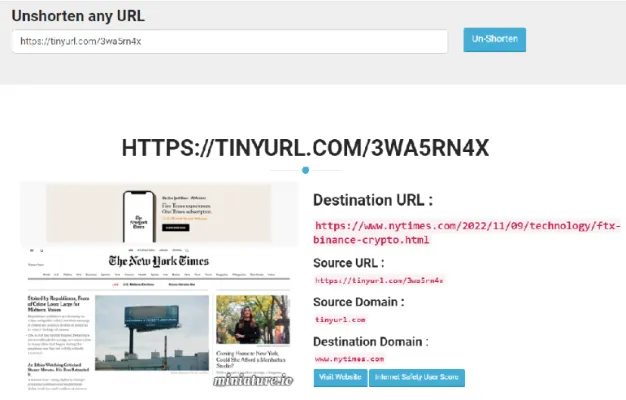
When using UnShorten.me, you can have a big snapshot of the destination URL homepage, the destination domain and, of course, the actual destination URL.

The snapshot helps get a glimpse of the website you intend to click on and is clear enough to read some of the content there.

The site supports revealing URL links from URL shorteners such as FB.me (Facebook), t.co (Twitter), bit.ly, TinyURL, ow.ly and others.

You can even use their API to un-shorten various URLs in XML, JSON or simple RAW format.


2. Link UnShortener

linkunshorten-reveal-link-shortener-check

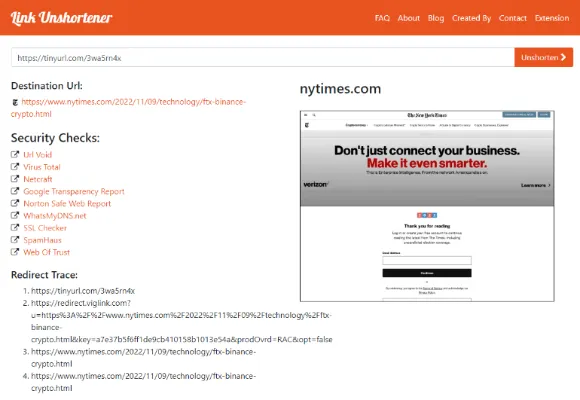
Not only does LinkUnShortener shows you the destination URL, but you can also check if the destination URL is safe to visit through its security checks.

When you expand the URL, you will get the following details;

  • The site info – typically the title of the page (if any)
  • Domain Info – WHOIS information such as the owner of the domain, the domain registrar, the creation and the expiration of the domain name
  • Security Checks – Check the reputation and security of the destination URL

There are links to VirusTotal, SSL Checker, Web of Trust and many others for security checks that you can use to check destination URLs’ safety and security.


3. CheckShortURL

checkshorturl-reveal-url-shortener-links

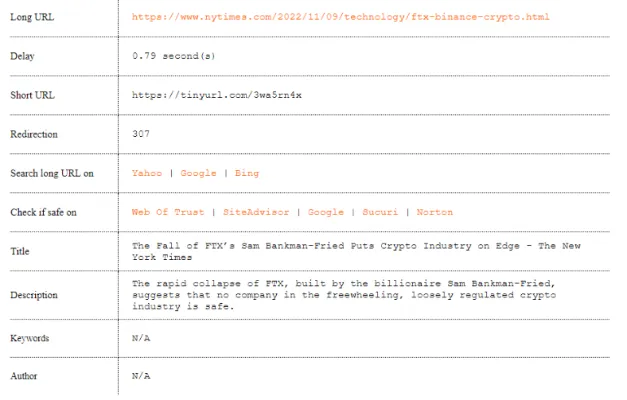
CheckShortURL provides a screenshot of the destination URL page, the actual URL and the followingvaluablel details;

  • Title of the page
  • Description of the page (as per shown on search engines)
  • Author of the page
  • Security checks on Web of Trust, SiteAdvisor, Norton and others.

sdfdsfsdf


4. URL Expander

urlex-reveal-url-shortener-links

URL Expander is useful when you have a batch of URL link shorteners to un-shorten.

You can instantly input a batch of URLs (limited to 100 requests per day) and see the page’s destination URLs (results), or you can download the results as a CSV file format.

To go over 100 requests, you will have to use the paid version. API access is also available for paid users.

URL Expander supports almost all URL shortening services: t.co, bit.ly, amzn.to, tinyurl.com, ow.ly, youtu.be and many more.


5. WhereGoes

wheregoes-reveal-URL-link-shortener

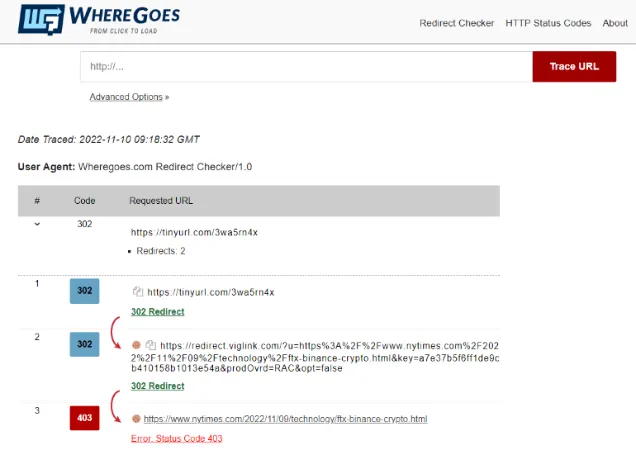
WhereGoes provides the free service using a URL Redirect Checker that follows the path of a URL link shortener to enable troubleshooting of link issues and perform internet marketing intelligence.

Besides revealing and showing you the destination URL, you can see all the links being redirected through, for example, PHP redirects, htaccess redirects, NGINX redirects and JavaScript redirects, before reaching the destination URL.


6. UnShorten.It

Sunshorten.it-reveal-URL-link-shortener

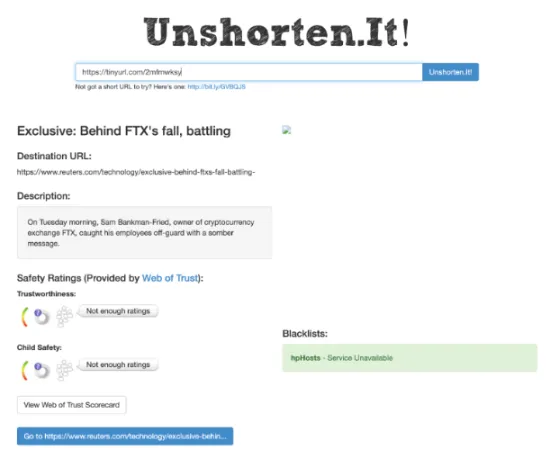
UnShorten.It is a straightforward free online service that reveals andun-shortensn the URL link shorteners you have by showing you the destination URL and providing you with safety ratings on the URL page.

You can get the safety ratings in terms of Trustworthiness and Child Safety. This is provided by the Web of Trust community.


7. Preview Mode

tinyurl-preview-url-shortener

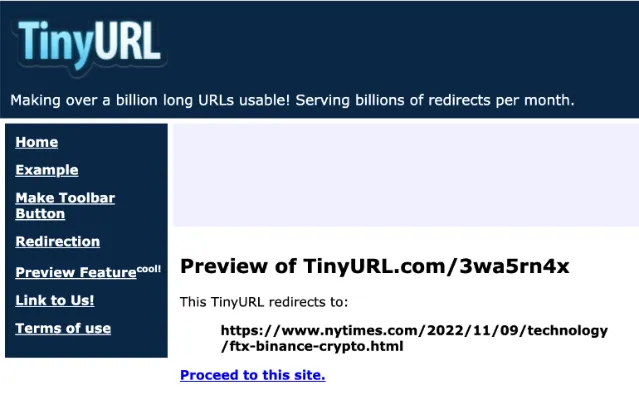
Some URL shorteners come with a built-in preview feature that gives users a sneak preview of the actual URL before clicking on it.

For TinyURL, you can add the word “preview.” in front. See the example below.

https://tinyurl.com/3wa5rn4x

https://preview.tinyurl.com/3wa5rn4x

For Bitly, you can add the plus “+” sign at the end of the URL. See the example below.

bit.ly/2xTleYF

bit.ly/2xTleYF+

7 Ways to Safely Reveal URL Shortener Links BEFORE Clicking Read More »

Featured_[Ho-to-tell-if-someone-copied-files]

7 Ways to Tell If Someone had Copied Files On Your Computer

You suspect someone has accessed and checked on your laptop or desktop computer and probably copied files from it. You want to prove if your files are actually copied and if tracing of the person involved is possible.

This article will list down all the ways, signs and evidence to determine if your files are being copied.

How to Tell that Someone had Copied Files on Your Computer?

Here are the seven (7) tell-tale signs to tell (and prove) that someone has copied files on your computer.


1. Check the history list of attached USB devices

usb-device-history-check

Whenever a USB device is plugged into a computer, the Windows operating system keeps a list of USB device history. These can be USB flash drives, USB portable hard drives, memory cards using USB adapters, etc.

This method is frequently used in the field of digital forensics by examiners who need to prove the existence of a particular device, as it can show the unique serial number of the USB device attached.

USB Detective is a digital forensics software tool that extracts USB device information, such as serial numbers, last connected timestamp, first connected timestamp, etc.

You should download the USB Detective Community version, which is free to use, and you can export the findings in an Excel format.


2. Check the Timestamp of the File

file-properties-timestamp-created-accessed-modified

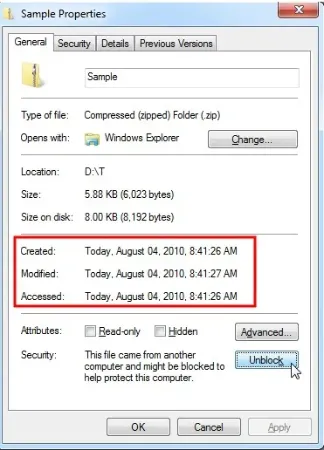
If you suspect a particular file or files within a folder have been copied, you can check the file’s properties, especially on the <Date Created> and the <Date Accessed> attribute values.

To check, right-click on the file and select <Properties>.

<Date Created> attribute can prove that a file is newly copied or created on the computer. <Date Accessed> attribute can prove that someone had opened a file previously.

You should be looking for files that had been accessed or created in the time frame that you are not using the computer.


3. Check Recent Files

windows-recent-files-explorer-list

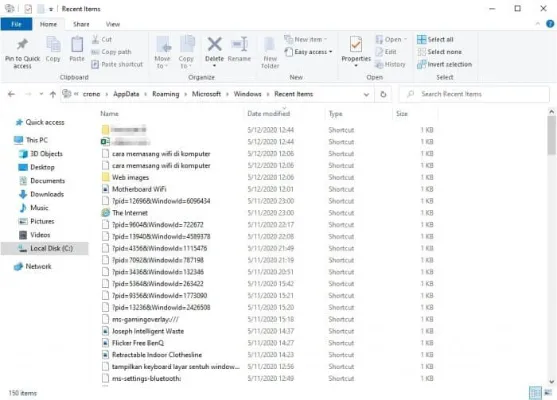
Windows keep a history of recently-accessed files in the Windows menu for convenience when we need to open them again.

This feature is useful and provides a quick glance if any files have been opened while you are away.

For Windows, press the keyboard “Windows + R” to open the Run dialog box and type in “recent“.

A folder will appear to show you a list of all your recent files.

For Mac, it is called <Recents>. You can find them in your Finder app and on the left-hand pane.


4. Check the CCTV camera

cctv-camera-check-person-access-computer

Is this a residential home or a workplace environment? Does it have a CCTV camera looking at the angle of your computer?

Looking through the video footage is a sure way of identifying the person who had physical access to your computer and copied your files.

Be wary that CCTV footage recordings usually do not store for long due to overwriting and storage capacity constraints. So go in and retrieve the videos at the earliest time possible.


5. Check the Movement of Peripherals

keyboard-mouse-moved-shifted-person-using-your-computer

Sometimes the most obvious signs can be where your keyboard, mouse and monitor screen are shifted.

The person may accidentally move/shift your keyboard or any other peripherals while copying files at your computer.

If you have a keen eye for where you usually place your hardware, you may notice it immediately.


6. Check Keylogger Logs

keylogger-check-file-copy-access-computer

If you had previously installed a keylogger on your own computer, you could now check your logs to see all activity records, including the file copied activity.

A keylogger is commonly installed on someone’s computer to monitor keystrokes, folder access and visited websites.

But you can also install a keylogger on your own computer if you suspect someone is frequently accessing and copying your files.

You can use a keylogger like Refog to monitor all activities on your computer, take periodic snapshots, and send the images to your email address.


7. Check Audit Logs

audit-logs

This method requires you to check audit activity logs, and it only applies if you have previously installed and configured auditing software on your computer, probably on a company’s server.

If you have not done so, you can refer to this setup guide to enable the File and Folder Access Auditing feature in Windows Server configurations, for file copied activities.

You can also try Filesure for Windows to track who and which system process is accessing your files and what they are doing with them.


7 Ways to Tell If Someone had Copied Files On Your Computer Read More »

extract-youtube-comments-download

5 Ways to Download and Export Youtube Comments on any Video

When watching Youtube videos, you can also download and export all the Youtube comments that come with them, usually in Excel (XLS) or CSV file format.

There are several different ways to do so, each having its own strengths and limitations.

Depending on your preference and needs, this article will list down all the methods you can use to export Youtube comments from its video.

How to download Youtube Comments

Here are the five (5) different methods you can use, depending on your preference,


1. ExportComments

exportcomments-export-youtube-comments-download

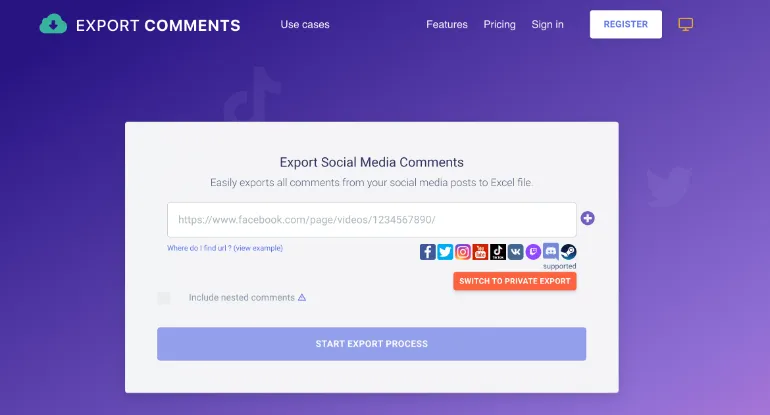
As long as it is a public Youtube video, you can copy the URL and paste it into ExportComments, and it will export out all the available comments.

ExportComments is free to use and is limited to a maximum of 500 comments. To increase the limit, three (3) different paid versions allow users to export up to a maximum of 250,000 comments per export.

Users can export for output in Excel or CSV file format.

Key Features

  • Include exporting of nested comments (comments within comments)
  • Support exporting of most international languages
  • Support Youtube, Facebook, Twitter, Instagram, Tiktok, Discord and many more.

2. Youtube Comments Downloader

Youtube Comments Downloader is a straightforward tool that automatically expands all the nested comments to display for you.

Copy and paste the URL of the Youtube Video, and this online extraction tool removes all videos, images and ads and displays only all the Youtube comments in their raw form.

From there, you can either print it and save as PDF format, print it out as physical printouts, or save it as a webpage HTML file.


3. Coberry

coberry-export-comments-youtube-download

Coberry is an online service that helps you export Youtube comments, add Youtube videos as campaigns, and add tags to those campaigns to monitor a group of assets for statistical reporting.

After exporting comments, Coberry allows users to export as CSV files or in Plain Text format.

Key Features

  • Analyze sentiments to know the tone of the audience
  • Sort by chronological order, most like or most commented order
  • Filter by keyword
  • Filter by commentor (author)

4. Sudota Comment Tool

export-download-youtube-comments-sudota-social-tool

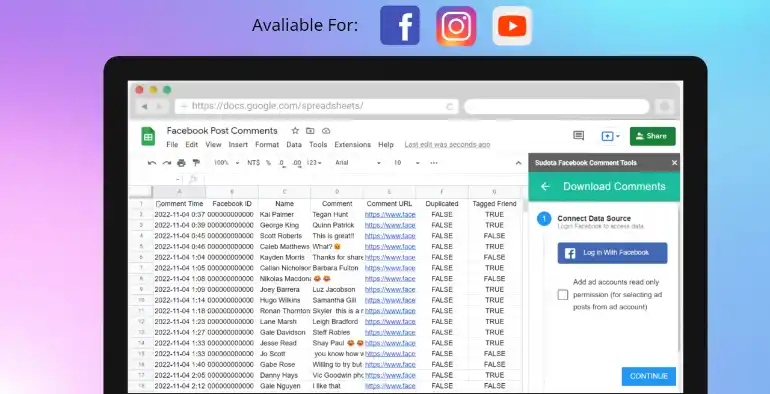
If you are the owner of your Youtube channel, Instagram business page or Facebook business page, then Sudota Comment Tool is suitable for you.

This Google Sheet extension tool allows you to export Youtube comments on your Google Sheets instantly, and you can also reply to those comments from there.

Key Features

  • Auto-stream Facebook / Instagram comments or reactions to your Google Sheets
  • You can search posts with post links or select from your published post
  • Refresh new comments to the downloaded sheet

5. Botster Youtube Comment Scraper

botster-youtube-comment-extractor

Botster is an online service that runs a variety of custom bots, including a bot for extracting Youtube comments.

The maximum number of comments it can extract and download is capped at 500,000. Botster is free for the first try and subsequently runs on paid credits model. Depending on the extraction volume, users may have to pay for more extraction.

Extracted Youtube comments can be in the form of Google Sheets, Excel, CSV or JSON file format. The output will also include specific details such as user nickname, comment date, comment upvotes and more.


Why can’t some Youtube Comments be downloaded and exported?

Here are the three (3) main reasons why some Youtube comments cannot be downloaded and exported.

Comments from Private Users

Youtube comments made by private users cannot be exported out. This is due to Youtube’s security policy.

Spam Comments

When Youtube comments are filtered and marked as spam, these comments cannot be exported and downloaded as well.

Suspended or Disabled Accounts

When a Youtube account has been suspended or disabled, all the previous comments made from this account will also be affected.


5 Ways to Download and Export Youtube Comments on any Video Read More »

install-orion-web-browser-on-Mac-macOS

How to Install Orion Browser by Kagi on Mac [macOS Ventura]

Orion browser, by Kagi, is a macOS and iOS web browser that is a privacy-respecting, true zero-telemetry browser and aims to be lightning fast in terms of the web browsing experience.

Currently, in the beta version, the web browser aims to be version 1.0 ready by the end of 2023.

How to Install Orion web browser on Mac?

Here are the five (5) easy steps to install and ensure that the Orion web browser is ready to be used.


Step 1. Go to the official Orion website

orion-web-browser-homepage-official-website

The first thing you need to do is to go to the official website of the Orion Browser by Kagi.

Click on <Download Orion beta> on the homepage to go to the downloads page.


Step 2. Choose your macOS/iOS version

On the downloads page, you will choose and download the version based on your Mac operating system version.

The Orion web browser supports the following Mac versions;

  • macOS 13.0 Ventura
  • macOS 12.0 Monterey
  • macOS 11.0 BigSur
  • macOS 10.15 Catalina
  • macOS 10.14 Mojave

You can get your Orion web browser directly from the Apple App Store for iPhone and iPad.

Click on the version and download it onto your Mac.


Step 3. Install the dmg

install-orion-web-browser-by-kaji-on-mac-macOS

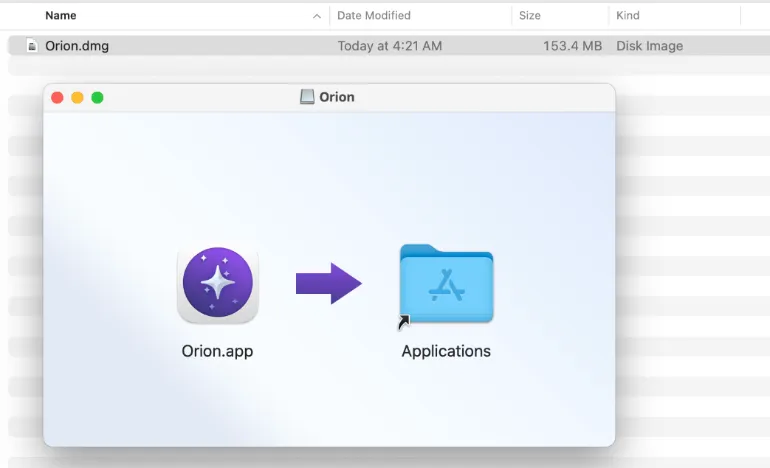
Double-click the <Orion.dmg> file, and the installation dialog box will appear.

Drag the <Orion.app> icon to the <Applications> folder so the installation can begin.


Step 4. Ensure Installation is Successful

ensure-orion-web-browser-is-installed-finder-applications-mac

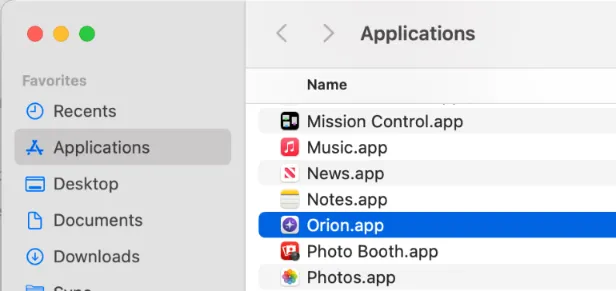
Open the Finder.app and go to the Applications folder (on the left pane) and scroll down to ensure that Orion.app is present.

If it is there, this means the Orion web browser is installed successfully,

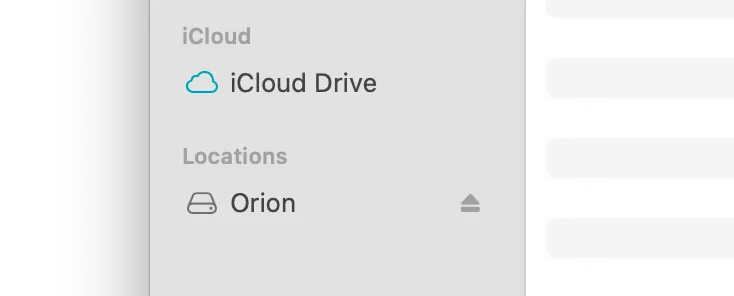
To finish the whole installation process, eject the Orion installer, found at the bottom left-hand side of the Finder.

eject-orion-installer-application-mac-macOS

Step 5. Open Orion Web Browser

Lastly, it would be best to open the Orion web browser to ensure everything is installed and working fine.

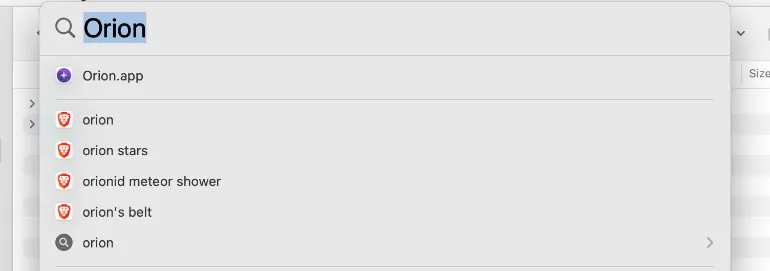
On your Mac, click on the magnifying glass icon on the top right (Spotlight Search) and type in the word “Orion“.

search-orion-magnifying-glass-spotlight-search-web-browser

You will see <Orion.app> appear on the list. Click <Enter> to open it.

Click <Open> if you want to open the app.

On your first startup of the Orion web browser, click on the address bar on top to choose a default search engine, for example, manually, https://www.google.com.


How to Install Orion Browser by Kagi on Mac [macOS Ventura] Read More »

protonvpn-how-many-connected-devices

How Many Devices Can Connect to ProtonVPN? Free & Paid Plans

Whether casually surfing the internet or managing sensitive online transactions, a VPN (Virtual Private Network) like ProtonVPN can be your digital bodyguard, shielding you from prying eyes.

Founded by CERN scientists in 2014, ProtonVPN is a highly secure and popular choice among privacy enthusiasts worldwide.

Fun Facts: Did you know that the 'Proton' in ProtonVPN stands for 'Professional to Overcome Threat to Online Networks'? It's a testament to its mission of providing secure online communication!

Quick Answer: How Many Devices Can ProtonVPN Support?

Whether you’re a solo user or part of a larger family, device compatibility is likely high on your VPN checklist.

With ProtonVPN, the number of devices you can connect simultaneously depends on your subscription plan.

  • Free Plan: Allows one device at a time.
  • Basic Plan: Supports two devices simultaneously.
  • Plus and Visionary Plans: Supports up to ten devices at the same time.

Remember, these limits are for simultaneous connections. There’s no limit to the number of devices you can register on your ProtonVPN account; it’s all about how many can be online at once.

If you’re wondering, “Can I share my ProtonVPN account?” the short answer is yes, you can use your ProtonVPN account on multiple devices, but sharing accounts with others is technically against ProtonVPN’s terms of service.

And in case you’re asking, “How many devices can you add to a VPN in general?” it varies with different VPN service providers, with some offering unlimited devices. In contrast, others restrict to a certain number per account.

Make sure you check the specifics of your VPN service to avoid any surprises!

Fun Facts: ProtonVPN is based in Switzerland, a country known for its strong privacy laws, making it an even more appealing option for those keen on keeping their online activities private.

Free vs. Paid Plans: Device Limitations

ProtonVPN offers both free and paid subscription options, each with its own pros and cons, especially when it comes to the number of devices that can be connected simultaneously.

As mentioned earlier, the Free Plan permits only one device at a time. While this could work for individuals who only use a single device, it may be restrictive for those who switch between multiple devices.

Moving up the ladder, the Basic Plan doubles the allowance to two simultaneous devices. It’s a step up from the Free Plan and is suitable for users who wish to secure more than one device without needing to disconnect and reconnect every time.

The Plus and Visionary Plans open up the ability to connect up to ten devices simultaneously. This option is perfect for larger households or small businesses where multiple devices must be secured.

It’s important to note that ProtonVPN’s limitations are for simultaneous connections, so you can register as many devices as you want with your ProtonVPN account.

Before we move on, remember the question, “Can I share my ProtonVPN account?“.

While technically possible to share your login credentials and use the VPN on different devices, doing so is against ProtonVPN’s terms of service.

So, while the idea may seem attractive, it’s best to stick to the rules to avoid any potential issues.


FAQs: ProtonVPN and Multiple Device Support

In this section, we’ll answer some frequently asked questions about ProtonVPN’s device support to clarify any lingering doubts you might have.

Q1: How do I increase the number of devices I can connect with ProtonVPN?

A: The number of devices you can connect simultaneously depends on your subscription plan. You’ll need to upgrade to a higher-tier plan to increase this number.

Q2: Can I use ProtonVPN on different operating systems?

A: Yes, ProtonVPN supports various operating systems, including Windows, macOS, Linux, Android, and iOS.

Q3: What happens if I try to connect more devices than my plan allows?

A: If you attempt to connect more devices than your plan permits, the new device will not be able to establish a connection until you disconnect one of the already connected devices.

Q4: Does using multiple devices slow down my ProtonVPN connection?

A: While ProtonVPN’s servers are designed to handle multiple connections without major speed impacts, your connection speed can decrease if you perform data-heavy activities simultaneously on multiple devices.

Remember, every VPN, including ProtonVPN, has its strengths and weaknesses. To learn more about VPNs and their usage, consider reading our post on bypassing China’s Firewall using VPN.


Conclusion

ProtonVPN is an excellent choice for those seeking a secure, privacy-focused VPN. It accommodates different user needs with flexible device support across various subscription plans.

Whether you’re a single user or a larger group, ProtonVPN’s one-to-ten device simultaneous connection range will meet your requirements.

While you can register unlimited devices on your account, the number that can be online simultaneously depends on your plan.

Performance-wise, ProtonVPN’s robust server infrastructure ensures reliable service, even when multiple devices are connected.

However, due to shared bandwidth, ProtonVPN may experience slowdowns with intensive multi-device use, like any VPN.

So, it’s always good to consider your specific needs and usage patterns when choosing a VPN plan.

In the end, the value of ProtonVPN lies not just in the number of devices it can support but also in its unwavering commitment to online privacy and security. After all, what’s better than surfing the internet with peace of mind?


How Many Devices Can Connect to ProtonVPN? Free & Paid Plans Read More »

duckduckgo-vs-brave

7 Key Features: Duckduckgo Vs. Brave [Compare Web Browsers]

Today, we’re diving deep into private web browsers, pitting the renowned DuckDuckGo Browser against Brave.

Both browsers have made their mark in the tech sphere for their staunch dedication to user privacy and unique features, and choosing between them can be a challenge.

In this blog post, we will compare them based on seven key features to give you a clearer picture and help you decide which suits you best.


Quick Answer: DuckDuckGo vs Brave

Both DuckDuckGo and Brave are fantastic choices for privacy-focused internet users. DuckDuckGo is well-regarded for its simplicity and robust privacy features, with the added benefit of its own private search engine.

On the other hand, Brave offers advanced ad-blocking capabilities and allows for a high degree of customization while emphasizing privacy and security.

Is Brave browser better than DuckDuckGo?

Well, it depends on what you prioritize. If you prefer an easy-to-use, straightforward privacy-focused browser, DuckDuckGo might be your best bet.

If you’re seeking comprehensive ad-blocking and personalization features, along with privacy, Brave could be the right choice.

Can you use DuckDuckGo on the Brave browser?

You can set DuckDuckGo as your default search engine within the Brave browser, combining the strengths of both.


Comparison Between DuckDuckGo vs. Brave web browsers

Here are the seven (7) features of the two web browsers.


Feature 1: Privacy – How Do They Stack Up?

DuckDuckGo has built its reputation on its commitment to user privacy. Unlike most browsers, DuckDuckGo doesn’t track your online activities.

It doesn’t store your personal information and prevents third-party trackers from doing so. What sets DuckDuckGo apart is its private search engine, which doesn’t profile users based on their search history.

Brave, while also offering robust privacy protections, takes a different approach. Alongside its built-in ad and tracker blocking capabilities, Brave introduces privacy partitions that isolate your browser data across different websites, preventing trackers from following you as you move across the web.

Furthermore, Brave offers the option of using Tor in a private browsing window for enhanced anonymity.


Feature 2: Security Measures – Who Takes the Upper Hand?

DuckDuckGo ensures your safety with its simplified privacy model. Its primary security feature is its ability to force sites to use encrypted connections, protecting your data from prying eyes.

However, it lacks some more advanced security options in other browsers.

On the other hand, Brave is built on Chromium, inheriting a strong foundation of security features. It forces HTTPS connections for added security, blocks phishing websites, and includes a built-in password manager.

It also allows you to use Tor in a private browsing window for additional protection.


Feature 3: Performance and Speed – A Comparison

Let’s move onto another crucial aspect – performance and speed.

DuckDuckGo is designed with simplicity in mind, which aids in its speed and efficiency. Due to the lack of ads and trackers, pages load faster, providing you with a smooth browsing experience.

On the other side, Brave is also built for speed. By blocking ads and trackers, Brave drastically reduces the amount of data your device has to process, leading to faster page load times.

In fact, Brave often outperforms many other browsers when it comes to speed, even those not focused on privacy.

In conclusion, both browsers deliver on performance, with Brave having a slight edge in some speed tests. However, the difference might not be perceptible in everyday usage.


Feature 4: User Experience – A Look at Ease of Use

Now let’s turn our attention to user experience. After all, even the most feature-packed browser won’t be a hit if it’s not easy to use.

DuckDuckGo shines in its simplicity. With a clean and intuitive interface, it’s perfect for those who want a no-frills, straightforward browsing experience.

It’s simple to navigate, and its settings are easy to understand, making it a great option for both tech-savvy users and beginners.

On the flip side, Brave offers a more feature-rich interface, which can be a boon for users who love customization.

It allows you to choose what you want to block, has a broad range of settings to tweak, and even lets you earn cryptocurrency for viewing optional ads.

However, the wealth of options might overwhelm those new to privacy-focused browsers.

In summary, if you’re seeking simplicity and ease of use, DuckDuckGo may be your go-to. If you want a more customizable experience, Brave might be more up your alley.


Feature 5: Device Compatibility – Which One Wins?

Device compatibility is key when using your favorite browser across multiple devices. So, let’s see how DuckDuckGo and Brave fare in this aspect.

DuckDuckGo is available as a mobile browser on both Android and iOS devices. However, on desktop, it’s not offered as a standalone browser but as an extension for other browsers.

This could limit your use of DuckDuckGo as your primary browser across all your devices.

In contrast, Brave is readily available on all major platforms, including Windows, macOS, Linux, Android, and iOS.

This wide range of compatibility makes Brave a more versatile option if you switch between devices and want a consistent browsing experience.


Feature 6: Ad Blocking – The Battle of the Blockers

In the face of intrusive online ads, ad-blocking capabilities have become an increasingly important feature in browsers.

Let’s see how DuckDuckGo and Brave tackle this issue.

DuckDuckGo includes built-in ad-blocking features that work effectively across the websites you visit. It automatically blocks third-party trackers that advertisers use to follow you around the web, reducing the number of ads you see.

Brave takes a more aggressive stance on ad blocking. Its Shields feature blocks third-party ads and offers protection against trackers, auto-play videos, and other intrusive web elements.

In addition, Brave has an innovative feature called Brave Rewards, which allows you to earn its native cryptocurrency, Basic Attention Token (BAT), for viewing privacy-preserving ads.

If ad-blocking is your top priority, both browsers perform admirably. Brave, however, takes it further with its more robust and comprehensive ad-blocking features and unique opt-in ad program.


Feature 7: Open Source – Who Has the Advantage?

Lastly, let’s talk about open source. Many tech enthusiasts prefer open-source software for its transparency and the opportunity it offers for community participation.

DuckDuckGo, despite being a champion of privacy, is not fully open source. Its server-side code is proprietary, which some users may find disappointing.

However, the company has made parts of its browser extension and apps open source.

In contrast, Brave is entirely open source. It’s built on Chromium, which is open source, and its code is available for anyone to review, contribute to, and modify.

This level of transparency can give users more confidence in Brave’s privacy and security claims.

To put it plainly, if open source is your key consideration, Brave is the clear winner. DuckDuckGo’s approach might be satisfactory for many, but those who value total transparency may lean towards Brave.


Frequently Asked Questions (FAQs)

Here are some quick answers to common questions about the DuckDuckGo and Brave browsers.

Q1. Is Brave browser better than DuckDuckGo?

The answer to this question is subjective and depends on your specific needs. Brave offers comprehensive security features and is available as a standalone browser on all major platforms.

However, DuckDuckGo provides a more streamlined, no-frills experience.

Q2. Can you use DuckDuckGo on the Brave browser?

Yes, you can. While Brave is a browser and DuckDuckGo is primarily a search engine, you can use DuckDuckGo as your default search engine within the Brave browser.

Q3. Do Brave and DuckDuckGo sell my data?

No, both Brave and DuckDuckGo are committed to user privacy and do not sell your data to third parties.

Q4. Can I earn money using the Brave browser?

Brave has a unique feature called Brave Rewards, where users can earn Basic Attention Tokens (BAT), a type of cryptocurrency, for viewing privacy-preserving ads.


Conclusion

Choosing between DuckDuckGo and Brave ultimately depends on your individual needs and priorities.

Both browsers excel in privacy protection, with Brave going the extra mile with robust security features and broader device compatibility.

DuckDuckGo, on the other hand, wins in simplicity, providing a streamlined, straightforward browsing experience.

Whether you prefer a no-frills browser like DuckDuckGo or a feature-rich one like Brave, remember that the ultimate goal is to protect your online privacy and enhance your browsing experience.

Be sure to consider all factors, from security to device compatibility, to make an informed choice.


7 Key Features: Duckduckgo Vs. Brave [Compare Web Browsers] Read More »

duckduckgo-vs-firefox-web-browsers

7 Key Features: Duckduckgo Vs Firefox [Compare Web Browsers]

Choosing a web browser is not just about which can get you to your favorite websites.

The real question is, which browser offers the best features, such as privacy, speed, customization options, and compatibility?

This post will tackle that question, comparing the features of two popular browsers: DuckDuckGo and Firefox.

You’re in the right place whether you’re considering a switch or curious about how your current browser stacks up. Let’s delve into the specifics!


Quick Answer

If you’re in a hurry, here’s the quick and dirty;

DuckDuckGo is well-loved for its stringent privacy measures, including not tracking browsing activities.

On the other hand, Firefox is praised for its speed, robustness, and extensive customization options through add-ons.

Moreover, the good news is you can use DuckDuckGo as your search engine within the Firefox browser, bringing together both strengths!

The table below briefly compares the main features of DuckDuckGo and Firefox.

FeaturesDuckDuckGoFirefox
PrivacyExcellent, does not track searches or sell user data.Good, with strong privacy features and controls.
SpeedDecent, provides a smooth browsing experience.Excellent, known for its speed, particularly after the Quantum update.
CustomizationBasic, offering simple changes like theme and search settings.Excellent, supports a wide range of themes, extensions, and add-ons.
CompatibilityFlexible, available as an extension for many browsers and as a mobile app for iOS and Android.Excellent, available on multiple platforms including Windows, macOS, Linux, Android, and iOS.
User InterfaceMinimalistic, focusing on delivering search results without distractions.Clean and intuitive, supports tabbed browsing, bookmarking, and has an integrated search and address bar.
Extensions and Add-onsLimited, as it’s primarily an extension itself, providing privacy features.Excellent, supports a wide variety of extensions and add-ons via the Firefox Add-ons Manager.
Updates and UpgradesRegular updates focused on enhancing privacy, optimizing speed, and improving user experience.Regular updates every four weeks, providing the latest features, security patches, and performance improvements.

Understanding DuckDuckGo and Firefox

Before we dive into the features, let’s quickly set the stage with a brief overview of the two contenders: DuckDuckGo and Firefox.

DuckDuckGo is a privacy-focused web browser that promises to keep your browsing habits away from prying eyes.

Introduced in 2008, DuckDuckGo started as a search engine that wouldn’t track or share your search queries or personal data.

In 2019, DuckDuckGo launched its browser extension and mobile app, bringing its commitment to privacy to your entire browsing experience.

On the other side, we have Firefox. Created by Mozilla Corporation, Firefox first surfaced in 2002 and quickly gained popularity for its speed, reliability, and openness.

Open-source at its core, Firefox puts a high premium on user freedom, customization, and meaningful innovation.

It’s also worth mentioning that you’re not limited to choosing one. Many users opt to use DuckDuckGo with Firefox, integrating the privacy benefits of DuckDuckGo with the speed and robustness of Firefox.


Comparison Between DuckDuckGo vs. Firefox

Let’s start comparing features, beginning with privacy;


Feature 1: Privacy

Privacy is a key concern for most web users; this is where DuckDuckGo truly shines. DuckDuckGo doesn’t track your searches or sell your data to advertisers.

It also offers a Privacy Grade feature that rates websites on their privacy policies, keeping you informed about the sites you visit.

Firefox, however, is no slouch when it comes to privacy.

It offers features like Enhanced Tracking Protection, which blocks third-party tracking cookies by default, and Facebook Container, which prevents Facebook from tracking your online activities.

However, it’s worth noting that while Firefox offers strong privacy measures, DuckDuckGo’s commitment to not collecting or sharing any personal data puts it a notch above regarding privacy.


Feature 2: Speed

Another crucial factor when choosing a browser is its speed. The faster a browser can load pages, the better the browsing experience.

Firefox has always been known for its speed. Its Quantum update launched a few years back, focused on improving browser speed and reducing lag.

The result is a fast, snappy, and responsive browser that doesn’t slow down even when multiple open tabs.

DuckDuckGo, on the other hand, does a decent job when it comes to speed. While it might not be as fast as Firefox, it still provides a smooth browsing experience.

And the added peace of mind you get from its privacy measures might well be worth the slight compromise in speed.


Feature 3: Customization

Customization is where Firefox truly excels. Being open-source, it’s built with customization in mind. Firefox offers a wide range of themes, extensions, and add-ons that allow you to modify the browser to fit your needs.

Whether changing your browser’s look, adding a productivity tool, or installing a security add-on, Firefox has got you covered.

DuckDuckGo is a bit more limited in this regard. It offers some basic customization options, such as changing the theme or adjusting the search settings, but it doesn’t have the wide array of extensions and add-ons that Firefox does.

However, for users who prefer a simple, uncluttered browsing experience, DuckDuckGo’s minimalistic approach might be a plus.


Feature 4: Compatibility

When it comes to compatibility, both Firefox and DuckDuckGo show impressive versatility.

Firefox is available on various platforms, including Windows, macOS, Linux, Android, and iOS.

Its support for numerous operating systems makes it a great choice for users who switch between different devices and want a consistent browsing experience.

DuckDuckGo, on the other hand, while primarily known for its search engine, offers a mobile browser for iOS and Android devices.

For desktop users, DuckDuckGo is an extension that can be added to browsers like Chrome, Safari, and, yes, even Firefox.

This makes DuckDuckGo a flexible option that can complement your existing browser rather than replace it.


Feature 5: User Interface

A browser’s user interface significantly affects the overall browsing experience. It’s all about the design, layout, and how easy it is to navigate and access features.

Firefox offers a clean, user-friendly interface that is both modern and intuitive. The customizable design allows users to rearrange elements to suit their preferences.

It also supports tabbed browsing and bookmarking, and has an integrated search and address bar called the “Awesome Bar.”

DuckDuckGo, in its pursuit of simplicity and privacy, offers a minimalistic interface. It focuses on delivering search results without distractions.

In the mobile browser, DuckDuckGo keeps controls and tabs closer to your thumbs at the bottom of the screen.

Its desktop extension integrates seamlessly with your existing browser, providing privacy features without changing browsing habits.


Feature 6: Extensions and Add-ons

Extensions and add-ons can significantly enhance a browser’s functionality, and this is where Firefox truly shines.

Firefox is an open-source browser that supports a vast library of extensions and add-ons, ranging from productivity tools and password managers to ad blockers and security enhancements.

Users can search for and install these directly from the Firefox Add-ons Manager.

DuckDuckGo, however, is different. As it’s primarily a search engine focused on privacy, it doesn’t support standalone extensions or add-ons.

However, DuckDuckGo can be added as an extension to other browsers, providing privacy features across all sites you visit.


Feature 7: Updates and Upgrades

Timely updates and upgrades are crucial to keep a browser secure, efficient, and up-to-date with the latest web standards.

Firefox typically releases updates every four weeks, ensuring its users get the latest features, security patches, and performance improvements.

Users can set Firefox to update automatically or notify them when an update is available.

DuckDuckGo also regularly updates its search engine and mobile apps to provide users with a safe and optimal browsing experience.

Since it’s not a standalone browser, there are fewer components to update, so most improvements are focused on enhancing privacy, optimizing speed, and improving the user experience.


Frequently Asked Questions (FAQs)

Q1. Can I use DuckDuckGo on Firefox?

Yes, you can use DuckDuckGo on Firefox. You can do this by adding the DuckDuckGo extension to Firefox, or simply by setting DuckDuckGo as your default search engine in Firefox’s settings.

Q2. Is DuckDuckGo faster than Firefox?

While DuckDuckGo provides a quick and smooth browsing experience, Firefox is generally faster in terms of page loading times, thanks to its Quantum engine.

Q3. Does Firefox track you like Google?

No, Firefox does not track you like Google. Firefox blocks third-party tracking cookies by default and does not sell your data to advertisers. However, it does collect some data for improvement purposes, which you can opt out of.

Q4. Which browser is more secure, DuckDuckGo or Firefox?

Both browsers place a high emphasis on user privacy and security. While Firefox has robust privacy features and is open-source, DuckDuckGo’s main selling point is privacy, not tracking your searches or selling your data.

Q5. Can I use DuckDuckGo as a regular browser?

You can use DuckDuckGo as a regular browser on mobile devices (iOS and Android). For desktop users, DuckDuckGo is an extension that can be added to your regular browser.


Conclusion

In internet browsing, both DuckDuckGo and Firefox offer unique strengths. If top-notch privacy is your priority, DuckDuckGo is an excellent choice with its no-tracking policy and intuitive user interface.

On the other hand, Firefox may be the better option if you’re looking for speed, customization, and a wealth of extensions and add-ons.

Remember, choosing these two largely depends on your needs and browsing habits. It might even be worth considering both DuckDuckGo for its privacy-centric search capabilities and Firefox for its overall browser functionality and flexibility.


7 Key Features: Duckduckgo Vs Firefox [Compare Web Browsers] Read More »

firefox-vs-edge-web-browser

Firefox Vs. Edge: A Deep Dive Into 7 Key Browser Features

If you’re in the market for a new web browser, you’ve probably come across Firefox and Edge, two leading options.

Both developed by tech giants (Mozilla and Microsoft, respectively), they have their unique features and strengths.

Yet, for the average person, choosing between them can be a bit like deciding between an apple and an orange.

This guide aims to cut through the noise, helping you understand the nitty-gritty of each browser.

Fun Fact: Did you know that Firefox, first released in 2002, is considered one of the biggest open-source projects in the world?

Quick Answer

When comparing Firefox and Edge, it’s essential to know what you want from a browser. If you’re looking for more personalization options and a browser that’s committed to user privacy, Firefox might be your go-to.

But if you’re after seamless integration with Microsoft products and services, and a browser built on Chromium (like Google Chrome), then Edge might be a better fit.

Does Firefox use less CPU than Edge? Generally, Edge is designed to be more efficient and uses less CPU, especially on Windows devices.

Is Firefox slower than Edge? Not necessarily. While Edge has been praised for its speed, Firefox isn’t far behind, and the difference is negligible in day-to-day use.

However, there’s much more to these browsers than just CPU usage and speed. Let’s delve deeper into their features in the following sections, starting with the user interface.


Firefox vs. Edge

Here is the comparison between the two (2) web browsers;


Feature 1: User Interface

The user interface (UI) is one of the first things you’ll notice when you launch a browser. It’s like the layout of a new apartment: you want it to feel familiar, inviting, and easy to navigate.

Firefox boasts a clean, intuitive UI that has been a staple of its design since its inception. It includes a customizable toolbar and an extensive library of themes, which you can use to personalize your browsing experience.

It’s like rearranging furniture in your house; Firefox allows you to organize browser elements to suit your preferences.

Edge, on the other hand, offers a more modern look, closely resembling Google Chrome, thanks to its Chromium engine.

Its minimalist design puts content at the forefront, with features like Collections and Vertical Tabs to improve organization. It’s akin to a modern, smart apartment, where everything is sleek and optimized for your convenience.

To quickly answer a common question: Which is more secure – Chrome, Firefox, or Edge? All three browsers emphasize security, but they approach it in different ways.


Feature 2: Performance

Performance in web browsers can be compared to the speed and agility of an animal. For instance, how a chinchilla can swiftly dart around obstacles (check out how fast a chinchilla can run here).

Similarly, the performance of a browser greatly impacts how quickly we can navigate the internet.

Firefox prides itself on being a speedy and efficient browser. It’s been designed to handle complex video and web content effectively, resulting in quicker load times and smooth performance even on resource-intensive sites.

To answer the common query, “Is Firefox slower than Edge?” In most everyday usage scenarios, the speed difference between Firefox and Edge would likely be negligible.

On the other hand, Edge has a slight edge (pun intended) when loading pages, especially on Windows devices, due to its efficient use of system resources.

Edge’s performance has been widely praised, and the browser has been reported to use less RAM and CPU than other browsers.

So, when asked, “Does Firefox use less CPU than Edge?” the answer typically leans towards Edge being more resource-efficient.


Feature 3: Compatibility

Consider compatibility as how well a pet fits into your life and environment.

As you might research whether a chinchilla is sensitive to sound (learn more about it here), you’ll want to know if a browser works well with your favorite sites and apps.

Firefox has a robust track record of compatibility. Being open-source, it has widespread support from web developers, ensuring that the browser works well with many websites and online services.

Firefox is like a versatile pet that gets along with everyone!

Edge, built on the Chromium engine, enjoys the same broad compatibility as Google Chrome. This means Edge should work well with just about every website out there.

Edge’s compatibility is akin to a friendly pet that can easily adapt to various environments.


Feature 4: Privacy

Regarding privacy, it’s a bit like wondering if your chinchilla has a good memory and can recognize you (you can find more about chinchilla memory here).

You want a browser that respects and recognizes your rights to privacy and control over your personal data.

Firefox has a strong reputation for valuing user privacy. Mozilla, the organization behind Firefox, is a non-profit that champions internet health and privacy.

The browser offers extensive privacy controls, including features like Enhanced Tracking Protection which blocks many web trackers by default. In the world of browsers, Firefox could be seen as a loyal pet that respects your space.

Edge, under Microsoft’s wing, also offers a variety of privacy settings. This includes tracking prevention measures that are built into the browser.

However, it’s worth noting that Microsoft’s business model differs from Mozilla’s, and they may use your browsing data for different purposes.

To answer the query: Which is more secure – Chrome, Firefox, or Edge? It’s a tough call. Chrome, Firefox, and Edge all offer robust privacy settings.

However, Firefox might have a slight edge here (pun not intended this time) because of Mozilla’s strong commitment to user privacy.


Feature 5: Security

When considering security in browsers, it’s akin to having a secure home for your pet, say a chinchilla. You wouldn’t want any intruders messing with them.

Check out how to create a safe environment for chinchillas here. Similarly, you want a browser that shields you from online threats.

Firefox employs a range of security features to protect users. It has a strong pop-up blocker, warns users of known phishing sites, and uses Google’s Safe Browsing service to identify malicious websites.

Firefox even offers a free service called Firefox Monitor that notifies you if your email has been part of a known data breach.

Edge also has robust security features, like Microsoft Defender SmartScreen, which is designed to protect you against phishing and malware attacks and warn you about potentially harmful downloads and websites.

Given it’s built on Chromium, Edge also benefits from the strong security features inherent to the engine.

To answer the popular question: Which is more secure – Chrome, Firefox, or Edge? All three provide strong security options, but your security isn’t solely dependent on the browser; safe browsing habits are equally important.


Feature 6: Extension Support

Think of extension support as the cool accessories and toys you can get for your chinchilla to make its home more fun and comfortable.

In the same way, browser extensions add functionality and customization to your browsing experience. To learn about how to enrich your chinchilla’s environment, click here.

Firefox offers an extensive library of extensions from Mozilla and third-party developers. They are available in various categories, such as privacy & security, bookmarks, download management, and more.

Just as you would ensure your chinchilla toys are safe, Firefox extensions are generally well-vetted, reducing the risk of malicious software.

Leveraging its Chromium base, Edge also supports a wide array of extensions. Users can download extensions not only from the Microsoft Store but also from the Chrome Web Store, substantially expanding the selection.


Feature 7: Cross-Platform Support

Cross-platform support in browsers is similar to whether your pet, a chinchilla, is comfortable in different environments.

Check out how well chinchillas adapt to different environments here. Similarly, you would want a browser that works seamlessly across multiple devices and operating systems.

Firefox excels in this aspect, as it’s available on various platforms, including Windows, macOS, Linux, Android, and iOS.

You can sync your bookmarks, history, tabs, passwords, and more across all your devices, providing a unified browsing experience.

Edge, initially only available on Windows 10, has expanded its availability. It’s now also accessible on macOS, Android, and iOS. Like Firefox, Edge also supports syncing your browser data across devices.

However, as of my knowledge cutoff in September 2021, Linux support is still in the development preview stage.


Frequently Asked Questions (FAQ)

Does Firefox use less CPU than Edge?

It can depend on the specific usage and the version of the browsers. However, generally, Firefox and Edge have similar CPU usage.

Some users have reported Firefox uses less CPU, especially when multiple tabs are open, but your experience may vary.

Is Firefox slower than Edge?

Again, it depends on the usage scenario. Both browsers are optimized for speed, but some users find Edge a bit snappier due to its Chromium base.

However, in everyday use, most users find both browsers offer comparable speed.

Can I use Microsoft Edge on my Android or iPhone?

Absolutely! Edge is available for both Android and iOS devices. It’s designed to provide a consistent browsing experience across all your devices.

Does Firefox respect my privacy more than Edge?

Firefox has a strong commitment to privacy and offers numerous features to protect user data. However, Edge also has robust privacy settings.

Reviewing the privacy settings and policies of any browser, you use is always a good idea.

Can I import my bookmarks and passwords to Firefox or Edge from another browser?

Both Firefox and Edge can import bookmarks, passwords, and other data from the most popular browsers.


Conclusion

Choosing between Firefox and Edge is like picking between two leading pet shops for your chinchilla supplies, both offering quality but with their own unique advantages.

Our detailed feature-by-feature comparison should help you decide based on your needs and preferences. Remember, both browsers are free, so you can test each one and see which suits you best.

The ultimate goal is to enhance your browsing experience, like providing the best for your little furry friend.

Your choice could be swayed by various factors such as interface design, privacy considerations, and the ecosystem you are invested in.



Firefox Vs. Edge: A Deep Dive Into 7 Key Browser Features Read More »

SigmaOS-Web-Browser

Does SigmaOS Web Browser Live Up to the Hype? [User Review]

Today, we’re diving into the world of browsers again, and this time it’s all about SigmaOS. If you’re unfamiliar, SigmaOS is a browser that’s relatively new to the scene but already making quite a splash.

It promises a more productive and streamlined browsing experience, but how does it stack up in reality? We’re here to find out with our SigmaOS browser review.

Fun Fact: Did you know that SigmaOS is one of the few browsers that heavily emphasize keyboard-based navigation? This design aims to keep your hands on the keyboard as much as possible, increasing productivity.

Quick Answer: SigmaOS Browser Review

For those in a hurry, here’s a quick overview of SigmaOS.

Core Features of SigmaOS

SigmaOS takes a different approach to browse, focusing on productivity and efficient keyboard navigation.

It’s built on the Chromium platform, bringing you the stability and compatibility you’ve come to expect while offering a unique, easy-to-use interface.

SigmaOS supports all Chrome extensions and has a built-in ad blocker for a cleaner browsing experience.

Pros and Cons at a Glance

Pros

  • Streamlined keyboard-based navigation
  • Chromium-based: good compatibility with websites
  • Supports Chrome extensions
  • Built-in ad blocker

Cons

  • Might be confusing for those used to traditional browser interfaces
  • Relatively new, so it may have some bugs and fewer user reviews

In-Depth Look at SigmaOS Browser

Now that we’ve covered the basics, let’s delve deeper into what SigmaOS offers.

What Makes SigmaOS Stand Out

The defining aspect of SigmaOS is its focus on productivity and keyboard navigation. The design goal here is to reduce the need for your hands to leave the keyboard, allowing for faster, more efficient browsing.

From simple tasks like tab switching to complex actions like searching across all tabs, SigmaOS streamlines these actions with keyboard shortcuts.

Detailed Features and Benefits

SigmaOS is packed with features designed to enhance your browsing experience. Here are a few of the key ones:

  • Keyboard-based navigation: This unique approach to browsing lets you perform most tasks without touching your mouse, enhancing productivity.
  • Tab Management: SigmaOS makes handling multiple tabs easier with its innovative tab management system. Using the keyboard, you can easily find, organize, and switch between tabs.
  • Built-in Ad Blocker: SigmaOS has a built-in ad blocker, ensuring a smooth and clutter-free browsing experience.
  • Chromium-based: Being based on Chromium, SigmaOS is compatible with many websites and supports Chrome extensions, providing a flexible browsing experience.

User Experience with SigmaOS

From user feedback, SigmaOS is lauded for its keyboard-centric approach, which many users see as a game-changer.

However, there is a learning curve, and it may be a bit confusing initially for those accustomed to traditional browsers. Overall, users find it a highly efficient tool once they get the hang of it.

Security and Privacy Features of SigmaOS

Security and privacy are key concerns when choosing a browser. SigmaOS, being Chromium-based, adheres to the security standards set by Chromium.

Plus, it has a built-in ad blocker, which makes browsing smoother and provides an added layer of protection against potentially harmful ads.

If you’re concerned about privacy, our review of Orion web browser, another privacy-focused option, might interest you.

What is SigmaOS based on?

SigmaOS is based on Chromium, which forms the basis of many popular browsers, including Google Chrome and Microsoft Edge. This ensures a high level of compatibility with websites and extensions.


SigmaOS Browser Vs. Other Browsers

Naturally, having a new player like SigmaOS on the scene, you’d want to know how it fares against the other established browsers.

Let’s look at how SigmaOS compares with Chrome, Firefox, and Safari.

Quick Comparison: SigmaOS Vs. Chrome

Chrome is the reigning king of browsers, but SigmaOS brings a unique proposition to the table with its keyboard-centric approach.

Both are based on Chromium, so they offer similar compatibility with websites and extensions. However, SigmaOS differentiates itself with advanced keyboard navigation and a built-in ad blocker, which Chrome lacks.

Quick Comparison: SigmaOS Vs. Firefox

Firefox stands out with its commitment to privacy and open-source ethos. SigmaOS, on the other hand, impresses with its productivity-enhancing features.

While Firefox has a more traditional interface, SigmaOS may appeal to users who want a more efficient, keyboard-focused browsing experience.

Quick Comparison: SigmaOS Vs. Safari

Safari, Apple’s default browser, is known for its speed and integration with the Apple ecosystem. SigmaOS, however, takes the lead regarding customizability and keyboard navigation.

It also offers broader extension support, considering Safari’s limited availability of extensions.


Who Should Use SigmaOS Browser?

Now that we’ve covered all the basics and explored SigmaOS in-depth, you’re probably wondering: is SigmaOS the right browser for me?

SigmaOS, with its productivity-focused features and keyboard-centric design, is best suited for:

  • Power Users: If you’re a power user who spends a significant amount of time on the internet and values efficiency, SigmaOS is designed for you. Its keyboard-based navigation allows for speedy browsing, helping you get more done in less time.
  • Privacy-Conscious Users: With its built-in ad blocker, SigmaOS offers an extra layer of privacy protection, making it an excellent choice for those who prioritize online privacy.
  • People Who Love Trying New Tech: If you’re the type who loves to explore new technology and software, SigmaOS offers a fresh and unique approach to web browsing.

That said, SigmaOS does have a learning curve. It may take some time to get used to the new way of browsing, especially if you’re accustomed to traditional mouse-centric interfaces.

But if you’re up for the challenge, it can be a game-changer.


Frequently Asked Questions (FAQ) About SigmaOS

Having a few questions when encountering a new browser like SigmaOS is natural. Let’s tackle some of the common queries about this innovative web browser.

Q1. Is SigmaOS free to use?

Yes, SigmaOS is free to download and use. It aims to provide a productive and efficient browsing experience, which it accomplishes without any charges.

Q2. Can I use Chrome extensions with SigmaOS?

Absolutely! Since SigmaOS is built on the Chromium platform, it’s compatible with Chrome extensions. You can easily add your favorite Chrome extensions to enhance your browsing experience.

Q3. How secure is SigmaOS?

SigmaOS takes your security seriously. It’s built on Chromium, known for its robust security features. Plus, SigmaOS has a built-in ad blocker, providing an extra layer of protection.

Q4. What operating systems support SigmaOS?

SigmaOS is compatible with Windows, Mac, and Linux, making it a versatile choice regardless of your operating system.

Q5. Is SigmaOS browser safe?

Yes, SigmaOS is as safe as any other Chromium-based browser. It respects user privacy and has a built-in ad blocker to enhance safety and browsing experience.

Q6. What is the alternative to the SigmaOS browser?

Several alternatives to SigmaOS include Chrome, Firefox, Safari, and others like Vivaldi and Brave. If you’re interested in privacy-focused browsers, you might want to check out our comparison of privacy-focused browsers like Vivaldi and Firefox.


Conclusion

There you have it, a comprehensive review of the SigmaOS browser. Aiming to redefine how we browse, SigmaOS offers a unique and productivity-enhancing browsing experience with its keyboard-centric approach.

While it may take some time to get used to, once mastered, SigmaOS could significantly speed up your browsing and make you more efficient on the web.

Moreover, its compatibility with Chrome extensions and built-in ad blocker makes it a flexible and secure choice for web browsing.

So, if you’re a power user, a privacy-conscious individual, or a tech enthusiast looking for a new tool to try, SigmaOS could very well be the browser for you.


Does SigmaOS Web Browser Live Up to the Hype? [User Review] Read More »