How to Export and Convert Signal Chat Messages into Document File Formats (PDF, CSV, or HTML)
Here are the three (3) ways to do so.
Method 1. Take Screenshots
If you want the quick and easy method, this is for you.
Taking screenshots of the conversations
Converting them into a PDF document
You can take screenshots using your mobile device or the Signal Desktop version, whichever you prefer.
How to Take Screenshots
For Android, it depends on your device manufacturer; you can use shortcut keys or gesture screenshots.
For iPhone, press the side button and the Volume Up button simultaneously.
For Windows, press the <PrtScn> button or “Print Screen.” Then, paste it onto the Paint application and save it as a PNG or JPG image.
For macOS, press <Shift> + <Command> + <4> and position your preferred area for screenshots.
How to Convert Screenshots into PDF format
You can easily use online services such as ImagetoPDF and SmallPDF to upload and convert your screenshots into PDF format.
If you prefer an offline conversion method for more privacy, you can use XnConvert, installed on Windows, macOS, and Linux operating systems.
Method 2. Use 3rd-Party Tools
You can try using the following two (2) open-source software tools developed specifically to export Signal messages.
Use Signalbackup-tools
Signalbackup-tools is a GitHub project actively developed to export chat messages into HTML, CSV, and XML file formats using Signal’s built-in backup feature.
How to Split A Zip File Into Several Smaller Parts Using a Mac
Here are the three (3) ways to do so.
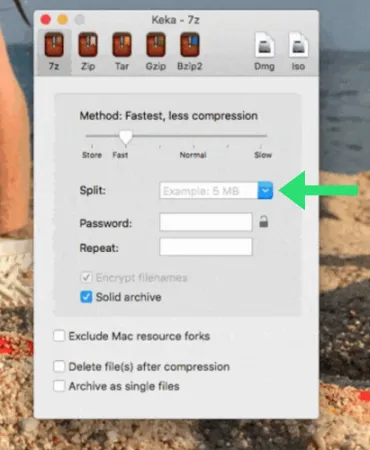
Method 1: Using Keka
Keka is a free and open-source file archiver for macOS. You need to download and install this application.
It allows you to compress and decompress files in various formats, including zip, 7z, and tar.
Keka has a simple and user-friendly interface that makes it easy to use, even for beginners.
One of the standout features of Keka is its ability to split a large file into multiple parts. This can be particularly useful when transferring or storing a large file but having limited space or bandwidth.
Keka allows you to split a file into smaller parts of a specific size, making it easier to manage and transfer.
Drag and drop the zip file you want to split into Keka.
In the Keka window, click on the <Advanced> tab.
Under <Splitting options>, select <Split into volumes with size> and enter the size of each split file (in megabytes).
Click on the <Compress> button to start the splitting process.
Keka will create multiple split files in the same directory as the original zip file.
Method 2: Using Terminal
The Terminal is a built-in command-line utility that allows you to interact with your Mac’s file system.
You do not need to download or install anything. This is the fastest way to split a large ZIP file into smaller parts since this is a lightweight native Mac application.
You can use Terminal to split a zip file into multiple parts. Here are the steps to do so:
Open Terminal on your Mac.
You can do this by searching for “Terminal” in Spotlight or by navigating to Applications > Utilities > Terminal.
Navigate to the directory where your zip file is located.
You can do this by typing “cd ” (without quotes) followed by the path to the directory. For example, if your zip file is located on your desktop, type the following and press Enter.
cd cd ~/Desktop
Type the following command to split the zip file into multiple parts, and press <Enter> on your keyboard to run it.
zip Largefile.zip –out SplitSmaller.zip -s 100m
Each split file will be named as SplitSmaller.z01, SplitSmaller.z02, etc., and they will each be 100MB in size.
That’s it! You have successfully split a zip file into smaller parts using Terminal.
Method 3. Split Files Online
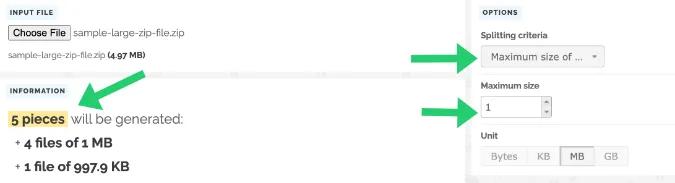
Pinetools is an online service that allows users to split large files into smaller parts.
If the ZIP file you have is not considered sensitive in nature, you can consider uploading it to Pinetools, and it will do the job of splitting it into multiple parts for you.
The File Splitter tool on Pinetools is easy to use and requires no software installation or registration.
Select the file you want to split.
You can then choose the <Splitting Criteria>, which is the number of parts you want to split the file, or specify a specific size for each part.
Once you have selected your options, click <Split File>, and the tool will create the smaller parts for you.
Conclusion
Splitting a zip file can be useful when you need to transfer or store large files but have limited space or bandwidth or when you need to upload a large file to a website with a file size limit.
Furthermore, splitting a zip file can help you manage and organize your files.
I hope you found this blog post useful. If you have any questions or comments, please leave them in the comments section!
How to Find and Delete Hidden ‘Ghost’ Files on a Mac?
Here are the three (3) ways to do so.
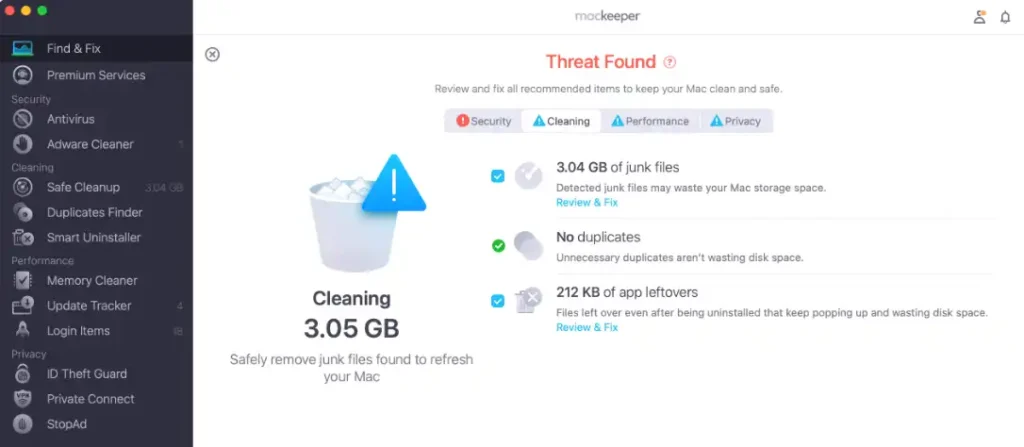
Method 1. Using MacKeeper
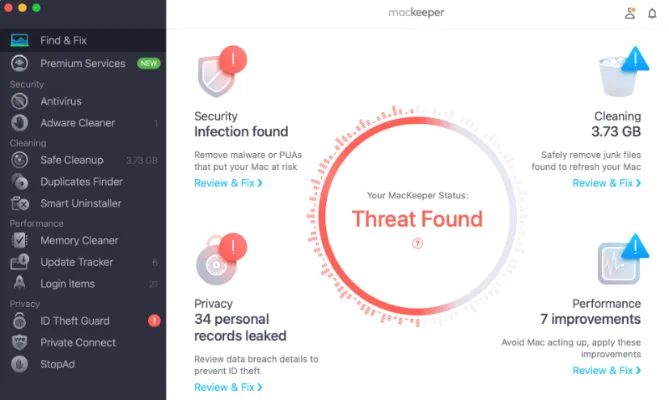
MacKeeper is a macOS application that is reliable in cleaning, optimizing, and speeding up your mac performance and protecting it from malware and online threats.
The system cleaning process involves removing junk files, user cache files, user log files, duplicate files, etc.
This includes finding and deleting hidden ‘ghost’ files on your Mac system. These ‘ghost’ files can take up a lot of drive space if left unattended.
MacKeeper looks into your system automatically, removes the unnecessary hidden files, and reports to you on its suggestion. Then, based on the software’s recommendations, the user decides which to clean and retain.
Method 2. Removing ‘Ghost’ Files Manually
You can use Finder on Mac to manually delete each hidden ‘ghost’ file.
All you need to do is to locate and un-hide these files.
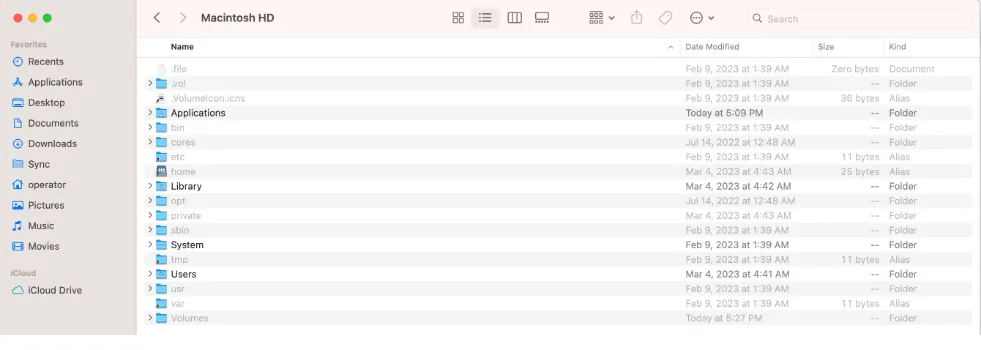
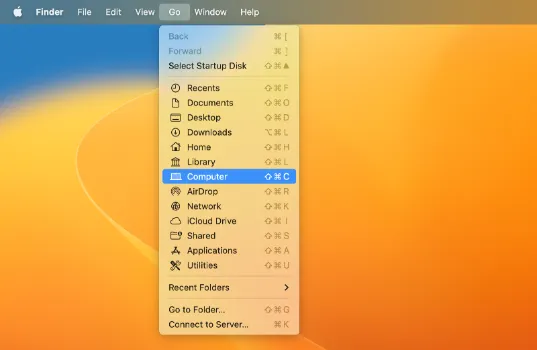
Using Finder, you have to go to your folder directory. For example, if you want to navigate to the Macintosh HD folder.
In the top menu of Finder > Go > Computer
Click <Macintosh HD>
On your keyboard, press and hold down <Command> + <Shift> +. (period)
All the hidden ‘ghost’ files will be shown now.
Method 3. Hide ‘Ghost’ Files
Sometimes after cleaning your Mac system, there may be some residue of hidden files left. However, those are usually small and do not occupy significant storage space.
You can easily hide them from your Mac view.
Open your Terminal app by searching for ‘Terminal’ on the magnifying glass icon on the top right.
One at a time, copy and paste each of these two (2) commands into your Terminal app and hit <Enter>.
defaults write com.apple.finder AppleShowAllFiles FALSE

killall Finder
Alternatively, if you want to make these hidden files visible in the future, use the commands below.
defaults write com.apple.finder AppleShowAllFiles TRUE

killall Finder
File Carving is a data recovery technique used to restore and recover full/partial lost, damaged or deleted files in a media drive. It is mainly used in data recovery and digital forensics investigations.
The magic of file carving lies in the software tool’s understanding of file formats and their header, footer and structure to re-construct back to their original state.
Below is a summary table of the different tools mentioned in this article.
In this article, I will list all the best and most reliable file carving tools for Windows, Mac and Linux operating systems.
There will be a mixture of both GUI software and terminal console tools. Some of the best file-craving tools out there are, in fact, console command-line applications.
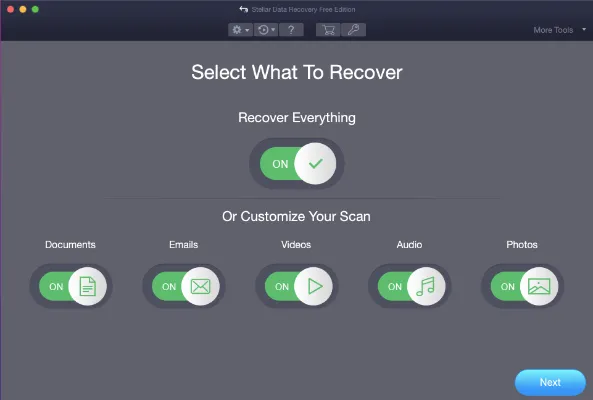
Stellar Data Recovery is a file carving and data recovery tool for Mac and Windows devices capable of recovering deleted documents, photos, and videos.
The software tool is compatible with M1, M2, and T2 chip-enabled Macs and often supports the latest macOS version.
For data recovery, it can recover from Fusion drive, Time Machine devices, formatted partitions and retrieves from solid state drives, portable hard drives, and many more.
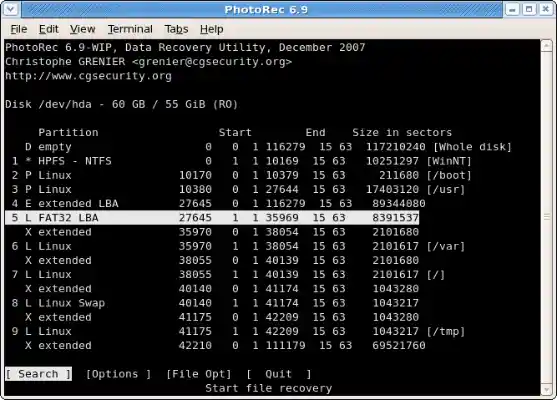
PhotoRec is a free, open-source image data recovery tool that supports over 480+ file extension formats. It can restore lost images from computers, digital cameras, mobile devices, memory cards or other storage media such as USB flash drives.
PhotoRec provides read-only access to its directory for data recovery to prevent overwriting recovered data onto the same drive or partition. Instead, users will specify another drive or volume for recovered images.
QPhotoRec is the graphical user interface for the file-carving PhotoRec tool that offers simplicity and ease of use.
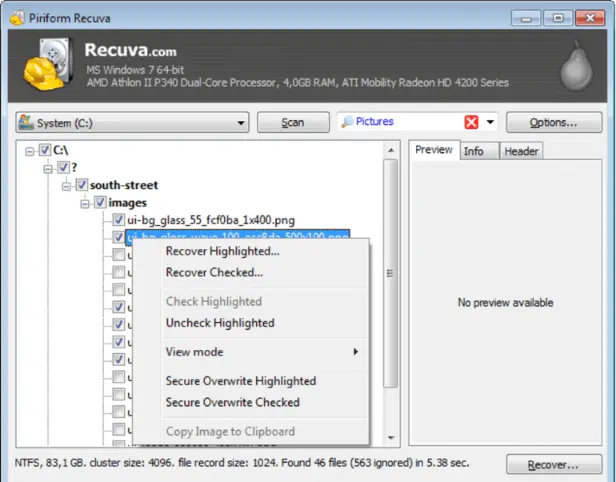
Recuva is a Windows-only file carving application that can retrieve any lost file, including emails, documents, music, movies, and images. Additionally, it can restore data from any rewriteable media you may have, including USB sticks, external hard drives, and memory cards.
Recuva has an advanced deep scan mode for hard-to-find files that scans your drive to find all traces of deleted files.
The data recovery tool can recover files from damaged or recently formatted devices. It has free and Pro versions with more data recovery features.
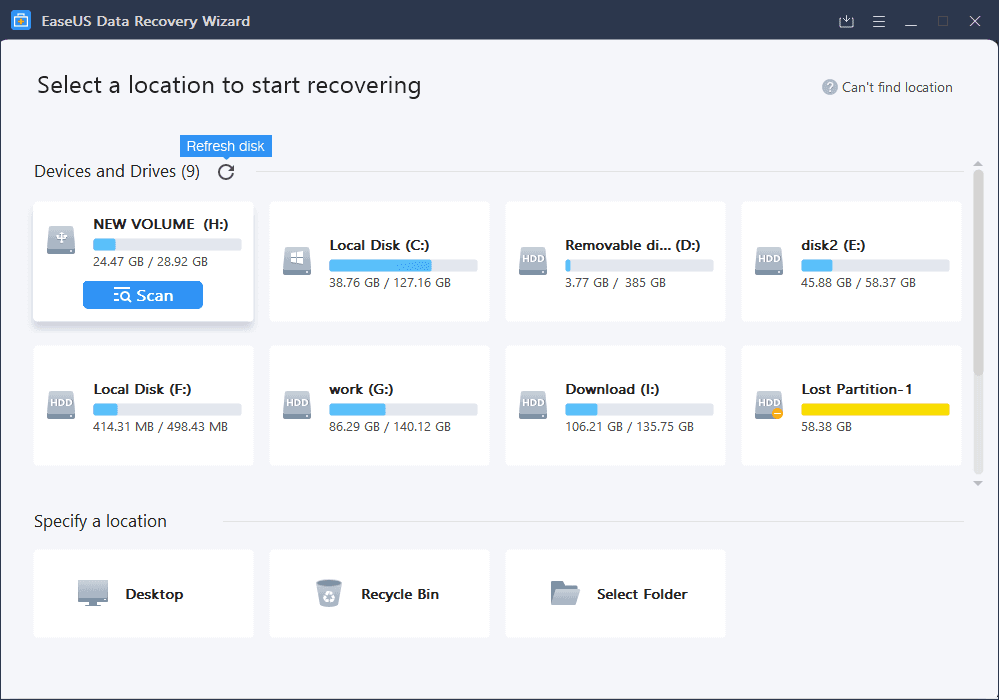
Easeus Data Recovery is a file-carving software that can recover almost any file, including documents, images, videos, audio, emails and many more.
The data recovery tool can restore deleted files from various media (hard drives, MicroSD cards, etc.) and repair corrupted photos, videos and documents.
The easy-to-use GUI interface offers users a free preview of the restored/recovered file before attempting a full recovery which requires more time.
There is also a feature that allows users to specify precisely which directory location they want the file recovery to take place, which can save up time instead of deep scanning the entire drive.
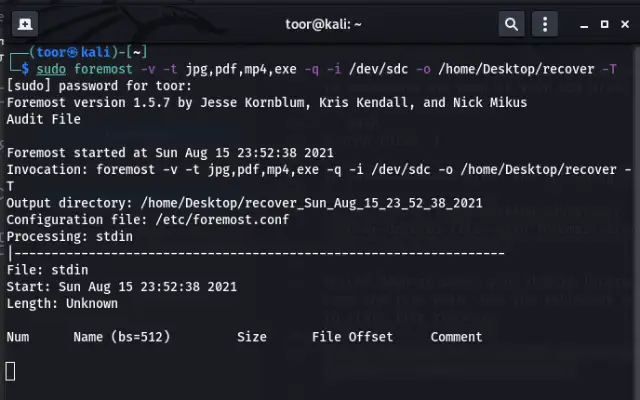
Initially developed by the U.S Air Force, Foremost is a lightweight Linux terminal application that does file carving on files based on their headers, footers and data structures.
Foremost is installed on Linux operating systems and can be used on Kali Linux and Ubuntu distros. The data recovery tool also supports digital forensics images, such as dd and E01 evidence file formats.
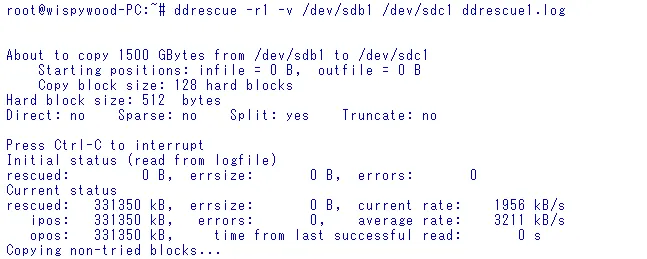
DDRescue is a data recovery tool that copies data from one file or block device (hard drive, CD-ROM, etc.) to another file or block device and tries to salvage the good part if a read error occurs.
The file carving tool manipulates ddrescue map files, displays map file contents, translates map files to and from different formats, compares map files, checks the rescue status, and can remove a map file after the rescue is complete.
DDRescue does not write zeros to the output and is periodically saved to a disc, which is helpful in the event of a crash.
Bulk Extractor works like a file carving tool and a high-performance digital forensics exploitation tool. The data recovery software tool searches for file header and footer patterns of various data and then extracts these ranges as a file.
The tool extracts structured information such as credit card numbers, email addresses, JPEG images, etc., without going through the parsing of file systems.
Bulk Extractor – Features
It is multi-threaded, so input data should be processed at high speed. (100 – 300 MBytes/sec)
Expand data recursively, such as expanding gzipped files
Support memory dumps, disk, volume, and file systems.
When you have a Mac computer, you are likely going to install a reliable cleaning and optimization app to speed up your mac performance, as well as protect it from malware and online threats.
This article will review and focus on the features comparison between CleanMyMac and MacKeeper, focusing on their system cleaning and speed optimization results based on our tests.
CleanMyMac vs MacKeeper: Which is the Best Mac Cleaning & Speed Optimization App?
Both CleanMyMac and MacKeeper are well-known in the industry for their ability to be problem fixers for Mac.
We put both CleanMyMac and MacKeeper into 3 stress tests (cleanup, security & protection, and speed optimization) and, compared their pricing, and laid down all their common and distinct features.
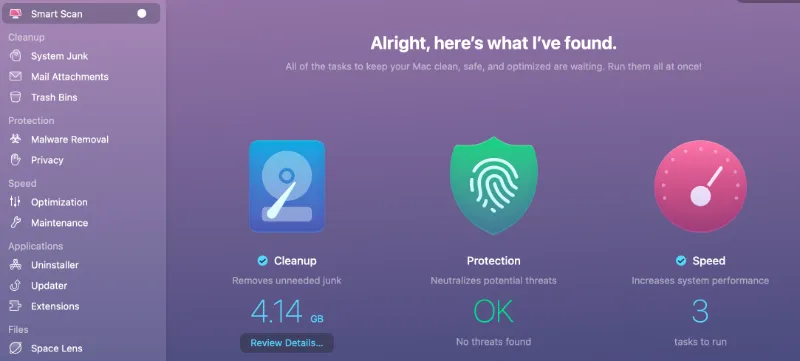
The results of the tests conducted using both apps are summarized below.
When it comes to security, a good cleaning and optimization app can protect your Mac system from external threats, such as adware, malware, trojans, and viruses.
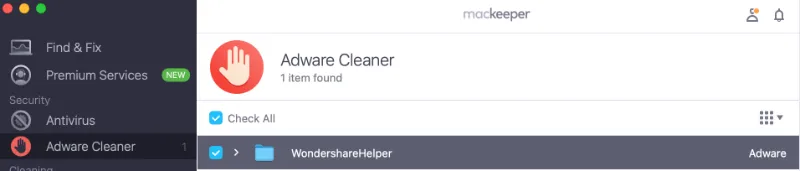
After conducting a full system scan, MacKeeper found one (1) adware in the Mac system.
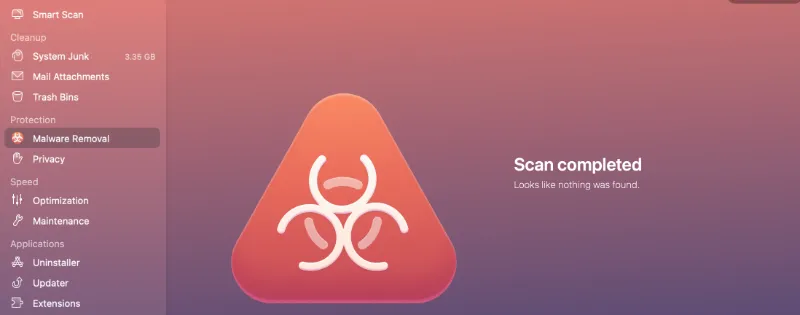
CleanMyMac however, did a full scan and did not detect any adware or malware.
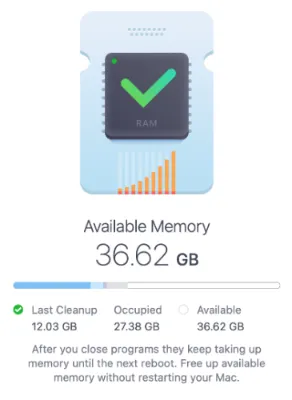
MacKeeper cleaned up over 12GB of memory from the occupied memory of approximately 27 GB. This is freeing up almost 50% of the RAM that is currently in use by the system.
As for CleanMyMac, it only achieved a cleanup of approximately 30% of memory. Some of the speed optimization tasks it does are freeing up purgeable space, running maintenance scripts, flushing the DNS cache, etc.
Both CleanMyMac and MacKeeper are priced differently due to the unique features they offer to their customers.
CleanMyMac X
MacKeeper
USD 39.95 yearly subscription OR USD 89.95 one-time purchase
USD 95 yearly subscription
As we can see from the table above, CleanMyMac is more affordable as it is priced lower than MacKeeper, and it offers a one-time purchase without the need for future renewals.
MacKeeper, however, has more features as compared to the others.
Depending on your preference, one should get the app that best suits their system needs.
* App Uninstaller * App Updater * Remove/Disable extensions * ID Theft Guard (monitor if emails are compromised) * VPN Connect * Block ads and online trackers
* New features in Bold
Conclusion
Choose MacKeeper if you prefer to have a comprehensive range of Mac cleaning and protection features, especially on getting notified if our email has been compromised, use of a VPN for internet surfing, and have a dedicated memory (RAM) cleaner.
Choose CleanMyMac if you prefer to have a more affordable price with standard mac protection and cleaning features, such as clearing of system junk, malware removal, disk and search improvements, and advanced app uninstaller features.
Choosing the right Virtual Private Network (VPN) service can be daunting in the rapidly evolving world of online security and digital privacy.
With myriad options available, it’s crucial to understand each service’s specific features, benefits, and limitations.
This blog post delves deep into comparing two popular VPNs: TorGuard and Mullvad.
By comprehensively analyzing these services, we aim to equip readers with the information needed to make an informed decision based on their privacy needs and usage habits.
As we navigate through the intricacies of TorGuard and Mullvad, we’ll explore a range of critical factors, including privacy protocols, server performance, user interface, and much more.
Fun Fact: Did you know that the use of VPNs has skyrocketed globally, with some regions seeing more than a 100% increase in VPN adoption? This surge is largely due to growing concerns over internet privacy and access to unrestricted content. Dive deeper into the impact of VPNs on network speed with our comprehensive guide on speeding up slow ProtonVPN.
Summary Table: Key Differences at a Glance
This summary table will provide a snapshot of what sets these two VPN services apart, focusing on the most distinctive and impactful features.
Whether you prioritize speed, privacy, or user experience, this table will help you quickly identify which VPN best fits your needs.
S/no
Key Aspect
TorGuard
Mullvad
1
Privacy and Anonymity Protocols
Customizable encryption options
Simple, strong default settings
2
Payment and Subscription Anonymity
Traditional methods with privacy enhancements
Unique options like cash payments
3
Speed and Server Performance
Competitive speeds, varies by location
Competitive speeds, depends on network load
4
Number and Variety of Server Locations
Large number of servers worldwide
Focuses on quality and strategic placement
5
User Interface Design and Accessibility
Highly customizable interface
Clean and simple interface
6
Customer Service and Technical Support
Extensive options including live chat
Primarily email support with comprehensive guides
7
Device Compatibility and Software Integration
Wide range, detailed settings
Wide range, streamlined experience
Key Differences Between TorGuard and Mullvad
Choosing the right VPN can significantly impact your online privacy, security, and overall internet experience.
TorGuard and Mullvad are both prominent players in the VPN market, but they cater to different user needs and preferences through distinct features and approaches.
Here’s an in-depth look at the key differences between them:
Difference 1: Privacy and Anonymity Protocols
TorGuard provides an extensive suite of adjustable encryption and protocol options.
Users can choose from various encryption types, including AES-256 and various protocols like OpenVPN, WireGuard, and more, allowing for a highly personalized and secure browsing experience.
Mullvad maintains a strong focus on user privacy with a one-size-fits-all approach. It employs robust AES-256 encryption and offers WireGuard and OpenVPN protocols.
Mullvad’s commitment to simplicity ensures that users benefit from high-level security without navigating complex settings.
Difference 2: Payment and Subscription Anonymity
TorGuard offers a variety of payment methods including credit cards, PayPal, and cryptocurrency.
For users concerned about privacy, it provides options to pay anonymously, enhancing the confidentiality of the subscription process.
Mullvad takes anonymity a step further by allowing users to pay with cash, Bitcoin, or even Bitcoin Cash, sent directly to their physical office.
This unique approach ensures that users can maintain complete anonymity, not just in their internet usage but also in their financial transactions with the VPN provider.
Difference 3: Speed and Server Performance
TorGuard has a vast and diverse server network that enables users to enjoy high-speed internet access across the globe.
Its servers are optimized for various uses, including streaming and torrenting, ensuring reliable performance and speed.
Mullvad also provides reliable and consistent speeds but strongly emphasizes the integrity and security of its servers.
While it may not have as many servers as TorGuard, Mullvad ensures that each server offers optimal performance and security.
Difference 4: Number and Variety of Server Locations
TorGuard boasts an impressive array of over 3000 servers in more than 50 countries, offering a wide variety of options for geo-spoofing and finding the best connection for your needs.
Mullvad operates a smaller network of servers but carefully selects each location to ensure quality and reliability. Its strategic approach to server placement focuses on network integrity and speed.
Difference 5: User Interface Design and Accessibility
TorGuard offers a feature-rich interface that caters to tech-savvy users who desire a high degree of control and customization over their VPN settings. Its advanced settings allow for detailed configuration.
Mullvad provides a sleek and straightforward interface that prioritizes ease of use. It’s designed for users who want a hassle-free connection with minimal interaction. Despite its simplicity, it doesn’t sacrifice the quality or security of the connection.
Difference 6: Customer Service and Technical Support
TorGuard offers extensive customer support, including 24/7 live chat, email, and a ticketing system. It also provides a vast knowledge base for users who prefer self-help solutions.
Mullvad focuses on providing detailed guides and email support. Its approach to customer service is more hands-off, appealing to users who prefer to troubleshoot issues independently or who value privacy over direct interaction.
Difference 7: Device Compatibility and Software Integration
TorGuard supports a wide variety of devices and platforms, including Windows, macOS, Linux, iOS, and Android. It offers specialized apps for each platform, allowing users to customize their experience and settings extensively.
Mullvad also offers broad compatibility with major platforms and ensures a consistent user experience across devices.
Its applications are streamlined for performance and ease of use, focusing on maintaining a balance between simplicity and functionality.
Understanding these differences is crucial in selecting a VPN that aligns with your specific needs and preferences.
Whether you prioritize complete anonymity, specific technical features, or ease of use, these distinctions will guide you in choosing between TorGuard and Mullvad for your online privacy and security solutions.
The subsequent sections will delve deeper into each service, offering a comprehensive analysis to aid your decision-making process further.
Detailed Feature Comparison
This detailed analysis aims to help you understand the nuances of each VPN, aiding in making an informed choice suited to your personal or professional needs.
Security and Encryption Methods
TorGuard boasts a wide array of encryption options, including AES-256, which is the industry standard for top-tier security. Users can choose from various protocols like OpenVPN, IKEv2, and WireGuard, depending on their needs for speed and security.
Mullvad also uses AES-256 encryption and focuses on a streamlined experience by offering OpenVPN and WireGuard. Mullvad’s emphasis is on maintaining strong security with minimal user effort, making it a robust, user-friendly option.
Speed and Latency Analysis
TorGuard is known for its fast speeds and low latency, thanks to its extensive network of servers worldwide. It’s particularly favored by users who need high-speed connections for streaming, gaming, or torrenting.
Mullvad provides consistently high-speed connections with an emphasis on maintaining performance across its network. While it may not have as many servers as some competitors, it ensures that each server offers optimal performance.
Privacy Policies and Logging
TorGuard claims a strict no-logs policy, ensuring that your activities are not monitored, recorded, or passed on. This is crucial for users who prioritize anonymity and data security.
Mullvad also adheres to a no-logging policy, with the added assurance of not requiring any personal information at signup. This anonymity extends to their payment methods, reinforcing their strong privacy stance.
Multi-Platform Support
TorGuard provides applications for a wide range of devices, including Windows, macOS, Linux, iOS, and Android, along with browser extensions and router support, making it highly versatile.
Mullvad also supports the major platforms and focuses on a consistent and straightforward user experience across all devices, ensuring that users can easily protect all their internet activities.
Cost and Value Considerations
TorGuard offers various subscription plans, including monthly, quarterly, and annual options, with additional services like dedicated IPs available for an extra fee. This allows users to choose a plan that best fits their budget and needs.
Mullvad has a simple pricing structure with a flat rate per month, providing full access to all its features. This simplicity in pricing makes it easy for users to understand exactly what they’re paying for.
Summarizing Pros and Cons
Here, we provide a concise summary of the pros and cons for both TorGuard and Mullvad, based on the detailed feature comparison and user feedback.
TorGuard
Pros:
Extensive Customization: Offers a wide range of settings and options for users who like to tailor their VPN experience.
Wide Server Network: Boasts a large selection of servers worldwide, enhancing the ability for geo-spoofing and finding optimal connections.
Strong Security Features: Includes robust encryption protocols and a strict no-logs policy to ensure user privacy and data protection.
24/7 Customer Support: Provides comprehensive support options, including live chat and a ticketing system for user convenience.
Cons:
Complex Interface for Beginners: The extensive customization options can be overwhelming for new users or those looking for a simple, straightforward VPN experience.
Variable Pricing: With different tiers and add-on features, the pricing can become complex and potentially expensive depending on the chosen configuration.
Mullvad
Pros:
Simplicity and Ease of Use: Known for its straightforward, user-friendly interface, making it accessible for beginners and those who value simplicity.
Commitment to Privacy: Offers anonymous payment options and requires no personal information at signup, emphasizing user anonymity.
Consistent Speeds: Provides reliable and fast connections across its network, focusing on performance and security.
Transparent Pricing: Features a flat rate pricing model, making it easy to understand and manage costs.
Cons:
Limited Server Network: While focusing on quality and strategic placement, the network is smaller than some competitors, which might limit options for some users.
Basic Customer Support: Relies more on email support and detailed guides, which might not suffice for users seeking immediate assistance.
Fun Fact: Mullvad is known for its unusual and highly private payment methods, including sending cash in an envelope! This level of anonymity is rare in the VPN industry and reflects Mullvad's commitment to user privacy. Learn about the benefits and considerations of using VPNs for both personal and business purposes in our detailed article on the pros and cons of using VPN.
Frequently Asked Questions (FAQ)
These FAQs are designed to provide quick and informative answers to help clarify any lingering questions you may have about these two VPN services.
Q1: Can I use TorGuard or Mullvad for streaming?
TorGuard: Yes, TorGuard can be used for streaming. It offers dedicated streaming IPs (at an additional cost) that are optimized for accessing popular streaming services without being detected.
Mullvad: Mullvad also supports streaming. However, its effectiveness can vary depending on the server used and the specific streaming service’s VPN detection measures.
Q2: Which VPN is better for a complete beginner?
TorGuard: TorGuard offers extensive customization, which might be overwhelming for beginners. However, it also provides a basic mode for easier use.
Mullvad: Mullvad is generally considered more beginner-friendly due to its simple interface, making it a good option for those new to VPNs.
Q3: How do TorGuard and Mullvad handle data logging and user privacy?
TorGuard: TorGuard claims to enforce a strict no-logging policy, ensuring that your activities and data are not recorded or monitored.
Mullvad: Mullvad is highly committed to user privacy, operating under a strict no-logging policy and not requiring any personal information to create an account.
Q4: Can I use these VPNs on multiple devices?
TorGuard: Yes, TorGuard allows multiple simultaneous connections, with the exact number depending on the chosen subscription plan.
Mullvad: Mullvad also supports multiple simultaneous connections, allowing users to secure several devices with a single subscription.
Conclusion
In this comprehensive comparison between TorGuard and Mullvad, we’ve dissected the various aspects of each VPN service, including their privacy and anonymity protocols, payment options, speed and performance, server locations, user interface, customer support, and device compatibility.
The goal has been to provide an informative guide that helps you navigate the complex choice between these two reputable VPN providers.
TorGuard stands out with its customizable features, extensive server network, and robust security measures. It caters well to users who value a tailored VPN experience and those with specific needs for security, streaming, or online gaming.
The service’s extensive customer support and variety of pricing options offer a flexible and comprehensive approach to internet privacy.
Mullvad, on the other hand, champions ease of use and uncompromising privacy. Its straightforward pricing and no-nonsense approach make it a favorite for users who value simplicity and anonymity.
With its strong commitment to not logging user data and its innovative account system, Mullvad appeals to those who put privacy above all else.
Ultimately, the choice between TorGuard and Mullvad depends on your individual needs and preferences. If you prioritize detailed customization and extensive customer support, TorGuard may be the better fit.
If you seek simplicity, strong privacy measures, and a user-friendly experience, Mullvad could be the ideal choice.
When navigating the vast expanse of the internet, the browser choice can significantly impact your online experience. Is Arc better than Safari?
This question is more than just a casual inquiry for many users; it’s about optimizing performance, enhancing security, and ensuring a seamless user experience across various devices.
As we dive into this comprehensive exploration, we aim to shed light on the strengths and weaknesses of both Arc and Safari browsers, helping you make an informed decision tailored to your needs.
Arc and Safari are prominent players in the web browser arena, each with unique features and capabilities.
Whether you’re a dedicated Mac user pondering an alternative to your default browser or a tech enthusiast looking for the best tools for your digital life, understanding the nuances between these browsers is key.
This blog post is dedicated to dissecting these differences, providing a detailed comparison, and answering some of the most pressing questions related to these browsers.
Fun Fact: Did you know that the Arc browser is designed with a focus on group collaboration and productivity, setting it apart in its approach to web navigation? Learn more about its unique features at how private is Arc web browser.
Quick Answer: Is Arc Better Than Safari?
Is Arc better than Safari? The quick answer is: it depends on your personal needs and preferences.
Arc browser offers a highly customizable and collaborative browsing experience, making it a favorite among users who value productivity and innovation in their web interactions.
It’s known for its modern interface and group workspaces, which can enhance team productivity.
On the other hand, Safari is celebrated for its efficiency, especially on Apple devices, and its seamless integration across the iOS ecosystem.
It’s optimized for energy-saving, which can be a significant advantage for MacBook users looking to preserve battery life.
In essence, if you’re looking for a browser that pushes the boundaries of traditional web navigation and fosters collaboration, Arc might be the better choice.
However, Safari could be more suitable if you’re deeply ingrained in the Apple ecosystem and value consistency and battery efficiency. Each browser has its merits, and the best choice varies from user to user.
Fun Fact: Safari, Apple's native browser, has been a staple for Mac users for years, known for its integration and energy efficiency. Discover how Safari stands up in terms of security at how secure is Safari web browser.
Detailed Comparison
When deciding whether Arc is better than Safari, it’s important to consider several key aspects of browser performance and features. Here’s a breakdown of the detailed comparison:
User Interface and Experience
Arc: Known for its sleek, modern design, Arc offers a customizable interface that promotes a unique browsing experience. Users can organize tabs into groups and collaborate directly within the browser, enhancing productivity.
Safari: Safari boasts a clean and uncluttered interface optimized for the Apple ecosystem. Its integration with other Apple devices and services provides a seamless user experience, especially for those already invested in Apple products.
Performance and Speed
Arc: Arc is designed to be fast and efficient, with a focus on reducing clutter and streamlining the browsing experience. It’s constantly evolving with updates aimed at improving speed and responsiveness.
Safari: As a native browser for Apple devices, Safari is highly optimized for speed and performance, particularly on macOS and iOS. It tends to have faster load times and better battery efficiency on Apple hardware.
Privacy and Security
Arc: Arc provides various privacy features, including tracker blocking and a focus on data protection. It’s a good choice for users who prioritize their online privacy.
Safari: Safari is well-regarded for its privacy features, including intelligent tracking prevention and sandboxing for websites. Apple’s commitment to user privacy makes Safari a strong contender for security-conscious users.
Customization and Extensions
Arc: While still growing, Arc’s extension library allows users to tailor their browsing experience with various tools and functionalities.
Safari: Safari supports extensions as well, available through the App Store, allowing users to enhance and personalize their browsing experience. However, its extension library is not as extensive as some other browsers.
Compatibility and Integration
Arc: Arc is designed to work well across different platforms, with features and design elements that cater to a wide range of users.
Safari: One of Safari’s biggest advantages is its deep integration with the macOS and iOS, offering features like Handoff and iCloud Tabs that enhance the browsing experience across devices.
In conclusion, the choice between Arc and Safari largely depends on your needs and preferences. Consider these detailed aspects to make an informed decision that best suits your browsing habits and device ecosystem.
Benefits of Using Arc
Arc browser is relatively new to the scene but has quickly gained attention for its innovative features and user-centric design. Here are some key benefits of using Arc:
Customizable Interface: Arc offers a flexible, customizable interface that allows users to tailor their browsing experience to their liking. You can organize tabs into groups, which is particularly handy for project management or research.
Collaboration Tools: One of the standout features of Arc is its built-in collaboration tools, making it easier for teams to work together online. Users can share tabs and workspaces, streamlining the workflow and enhancing productivity.
Modern Design: Arc sports a modern and sleek design that appeals to users looking for a fresh and innovative browsing experience. Its aesthetic and functionality are geared towards an intuitive user experience.
Continuous Updates: Arc is continuously updated with new features and improvements. Its developers are responsive to user feedback, often incorporating suggestions into updates, ensuring that the browser evolves to meet users’ needs.
Focused on Privacy: While offering extensive customization and productivity features, Arc doesn’t compromise on privacy. It offers robust privacy protections to help keep your online activity safe from trackers and other threats.
Benefits of Using Safari
Safari is Apple’s signature browser, deeply integrated into its ecosystem, known for its performance and user-friendly design. Here are the key benefits of using Safari:
Optimized Performance: Safari is highly optimized for Apple devices, offering fast load times and efficient resource usage. This means better battery life and quicker access to content, especially on Macs and iOS devices.
Seamless Ecosystem Integration: Safari works seamlessly across all Apple devices. Features like Handoff, iCloud Keychain, and iCloud Tabs make it easy to switch between devices without losing your browsing session or favorites.
Enhanced Privacy Features: Safari leads in privacy with features like Intelligent Tracking Prevention, which helps block trackers and protect your browsing data. Apple’s commitment to privacy ensures that Safari receives regular updates to keep your information secure.
Energy Efficiency: Safari is designed to be energy efficient, particularly important for MacBook users. It’s optimized to consume less battery, allowing for longer browsing sessions without needing to recharge.
Reader Mode and Accessibility: Safari’s Reader Mode declutters web pages, removing distractions and making content easier to read. Combined with Apple’s robust accessibility features, Safari is user-friendly for all types of web users.
How to Choose the Right Browser for You
Choosing the right browser is a personal decision that depends on your specific needs, preferences, and the devices you use.
Here are some considerations to help you decide between Arc and Safari, or any other browsers you might be considering:
Device Ecosystem: If you’re heavily invested in the Apple ecosystem, Safari might offer the most seamless experience across your devices. For those using a variety of platforms, a browser like Arc might provide more flexibility.
Performance Needs: Consider what’s more important for you: battery life and optimization, or innovative features and customization. Safari is known for its efficiency, especially on Apple devices, while Arc offers unique collaborative features and a customizable interface.
Privacy Concerns: Both browsers offer robust privacy features, but always review their privacy policies and settings to ensure they meet your expectations. Consider what level of data protection and tracker prevention you’re comfortable with.
User Interface and Accessibility: Think about how the browser feels in daily use. Do you prefer a clean, streamlined interface, or are you looking for something you can customize extensively? Try out both browsers to see which user interface you prefer.
Extension and App Ecosystem: If you rely on certain extensions or apps, check the compatibility with each browser. While Safari has a range of extensions available through the App Store, Arc is building its library and might offer different options.
Frequently Asked Questions (FAQ)
Q1: What makes Arc different from Safari?
Arc offers a customizable and collaborative browsing experience with a focus on modern design and productivity features.
It’s known for its group workspaces and innovative tab management, whereas Safari is optimized for performance and energy efficiency, especially within the Apple ecosystem.
Q2: Can Arc extensions be used in Safari and vice versa?
Generally, extensions made for one browser cannot be used in another due to different development frameworks.
However, both browsers are expanding their extensions libraries, so it’s worth checking for equivalent functionalities in each store.
Q3: How do privacy features compare between Arc and Safari?
Both browsers take privacy seriously, but they approach it differently. Safari strongly focuses on privacy with features like Intelligent Tracking Prevention and is known for its robust built-in protections.
Arc also offers privacy features and continuously evolves its capabilities to protect users from tracking and data collection.
Always check the latest privacy settings and features of each browser to ensure they meet your needs.
Conclusion
In the quest to find the right browser, whether Arc is better than Safari comes down to personal preference, needs, and priorities.
Arc, with its innovative approach to browsing, offers a customizable and collaborative experience that appeals to users looking for modern features and productivity tools.
Safari, known for its speed, efficiency, and seamless integration with Apple devices, remains a strong contender for those fully immersed in the Apple ecosystem and prioritizing privacy and battery life.
Both browsers have their strengths and cater to different user bases. The best way to decide is to reflect on what you value most in a browsing experience — be it performance, design, privacy, or specific functionalities.
Consider trying both browsers to see which one aligns best with your daily activities and enhances your online world.
In the end, the choice between Arc and Safari isn’t about which is objectively better — it’s about which browser is better for you.
By understanding each browser’s unique features and considering your own needs, you can make an informed decision that enhances your browsing experience and supports your digital lifestyle.
Are you encountering endless waiting when trying to connect to NordVPN?
So, if you’re asking, “Why is my NordVPN taking too long to connect?” or “How do I fix NordVPN connecting issues?” this guide covers you.
You’re not alone. Many users have reported that NordVPN gets stuck on connecting, which can be frustrating, especially when you need secure and immediate internet access.
This blog post is designed to address this exact issue, providing you with the most effective troubleshooting methods to get you back to browsing securely and privately.
Whether it’s due to network configurations, server overloads, or outdated application versions, understanding the root cause is essential.
We will explore common reasons for these connectivity issues and step-by-step methods to resolve them.
From updating your VPN application to tweaking protocol settings, each method aims to resolve specific issues that might prevent NordVPN from connecting successfully.
We’ll also delve into some frequently asked questions and provide tips to optimize your VPN experience, ensuring smooth and secure internet access every time you connect.
How to FIX NordVPN Stuck On Connecting
Here are the seven (7) ways to do so;
Method 1: Change the VPN Protocol
The protocol your VPN uses to connect to servers can significantly impact its performance and reliability.
NordVPN offers multiple protocols; sometimes, switching to a different one can resolve connection issues. Here’s how to change the VPN protocol in NordVPN:
Open NordVPN Settings: Access the settings or preferences section in your NordVPN application.
Locate Protocol Options: Look for a section titled ‘Protocol,’ ‘VPN Protocol,’ or something similar. This is where you can select the type of protocol you wish to use.
Choose a Different Protocol: NordVPN typically offers options like OpenVPN (UDP or TCP), NordLynx (based on WireGuard), and sometimes IKEv2/IPsec. Try switching to a different protocol to see if that improves your connection stability.
Considerations when changing protocols:
OpenVPN UDP is generally faster and more reliable for most users and activities.
OpenVPN TCP might be more stable if UDP is blocked or unreliable on your network.
NordLynx is NordVPN’s fastest protocol and offers the best performance for most users.
Method 2: Flush DNS and Reset Network Settings
Sometimes, your device’s network settings can get cluttered with outdated or incorrect information, leading to connectivity issues.
Flushing your DNS cache and resetting network settings can often resolve these problems. Here’s how you can perform these actions:
Flush DNS:
On Windows: Open Command Prompt as an administrator and type ipconfig /flushdns.
On macOS: Open Terminal and type sudo killall -HUP mDNSResponder. This command will clear your DNS cache, removing any outdated or corrupted entries that might be causing connection problems.
Reset Network Settings:
On Windows: Go to “Network & Internet” settings, then select “Network reset”.
On macOS: Go to System Preferences, then “Network,” and remove any existing network configurations by using the “-” button. Then, re-add your network using the “+” button.
On mobile devices: Look for an option to “Reset Network Settings” in your device’s system settings.
By flushing your DNS and resetting your network settings, you’re effectively starting fresh, which can eliminate conflicts or issues that prevent NordVPN from connecting.
Remember, after performing these steps, you will need to reconnect to your Wi-Fi or reconfigure any custom network settings.
Method 3: Disable Firewall and Antivirus Temporarily
Security software on your device, like firewalls and antivirus programs, is essential for protecting your data and privacy.
However, sometimes they can interfere with NordVPN’s ability to connect. Here’s what you can do to diagnose and resolve this issue:
Disable Firewall/Antivirus Temporarily: Turn off your firewall and antivirus software briefly to test if they cause your VPN connection issues. Make sure to turn them back on as soon as you finish testing to avoid leaving your system unprotected.
Add Exceptions: If these security programs are causing the issue, add NordVPN as an exception in your firewall and antivirus settings. This will allow NordVPN to operate without being blocked or interfered with by these programs.
Contact Support: If you’re unsure how to disable these security features or add exceptions safely, contact customer support for your firewall or antivirus software. They can guide you through the process while ensuring your device remains secure.
Remember, your security is paramount. Never leave your firewall or antivirus disabled for an extended period. This method is only a temporary measure to diagnose connection issues.
Method 4: Contact NordVPN Support
If you’ve tried all the previous methods and NordVPN is still stuck on connecting, it may be time to seek help from the experts.
NordVPN’s customer support team is equipped to handle a wide range of issues and can provide personalized assistance. Here’s how to get in touch:
Visit the NordVPN Support Page: Go to the NordVPN website and navigate to the support section. They offer a comprehensive help center with articles, guides, and troubleshooting tips.
Live Chat: NordVPN provides a live chat service where you can instantly connect with a support agent. This is often the quickest way to get help.
Email Support: If you prefer, you can send a detailed email explaining your issue. Be sure to include any relevant information or error messages you’ve encountered.
When contacting support, provide as much information as possible about your problem, what methods you’ve tried, and any error messages you’ve received. The more details you provide, the better they can assist you.
Method 5: Update NordVPN to the Latest Version
Always start with the basics: Ensure your NordVPN application is up to date.
Developers frequently release updates to enhance functionality, patch security vulnerabilities, and improve compatibility with operating systems. Here’s a quick guide on how to update NordVPN:
Open NordVPN: Launch the application on your device.
Check for Updates: Look for any notifications or settings within the app that indicate an available update. If you’re using a desktop, you can usually find this option under the ‘About’ or ‘Help’ section.
Download and Install: If an update is available, follow the prompts to download and install the latest version. Ensure you have a stable internet connection to avoid any interruptions during this process.
Keeping NordVPN updated minimizes the risk of running into issues caused by outdated software. An up-to-date VPN is more secure and more likely to connect smoothly and quickly.
Method 6: Restart Your Router or Modem
Sometimes the solution is as simple as turning it off and on again. Restarting your router or modem can resolve many connectivity issues, including VPNs getting stuck on connecting.
This process can refresh your network and eliminate any temporary glitches affecting NordVPN’s performance. Here’s how to do it:
Power Off: Turn off your router and modem by unplugging them from the power source. Wait for about 30 seconds to a minute. This waiting period allows the devices to reset and clear any temporary configurations causing issues fully.
Power On: Plug the devices back in and turn them on. Wait for all the lights to stabilize, indicating that the network is fully operational.
Reconnect: Once your network is back up, reconnect your device to the Wi-Fi or ethernet and try connecting to NordVPN again.
A simple restart can often clear network errors and improve connectivity.
However, if you’re still facing issues with NordVPN after rebooting your networking equipment, it might be time to dive deeper into more specific solutions.
Method 7: Check Your Internet Connection
A stable internet connection is the backbone of any VPN’s performance. If NordVPN is stuck on connecting, it might be due to issues with your underlying internet connection. Here’s how you can troubleshoot this:
Test Your Internet Speed: Use a speed test website to check if your internet is functioning and at the speed you expect. If it’s significantly slower or not working, the problem might be with your ISP or your home network setup.
Restart Your Modem/Router: Sometimes, simply restarting your networking hardware can resolve connection issues. Unplug your modem and router, wait for about a minute, and then plug them back in.
Try a Different Network: Connect to a different network, such as a mobile hotspot or a different Wi-Fi network, to determine if the issue is with your primary network.
If your internet connection is stable and fast, but you’re still experiencing issues with NordVPN, it might be time to look into more specific VPN-related solutions.
Frequently Asked Questions (FAQ)
Here are some common questions that users often have when facing issues with NordVPN stuck on connecting. We’ll provide quick answers to these questions to help you troubleshoot effectively:
Q1: Why is my NordVPN always stuck on connecting?
NordVPN connection issues can arise from various factors, including network configurations, server loads, outdated software, or conflicts with security software.
Q2: Can a router’s settings affect NordVPN’s connectivity?
Yes, incorrect router settings or firmware can interfere with NordVPN’s connection ability. Ensure your router settings are compatible with NordVPN.
Q3: How do I know if my VPN protocol is causing issues?
Experiment with different VPN protocols (e.g., OpenVPN, NordLynx) to see if changing protocols resolve the issue. Some networks may work better with specific protocols.
Q4: Is it safe to disable firewall and antivirus when troubleshooting NordVPN?
Temporarily disabling these security features can help diagnose the issue, but it’s essential to re-enable them promptly after troubleshooting to maintain your device’s security.
Q5: What should I do if none of the methods work?
If you’ve tried all the methods and still can’t connect to NordVPN, contact NordVPN support. They can provide personalized assistance to resolve the issue.
Conclusion
In conclusion, the frustration of NordVPN getting stuck on connecting can be a thing of the past with the right troubleshooting methods.
We’ve explored several effective strategies to address this issue, from updating your NordVPN application to adjusting network settings and seeking expert help when needed.
Remember, a reliable VPN is crucial for securing your online activities and ensuring your privacy.
Following the methods outlined in this guide and staying informed about best practices, you can enjoy seamless and secure internet access with NordVPN.
If you ever encounter connectivity issues in the future, refer back to this comprehensive guide for step-by-step solutions.
Your online privacy and security deserve nothing less than the best, and NordVPN is here to provide it.
In today’s digital age, where the internet is an integral part of our daily lives, the security of our web browsers is more crucial than ever.
With a plethora of options available, choosing the right browser that ensures both security and efficiency is a task that requires careful consideration.
This blog post delves into the security aspects of the Arc browser, a relatively new entrant in the browser market.
We aim to provide comprehensive insights into its features, compare it with its contemporaries, and address the primary concerns of users regarding its safety and functionality.
Whether you’re a tech enthusiast, a privacy-conscious individual, or simply someone curious about the Arc browser, this post will guide you through everything you need to know.
Quick Answer: How Secure is the Arc Browser?
When it comes to browser security, the Arc browser stands out for its commitment to user privacy and data protection.
It employs advanced encryption methods to safeguard user data, ensuring that personal information remains secure.
Additionally, Arc boasts a range of built-in security features, like tracker blocking and phishing protection, which are essential in today’s online landscape.
However, as with any browser, it’s important to stay informed about its updates and potential vulnerabilities.
In summary, the Arc browser provides robust security features, making it a reliable choice for secure browsing.
Understanding the Arc Browser: An Overview
What is the Arc Browser?
The Arc browser is an innovative web browser that prioritizes user experience and customization. It’s designed to offer a more personalized and efficient browsing experience than traditional browsers.
With its unique interface and focus on user-driven features, Arc aims to redefine the way we interact with the web.
Key Features of the Arc Browser
Customization: Arc allows users to tailor their browsing experience with extensive customization options, ranging from visual themes to workflow layouts.
Efficiency Tools: The browser includes various tools that enhance productivity, such as workspace organization and quick access to frequently used websites.
Privacy and Security: Arc places a high emphasis on user privacy. It includes features like ad-blocking and tracker prevention, aiming to keep user data safe and browsing activities private.
Integration Capabilities: The browser supports integration with various online tools and services, streamlining online activities and workflows.
Security Features of the Arc Browser
Data Encryption and Privacy Protections
The Arc browser is designed with a strong focus on user privacy and data protection.
It employs state-of-the-art encryption technologies to secure user data, ensuring that sensitive information is protected from unauthorized access.
This encryption extends to all aspects of browsing, from saved passwords to browsing history.
Built-in Security Tools and Measures
Tracker Blocking: Arc comes with built-in tools to prevent tracking, keeping your online activities private and secure.
Phishing Protection: The browser actively warns users about potentially dangerous websites, reducing the risk of phishing attacks.
Regular Updates: Arc receives frequent updates to address security vulnerabilities and enhance overall security features.
Customizable Security Settings: Users have the flexibility to adjust security settings according to their preferences, allowing for a balanced approach between security and usability.
Comparative Analysis: Arc Browser vs Other Popular Browsers
Privacy and Security Aspects
Arc Browser vs Chrome: While Chrome is known for its speed and integration with Google services, the Arc browser offers more robust privacy features, such as enhanced tracker blocking and encryption. This makes Arc a preferable choice for users prioritizing privacy.
Arc Browser vs Safari: Safari is lauded for its efficiency on Apple devices and privacy features. However, the Arc browser provides more customization in privacy settings, appealing to users who desire more control over their browsing experience.
Performance and User Experience
User Interface: Compared to traditional browsers, Arc offers a more modern and customizable user interface, enhancing the overall user experience.
Speed and Efficiency: While browsers like Chrome and Safari are optimized for speed, Arc also delivers efficient performance, particularly in managing multiple tasks and tabs.
Compatibility: In terms of compatibility, mainstream browsers like Chrome and Safari have the upper hand due to their long-standing presence in the market. However, Arc is quickly catching up, offering compatibility with a wide range of web applications and services.
User Experiences and Feedback
Positive Aspects Noted by Users
Customization: Many users appreciate the high level of customization that the Arc browser offers, allowing them to tailor their browsing experience to their individual needs.
Privacy Features: The browser’s focus on privacy and security has been well-received, with users valuing the robust protection against trackers and ads.
Innovative Interface: Users often mention the unique and modern interface of the Arc browser, which enhances usability and navigation.
Concerns and Criticisms
Compatibility Issues: Some users have reported compatibility issues with certain websites and online tools, which can be a drawback compared to more established browsers.
Resource Usage: There have been mentions of the Arc browser being resource-intensive, potentially affecting performance on less powerful devices.
Learning Curve: As noted in some feedback, the innovative interface and features may require a learning curve for new users.
Expert Insights on Browser Security
What Cybersecurity Experts Say About Arc Browser
Cybersecurity experts generally commend the Arc browser for its strong focus on privacy and security. Key points often highlighted by experts include:
Advanced Encryption: Experts appreciate the high level of encryption the Arc browser uses, which is crucial for protecting sensitive user data.
Regular Security Updates: The commitment to frequent updates is seen as a positive step towards combating emerging cyber threats.
User Privacy Focus: The emphasis on user privacy, with features like tracker blocking, is often cited as a standout feature compared to other browsers.
However, experts also note that no browser is completely invulnerable. They stress the importance of users staying informed and adopting safe browsing practices, regardless of the browser used.
The Future of Browser Security
The realm of browser security is constantly evolving, with new challenges and innovations shaping its future. Here’s a glimpse into the trends and predictions that are likely to influence browser security in the coming years:
Increased Emphasis on Privacy: As users become more aware of privacy issues, browsers like Arc are expected to further enhance their privacy features.
Artificial Intelligence in Security: AI is predicted to play a larger role in identifying and protecting against cyber threats in real-time.
More Robust Encryption Techniques: Advances in encryption technology will continue to improve data protection.
Focus on Mobile Browser Security: With the rise in mobile internet usage, enhanced security features for mobile browsers will become a priority.
Integration of Blockchain Technology: Blockchain could be used for more secure, decentralized browsing experiences in the future.
Frequently Asked Questions (FAQ)
Q1: What Makes Arc Browser Unique in Terms of Security?
The Arc browser sets itself apart with its focus on user privacy, innovative use of encryption technologies, and customizable security settings. These features offer a higher level of protection against online threats compared to some conventional browsers.
Q2: How Does Arc Browser Handle User Data and Privacy?
Arc browser prioritizes user privacy by minimizing data collection and using advanced encryption to protect user data. It also features robust anti-tracking measures to maintain user anonymity online.
Q2: Can Arc Browser be Trusted for Sensitive Online Activities?
Yes, the Arc browser’s strong encryption and privacy features make it a trustworthy option for sensitive online activities. However, users should also follow general best practices for internet security to enhance protection.
Conclusion
In conclusion, the Arc browser emerges as a strong contender in the realm of web browsers, particularly when it comes to user privacy and security.
Its commitment to data protection, customizable security settings, and user-centric design make it a noteworthy choice for those concerned about their online safety.
While no browser is infallible, the Arc browser’s focus on encryption and privacy sets a high standard in the industry.
As the digital landscape evolves, staying informed and adopting safe browsing practices remain crucial. Remember, the security of your online experience is not solely dependent on the browser but also on how you use it.
By combining the robust features of the Arc browser with smart browsing habits, you can significantly enhance your online security.
When it comes to browsing the web, privacy is a top concern for many of us.
In the digital age, where online tracking and data breaches are all too common, understanding the privacy features of your web browser is crucial.
This blog post focuses on the Arc browser, a relatively new player in the browser market.
We’ll dive deep into how private the Arc browser really is, examining its security features, privacy settings, and how it stacks up against other popular browsers.
Fun Fact: Unlike popular browsers like Chrome or Safari, which are based on Chromium, the Arc browser offers unique privacy features that set it apart. For more insights into Chromium-based browsers, check out this article on Safari and Chromium.
Quick Answer: How Private is the Arc Browser?
How private is the Arc browser?
Arc Browser prioritizes user privacy through features like enhanced data encryption and minimal data collection policies. It stands out for its commitment to reducing user tracking and providing secure browsing experiences.
Is the Arc browser secure?
Absolutely! Arc Browser incorporates robust security measures, including advanced encryption techniques, to protect user data against unauthorized access and cyber threats.
Is Arc app safe?
Yes, the Arc app is designed with safety in mind. It employs security protocols that safeguard your online activities and personal information from potential risks.
Does Arc browser have private mode?
Indeed, the Arc Browser offers a private browsing mode, allowing users to surf the internet without saving their browsing history, cookies, or cache.
What are the cons of the Arc browser?
While Arc Browser is strong in privacy, it might have limitations in compatibility with specific extensions and possibly a smaller user community compared to more established browsers.
Understanding Arc Browser: An Overview
What is Arc Browser?
Arc Browser is a modern web browser focusing on user privacy, customization, and efficient browsing.
It’s designed to offer a unique browsing experience, different from mainstream browsers like Chrome and Firefox, by prioritizing user control over their online activities and data.
Unique Features of Arc Browser
Arc Browser distinguishes itself with several unique features:
Customization: It allows users to personalize their browsing experience extensively.
Privacy-Centric Design: Arc emphasizes protecting user privacy by offering tracker blocking and private browsing modes.
Efficient Resource Management: Known for its efficient use of system resources, Arc Browser ensures a smoother browsing experience even on less powerful devices.
Fun Fact: Did you know that the Arc browser has specific tools to block trackers? This is a critical feature in today's web environment, where tracking is prevalent. Learn more about tracker blocking in Arc browser here.
Arc Browser’s Privacy Features
Data Encryption and Security Protocols
Arc Browser employs strong data encryption and security protocols to protect user information.
This includes encrypting data in transit, ensuring that any information sent over the internet is safeguarded against interception.
User Data Collection and Management
A key aspect of Arc Browser’s privacy policy is minimal data collection.
Unlike some browsers that collect extensive user data for various purposes, Arc Browser limits data collection, focusing only on what’s necessary to improve user experience and maintain functionality.
Third-Party Tracking and Cookies
Arc Browser provides robust protection against third-party tracking and cookies.
It offers built-in tools to manage and block cookies, especially those used for tracking purposes, giving users more control over their online footprint.
Comparing Arc Browser with Other Browsers
Privacy Comparison with Chrome and Firefox
When it comes to privacy, Arc Browser offers a distinct approach compared to popular browsers like Chrome and Firefox.
Chrome, for instance, is known for its extensive data collection practices, which are integral to Google’s advertising business.
Firefox, on the other hand, offers more privacy-focused features, yet Arc Browser takes it a step further by integrating advanced privacy tools as a core part of its functionality.
Unique Privacy Features of Arc Browser
Arc Browser stands out with unique privacy features such as:
Enhanced Tracker Blocking: Going beyond standard privacy modes, Arc Browser offers more aggressive options to block trackers and ads.
Minimalist Data Collection: It collects less personal data than many of its competitors, focusing on essential functionality and user experience enhancement.
User Control and Customization in Arc Browser
Customizable Privacy Settings
Arc Browser empowers users with much control over their privacy settings. Users can tailor their browsing experience according to their privacy preferences, choosing how much or how little data they wish to share.
Tools for Enhancing Privacy
Arc Browser offers a variety of tools to enhance privacy:
Privacy Control Center: A dedicated hub where users can adjust their privacy settings and manage data permissions.
Incognito Mode: For private browsing sessions that don’t save history or cookies.
Ad and Tracker Blockers: Integrated blockers that prevent unwanted ads and trackers from collecting user data.
Potential Privacy Concerns with Arc Browser
Known Vulnerabilities
Like any software, Arc Browser isn’t immune to potential vulnerabilities. It’s important to stay updated on the latest releases and patches that address any security loopholes.
User Feedback and Concerns
Some users might express concerns over specific aspects of Arc Browser, such as compatibility with certain websites or the effectiveness of its privacy features in real-world scenarios.
Considering these user experiences is crucial as they provide valuable insights into the browser’s practical privacy implications.
Frequently Asked Questions (FAQ)
Q1: Can I anonymize entirely my browsing in Arc Browser?
While Arc Browser offers enhanced privacy features, complete anonymity on the internet is challenging.
Arc Browser’s privacy mode and tracker blocking can significantly reduce your digital footprint, but additional measures like using a VPN might be necessary for complete anonymity.
Q2: Does Arc Browser share data with third parties?
Arc Browser is designed with minimal data collection in mind, and it does not typically share user data with third parties.
The browser’s primary focus is on user privacy, reducing the amount of data that could potentially be shared or compromised.
Q3: How does Arc Browser protect against tracking?
Arc Browser protects against tracking through its built-in ad and tracker blockers. These features prevent third-party trackers from collecting user data, enhancing overall online privacy and security.
Conclusion
In conclusion, Arc Browser emerges as a strong contender in internet privacy.
Its focus on minimal data collection, robust encryption, and user-centric privacy controls represents a significant shift towards more secure and private browsing experiences.
While it’s important to acknowledge potential vulnerabilities and user concerns, the overall analysis suggests that Arc Browser is a viable option for those prioritizing online privacy.
As the digital landscape continues to evolve, tools like Arc Browser play a crucial role in safeguarding our digital lives.
By staying informed and vigilant, users can navigate the internet with greater confidence in their privacy and security.






![Featured_[file-carving-data-recovery]](https://www.ticktechtold.com/wp-content/uploads/2022/11/Featured_file-carving-data-recovery.webp)