admin

Telegram-app

Is Telegram Safe For Sending Private Photos? [Explained]

Today, we’re exploring a burning question: Is Telegram safe for sending private photos?

With the ever-growing popularity of messaging apps, ensuring that our private conversations and shared media remain secure is crucial.

One app that has gained a lot of attention lately is Telegram. But is your privacy safe in Telegram? Let’s dive in and find out.

Fun Fact #1: Did you know that Telegram was launched in August 2013 by the Russian brothers Pavel and Nikolai Durov? They also founded the Russian social network VK, which is the largest social media platform in Russia.


How Telegram Works

To fully understand whether sending private photos on Telegram is safe, we need to take a closer look at how this messaging app functions.

The two key aspects we’ll explore here are Telegram’s encryption methods and its storage options.

Telegram’s Encryption Methods

Telegram uses two types of encryption for its messages: server-client encryption and end-to-end encryption.

Regular messages use server-client encryption, which means that your messages are encrypted while in transit but are decrypted on Telegram’s servers.

This is different from Telegram secret chats, which use end-to-end encryption, ensuring that only the sender and recipient can decrypt the messages.

So, is Telegram’s secret chat really private? In theory, yes, but let’s dig a little deeper.

Cloud-Based Storage vs. Local Storage

Telegram stores all messages, media, and chat history in the cloud by default. This means you can access your chats from any device and never lose your data.

On the other hand, secret chats are stored only on the devices involved in the conversation, offering an extra layer of security.

Fun Fact #2: Telegram is a cloud-based messaging app, which sets it apart from competitors like WhatsApp and Signal. This unique feature allows you to access your chats from multiple devices simultaneously.


Telegram’s Security Features

Now that we have a basic understanding of how Telegram works, let’s examine its security features to help us determine if it’s safe to send private photos through the app.

Secret Chats

As mentioned earlier, Telegram offers secret chats that use end-to-end encryption, ensuring that only the sender and recipient can access the messages.

These chats are device-specific and don’t leave a trace on Telegram’s servers.

To learn about the differences between secret chats and normal chats, check out our post on Telegram secret chat vs. normal chat.

Self-Destruct Timer

Want to make sure your private photos don’t stick around for too long? Telegram’s self-destruct timer has you covered.

You can set a timer for messages in secret chats, and once the timer runs out, the messages are deleted from both devices.

Curious about taking screenshots of self-destructing photos? Check out our guide on how to screenshot a Telegram self-destructing photo.

Two-Step Verification

Another security feature offered by Telegram is two-step verification. This adds an extra layer of protection by requiring a password in addition to the SMS code when logging in from a new device.

To further protect your privacy on Telegram, you can also hide your phone number from other users.


Potential Risks and Vulnerabilities

While Telegram boasts some impressive security features, it’s essential to be aware of potential risks and vulnerabilities when sending private photos.

Weaknesses in End-to-End Encryption

Although end-to-end encryption is a robust security measure, it’s not foolproof. Researchers have pointed out some potential weaknesses in Telegram’s encryption protocol (MTProto).

However, there have been no reports of successful attacks exploiting these weaknesses, and Telegram continuously works to improve its security.

Third-Party Apps and Integrations

Telegram allows users to install third-party apps and integrations, which can pose a risk to your privacy.

Be cautious when granting permissions to these apps, as they could potentially access your messages and media files.

Human Error and Social Engineering

No matter how secure a platform, human error, and social engineering can pose threats.

Always be cautious about who you’re sharing sensitive information with and be wary of potential phishing attempts or scams.


Comparing Telegram to Other Messaging Apps

Let’s compare its security features with other popular messaging apps to understand better whether Telegram is the right choice for sending private photos.

WhatsApp

WhatsApp, owned by Facebook, uses end-to-end encryption for all messages by default. However, it stores messages locally on devices and does not offer to self-destruct timers or secret chats.

Some users are also concerned about WhatsApp’s privacy policy and its data-sharing practices with Facebook.

Signal

Signal is often considered one of the most secure messaging apps available. It uses end-to-end encryption by default for all messages and calls, and its encryption protocol (Signal Protocol) is open-source and widely respected.

Signal also offers disappearing messages and doesn’t store any message data on its servers.

Apple’s iMessage

iMessage, available only for Apple devices, uses end-to-end encryption for messages between iOS devices.

However, if you send messages to non-Apple devices, they are sent as regular SMS messages, which are not encrypted.

Additionally, iMessage stores messages on iCloud, which can be accessed by Apple under certain circumstances.


Tips for Sending Private Photos Safely on Telegram

Based on our exploration of Telegram’s security features and potential risks, here are some tips to help you send private photos more securely on the platform:

Make Use of Secret Chats

Always use secret chats when sending sensitive information or private photos. These chats utilize end-to-end encryption and don’t store messages on Telegram’s servers, offering an added layer of security.

Set a Self-Destruct Timer

For extra precaution, set a self-destruct timer on messages containing private photos in secret chats. This ensures that the photos will be deleted from both devices once the timer runs out.

Be Mindful of Your Recipient List

Before sending a private photo, double-check your recipient list to make sure you’re sharing it with the right people. Remember, even the most secure messaging app can’t protect you from human error.


Conclusion

So, is Telegram safe for sending private photos? The answer isn’t a simple yes or no.

Telegram does offer some robust security features, such as secret chats, end-to-end encryption, and self-destruct timers. However, potential vulnerabilities and risks do exist.

Ultimately, the safety of sending private photos on Telegram depends on how you use the app and the precautions you take.

By following the tips we’ve provided and staying informed about potential risks, you can make a more informed decision about whether Telegram is the right platform for your private photo-sharing needs.

Remember, always prioritize your privacy and security when using any messaging app. Stay vigilant, and happy chatting!


Is Telegram Safe For Sending Private Photos? [Explained] Read More »

can-someone-find-me-on-telegram-using-phone-number

Can Someone Find Me On Telegram Using My Phone Number?

If you’re like me, you’re probably using Telegram to stay connected with friends, family, and other like-minded individuals.

But with our ever-increasing need for privacy, you might be wondering: Can someone find me on Telegram with my phone number?

In this blog post, we’ll dive deep into Telegram’s privacy features and discuss how to protect your personal information.

So grab a cup of coffee, sit back, and let’s chat about keeping our Telegram conversations private.

Fun Fact #1: Did you know that Telegram was created by two Russian brothers, Nikolai and Pavel Durov, who also founded the social media platform VKontakte (VK)?

Understanding Telegram’s Privacy Features

Before we get into whether someone can find you using your phone number, let’s take a moment to understand Telegram’s privacy features. Telegram offers several ways to protect your privacy and help you control who can find you.

Usernames vs. Phone Numbers

Telegram allows you to create a unique username, which acts as an alternative way for others to find and contact you. This means you can share your username instead of your phone number to connect with others.

Privacy Settings

Telegram provides various privacy settings that allow you to manage who can see your phone number, last seen status, profile picture, and more. These settings are customizable, giving you the power to control your privacy.

Understanding these privacy features is essential to know how well your personal information is protected on Telegram.

Fun Fact #2: Telegram is a cloud-based messaging app, meaning your messages are stored in the cloud and can be accessed from multiple devices simultaneously. How cool is that?

Can Someone Find You on Telegram with Your Phone Number?

Now that we’ve covered the basics of Telegram’s privacy features, let’s answer the burning question: Can someone find me on Telegram with my phone number?

The short answer is: it depends on your privacy settings and how the person searching for you is connected to you.

Let’s break it down into three scenarios:

Scenario 1: Contacts

If someone has your phone number saved in their contacts and you haven’t changed your privacy settings, they’ll likely be able to find you on Telegram.

By default, your contacts can see your profile and message you.

Scenario 2: Non-Contacts

Finding you on Telegram can be a bit trickier if someone doesn’t have your phone number in their contacts.

They would need to know your username, or stumble upon your phone number elsewhere (like in a public group) to connect with you.

Scenario 3: Public Groups and Channels

If you participate in public groups or channels, your phone number may be exposed to other members. This depends on your privacy settings and if you’ve chosen to use a username instead of your phone number.


How to Protect Your Privacy on Telegram

Now that we know the various ways someone might find you on Telegram using your phone number, let’s talk about what you can do to protect your privacy.

Here are some steps you can take to ensure your Telegram experience remains as private as you’d like:

Customize Your Privacy Settings

Head over to Telegram’s settings and tweak your privacy options. You can control who can see your phone number, last seen status, profile picture, and more.

By adjusting these settings, you can limit who can find you using your phone number.

Use a username

Create a unique username for your Telegram account. This way, you can share your username instead of your phone number when connecting with others.

This adds an extra layer of privacy and makes it more difficult for people to find you using your phone number.

Limit Your Participation in Public Groups and Channels

Be mindful of the public groups and channels you join. Depending on your privacy settings, your phone number may be exposed to other members.

To protect your privacy, consider using your username instead of your phone number or stick to private groups and channels.


Conclusion

So there you have it, folks!

The answer to the question, Can someone find me on Telegram with my phone number? depends on several factors, including your privacy settings and how you’re connected with the person searching for you.

By understanding Telegram’s privacy features and taking a few precautions, you can control who can find you and keep your conversations private.

We hope this blog post has been helpful in shedding light on Telegram’s privacy features and how to protect your personal information.

Remember, stay savvy with your privacy settings, use a username, and be cautious when joining public groups and channels. Stay safe, and happy messaging!


Can Someone Find Me On Telegram Using My Phone Number? Read More »

telegram-notify-contacts-when-joined

Will Your Contacts Get Notified When You Join Telegram?

Have you ever wondered, “Will my contacts get notified when I join Telegram?

In this blog post, we’re going to dive into the answer to that question and explore everything you need to know about notifications on Telegram.

We’ll also talk about privacy settings, compare Telegram to other messaging apps, and share a few fun facts along the way. So, let’s jump right in!

Fun Fact #1: The brothers who founded VK, Russia's largest social network, created Telegram. Talk about having a knack for social media!

What is Telegram?

Before we get into the nitty-gritty of notifications, let’s take a moment to understand what Telegram is.

Telegram is a fast, secure, and user-friendly messaging app that allows you to send messages, photos, videos, and files to your contacts.

It’s become increasingly popular, with over 500 million active users as of 2021. Pretty impressive, right?

Fun Fact #2: According to Sensor Tower, Telegram was the most downloaded non-gaming app worldwide in January 2021. It gained a massive surge in popularity as users sought alternatives to other messaging apps.

The Notification Process on Telegram

Notifications are essential to any messaging app, as they let you know when there’s a new activity to check out.

On Telegram, notifications work similarly to other messaging platforms, alerting you when you receive a new message, get added to a group, or have someone from your contacts join the app.

One thing that sets Telegram apart is its focus on privacy and security, with features like end-to-end encryption for messages and the ability to create self-destructing messages in secret chats.

But let’s get back to the main question: do people know if you join Telegram? We’ll explore that in the next section.


Do Contacts Get Notified When You Join?

When it comes to answering the question, “Do my contacts get notified when I join Telegram?” the short answer is yes, but there’s more to it. Let’s break it down:

Explaining the contact import process

When you sign up for Telegram, the app automatically imports your phone’s contacts who are already using the platform.

This helps you connect with friends and family without having to search for them manually.

Understanding the “has joined Telegram” notifications

Once your contacts are imported, Telegram may send a notification to some of them, letting them know that you’ve joined.

These notifications are only sent to contacts who have your phone number saved in their address book, and not to your entire contact list.


Privacy Settings on Telegram

Telegram offers a range of privacy settings, allowing you to control who can see your profile, send you messages, or add you to groups.

Let’s take a closer look at some of these settings:

Profile Visibility

You can control who can see your profile picture and last seen status by adjusting the settings in the “Privacy and Security” section of the app.

Choose between “Everybody,” “My Contacts,” or “Nobody” to customize your visibility.

Message privacy

Telegram allows you to block users from sending you messages or adding you to groups.

You can manage your blocked contacts by visiting the “Privacy and Security” settings.

Group privacy

You can also control who can add you to groups and channels by adjusting the “Groups and Channels” settings in the “Privacy and Security” section.

With these privacy settings in place, you can have more control over your experience on Telegram.

But what if you want to prevent those “has joined Telegram” notifications from being sent in the first place?


How to Prevent Notifications from Being Sent

If you prefer not to alert your contacts when you join Telegram, there’s a workaround that can help you maintain your privacy:

  • Before installing Telegram, go to your phone’s contacts app and either delete or temporarily move the contacts you don’t want to be notified to another location, like a separate group or folder. This way, Telegram won’t be able to access those contacts during the import process.
  • Install and sign up for Telegram. The app will only import and notify the contacts still saved in your phone’s address book.
  • After completing the registration process, you can restore or re-add the contacts you removed or moved earlier. Telegram won’t send notifications to these contacts since they weren’t in your address book during the initial import.

Following these steps lets you control who gets notified when you join Telegram.


The Pros and Cons of Contact Notifications

Like any other feature, contact notifications on Telegram come with their own advantages and disadvantages. Let’s weigh the pros and cons:

Pros

  • Easy connections: Notifications make it simple for you to connect with friends and family on the platform without having to search for their usernames.
  • Growing your network: As your contacts get notified when you join, it helps grow your network on Telegram, making it easier to stay connected with people you know.
  • Discoverability: These notifications can also help you discover contacts you didn’t know were on Telegram, leading to new conversations and rekindling old connections.

Cons

  • Privacy concerns: Some users might feel that contact notifications compromise their privacy by announcing their presence on the platform.
  • Unwanted attention: You might not want all your contacts to know you’ve joined Telegram, as it can lead to unsolicited messages or group invites.

Telegram vs. Other Messaging Apps

With so many messaging apps out there, it’s important to understand how Telegram stacks up against its competitors when it comes to privacy features and notification settings.

Let’s take a look at a couple of popular alternatives:

WhatsApp

WhatsApp also notifies your contacts when you join the platform if they have your phone number saved in their address book.

However, WhatsApp has recently faced criticism for its updated privacy policy, which led many users to seek more privacy-focused alternatives like Telegram.

Signal

Signal is another messaging app that prioritizes privacy and security. It uses end-to-end encryption for all messages and doesn’t display any “has joined” notifications when new users sign up.

This makes Signal an attractive option for those who prioritize privacy above all else.

In comparison, Telegram offers a good balance between user-friendly features and privacy options, with customizable notification settings and the ability to control who gets notified when you join.


Conclusion

So, do your contacts get notified when you join Telegram? The answer is yes, but only those who have your phone number saved in their address book.

However, Telegram offers various privacy settings to help you control your experience on the platform, and you can even prevent certain contacts from receiving a notification when you join.

In this blog post, we’ve covered the ins and outs of Telegram’s notification process, explored its privacy settings, and compared it to other messaging apps.

With this information in hand, you can make an informed decision about using Telegram and how to manage your privacy on the platform.


Will Your Contacts Get Notified When You Join Telegram? Read More »

telegram-notify-contacts-when-joined

Does Telegram Show Your Location? [App Settings & Sharing]

Telegram is an increasingly popular messaging app that’s been gaining traction for its focus on privacy and security.

Unsurprisingly, many people wonder, “Does Telegram show your location?” or “Can someone locate me on Telegram?

In this blog post, we’ll dive deep into the world of Telegram and explore its location features to answer these questions and more.

Fun Fact #1: Did you know that Telegram was founded by two Russian brothers, Nikolai and Pavel Durov, who also created the social network VKontakte (VK)?

Telegram and Privacy: A Quick Overview

Telegram prides itself on being a secure messaging platform, and many people have turned to it as a more private alternative to other popular apps.

The app uses end-to-end encryption for its secret chats, ensuring that only the sender and recipient can access the messages.

But what about location data? Does Telegram track location, and can it reveal your whereabouts to others?

In this section, we’ll delve into Telegram’s privacy policies and discuss how location data is handled within the app.

Understanding these features is essential to make informed decisions about your privacy while using Telegram.

Fun Fact #2: Telegram is not just a messaging app! It also supports groups, channels, and even bots, allowing users to engage with each other in various ways beyond simple text messaging.

Does Telegram Show Your Location? The Basics

The burning question on everyone’s mind: “Does Telegram show your location?” The answer is not a simple yes or no.

By default, Telegram does not share your location with other users. However, it does offer location-sharing features that you can choose to use.

Let’s break down the basics:

Default Settings

Telegram doesn’t automatically reveal your location to your contacts. In fact, the app doesn’t even track your location unless you decide to share it.

Location Sharing Options

You have the choice to share your location with others through live or static location sharing.

This can be useful for meeting up with friends, but it’s important to remember that you’re in control of when and with whom you share this information.

In summary, Telegram doesn’t show your location by default, but it gives you the option to share it if you choose to.


How to Share Your Location on Telegram

Now that we know Telegram doesn’t automatically share your location, let’s explore the different ways you can share your location with others on the app when you want to.

There are two primary methods for location sharing on Telegram:

Live Location Sharing

This feature allows you to share your real-time location with one or more contacts for a specified duration. To use live location sharing, open a chat, tap on the attachment icon, select “Location,” and then choose “Share My Live Location.”

You can choose the duration for which your location will be shared and stop sharing at any time.

Static Location Sharing

You can send a static location pin if you prefer to share a specific location without revealing your live location.

To do this, open a chat, tap on the attachment icon, select “Location,” and then choose “Send My Current Location” or search for a specific location to send as a pin.

Remember, it’s up to you when and with whom you share your location on Telegram.


How to Stay Safe While Sharing Your Location

Sharing your location can be convenient, but it’s important to prioritize your safety and privacy.

Here are some tips to help you stay safe while using Telegram’s location-sharing features:

Be Aware of Your Privacy Settings

Make sure you’re familiar with Telegram’s privacy settings and configure them according to your preferences. For instance, you can control who can see your profile picture, phone number, and more.

Share with Trusted Contacts Only

It’s crucial to share your location only with people you know and trust. Be cautious when sharing your location in group chats or with new contacts.

Disable Location Sharing When Not Needed

Remember to stop sharing your location when it’s no longer necessary. You can set an expiration time for live location sharing or manually stop sharing at any time.

Following these safety tips can help you strike a balance between convenience and privacy while using Telegram’s location-sharing features.


Comparing Telegram to Other Messaging Apps

Telegram isn’t the only messaging app that offers location-sharing features.

Let’s take a quick look at how Telegram compares to other popular messaging apps, like WhatsApp and Signal, in terms of location sharing:

WhatsApp

Similar to Telegram, WhatsApp allows users to share their live or static location with contacts. The app uses end-to-end encryption for all messages, including location data.

By default, WhatsApp doesn’t share your location with others, but you have the option to use the location-sharing features.

Signal

Signal is another privacy-focused messaging app that allows users to share their location. It offers live location sharing and static location sharing.

Like Telegram and WhatsApp, Signal doesn’t share your location by default. Location data sent through Signal is also end-to-end encrypted, providing additional privacy protection.

In conclusion, Telegram’s approach to location sharing is quite similar to that of other popular messaging apps.

Users have control over when and with whom they share their location, and the apps prioritize privacy by not sharing location data by default.


Conclusion: Balancing Privacy and Convenience

So, does Telegram show your location? The answer is no – not unless you choose to share it.

Telegram offers both live and static location-sharing options, but it’s up to you to decide when and with whom you share your location.

By understanding Telegram’s privacy settings and using location-sharing features responsibly, you can enjoy the convenience of location-sharing without compromising your privacy.

Similar to Telegram, other messaging apps like WhatsApp and Signal also provide location-sharing features without revealing your location by default.

In the end, it’s all about finding the right balance between privacy and convenience while using these apps.

We hope this blog post has given you a clearer understanding of Telegram’s location-sharing features and how they compare to other popular messaging apps. Stay safe, and happy messaging!


Does Telegram Show Your Location? [App Settings & Sharing] Read More »

benefits-of-using-telegram-for-business

13 Benefits of Using Telegram App for Business [Guide]

Hey there! Are you wondering why Telegram is good for business?

Look no further! In today’s fast-paced world, businesses are always on the lookout for tools that can improve their communication and collaboration efforts.

Enter Telegram: a versatile messaging app that offers a host of features designed to enhance your business experience.

In this blog post, we’ll explore 13 amazing benefits of using Telegram for business, from instant messaging to targeted marketing campaigns.

So, let’s dive in and discover why Telegram might be the perfect fit for your business needs!

Fun Fact: Telegram is capable of handling up to 200,000 members in a single group chat! Talk about keeping everyone in the loop!

What are the benefits of using Telegram for your Business

Here are the thirteen (13) advantages;


1. Bots to Automate Tasks and Enhance Customer Service

From handling frequently asked questions to taking orders, Telegram bots can save your team time and effort while providing a more personalized and efficient customer experience.

You can even create your own custom bot to fit your specific business needs!

So, is Telegram good for marketing? You bet! With bots, you can engage potential customers, provide support, and even run marketing campaigns, all in one place.


2. Targeted Marketing Campaigns

Looking to boost your marketing efforts? Telegram can help you create targeted marketing campaigns, reaching your ideal audience with personalized content.

Telegram channels or bots can segment your audience based on their interests, preferences, or behaviors.

This allows you to tailor your marketing messages and promotions to resonate better with each group, increasing engagement and conversion rates.

Is Telegram good for marketing? Definitely! With its targeted marketing capabilities, you can reach the right people at the right time, making your campaigns more effective and driving growth for your business.


3. Supergroups for Large-Scale Collaboration

Does your business require coordinating with a large number of team members or stakeholders? No problem!

Telegram’s supergroups can handle up to 200,000 members, allowing for seamless collaboration on a massive scale.

In a supergroup, you can manage permissions, assign admin roles, and even use bots to automate tasks, making it an ideal tool for organizing large teams, running community support groups, or hosting webinars.

With Telegram’s supergroups, you’ll never have to worry about outgrowing your chat platform or sacrificing functionality as your business expands.


4. Channels for Broadcasting Updates

Need to share important updates, news, or promotions with your customers or team members? Telegram channels have got you covered!

Channels are a one-to-many broadcasting tool allowing you to send messages to unlimited subscribers. This feature is perfect for keeping your audience informed about product releases, company news, or upcoming events.

Plus, you can customize your channel with a unique link, making it easy to share and invite others to join.

Why is Telegram good for business? Its channels feature provides an excellent platform for effective and organized communication with your target audience.


5. Voice and Video Calls

Sometimes, text just isn’t enough. That’s where Telegram’s voice and video call features come in handy!

You can easily connect with your team members, clients, or partners with high-quality audio and video for more personal and effective communication.

Telegram’s voice and video calls are end-to-end encrypted, so you can confidently discuss sensitive topics, knowing that your conversations are secure.

Telegram’s call features make it a comprehensive communication solution for businesses, providing another reason why it is good for businesses.


6. Instant Messaging for Team Communication

No more waiting for emails to be read or playing phone tag! Telegram lets your team enjoy real-time communication, making collaborating on projects and sharing updates easier.

Its instant messaging feature allows for easy and efficient communication, whether you’re sending a quick message to a colleague or discussing project details in a group chat.

Is Telegram good for marketing? Absolutely! When it comes to team communication, Telegram helps you stay connected with your marketing team and quickly respond to any queries or concerns.


7. File Sharing Capabilities

Gone are the days of emailing attachments back and forth! With Telegram, you can easily share files up to 2 GB in size, making it a breeze to send documents, images, videos, or any other file type to your colleagues.

This feature is especially useful when working on collaborative projects or sharing files with clients quickly.

Plus, you can even preview most file types within the app, so there’s no need to download and open them in a separate program. Efficiency at its best!

For more tips on using Telegram, check out our guide on Telegram benefits for students and teachers. Although it’s geared towards education, many tips also apply to business use!


8. End-to-End Encryption for Privacy

In the business world, privacy is paramount. That’s why Telegram offers end-to-end encryption for its secret chats, ensuring that your sensitive information remains confidential.

No one, not even Telegram, can access your messages!

With this level of security, you can confidently discuss business strategies, share financial information, or even send sensitive documents without worrying about prying eyes.

So, why is Telegram good for business? It’s because privacy and security are at the heart of the app.

Did you know? Telegram uses the MTProto protocol, which was developed by the app’s creators to provide high-speed, secure, and reliable messaging.


9. Multi-platform Availability

One of the many benefits of using Telegram for business is its multi-platform availability.

The app is compatible with Android, iOS, Windows, macOS, and even Linux, ensuring that your team can stay connected, regardless of their devices.

Moreover, Telegram’s web version allows you to access your chats and files from any web browser without the need to install a separate app.

This means you can easily switch between devices and stay up-to-date on the latest conversations, even when you’re on the go.


10. Cross-Platform Syncing

One of the key benefits of using Telegram for business is its cross-platform syncing capabilities. No matter your device, your chats, files, and contacts are always synced and up-to-date.

This means you can seamlessly switch between devices without losing any important information, making it easier for your team to stay connected and productive, even when on the go.


11. Instant Search and Saved Messages

Ever had trouble finding that one important message or file amidst a sea of chats? Worry no more! Telegram’s instant search feature makes it a breeze to find any message or file you need just by typing a keyword. 🔎

Moreover, the saved messages feature allows you to bookmark important messages, links, or files for easy access later.

Simply forward a message to your saved messages chat, and it’ll be there waiting for you when you need it.


12. Customization and Personalization

Who says business tools have to be boring? Telegram offers a range of customization options, allowing you to personalize your app experience and make it more enjoyable for your team.

You can customize chat backgrounds, use stickers and emojis to express yourself, and even create your own custom stickers to add a touch of personality to your business communication.

Additionally, you can use different themes to match your company’s branding, making your Telegram experience truly unique.

Why is Telegram good for business? Its customization options help foster a more engaging and enjoyable work environment for your team!


13. User-Friendly Interface

When it comes to business tools, usability is key. Telegram’s user-friendly interface makes it easy for anyone to start using the app without a steep learning curve.

The app’s clean and intuitive design ensures that your team can quickly get up to speed on how to use Telegram’s features, allowing you to focus on what matters most – growing your business.

Plus, Telegram’s regular updates and improvements mean that the app continues to evolve to meet the needs of its users.

So, why is Telegram good for business? Its user-friendly interface ensures your team can communicate and collaborate efficiently without distractions.


Conclusion

So, there you have it. 13 incredible benefits of using Telegram for business!

From instant messaging and encryption to targeted marketing campaigns, Telegram offers a versatile and powerful communication platform that can help your business thrive.

With its user-friendly interface, customization options, and advanced features, Telegram is the perfect tool to streamline business communication and enhance marketing efforts.

Give it a try and experience the benefits of using Telegram for business firsthand.


13 Benefits of Using Telegram App for Business [Guide] Read More »

9 Ways to Fix Signal App Not Receiving Messages Until Opened

Hey there, fellow Signal user! Have you ever found yourself asking, “Why am I not getting Signal messages unless I open the app?” or “Why am I not getting notifications on the Signal app?

Well, you’re not alone. Many of us have faced this pesky issue with the Signal app, where we don’t receive messages and notifications until the app is opened.

It can be frustrating, especially when waiting for an important message.

But worry no more! In this blog post, we’ll dive into the common reasons for this problem and provide a step-by-step guide on how to fix it.

So let’s get started, and soon you’ll have your Signal app up and running smoothly again.

How to Fix Signal Not Receiving Messages and Notifications Until App Is Opened

Here’s the guide to help you fix the issue of Signal not receiving messages and notifications until the app is opened:


1. Ensure Background Data

Make sure that the Signal app is allowed to use background data. This means allowing the app to run in the background.

  • Go to Settings > Apps & notifications > select the Signal app
  • Tap on Mobile data & Wi-Fi and make sure <Background data> and <Unrestricted data usage> are both toggled ON.


2. Signal App Notification Settings

Make sure all signal notifications are allowed and turned on.

  • Go to Settings > Apps & notifications > select the Signal app
  • Select <Notifications> and make sure all options are toggled on.

3. Adjust Battery Optimization Settings

You’ll need to tweak your device’s battery optimization settings to ensure Signal can run in the background without restrictions. The process may vary depending on your device, but here’s a general guide:

  • Go to your device’s Settings app.
  • Tap on Battery or Power management.
  • Look for Battery optimization or App power management.
  • Find Signal in the list and disable battery optimization for it.

4. Accidental Blocked Contact

This issue can arise if the user has accidentally blocked the contact on Signal.

If you suspect that you have accidentally blocked someone on Signal and are not receiving notification messages from them, here are some steps you can take to check if this is the case:

  • Open Signal: Launch the Signal app on your device.
  • Tap on your profile: Tap on your profile picture in the top left corner of the app.
  • Select Privacy: From the menu that appears, select “Privacy.”
  • Select Blocked Contacts: Under the “Privacy” menu, you will see the “Blocked Contacts” option. Tap on it.
  • Check for the contact: In the “Blocked Contacts” menu, look for the contact you suspect you may have accidentally blocked. If you find the contact’s name in the list, it means that you have blocked them.
  • Unblock the contact: If you have confirmed that you have accidentally blocked the contact, you can unblock them by tapping on their name in the “Blocked Contacts” list and selecting “Unblock” from the options that appear.
  • Restart the app: After unblocking the contact, restart the Signal app to ensure that the changes take effect.

5. Disable Do Not Disturb mode

Sometimes, you forget to disable Do Not Disturb mode and miss important notifications, including Signal messages.

If you suspect that you have accidentally enabled Do Not Disturb on your phone and are not receiving Signal messages, here are some steps you can take to check if this is the case:

On an iPhone, you can do this by going to Settings > Do Not Disturb.

Go to Settings > Sound & vibration > Do not disturb on an Android phone.


6. Use Signal Desktop

Signal has a desktop version as well that is suitable for Windows and macOS users.

One alternative to ensure you get prompt message notifications from the app is to try the desktop version.


7. Clear App Cache

Clearing the Signal app’s cache can help resolve minor issues that may be affecting its performance.

To clear the Signal app cache on Android:

  • Open your Android device’s Settings app.
  • Scroll down and select “Apps & notifications”.
  • Find and select the Signal app from the list of installed apps.
  • Select “Storage & cache”.
  • Tap “Clear cache” and confirm.

To clear the Signal app cache on iOS:

  • Open your iOS device’s Settings app.
  • Scroll down and select “General”.
  • Select “iPhone Storage” or “iPad Storage” (depending on your device).
  • Find and select the Signal app from the list of installed apps.
  • Tap “Offload App” to free up space or “Delete App” to completely remove the app and its data.

8. Check Your Internet Connection

First, ensure your device is connected to a stable Wi-Fi or mobile data network. You can test your connection by opening a web page or streaming a video.

If your internet is slow or unstable, consider moving closer to your Wi-Fi router or switching to a better network.


9. Update the Signal App

Outdated app versions can sometimes cause glitches, like not receiving messages until the app is opened.

Visit your device’s app store and check if there’s an update available for Signal. If so, update the app to the latest version.

If all else fails, you can try uninstalling and reinstalling the Signal app. Be sure to back up your chats first, as this process will delete your messages.

Check out our guide on how to retrieve deleted chat messages from Signal and how to export Signal chats as PDF, CSV, or HTML for help with backing up your data.


9 Ways to Fix Signal App Not Receiving Messages Until Opened Read More »

monitor-someone-whatsapp-online-status

5 Ways to Get Whatsapp Alerts When Someone Is Online

Hey there, fellow WhatsApp users! Ever found yourself wanting to chat with someone on WhatsApp, but you don’t know when they’re online?

It’s a common problem, and we’ve got you covered. In this blog post, we’ll explore different ways to get a notification alert when someone you’re interested in is online on WhatsApp.

This way, you can catch them when they’re available and never miss a chance to connect. Let’s dive in!


Why Monitor Someone’s Online Status on WhatsApp?

Before we get into the nitty-gritty, let’s talk about why you might want to monitor someone’s online status on WhatsApp. There are a few reasons why this could be useful:

  • Staying connected with friends and family: We all have busy lives, and sometimes it’s hard to catch up with our loved ones. Knowing when they’re online can help us find the perfect time to start a conversation and stay connected.

  • Business communication: Knowing when your colleagues or clients are online can be helpful if you’re using WhatsApp for work. This way, you can get quick responses and keep projects moving forward.

  • Online dating: If you’ve met someone special on a dating app and moved your conversations to WhatsApp, it’s natural to want to chat when they’re available. Knowing when they’re online can make it easier to have engaging conversations.

It’s important to remember that monitoring someone’s online status should be done respectfully and with their consent.

Now, let’s explore the different methods to track online status on WhatsApp.


Available Methods for Tracking Someone’s WhatsApp Online Status

There are a few ways to track someone’s online status on WhatsApp.

Let’s take a look at each of these five (5) methods.


Method 1. WhatsDog

whatsdog-monitor-online-status

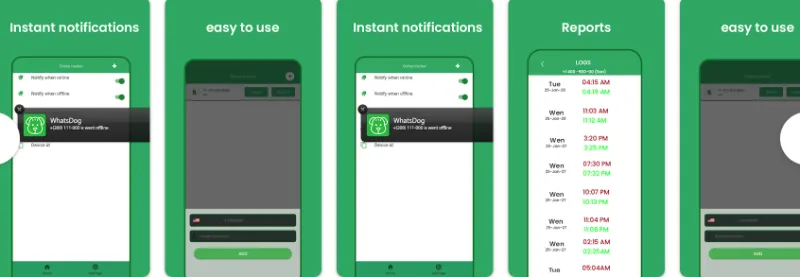
WhatsDog is an Android app that claims to be able to track a specific WhatsApp user’s online status and activity.

The app works by continuously monitoring the activity of the target user, and it sends notifications to the user whenever the target user is online or offline.

To use WhatsDog, the user needs to provide the phone number of the target user, and the app will start monitoring their WhatsApp activity.

Whenever the target user goes online or offline, the app sends a notification to the user who installed the app, providing information about the target user’s online activity.


Method 2. ChatWatch

chatwatch

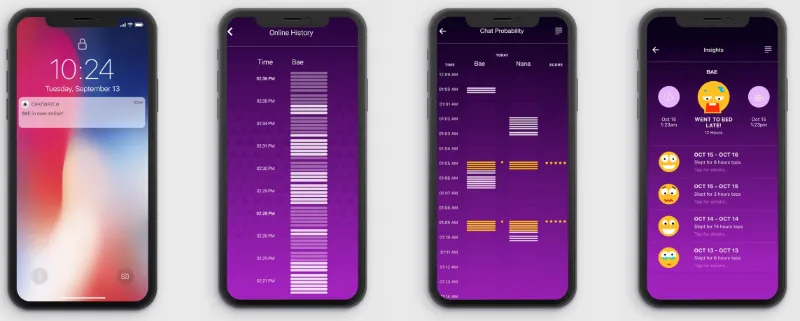
Chatwatch is a paid online service that claims to be able to track the online activity of WhatsApp users.

It works by analyzing the timestamps of the user’s online and offline activity to determine their behavior patterns and infer who they are chatting with.

Chatwatch provides a range of features, such as tracking multiple WhatsApp users simultaneously, receiving alerts when a user comes online or goes offline, and viewing detailed reports and statistics about user behavior.

The service also claims to be able to detect if two WhatsApp users are chatting with each other, even if they have not added each other as contacts.

To use Chatwatch, the user needs to provide the phone number of the target WhatsApp user they want to track and their phone number.

The service then begins to monitor the activity of the target user and generates reports about their online and offline behavior, including when they are most active and who they are likely chatting with.


Method 3. WaStat

wastat

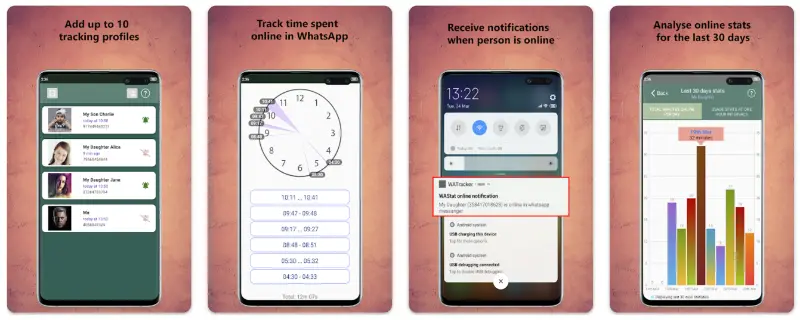
WaStat is an Android app that allows users to track the online activity of their WhatsApp contacts.

It displays information about when a particular WhatsApp contact comes online or goes offline and provides insights into their activity patterns.

WaStat provides a range of features, including the ability to track the activity of multiple contacts simultaneously, set up custom notifications, and view detailed statistics about the online activity of each contact.

The app also allows users to analyze activity patterns over time, providing insights into when a particular contact is most active on WhatsApp.

To use WaStat, the user needs to install the app on their Android device and grant it permission to access their WhatsApp contacts. The app then monitors the selected contacts’ activity in real time and displays a log of their online and offline status.


Method 4. Whatster

whatster

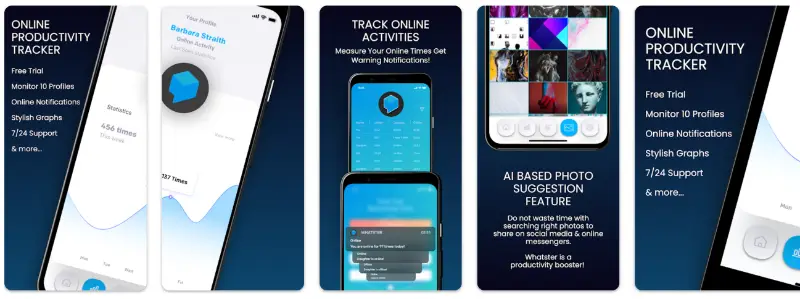
Whatster is an Android app that allows users to view and analyze their WhatsApp chat history in various ways.

It provides users with detailed statistics and insights about their chat activity, such as the number of messages exchanged, the frequency of messages, and the average response time.

Whatster provides a range of features, including the ability to view the most active contacts, see the most frequently used words and emojis, and monitor the length and duration of conversations.

The app also allows users to export their chat history to other apps or services, such as email or Google Drive.

To use Whatster, the user needs to download the app and grant it access to their WhatsApp chat history.

The app then processes the data and generates various reports and charts that help users better understand their messaging patterns.


Method 5. mSpy

mSpy is a mobile phone monitoring software that allows users to remotely monitor the activity of a target device.

It is marketed as a parental control tool or an employee monitoring solution, but it can also be used for other purposes, including spying on a partner’s phone.

Once installed on the target device, mSpy can track various types of data, such as monitoring Whatsapp online status, call logs, text messages, emails, social media activity, and GPS location.

It can also record phone calls and capture screenshots and keystrokes.

To use mSpy, the user needs to purchase a subscription plan and install the app on the target device.

The app runs in the background and sends the collected data to a remote server, which the user can access via a web-based dashboard.

mSpy provides a range of features, such as viewing all incoming and outgoing calls and texts, monitoring internet browsing history, and tracking the target device’s location in real-time.

It also allows users to set up geofencing alerts and receive notifications when the target device enters or leaves a particular location.


Privacy Considerations and Etiquette

While it’s tempting to know when your friends, family, or colleagues are online on WhatsApp, it’s crucial to consider privacy and etiquette. Here are some points to keep in mind:

  • Consent: Always ask for permission from the person you want to monitor. It’s essential to respect their privacy and only track their online status if they’re comfortable with it.
  • Transparency: Be open about your intentions and why you want to monitor their online status. Transparency can help build trust and ensure everyone is on the same page.
  • Do not abuse the information: Use the online status information responsibly and avoid stalking, harassment, or invading someone’s privacy.
  • Respect boundaries: Remember that everyone has a right to their privacy and personal space. If someone doesn’t want you to monitor their online status or becomes uncomfortable, respect their wishes and stop monitoring them.

By remembering these points, you can use WhatsApp online status monitoring responsibly and maintain healthy relationships with the people you care about.


Conclusion

So, there you have it! We’ve explored different methods for tracking someone’s online status on WhatsApp and how to set up notification alerts using third-party apps and monitoring websites.

Using these tools responsibly and respecting privacy allows you to stay connected with your friends, family, or colleagues without missing an opportunity to chat.

Remember, always seek consent, be transparent, and respect boundaries when monitoring someone’s online status.

With these guidelines in mind, you can enjoy a more engaging and connected WhatsApp experience.


5 Ways to Get Whatsapp Alerts When Someone Is Online Read More »

fix-telegram-calls-keep-dropping

11 Ways to Fix Why Telegram Calls Keep Dropping [Disconnect]

Have you noticed that sometimes when you make a Telegram voice call, the connection isn’t good enough?

Why do Telegram calls keep dropping?” Well, you’re not alone. Telegram call issues can be a bummer, especially when trying to catch up with friends or get some work done.

But don’t worry! In this blog post, we’ll explore 11 different ways to fix those pesky dropped calls and get you back to seamless communication.

So, let’s dive in and start tackling those Telegram call problems one by one!


Method 1. Change Telegram’s Voice Call Settings

Did you know that Telegram has built-in settings for voice calls that can affect their quality and stability?

Adjusting these settings might be the key to fixing those dropped calls and reconnecting with your contacts.

To access Telegram’s voice call settings:

  1. Open the Telegram app and tap on the menu (☰) button in the top-left corner.
  2. Select “Settings” > “Calls.”
  3. Experiment with the following options:
    • Use Less Data for Calls: Enabling this option can help improve call stability on slower connections. However, it might reduce call quality, so it’s a trade-off.
    • Peer-to-Peer (P2P) Calls: P2P calls can offer better quality and lower latency, but they might not work well with certain network configurations or VPNs. Try toggling this option on or off to see which setting works best for you.

Method 2. Disable Battery Optimization for Telegram

Sometimes, your device’s battery optimization settings can interfere with Telegram calls, causing them to drop or not connect at all.

Disabling battery optimization for Telegram ensures the app has the resources it needs to keep your calls going strong.

To disable battery optimization for Telegram:

  • For Android: Go to “Settings” > “Apps & notifications” > “Special app access” > “Battery optimization” (or search for “Battery optimization” in your settings). Locate Telegram in the list, tap on it, and select “Don’t optimize.”
  • For iOS: Battery optimization settings are managed automatically by iOS, so there’s no need to adjust them manually for specific apps.

Method 3. Disable VPN or Proxy

VPNs and proxies can sometimes interfere with Telegram calls, causing them to drop or fail. If you’re using a VPN or proxy service, it might be worth disabling it temporarily to see if that’s the root of the issue.

To disable a VPN or proxy on your device:

  • For Android: Go to “Settings” > “Network & Internet” > “VPN” (or “Advanced” > “VPN” on some devices). If you see an active VPN, tap on it and select “Disconnect” or “Forget VPN.”
  • For iOS: Head to “Settings” > “General” > “VPN.” If a VPN is enabled, toggle the switch off to disconnect it.

After disabling your VPN or proxy, try making a Telegram call to see if the connection is more stable.

If this is the problem, consider looking for an alternative VPN service or adjusting your proxy settings for better compatibility with Telegram.


Method 4. Disable Data Saver Mode

If you’re using your mobile data for Telegram calls, Data Saver mode might be the reason your calls keep dropping.

Data Saver mode restricts app data usage to save your precious gigabytes, but it can also lead to unstable connections and call issues.

To disable Data Saver mode on your device:

  • For Android: Head to “Settings” > “Network & Internet” > “Data Saver” (or search for “Data Saver” in your settings). Toggle the switch off to disable Data Saver mode.
  • For iOS: Go to “Settings” > “Cellular” > “Cellular Data Options” > “Low Data Mode.” Toggle the switch off to disable Low Data Mode (the iOS equivalent of Data Saver mode).

Method 5. Clear Telegram Cache and Data

Clearing the Telegram app’s cache and data can work wonders in resolving call issues like dropped connections or call failures.

It’s like giving the app a fresh start and wiping away any potential glitches that might be causing trouble.

Here’s how to clear the cache and data for Telegram:

  • For Android: Go to “Settings” > “Apps & notifications” > “See all apps” > “Telegram” > “Storage & cache.” Tap on “Clear Cache” and then “Clear Storage” (or “Clear Data”). Note that this will log you out of your Telegram account, so you’ll need to sign back in afterward.
  • For iOS: Unfortunately, there’s no direct way to clear the cache for individual apps on iOS devices. Instead, you can delete and reinstall the Telegram app (see Step 12) to achieve a similar effect.

Method 6. Check for App Conflicts

Believe it or not, other apps on your device might be causing conflicts with Telegram, leading to dropped calls or call failures.

Security apps, battery savers, and other communication apps can sometimes interfere with Telegram’s functionality.

To identify potential app conflicts:

  • Take note of any apps you’ve recently installed or updated around the time you started experiencing Telegram call issues.
  • Temporarily uninstall or disable the suspected apps one by one, testing your Telegram calls after each removal.
  • If the issue is resolved after removing a particular app, you’ve found the culprit! Look for alternative apps or adjust the settings of the conflicting app to avoid interference with Telegram.

Method 7. Contact Telegram Support

If you’ve tried everything on this list and your calls are still dropping, it might be time to reach out to the experts.

Telegram’s support team is there to help you resolve issues and get the most out of the app.

To contact Telegram support:

  1. Open the Telegram app and tap the menu (☰) button in the top-left corner.
  2. Select “Settings” > “Ask a Question.”
  3. Describe your issue in detail, including the steps you’ve already tried to resolve it. Be sure to mention that you’ve followed this comprehensive guide! 😉

Telegram support should get back to you with additional guidance or solutions to help you fix your call problems. With their expertise on your side, you’ll be well on your way to smooth, uninterrupted Telegram calls!


Method 8. Switch to a Different Network (Wi-Fi or Mobile Data)

Sometimes, the solution to dropped Telegram calls is as simple as switching to a different network. If you’re on Wi-Fi, try using mobile data, and vice versa.

Different networks can offer varying levels of stability and performance, so it’s worth giving both a shot to see which one works best for you.


Method 9. Check Your Internet Connection

It’s always a good idea to start with the basics. A weak or unstable internet connection can be the main culprit behind Telegram calls dropping.

So, before diving into more complex solutions, let’s make sure your connection is up to par!

  • Speed Test: Run a quick speed test using websites like Speedtest.net or Fast.com to see if your connection is strong enough to support voice calls. Ideally, you’ll want a minimum upload and download speed of 1 Mbps for smooth call quality.
  • Router Reset: If you’re connected to Wi-Fi, try rebooting your router. Unplug it for about 30 seconds, and then plug it back in. This simple trick can often resolve connectivity issues.
  • Wi-Fi Signal Strength: Ensure you’re within your Wi-Fi router’s range. If you’re too far away or there are walls or other obstacles between you and the router, the signal might be too weak for stable calls.

Method 10. Update the Telegram App

Are you running the latest and greatest version of Telegram? If not, you might be missing out on important bug fixes and improvements that could resolve your call problems. Updating the app is a simple but often overlooked solution to common issues like dropped calls or call failures on Telegram.


Method 11. Reinstall & Restart the Telegram App

If all else fails, sometimes the best solution is to start fresh with a clean slate.

Reinstalling the Telegram app can help eliminate any lingering glitches or issues that might be causing your calls to drop or fail.

After that, restarting your device can clear out temporary issues and give your phone or tablet a fresh start.


11 Ways to Fix Why Telegram Calls Keep Dropping [Disconnect] Read More »

is-python-better-on-mac-or-windows

Is Python Better on Mac or Windows? [A Definitive Guide]

Hey there, fellow coders! Are you also wondering, “Is Python better on Mac or Windows?” Well, you’ve come to the right place!

Python is a super versatile programming language used for all sorts of applications, from web development to data analysis.

But when it comes to choosing the best platform for running Python, things can get a bit tricky.

In this blog post, we’ll dive deep into the world of Python on Mac and Windows, comparing their performance, tools, and community support.

By the end, you’ll have all the information you need to decide which platform suits you best for Python development.


Python on Windows

Let’s start by taking a closer look at Python on Windows. Windows is a widely used operating system, so it’s only natural to consider it for Python development.

Here’s what you need to know about running Python on Windows:

Installing Python on Windows

Installing Python on Windows is a breeze! Just head to the official Python website, download the installer for your version of Windows, and follow the on-screen instructions. You’ll be up and running in no time.

Python development tools for Windows

Windows offers a plethora of Python development tools. You’ll find an IDE that fits your workflow from the classic IDLE to the popular Visual Studio Code.

Plus, with tools like PyCharm, you can take advantage of powerful features designed specifically for Python development.

Advantages of using Python on Windows

One of the biggest advantages of using Python on Windows is its compatibility with a wide range of software and hardware.

You’ll find a vast library of Python packages and modules, making finding the tools you need for your projects easier.

Disadvantages of using Python on Windows

On the flip side, some users may find that certain Python packages don’t work as smoothly on Windows as they do on other platforms.

Additionally, Windows may not be the preferred choice for those working with Unix-based systems.


Python on Mac

Now that we’ve covered Windows, let’s switch gears and explore Python on Mac. Macs are known for their sleek design and user-friendly interface, but how do they fare when it comes to Python development? Let’s find out:

Installing Python on Mac

Good news, Mac users! Your macOS already comes with Python pre-installed. However, it’s usually an older version.

To get the latest version, head to the Python website, download the Mac installer, and follow the installation steps. Soon enough, you’ll be ready to code away.

Python development tools for Mac

Just like Windows, Mac offers a wide range of Python development tools.

From native IDEs like Xcode to cross-platform options like Visual Studio Code and PyCharm, there’s something for every developer’s taste.

Advantages of using Python on Mac

One of the main benefits of using Python on Mac is its Unix-based foundation. This means you’ll enjoy a seamless experience when working with Unix-based tools and libraries.

Mac’s powerful hardware and optimized software can provide a snappy and enjoyable coding experience.

Disadvantages of using Python on Mac

While Macs have a lot to offer, they can be quite pricey. The cost factor may be a deterrent for some developers, especially those on a tight budget.


Performance Comparison

With a solid understanding of Python on both Mac and Windows, let’s dive into the performance aspect.

After all, the question on everyone’s mind is, “Does Python run better on Mac or Windows?” Let’s see how they stack up:

When comparing the performance of Python on Mac and Windows, it’s important to remember that individual experiences may vary depending on factors like hardware specifications, software configurations, and personal preferences.

However, in general, both platforms provide a robust environment for Python development.

Mac’s Unix-based foundation can offer smoother integration with Unix-based tools and libraries, making it a popular choice among web applications or server-side programming developers.

On the other hand, Windows users benefit from a wider range of software and hardware compatibility, which can make Python development more accessible to a broader audience.

Ultimately, the performance difference between Python on Mac and Windows is likely to be minimal for most users.

The choice between the two platforms may include personal preferences, budget, and specific project requirements.

For more insights on this topic, check out this in-depth article on Windows or Mac for programming.


Community and Support

As Python continues to grow in popularity, so does its community of users and developers. A strong support network can make a difference when learning a new language or tackling complex projects.

So, how do Mac and Windows compare when it comes to Python’s community and support?

Python on Windows

The Windows user base is vast, so this platform has a large community of Python developers. You’ll find plenty of resources, forums, and tutorials geared toward Python on Windows.

Plus, since many popular Python packages are developed with Windows compatibility in mind, you’ll have access to a wide range of tools and libraries.

Python on Mac

The Mac community may be smaller than the Windows community, but it’s still thriving.

Mac users benefit from a strong connection to the Unix-based ecosystem, which means they have access to many Python packages and tools that work well with Unix-based systems.

Additionally, the Mac developer community is known for being creative and innovative, which can be a great asset when seeking help or inspiration.

In conclusion, both Mac and Windows offer strong community support for Python developers. Regardless of your platform of choice, you’ll be able to find the help and resources you need to succeed in your Python journey.


Choosing the Right Platform for You

Now that we’ve explored Python on both Mac and Windows, it’s time to decide which platform is right for you. So, “Is coding better on Mac or Windows?”

There’s no one-size-fits-all answer, as the best choice depends on your specific needs and preferences. Here are some factors to consider when making your decision:

Budget: Macs are generally more expensive than Windows computers. If cost is a major concern, you might lean towards Windows.

Hardware: If you already have a computer you’re comfortable using, consider sticking with that platform. Switching platforms can be costly and time-consuming.

Project requirements: Consider the specific requirements of the projects you’ll be working on. Are there certain tools or libraries you need that work better on one platform over the other?

Personal preference: At the end of the day, you’ll be most productive on the platform you enjoy using the most. Try Python on Mac and Windows to see which feels right for you.

Integration with other tools: If you use other programming languages or tools, think about how well they integrate with your chosen platform. Some tools may work more seamlessly on Mac, while others are better suited for Windows.

By carefully considering these factors, you’ll be able to make an informed decision about whether Python is better for you on Mac or Windows.


Conclusion

So, there you have it! We’ve explored Python on both Mac and Windows, discussing installation, development tools, performance, community support, and factors to consider when choosing a platform.

Ultimately, the decision between Mac and Windows for Python development comes down to your personal preferences, budget, and project requirements.

While Macs offer a smooth integration with Unix-based tools and a polished user experience, Windows provides a wide range of software and hardware compatibility, making it more accessible to a broader audience.

Both platforms have strong community support, ensuring you’ll have the resources you need to succeed in your Python journey.

No matter which platform you choose, Python is a powerful and versatile language that will open doors to countless coding opportunities. So, roll up your sleeves, fire up your favorite IDE, and start coding!


Is Python Better on Mac or Windows? [A Definitive Guide] Read More »

windows-or-mac-for-data-science

Which is better for Data Science, Mac or Windows [Explained]

Hey there, tech enthusiasts! You must have heard this question a million times: Mac vs. Windows, which is better?

But today, we’re going to explore this age-old debate through the lens of data science. You know, the field where extracting insights from heaps of data is the name of the game.

So, which is best for data science, Windows or Mac?

Buckle up as we dive deep into the world of Mac and Windows to help you make an informed decision for your data science career.


Mac vs. Windows: A Brief Overview

Before we get into the nitty-gritty, let’s take a quick look at the two ecosystems we’ll be comparing.

The Mac Ecosystem

Mac, short for Macintosh, is Apple’s line of personal computers that runs on their proprietary macOS operating system.

Known for their sleek design, top-notch build quality, and user-friendly experience, Macs have earned a loyal fanbase over the years.

Many creative professionals and tech enthusiasts swear by their Macs, but is Mac good for deep learning and other data science tasks? Let’s find out!

The Windows Ecosystem

Windows is an operating system developed by Microsoft, and it’s available on a wide range of devices from different manufacturers like Dell, HP, and Lenovo.

Windows PCs come in all shapes, sizes, and price ranges, making them a more accessible option for many. In terms of customization, Windows takes the cake.

But when it comes to data science, which operating system is best for a data scientist? Keep reading to find out!


Software Availability

In data science, the tools you use can make or break your productivity. Let’s compare the software ecosystems for Mac and Windows to see which one has the upper hand.

Data Science Tools for Mac

Mac users can access a wide array of data science tools and libraries, such as Python, R, Jupyter Notebook, and TensorFlow.

macOS is built on a Unix-based system, which is a big plus for developers and data scientists who prefer working in a Unix-like environment.

Additionally, there’s a growing trend among data science tools to be platform-agnostic, meaning that they can run on multiple operating systems, including Mac. So, no need to worry about software limitations!

Data Science Tools for Windows

Windows has a massive user base, and it’s no surprise that plenty of data science tools are available for Windows users too.

You can find all the popular tools like Python, R and various machine learning frameworks and platform-specific options like Microsoft’s Azure Machine Learning Studio.

However, some Unix-based tools might require extra effort to set up on Windows. For more information on using Windows or Mac for programming, check out this in-depth comparison: Windows or Mac for Programming.


Performance and Scalability

Having a powerful machine is crucial when working with large datasets and complex algorithms. Let’s see how Mac and Windows fare in terms of performance and scalability.

Mac Performance

Macs are known for their impressive hardware and optimized software. Apple’s recent shift to its own M1 chip has brought significant performance improvements, especially for tasks like machine learning and data processing.

However, Macs aren’t as customizable, and upgrading hardware can be challenging and expensive.

Windows Performance

With Windows, you have a wider range of hardware options, from budget-friendly devices to high-end workstations.

The level of customization allows you to tailor your machine to your specific data science needs. Need more RAM or a powerful GPU?

No problem! This flexibility makes Windows a more scalable option for data science workloads.


Ease of Use and Customization

A smooth user experience and the ability to tailor your work environment can greatly impact productivity. Let’s compare Mac and Windows in terms of ease of use and customization.

Mac User Experience

Apple’s macOS is praised for its intuitive and user-friendly interface. It’s easy to navigate and boasts excellent performance right out of the box.

For those already familiar with the Apple ecosystem, transitioning to data science work on a Mac should be a breeze. However, Macs offer limited customization options, which might be a downside for some users.

Windows User Experience

Windows offers a familiar environment for most users, with its easy-to-use interface and robust customization options.

You can personalize your work environment to your heart’s content, making it more suitable for those who enjoy tinkering.

On the flip side, Windows might require more maintenance and fine-tuning to optimize performance for data science tasks.


Cost Considerations

Investing in the right machine for data science can be a significant expense. Let’s compare the costs of Mac and Windows machines.

Mac Pricing

Macs are known for their premium price tags. While their build quality and performance are top-notch, you might need to shell out a pretty penny for a high-end Mac.

Also, upgrading hardware components in Macs can be costly and, in some cases, not possible. If you’re on a tight budget, a Mac might not be your best choice.

Windows Pricing

One of the advantages of the Windows ecosystem is the wide range of devices available at different price points.

Whether you’re on a budget or looking for a powerful machine, you’ll likely find a Windows PC that fits the bill.

The ability to upgrade components in many Windows devices also means you can invest in better hardware as your data science needs to grow without necessarily replacing the entire machine.


Support and Community

Having a strong support network and community resources can be invaluable when tackling data science challenges.

Let’s see how Mac and Windows stack up in this regard.

Mac Support and Community

Apple offers excellent customer support for its devices, and you can find many online forums, tutorials, and resources dedicated to macOS and data science.

While Mac users may be fewer in number than Windows users, they often form tight-knit communities that can provide valuable insights and assistance.

Windows Support and Community

With its massive user base, Windows boasts an extensive community of developers and data scientists. You can find numerous online forums, tutorials, and resources catering to Windows users working in data science.

Microsoft also offers support services for Windows users, although their effectiveness may vary depending on your location and the issue at hand.


Making the Decision: Which is Better for Data Science?

After weighing the pros and cons of Mac and Windows for data science, it’s time to make a decision.

While both platforms have their merits, the choice ultimately depends on your personal preferences, budget, and requirements.

If you value a user-friendly experience, sleek design, and a Unix-based environment, a Mac might be the right choice for you.

On the other hand, if you’re looking for customization options, scalability, and a wider range of price points, a Windows machine could be a better fit.

Which operating system is best for a data scientist?

There’s no one-size-fits-all answer. Assess your priorities, budget, and the tools you’ll be using, and make an informed decision that works best for you.


Conclusion

The Mac vs. Windows debate has been ongoing for decades, and when it comes to data science, there’s still no definitive winner.

Both platforms offer a range of tools, resources, and performance capabilities that cater to different preferences and needs.

As a data scientist, your best choice will depend on factors like budget, desired user experience, hardware requirements, and the specific tools you’ll be using.

Consider these factors when making your decision, and remember that, at the end of the day, your skills and expertise will matter more than the machine you use.

Happy data crunching, and may the best operating system win!


Which is better for Data Science, Mac or Windows [Explained] Read More »