admin

pros-cons-google-drive

15 Pros and Cons of Using Google Drive [Comprehensive Review]

In today’s digital age, cloud storage has become a vital tool for individuals and businesses, offering a convenient and secure way to store, access, and collaborate on files.

Whether you’re a student, professional, or simply someone looking to organize their digital life, understanding the advantages and drawbacks of Google Drive can help you decide whether it’s the right cloud storage solution for you.

Google Drive has gained immense popularity with its user-friendly interface, robust features, and seamless integration with other Google services.

However, like any technology, Google Drive itself also has its limitations and considerations.

In this blog post, we will explore the pros and cons of using Google Drive, examining its benefits as well as its disadvantages.

Fun fact: Google Drive was launched in 2012 and quickly gained popularity, now boasting over a billion active users worldwide. It has become an integral part of many people's digital lives and work routines, revolutionizing the way we store, access, and collaborate on files.

Pros of Using Google Drive

This section will explore the advantages of using Google Drive, highlighting its standout features and how they can positively impact your digital life.

Let’s dive in and discover why Google Drive is a popular choice for individuals and teams alike.

1. Easy File Access and Storage

When it comes to accessing your files, Google Drive offers remarkable convenience.

Whether you’re on your computer, smartphone, or tablet, you can easily access your files stored in the cloud from any device with an internet connection.

This accessibility makes it incredibly convenient for users to retrieve their important documents, photos, and videos wherever they are.

2. Collaboration and Sharing Features

One of the standout features of Google Drive is its robust collaboration and sharing capabilities.

With Google Drive, you can easily share files and folders with others, allowing multiple users to view, edit, and comment on documents simultaneously.

This real-time collaboration fosters seamless teamwork and eliminates the need for back-and-forth email exchanges.

Fun fact: Google Drive’s collaborative features have revolutionized the way teams work together, making it easier than ever to collaborate across different locations and time zones.

3. Automatic Backup and Syncing

Say goodbye to the fear of losing your files due to a computer crash or accidental deletion.

Google Drive offers automatic backup and syncing features that ensure your files are securely stored in the cloud and easily retrievable whenever you need them.

The sync functionality keeps your files up to date across all your devices, ensuring you have the most recent version available.

Fun fact: With Google Drive’s automatic backup and syncing, you can rest assured that your files are safe and sound, even if your device encounters an unfortunate mishap.

4. Integration with Other Google Services

Google Drive seamlessly integrates with other popular Google services, such as Google Docs, Sheets, and Slides.

This integration allows you to create, edit, and collaborate on documents, spreadsheets, and presentations directly within Google Drive.

The ability to work on files in a cohesive environment enhances productivity and streamlines your workflow.

Plus, changes made in Google Docs, Sheets, or Slides are automatically saved to Google Drive, ensuring your files are always up to date.

5. Version Control and File History

Have you ever made changes to a document only to realize you preferred an earlier version? Google Drive has you covered with its version control and file history features.

You can easily track changes made to a file, restore previous versions, and view a detailed history of edits.

This functionality comes in handy when collaborating with others or when you need to refer back to an earlier iteration of a document.

6. Accessibility Across Devices

Google Drive offers cross-platform compatibility, whether you’re using a Windows PC, Mac, Android device, or iOS device.

The service is accessible through web browsers and has dedicated applications for various operating systems.

This cross-device accessibility ensures that you can seamlessly transition between devices while maintaining access to your files, no matter where you are.

7. Seamless Collaboration with Google Docs, Sheets, and Slides

Google Drive’s integration with Google Docs, Sheets, and Slides brings a whole new level of collaboration to the table.

Multiple users can simultaneously work on the same document, making real-time edits and comments.

The ability to see changes happening in real-time promotes efficient teamwork and eliminates the need for manual merging of separate document versions.

8. Third-Party App Integration

Google Drive offers an extensive ecosystem of third-party apps that can be integrated into the platform.

These apps enhance the functionality of Google Drive by providing specialized tools for tasks like document editing, project management, note-taking, and more.

You can customize your Google Drive experience by leveraging these integrations to suit your specific needs and workflows better.

9. Powerful Search and Organization Features

With a vast amount of files stored in Google Drive, finding the right document can sometimes be challenging.

However, Google Drive’s search and organization features come to the rescue. The powerful search functionality allows you to search for files by name, content, owner, or keywords.

Additionally, you can organize your files into folders, apply labels, and use color coding to keep your digital workspace neat and tidy.


Cons of Using Google Drive

From privacy concerns to limited offline access, there are certain aspects that may present challenges or considerations for Google Drive users.

By understanding these drawbacks, you can decide whether Google Drive aligns with your specific needs and preferences.

Let’s delve into the disadvantages of using Google Drive and gain a comprehensive perspective on its potential drawbacks.

10. Privacy and Data Security Concerns

While Google Drive offers convenient cloud storage, some users have concerns about privacy and data security.

Since Google is an ad-driven company, there is a possibility that your data stored in Google Drive could be used for targeted advertising.

Additionally, there is always a risk of data breaches or unauthorized access, although Google employs robust security measures to protect user information.

It’s essential to weigh the convenience of cloud storage against any privacy or security considerations you may have.

11. Limited Offline Access

Google Drive is primarily designed for online access, which means that accessing files without an internet connection can be limited.

Although Google Drive offers offline access for specific files and folders, you must enable this feature beforehand and ensure that the files you need are offline.

It’s worth noting that offline access may not be as comprehensive as the online experience, and certain features may be unavailable without an internet connection.

12. File Ownership and Control

When you upload files to Google Drive, you grant certain rights and permissions to Google as outlined in their terms of service.

This includes the ability for Google to analyze and process your files to provide you with personalized services.

While this can enhance user experience, it’s crucial to understand the extent of control and ownership you have over your files when using Google Drive.

13. Storage Limitations

Google Drive offers a generous amount of free storage (15 GB at the time of writing), but if you have a substantial amount of files or if you require additional space, you may need to purchase a storage plan.

This can result in recurring costs, depending on your storage needs. It’s important to consider your storage requirements and the associated expenses when deciding to use Google Drive as your primary cloud storage solution.

14. Potential Compatibility Issues

Although Google Drive provides compatibility with various file formats, certain file types or advanced features of specific applications may not be fully supported.

This can lead to compatibility issues when opening or editing files in Google Drive. It’s advisable to check the compatibility of your file types and the required functionalities before relying on Google Drive for specific tasks.

15. Reliance on Google Account

To access and use Google Drive, you need a Google Account.

This reliance on a single account may disadvantage individuals who prefer to keep their digital footprint spread across multiple platforms or have concerns about centralized account management.

If you prefer to separate your online activities or avoid creating another account, the dependency on a Google Account could be a drawback.


Comparison with Other Cloud Storage Solutions

Several other popular cloud storage solutions are available, each with its own features and benefits.

By examining each platform’s strengths and weaknesses, we can better understand how Google Drive stacks up against its competitors.

So, let’s explore the comparisons and discover which cloud storage solution might best fit your needs.

Dropbox

When comparing Google Drive with other cloud storage solutions, one prominent alternative is Dropbox.

Dropbox offers a user-friendly interface and provides seamless file synchronization across devices. It excels in its simplicity and ease of use.

However, in terms of free storage, Google Drive offers more generous options.

Dropbox is often favored by those who prioritize straightforward file storage and sharing experience without the extensive collaboration features offered by Google Drive.

Microsoft OneDrive

Microsoft OneDrive is another popular cloud storage service that competes with Google Drive.

OneDrive integrates well with Microsoft Office applications, making it an excellent choice for individuals heavily reliant on Microsoft software.

Like Google Drive, OneDrive offers collaboration features and file syncing across devices. However, when it comes to free storage, Google Drive typically provides more space.

It’s worth considering your preferred software ecosystem and integration needs when comparing Google Drive with OneDrive.

Apple iCloud

Apple users often gravitate towards iCloud, Apple’s cloud storage service. iCloud seamlessly integrates with Apple devices, providing effortless synchronization of files, photos, and other data.

It’s particularly advantageous for individuals immersed in the Apple ecosystem, with features like automatic device backups and seamless integration with Apple’s native apps.

However, when it comes to cross-platform compatibility and collaboration features, Google Drive offers broader accessibility and collaboration capabilities.


Conclusion

In conclusion, Google Drive offers a range of advantages and disadvantages that are important to consider when choosing a cloud storage solution.

The easy file access, collaboration features, automatic backup, and integration with other Google services make Google Drive a powerful tool for individuals and teams.

However, concerns about privacy and data security, limited offline access, and dependency on an internet connection are factors that need to be weighed against its benefits.

It’s crucial to assess your specific needs, compatibility requirements, and comfort level with the trade-offs involved.


15 Pros and Cons of Using Google Drive [Comprehensive Review] Read More »

send=large-file-telegram

9 Ways to Send Large Files On Telegram [Exceed Size Limit]

Ever been in the middle of sending a file over Telegram, only to get hit with the dreaded “file too large” error?

Telegram has a maximum allowed file size of 2 GB per file.

In today’s digital era, we’re constantly sharing and receiving files. Pictures, videos, documents, you name it. And when it comes to apps that make this task easier, Telegram is the champ.

But like any app, it has its limits. That hurdle we all stumble upon is the file size limit.

Now, what if I told you there are ways around this? That you could send your large files over Telegram without the app batting an eyelid? Sounds like magic, right?

How to Send Large Files On Telegram?

In this comprehensive guide, I’m going to walk you through nine (9) different ways to share large files on Telegram.


Method 1. Splitting and Compressing Files

Splitting Files

When a file’s too large, one way around it is to split it into smaller, more manageable pieces. Think of it as dividing a long movie into several episodes.

And the tool for this job? It’s a software called HJSplit.

HJSplit is a free application that helps you split files of any type and size. It’s as simple as selecting your file, choosing your split file size, and hitting the ‘start’ button.

Your file will be neatly divided into smaller parts that fit right under Telegram’s file size limit.

Compressing Files

Our second method is compressing files, which is like vacuum-packing your clothes to make them fit into a small suitcase. In this case, we’re using a tool called 7-Zip.

7-Zip is an open-source software that uses compression to reduce the size of your files. You need to right-click your file, select ‘7-Zip’, and then ‘Add to archive.’

You can choose the level of compression – the higher the level, the smaller the file. Just remember, higher compression might mean a longer time to compress and decompress.


Method 2. Cloud Storage Services

Uploading to Cloud Storage

The first part of this method is to upload your file to a cloud storage service. It’s like sending your file on a little vacation to the cloud.

And for this trip, we’ve got three top-notch travel agents – pCloud, Sync.com, and MEGA.

pCloud is a secure and user-friendly cloud service that offers up to 10GB of free storage. You can upload your files easily and access them from any device. And the best part? No file size limits!

Sync.com is another great option, with a focus on privacy and security. It offers 5GB of free storage and allows you to share files and folders with end-to-end encryption. It’s like sending your file in an armored car!

MEGA is a cloud storage heavyweight offering a whopping 15GB of free storage. It also provides robust security features, and its easy-to-use interface makes uploading and sharing files a breeze.

Sharing Cloud Storage Links

Once your file is safely stored in the cloud, you can generate a shareable link. This link is like a golden ticket that gives the recipient access to download the file.

And voila! You’ve successfully circumvented the Telegram file size limit without breaking a sweat.

Remember, the aim of the game here is to make the file-sharing process as smooth as possible. So, choose the cloud storage service that suits your needs the best.


Method 3. File Transfer Services

File transfer services are your best buddies when you’re dealing with large files. They are specifically designed to handle file sizes that regular messaging apps can’t.

A bunch of these services are available, but one of the popular ones is WeTransfer. WeTransfer allows you to send files up to 2GB for free without sign-up.

It’s as easy as entering your recipient’s email, adding your files, and hitting the “Transfer” button.

Another solid option is Filemail. Their free plan lets you send files up to a whopping 50GB! Yes, you read that right.

Plus, the interface is super intuitive and user-friendly.

Sharing File Transfer Service Links

These services work by uploading your file to their server and then generating a download link. You can share this link directly on Telegram.

The recipient clicks on it and is led to the download page. It’s like giving someone directions to a secret treasure chest!


Method 4. External File Hosting Services

Uploading to External File Hosting Services

First, you must upload your large file to the hosting service. This might sound complicated, but it’s as easy as pie with user-friendly services like Dropbox and Google Drive.

Dropbox is a fantastic tool that lets you upload files and share them via a link. The free plan gives you up to 2GB of storage space.

It’s got a clean interface that’s simple to navigate, making file sharing a breeze.

Google Drive, on the other hand, offers a whopping 15GB of free storage. It’s perfect if you already have a Google account, as it integrates seamlessly with other Google services.

Sharing External File Hosting Service Links

Once your file is uploaded, these services generate a unique link for your file. You can share this link directly in your Telegram chat.

When your recipient clicks the link, they’ll be taken straight to the file for download. It’s as if you’re giving them an exclusive backstage pass to your concert of files!


Method 5. FTP Servers

Setting up an FTP Server

To start, you’ll need to set up an FTP server. This might sound like rocket science, but it’s a walk in the park with tools like FileZilla Server and Serv-U.

FileZilla Server is a free, open-source FTP server. It’s easy to install and set up, allowing you to share files of any size.

Just remember to set up your firewall and router correctly to allow FTP connections.

Serv-U is another reliable FTP server software. Although it’s not free, it offers a ton of features and is known for its security and performance.

Sharing FTP Server Details

Once your server is all setup, you can upload your large file to it. You’ll then provide the recipient with the FTP server details (server address, username, and password).

It’s like giving them a secret map to a hidden treasure chest!

They’ll need an FTP client, like FileZilla Client, to connect to your server and download the file.


Method 6. Peer-to-Peer (P2P) File Sharing

And now, onto the sixth method – P2P file sharing. Imagine it as a round table where everyone can both give and take files. It’s a bit more technical but like a potluck dinner for files!

Using P2P File-Sharing Software

P2P file sharing involves using software that connects your computer to a network of others, allowing you to share large files directly.

It’s like connecting a bunch of computers with invisible strings and sliding your files across to the other side.

Two popular P2P software are BitTorrent and uTorrent. These programs break your file into small chunks and share them across the network.

Other users can then download these chunks, which the software reassembles into the original file.

Sharing P2P File Sharing Links

Once you’ve uploaded your file to the P2P network, you can create a torrent file. This file acts like a roadmap, guiding others to the chunks of your file on the network.

You can then share this torrent file or magnet link on Telegram. Your recipient will need a P2P client (like BitTorrent or uTorrent) to download the file.


Method 7. Video Streaming Platforms

Ready for round seven? This time, we’re going to look at using video streaming platforms. It’s like hosting your own mini-movie premiere but for your files!

Uploading to Video Streaming Platforms

If the large file you want to share on Telegram is a video, then video streaming platforms like YouTube and Vimeo can be your best pals.

YouTube is a platform we all know and love. It allows you to upload videos of almost any size for free. You can set your video to ‘unlisted’ if you want it to be accessible only to people with the link.

Vimeo is another fantastic platform, especially for high-quality videos.

Its free version has a 500MB weekly upload limit, but if you’re dealing with larger videos or more frequent uploads, they offer paid plans that increase this limit.

Sharing Video Streaming Links

Once your video is uploaded and ready, these platforms generate a unique URL for your video. You can share this link directly in your Telegram chat.

When your recipient clicks the link, they’ll be able to watch the video directly on the platform. It’s like inviting them to a private screening of your video!


Method 8. Email Services

We’re nearing the end, folks, but we’ve still got some great methods up our sleeve! Number eight on our list is using email services.

It’s like sending a package but in the virtual world.

Using Email Services

Email services, like Gmail and Outlook, allow you to attach files to your emails. But they do have a limit on the size of attachments – Gmail, for example, caps it at 25MB.

But here’s the hack: both Gmail and Outlook automatically upload larger files to their respective cloud storage platforms (Google Drive and OneDrive) and include a download link in your email. So technically, you can send larger files!

Sharing Email Attachments

Once your file is attached and your email is sent, you can copy the download link for the file. You can then share this link directly in your Telegram chat. It’s like sending a letter with a key to a secret lockbox!


Method 9. External File Sharing Platforms

Alright, my tech-savvy friends, we’ve made it to the final round! The ninth method is using external file-sharing platforms. These are like public libraries, but for files!

Uploading to External File-Sharing Platforms

File-sharing platforms are websites that allow you to upload and share large files. They’re built for this purpose and handle large files like a champ.

Two popular platforms are MediaFire and Zippyshare.

MediaFire is a simple-to-use service that offers up to 10GB of free storage. You can upload files of any type, and it generates a direct link that you can share.

Zippyshare, on the other hand, allows you to share files up to 500MB without even needing an account. The interface is straightforward, making the process a breeze.


Conclusion

Well, we’ve journeyed through the vast landscape of file sharing, exploring the nooks and crannies of nine different methods to share large files on Telegram.

From splitting and compressing files, all the way to external file-sharing platforms, we’ve seen it all.

No more will the file size limit be a hurdle in your path. You now have the tools to send those hefty files, whether it’s a video, a high-resolution image, or that 200-page report you’ve been working on.

Remember, each method has its own perks, so consider what works best for you and your file-sharing needs.


9 Ways to Send Large Files On Telegram [Exceed Size Limit] Read More »
fix-telegram-not-receiving-verification-code

11 Ways to Fix Telegram Not Receiving Code for Verification

Have you ever been in a situation where you’re trying to log into your Telegram account, but you find yourself asking: “Why am I not getting a verification code from Telegram?” or “Why won’t Telegram send me an SMS code?

Well, you’re not alone! This can be quite frustrating, especially when you need to access your chats and messages ASAP.

In today’s post, we’re going to explore the different ways to fix Telegram not receiving the code for verification.

How to Fix Telegram Not Receiving Code For Verification

Here are the eleven (11) ways you can use to rectify the problem.


Method 1. Mobile Apps for Virtual Numbers

The fastest way is often using a mobile app to get a virtual number. It can be a handy workaround for not receiving your Telegram verification code.

These apps provide you with an alternative phone number that can be used to receive SMS verification codes. Here’s how you can go about it:

  • Hushed: Hushed is another app offering virtual numbers, with options for temporary and permanent numbers. The app provides various plans, giving you the flexibility to choose the one that fits your requirements. You can use the virtual number from Hushed to join Telegram with a fake number.

  • Numero eSIM: Numero eSIM is an app that offers virtual numbers using eSIM technology. It supports multiple phone numbers on a single device and has a wide range of available numbers from different countries. With various plans to choose from, you can select the best option for your needs and use the virtual number for Telegram and other services.

Method 2. Using Online SMS Receiving Services

Online SMS receiving services can be a handy option as these websites provide temporary virtual numbers that can receive SMS messages, allowing you to complete the Telegram verification process.

SMSReceiveFree can get SMS text messages from all over the world. In addition, these virtual numbers can be used to verify and register for websites like Twitter and Google.

All messages and phone numbers are thrown away after seven (7) days. Every month, new virtual phone numbers are added to the list.

Even if the sender is located in a different nation, these virtual mobile numbers can still receive messages from anywhere in the world.

AnonymSMS is a completely free online service that lets you receive SMS messages without entering your mobile or cell phone number.

These temporary numbers are based on a genuine SIM, and new virtual numbers are added daily.

In most cases, communications are received immediately. Hit the refresh button to get to it. After a while, all visible and utilized virtual numbers will become inactive, and you can choose another number to use.


Method 3. Verify Your Phone Number

If you’re still struggling to receive a verification code from Telegram, double-checking the phone number you’re using might be the solution.

Mistreating a digit or two is easy, especially if you’re rushing or distracted.

Here’s how to verify your phone number:

  • Double-check the number: Make sure the phone number you’re entering is the correct one and is currently active. Ensure there are no extra digits or missing numbers.
  • Check the country code: The international country code is vital to your phone number, especially if you’re outside the US. Make sure the correct country code is entered before your phone number. For example, if you’re in the UK, your country code is +44, and in Canada, it’s +1.
  • Remove any extra zeroes: If your phone number starts with a zero, try removing it when entering your number into Telegram. For example, if your number is 01234 567890, enter it as 1234 567890.
  • Try a different number: If you have access to a different phone number, try using that one. Sometimes, certain numbers might have issues receiving verification codes from Telegram due to carrier restrictions or other issues.

After verifying your phone number, try to request the code again. Hopefully, the verification code will enter your inbox, and you’ll be able to log into Telegram without a hitch!


Method 4. Disable VPN or Proxy

If you’re using a Virtual Private Network (VPN) or a proxy server, it could be causing issues with Telegram sending you a verification code.

While VPNs and proxies are great for privacy and accessing content from different regions, they can sometimes interfere with apps and services like Telegram. Here’s how to disable them:

Disable VPN:

  • Go to your device’s settings.
  • Find the section for VPN settings. It’s typically under “Network & Internet” on Android and “General” on iOS.
  • If a VPN connection is active, there should be an option to disconnect or turn off the VPN.

Disable Proxy:

  • If you’re using a proxy server, you’ll typically find this in your device’s Wi-Fi settings.
  • Go to the Wi-Fi network you’re connected to and look for an option for “Proxy” or “Advanced options.”
  • If a proxy is set up, you should see an option to disable it or set it to “None.”

Method 5. Check SMS Settings

Sometimes, your device’s SMS settings might interfere with receiving verification codes from Telegram. This might be particularly relevant for those of you asking, “Why can’t I receive the SMS verification code?

Here’s how you can check your SMS settings:

For Android:

  1. Check your default SMS app: Some users have reported issues with certain SMS apps not receiving verification codes properly on Android. You can switch your default SMS app to another one, such as Google’s Messages, to see if that resolves the issue.
  2. Check blocked numbers: Make sure Telegram or the number sending the verification code hasn’t been accidentally blocked. You can usually find this in your phone’s settings under “Blocked numbers” or “Spam and blocked.”

For iOS:

  1. Check for Do Not Disturb: If you’ve enabled Do Not Disturb mode, it might prevent you from receiving SMS notifications. You can check this in your settings under “Do Not Disturb.”
  2. Check for blocked numbers: Like Android, ensure you haven’t accidentally blocked Telegram or the number sending the verification code. You can find this in your settings under “Phone” and then “Blocked Contacts.”

Method 6. Clear App Cache and Data

Sometimes, clearing the app’s cache and data can work wonders to resolve issues like not receiving verification codes. Don’t worry; this won’t delete your messages or chats! Here’s how to do it:

For Android:

  • Open your device’s Settings app.
  • Tap on “Apps” or “Applications.”
  • Scroll down and find Telegram, then tap on it.
  • Tap on “Storage” and then hit “Clear Cache” and “Clear Data.”

For iOS:

On iOS devices, you’ll need to delete and reinstall the app to clear its cache and data.

  • Press and hold the Telegram app icon.
  • Tap on “Remove App” or “Delete App.”
  • Confirm the deletion.
  • Head to the App Store and download Telegram again.

Method 7. Update Telegram App

An outdated version of the Telegram app might be causing issues with receiving verification codes.

To ensure you’re using the latest version, head over to your device’s app store (Google Play Store for Android or App Store for iOS) and check for updates.

If there’s an update available, go ahead and install it. This might be the solution to get those elusive verification codes coming your way!


Method 8. Check Your Internet Connection

First, let’s ensure your internet connection is up and running. Sometimes, the simplest solution is the most overlooked.

A stable connection is essential for receiving your verification code from Telegram. Here’s what you can do:

  • Check if your Wi-Fi or mobile data is turned on and connected.
  • Try opening a website or using another app that requires an internet connection to see if it’s working properly.
  • If you’re on Wi-Fi, try moving closer to the router or restarting it. In some cases, a weak signal might be the culprit.

Method 9. Check if Telegram Servers Are Down

Sometimes, the issue might not be on your end. Telegram servers could be experiencing temporary downtime, making it impossible for you to receive your verification code.

You can visit websites like Downdetector or Outage to check if that’s the case. Report to see if other users are reporting issues with Telegram.

If you find that the servers are indeed down, you’ll have to wait until they’re back up and running to receive your code.


Method 10. Restart Your Device

When in doubt, turn it off and on again! Restarting your device can help resolve minor glitches that might be preventing Telegram from sending you a verification code.

Just press and hold your device’s power button, select the restart option, and give it a minute to reboot. Once it’s back up, try logging into Telegram again and see if the verification code comes through this time.


Method 11. Contact Telegram Support

If all else fails, it’s time to reach out to the experts. You can contact Telegram Support directly to help you resolve the verification code issue.

To get in touch with them, visit the Telegram support page (https://my.telegram.org/support) and submit a request detailing your problem.

Be sure to include your phone number and any other relevant information. They should be able to help you get your account up and running in no time!


11 Ways to Fix Telegram Not Receiving Code for Verification Read More »

telegram-supported-video-file-formats

All 25 Supported Video File Formats for Telegram App

Have you ever tried sending a video over Telegram only to have it bounce back because the video format is not supported?

We’ve all been there. But don’t worry today, I’m gonna walk you through all the supported video file formats on Telegram, and I’ll also show you how to send large videos through Telegram.


What Are All The Supported Video File Formats For Telegram App?

Here is the full comprehensive list of video formats that were supported by the Telegram app;

  • MP4 (MPEG-4 Part 14)
  • MOV (QuickTime Movie)
  • AVI (Audio Video Interleave)
  • WMV (Windows Media Video)
  • MKV (Matroska Video)
  • FLV (Flash Video)
  • MPEG (MPEG-1/MPEG-2)
  • WebM
  • 3GP (3GPP Multimedia)
  • M4V (MPEG-4 Video File)
  • TS (MPEG Transport Stream)
  • MTS (AVCHD Video File)
  • VOB (DVD Video Object File)
  • MPG (MPEG Video File)
  • ASF (Advanced Systems Format)
  • SWF (Shockwave Flash Movie)
  • RM (RealMedia)
  • OGV (Ogg Video)
  • DV (Digital Video)
  • F4V (Flash Video)
  • OGG (Ogg Vorbis Video)
  • H264 (H.264/MPEG-4 AVC)
  • HEVC (High-Efficiency Video Coding)
  • XVID (Xvid Video)
  • DIVX (DivX Video)

How to Send Videos on Telegram: A Step-by-Step Guide

So, you’ve got your video in one of the supported formats and are ready to share it with the world (or at least your Telegram contacts).

Here’s how you do it:

  • Open the Telegram app on your device, and tap on the chat where you want to send the video.
  • Tap the paperclip icon – it’s usually located in the message box.
  • From the options that appear, tap on ‘Gallery’ or ‘File’ depending on your device.
  • Browse to find the video file you want to share, then tap on it.
  • Finally, hit the ‘Send’ button, and voila! Your video is on its way.

Now, you might be wondering how I can upload a large video on Telegram.

Well, that’s where things get a bit tricky. Telegram does have a file size limit – a whopping 2GB per file! That’s like packing your entire vacation footage into one message.

However, if your video file is bigger than this, you’re gonna have to compress it or split it into smaller parts. But that’s a story for another section.


Troubleshooting Video Playback Issues on Telegram.

First, check the file format if a video isn’t playing back. Remember those flavors we talked about earlier? Make sure your video is in a format that Telegram supports.

If your video format checks out, next on the checklist is the file size. If the video is too large, Telegram might have trouble processing it. Try compressing it or breaking it into smaller parts.

Another potential issue could be your internet connection. Like trying to drink a milkshake through a tiny straw, a slow or unstable connection can make video playback stutter or fail entirely.

If possible, try switching to a faster or more stable connection.

Finally, if none of these seem to be the problem, it could be that the video file is corrupt. If that’s the case, you might need to try converting it to another format or re-exporting it from your video editing software.


All 25 Supported Video File Formats for Telegram App Read More »

view-open-AVIF-file-image-format-windows-mac-android-ios

How to Open & View AVIF Image Format [PC, Android, iOS, Mac]

Opening a AVIF image file format is fairly easy, depending on the type of operating systems you are using.

In this article, we will address all the solutions you need to view AVIF images, regardless if you are using a Windows PC, a Mac computer, using Android or iOS mobile device.

What is an AVIF Image?

Developed by the Alliance for Open Media with participating members such as Amazon, Google and Microsoft, the AVIF Image File format (.avif) is a compressed image file that competes with the likes of JPEG and WebP formats.

Below is a summary of all the methods to open AVIF images, depending on your operating system.

S/noOpen WithOperating System
1Google ChromeAll OS
2ImageGlassWindows
3qViewmacOS
4AVIF Image Viewer & ConverterAndroid
5Use latest iOS & macOS versionsiOS
6PhotoKit AVIF Image ViewerAll OS / Cloud service

How to Open and View AVIF Image File Format?

Here are the six (6) ways to open AVIF image files for all operating systems and devices.


1. Open with your Web Browser

Several web browsers now have support for the AVIF image format.

At the time of this article, you can use Google Chrome, Brave browser and Firefox browser to view AVIF images.

Currently, the Safari browser does not support opening AVIF format, but this may change in the near future.

open-avif-image-file-format-using-web-browser-google-chrome

To view the AVIF format using your web browser, do the following;

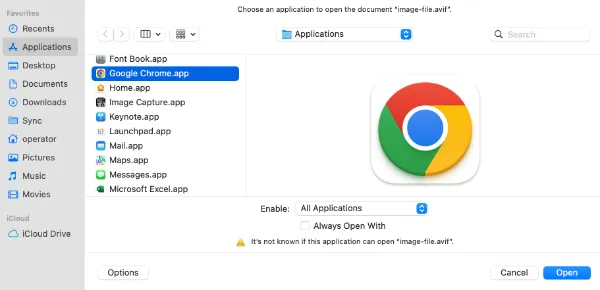
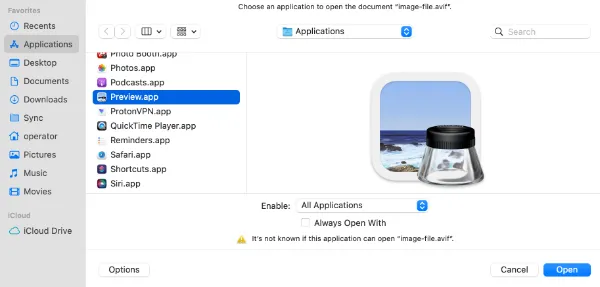
  1. Right-click on the AVIF file, choose <Open With> and select <Other>
  2. Select <All Applications> from the drop-down menu in the Enable option.
  3. Choose Google Chrome on the left pane and click <Open>
  4. You can now view your AVIF image file using the Chrome browser.

2. Install ImageGlass for Windows

imageglass-AVIF-view-open-image-format

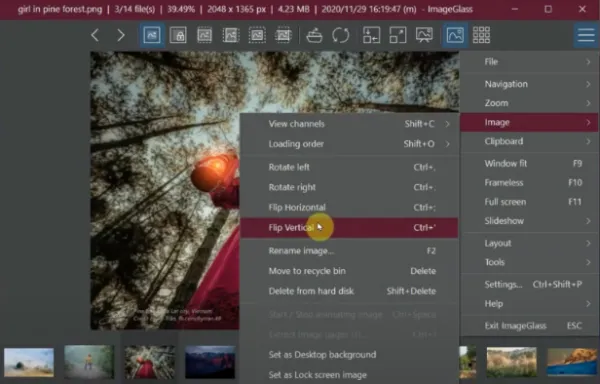
ImageGlass is a lightweight, versatile and simple open-source Windows application that supports opening over 80+ image formats, such as AVIF, SVG, HEIC, RAW and many more.

Appearance-wise, it has a minimalist design look that comes with image editing features. Some of the main features include;

  • Losslessly rotate/save the viewing image.
  • Drag-n-drop viewing image supported.
  • Ability to view/extract multi-page image files (TIF, ICO) separately.
  • Six zoom modes
  • Conversion to 10 different formats

3. Install qView for Mac

qview-for-Mac-view-open-AVIF-image-file-format

qView is a lightweight and minimalist image viewer for Mac that instantly opens up AVIF file formats and other image files. It runs on low memory and requires low CPU usage.

qView also has additional features, such as file history, rotation/mirroring and animated GIF controls.

The free and open-source software supports all standard image formats, including BMP, GIF, JPG, PNG, TIFF, and WebP image formats.


4. Install AVIF Image Viewer for Android

Android-AVIF-Image-Viewer-Converter-app-open-view

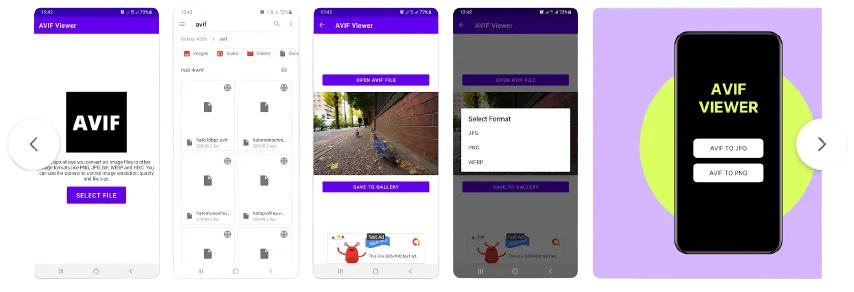
AVIF Image Viewer & Converter is a lightweight Android mobile app that recognises and opens AVIF image file formats.

For a start, users can view AVIF images using the app and have the option to save them to the Gallery in JPG, PNG or WebP format.

With the new encoding feature, users can convert images to AVIF format.


5. Use the latest iOS / macOS version

apple-devices-latest-version-view-open-AVIF-image-file-format

For Apple iPhone, iPad mobile devices and macOS computers running iOS 16, iPadOS 16 and macOS 13 Ventura, there will be the automatic built-in capability to support AVIF images through Preview, Finder and Image viewing features.

If you are not on the latest macOS or iOS version, you can also try to open AVIF files using Google Chrome or Opera web browsers. Both web browsers are tested to be able to display AVIF images.

Safari web browser version 16.0 is also said to be able to support AVIF image file formats natively.


6. Use an Online AVIF viewer

photokit-avif-image-viewer

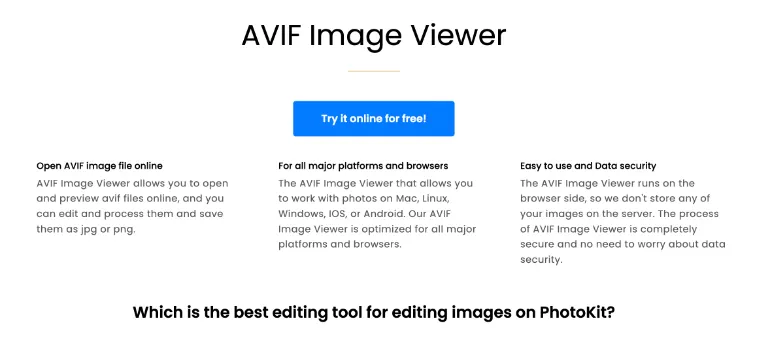
Photokit AVIF Image Viewer is an online AVIF image viewing and editing service that runs on the web browser side and not on the site’s server.

You upload your AVIF file and preview them through your web browser. Then, you can edit the image file using a wide range of tools, such as adjusting exposure, correction, using the palette, inserting sketching or even adding cartoons.

After editing, you can save them in jpg or png format.


How to Open & View AVIF Image Format [PC, Android, iOS, Mac] Read More »
view-AVIF-image-format-using-Mac

7 Ways to Open & View AVIF image file format using Mac

When you are using macOS, there are several ways to preview and open the AVIF image file format.

Developed by the Alliance for Open Media with participating members such as Amazon, Google and Microsoft, the AVIF Image File format (.avif) is a compressed image file that competes with the likes of JPEG and WebP formats.

How to open and view AVIF image file format on Mac?

Here are the seven (7) different methods you can use to open AVIF files on a Mac computer.


1. Open with a Web browser

view-AVIF-image-format-open-using-web-browser

Several web browsers now have support for the AVIF image format.

At the time of this article, you can use Google Chrome, Brave browser and Firefox browser to view the image.

Currently, the Safari browser does not support opening AVIF format, but this may change in the near future.

To view the AVIF format using your web browser, do the following;

open-AVIF-image-file-format-using-google-chrome-web-browser
  1. Right-click on the AVIF file, choose <Open With> and select <Other>
  2. Select <All Applications> from the drop-down menu in the Enable option.
  3. Choose Google Chrome on the left pane and click <Open>
  4. You can now view your AVIF image file using the Chrome browser.

2. Use PhotoKit AVIF Image Viewer

photokit-avif-image-viewer

Photokit AVIF Image Viewer is an online AVIF image viewing and editing service that runs on the web browser side and not on the site’s server.

You upload your AVIF file and preview them through your web browser. Then, you can edit the image file using a wide range of tools, such as adjusting exposure, correction, using the palette, inserting sketching or even adding cartoons.

After editing, you can save them in jpg or png format.


3. Open with Preview.app

Depending on your macOS version, you can try opening the AVIF image file using the Mac Preview app.

open-avif-image-file-format-using-preview-mac

Try the following;

  • Right-click on the AVIF image file, choose <Open With> and select <Other>
  • Select <All Applications> from the drop-down menu in the Enable option.
  • Choose Preview.app on the left pane and click <Open>

4. Install XnViewMP for Mac

xnviewmp-image-viewer-open-AVIF-format

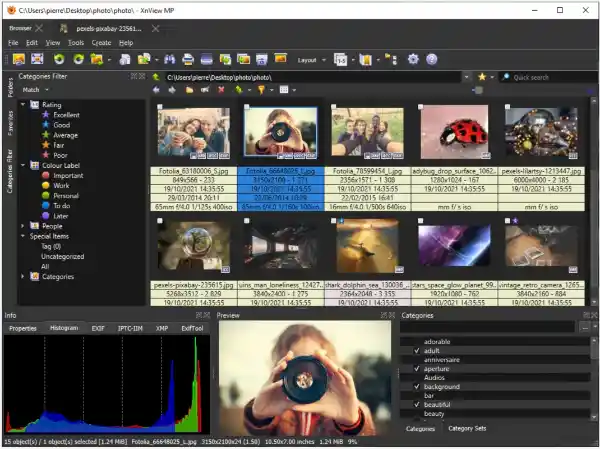
XnViewMP is a versatile photo viewer and editor that supports a wide range of image formats and supports Windows, Mac and Linux.

You can use XnViewMP to view AVIF formats in thumbnail view, fullscreen view, image compare, view EXIF metadata and many more.

For editing features, the powerful image viewer support resizing, cropping, lossless rotation, adding of filters & effects, etc.

XnViewMP supports over 500 image formats, including AVIF, TIFF, GIF, JPEG, PNG, etc.


5. Install AVIFQuickLook

This is a macOS QuickLook plugin for AVIF image file format and can be found in Github.

To install AVIFQuickLook, do the following;

  1. Grab the latest AVIFQuickLook.qlgenerator from the Release Page, or build using Xcode.
  2. Open Finder
  3. Shift + Command + G, input ~/Library/QuickLook/ and press Enter. For macOS Catalina above, use /Library/QuickLook/ instead.
  4. Drag AVIFQuickLook.qlgenerator into this folder. You may need to enter the password

6. Install qView for Mac

qview-image-viewer-AVIF-format-open

qView is a lightweight and minimalist image viewer for Mac that opens up AVIF file formats and other image files instantly. It runs on low memory and requires low CPU usage.

qView also has other features such as file history, rotation/mirroring and animated GIF controls.

The free and open-source software supports all common image formats including bmp, gif, jpg, png, tiff, and webp.


7. Use macOS Ventura and latest iOS version

macOS-ventura-open-preview-AVIF-image-file-format

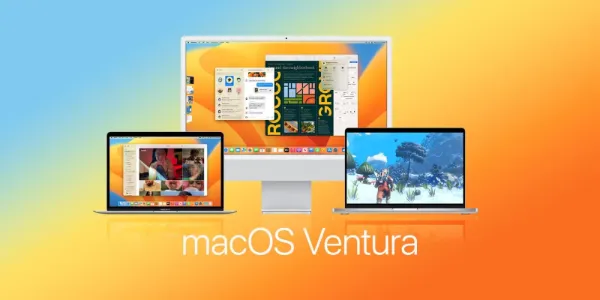
If you are using macOS Ventura, there is already a built-in support for opening AVIF image files using Prview and Finder.

Released in October 2022, macOS Ventura has several updates to its predecessor, macOS Monterey, and this includes the native support for AVIF image file format.

To view AVIF images natively, update your Apple devices to make sure they are running the latest betas of iOS 16, iPadOS 16, and macOS Ventura.


7 Ways to Open & View AVIF image file format using Mac Read More »

digital-forensics-imager-software-tools

7 BEST Digital Forensic Imager Tools [dd, E01, AFF formats]

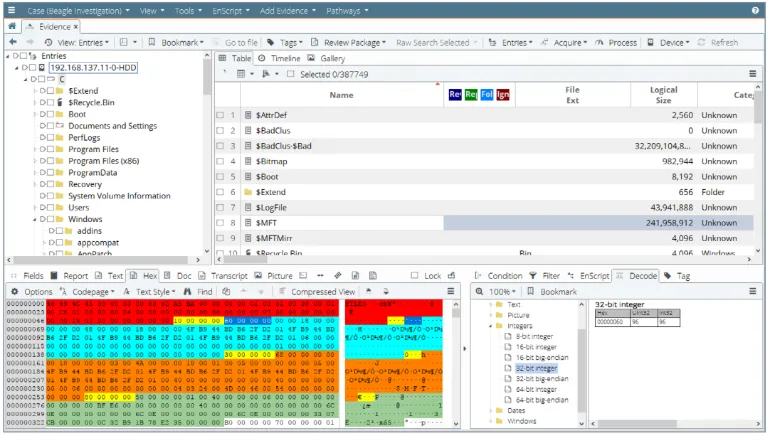
A digital forensic imager can be in the form of a software imaging tool or hardware equipment. A good forensic imaging tool can output to several forensics formats and is commonly used by law enforcement agencies, private investigation firms, and security companies nowadays.

Below is a quick summary of the best forensic imagers and their imaging capability.

S/noForensic Imaging ToolDescriptionType
1FTK® ImagerComputer imagingSoftware
2Tableau Forensic Imager (TX1)Computer imagingHardware
3EnCase™ ForensicComputer imagingSoftware
4SIFT WorkstationComputer imagingSoftware
5Magnet RAM CaptureRAM imagingSoftware
6Magnet ACQUIREComputer & Mobile imagingSoftware
7Cellebrite UFEDMobile device imagingSoftware and Hardware

What is a Forensic Image?

A forensic image is a court-accepted digital image of a digital device or a digital file, such as a computer, a mobile phone or a system drive. It is considered forensically sound as the forensic image is a bit-by-bit copy of the original device, drive or file.

A forensic image is acquired using specialized digital forensics software or hardware equipment and is examined primarily by digital forensics analysis tools.

What are the Different Formats of Forensic Images?

The most common forensic image formats being used are;

  • EnCase Evidence Files = E01 / Ex01
  • Raw Format = dd
  • Advance Forensics Format = AFF

What are the BEST Forensic Imaging Software Tools?

Here are the seven (7) best digital forensics imaging tools you can use.


1. FTK® Imager

ftk-imager-digital-forensics-imaging

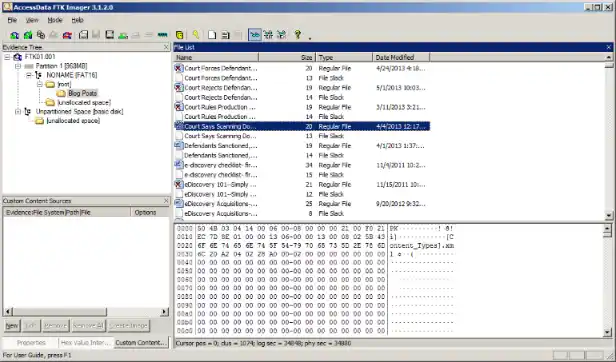
FTK® Imager is a data preview and imaging software tool that allows you to quickly assess electronic evidence to determine if further analysis using forensic tools is needed.

The imaging tool can make forensic copies of physical disks, logical drives, individual files, entire folders, discs, USB flash drives, etc.

FTK Imager – Key Features

  • Create perfect or forensic copies from the original.
  • Generate hash reports before and after the forensic image is created
  • Ability to mount images as read-only

2. Tableau Forensic Imager (TX1)

Tableau-Forensic-Imager-TX1-imaging

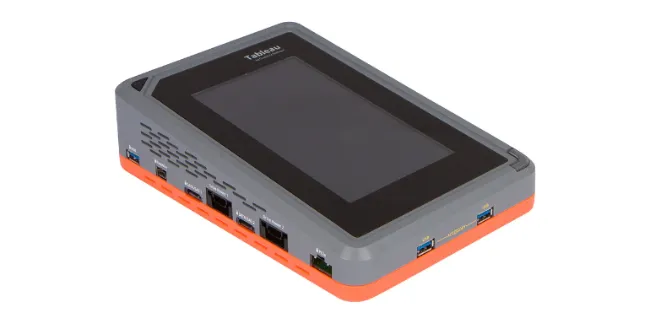
Measuring 9.5 in (L) x 6.5 in (W) x 2.6 in (H), the Tableau Forensic Imager (TX1) is a physical forensic imager hardware device that is used to create forensic images of a wide range of computer media, including USB flash drives, SATA hard drives, PCIe and 10Gb Ethernet devices.

When TX1 starts imaging, it can output to raw DD formats, .e01 (compressed) or .ex01 (compressed), and supports a wide range of file systems, such as ExFAT, NTFS, EXT4, FAT32, HFS+ and many more.

TX1 – Key Features

  • Support up to two active forensic jobs simultaneously
  • Pause and resume imaging jobs
  • Automatic job queuing allows additional jobs to begin as soon as an active job completes
  • Secure Wiping and Formatting features
  • AES whole disk encryption

3. EnCase™ Forensic

opentext=encase=forensics-digital-imager

EnCase™ Forensic is a software imaging tool used by the majority of law enforcement agencies in the world. The strength of this forensic imaging software lies in its competency in acquiring forensic images from a wide array of computer systems.

It is especially good at analyzing Windows operating systems and commonly-used file systems such as NTFS, FAT/FAT32/exFAT/, ext4 and many more.

EnCase Forensics – Key Features

  • Analyze data from multiple platforms—Windows, Linux, AIX, OS X, Solaris, and more
  • Uncover suspicious files, e.g. hiding, cloaking, or deletion
  • Manage large data volume, including deleted files, unallocated space and file slack.
  • Indexing, keyword searching and automated evidence-processing features
  • Create exact forensic duplicates through verifiable hash values and Cyclic Redundancy Check (CRC) values
  • Easy transfer of evidence files to external parties, such as legal representatives

4. SIFT Workstation

SIFT-workstation-digital-forensics-imaging

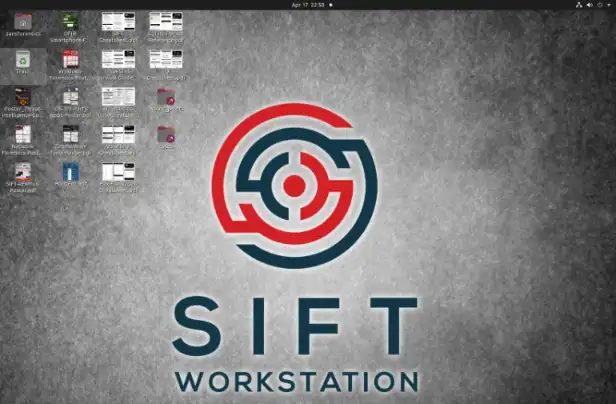
SIFT Workstation is a software imaging VMware appliance, pre-configured with free, open-source forensics and analysis tools to perform deep digital forensic investigations in various environments.

It can image attached physical devices and system drives using a range of forensic command formats, such as raw dd, E01, AFF, etc.

SIFT Workstation – Key Features

  • Lots of installed forensic applications, e.g. log2timeline
  • Mounting of raw and forensic images
  • Conduct forensic investigation using installed suites like the sleuthkit.
  • Conduct incident response investigations


5. Magnet RAM Capture

magnet-RAM-capture-digital-forensics-imager

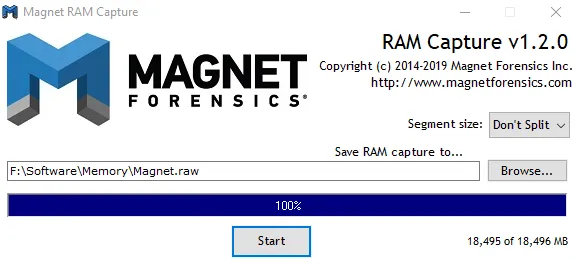
Magnet RAM Capture is a software imaging tool that can recover and examine artefacts frequently found only in the memory by taking a snapshot of a suspect’s computer’s physical memory (RAM).

You can use Magnet RAM Capture while minimizing memory overwriting thanks to its minimal memory footprint. Furthermore, you can transfer the memory data into analysis programs like Magnet AXIOM after you have captured it.


6. Magnet ACQUIRE

magnet-acquire-digital-forensics-imager

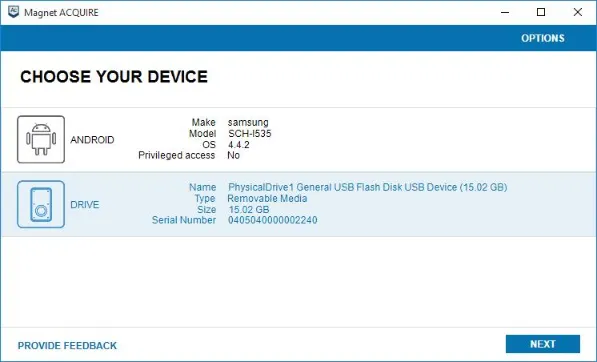
Magnet ACQUIRE is a software imaging tool capable of mobile device image acquisition and capturing forensic images of common storage drives, including hard drives and USB flash drives.

The forensic acquisition tool can output the image to the E01 and raw dd format.

For mobile devices, depending on the make & model of the device, it can acquire a logical extraction, file system extraction or even a full physical image extraction.

Magnet ACQUIRE – Key Features

  • Use Media Transfer Protocol to acquire media and files, such as photos, videos and documents from mobile devices.
  • Support 3rd-party application user data
  • Support extraction of memory cards, e.g. microSD cards

7. Cellebrite UFED

cellebrite-ufed-digital-forensics-imaging-tool

Cellebrite is an Israeli digital intelligence company focusing mainly on extracting data from mobile devices. The forensic image it outputs is in its proprietary form, the UFDR format.

The UFED capability is available on desktop computers (UFED4PC) as software, as well as a standalone handheld physical console (UFED Touch2).

Cellebrite UFED – Key Features

  • Unlocking of mobile devices via pattern bypass and PIN locks
  • Perform logical, file system and physical extractions
  • Use of bootloaders, automatic EDL capability, smart ADB connection and more
  • Wide range of supported mobile devices across many different brands
  • Extract evidence from mobile phones, SIM cards, drones, SD cards, GPS devices and more

7 BEST Digital Forensic Imager Tools [dd, E01, AFF formats] Read More »

7 Key Considerations: Send Resume CV in PDF or Word format

Applying for a job requires sending your resume or curriculum vitae (CV) to the employer or job agency. Usually, you can choose between sending a Word document or a PDF format. There are various professional reasons and considerations for choosing the best and safest choice, given your circumstances.

Technically speaking, the two (2) widely-accepted file formats are;

  • Microsoft Word document (.doc or .docx) format
  • Portable Document Format (.pdf) format

This article will explain all the considerations you should take before sending your resume and CV.

Also, always remove the Word/PDF metadata before sending it to external parties, as they may contain unnecessary or embarrassing details, such as author, comments, revision, file creation timestamp, etc.

Related Post: How to Remove Metadata from Word and PDF documents

What is the Best File Format to Send Your Job Resume, Word or PDF?

Here are the seven (7) key considerations for deciding on which format you should send for your job resume and CV.


1. Does the company prefer a specific format?

resume-specific-file-format-preferred

Sometimes in the job description, the company will specifically ask for a particular file format for applicants to send over.

For example, on LinkedIn, applicants sending resumes on the platform generally prefer PDF formats due to the impression of looking more professional.

In short, be sure to use the file format as specified in the job description.


2. Do you want to prevent editing?

editing-word-pdf-resume-cv-removebg-preview

Having your resume or CV in Word format allows for useful features like adding comments and taking side notes.

If the company or yourself prefer the editing features of using Word format, use it.

To prevent editing to your resume or CV, you want to preserve its formatting, margins, fonts, and images, among other elements. In addition, you do not wish to have a resizing issue when opening your resume or CV in different screen sizes and using different devices.


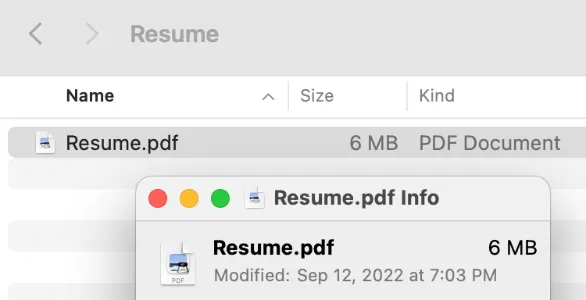
3. How big is the file size of your resume?

resume-CV-file-size

You may want to look at your resume or CV file size, especially when you are supposed to send the document over email or upload it to some job portal, where you don’t want to exceed the maximum upload file size.

Converting from Word to PDF will always increase its file size significantly.

Take note of the file size and if you can send your resume or CV over.


4. Do you want to allow for keyword searching?

resume-CV-searching-keywords

Having a Word format document, one can easily search using the standard Windows environment without installing thirty-party software.

It can be helpful for a company to search for a particular candidate or keyword across all the submitted resumes or CVs.

PDFs, for example, can still be searchable by other software. However, the accuracy is not as good as having a Word document. Optical Character Recognition (OCR) addon is required for software tools that search through PDF files, and it is not always 100% accurate.


5. What industry and sector are you applying for?

job-resume-CV-industry-sector-applying

Does a well-formatted and image-intensive resume or CV help you have a competitive edge over the other applicants?

For resumes that require illustrations and are generally lengthy, it is best to have them in a PDF format.

You want to preserve nice formatting for your images and graphics.

Maybe you are applying for a role in Adobe; you can consider using PDF format. On the other hand, if you are applying for Microsoft, you can view sending a Word document format if you have the flexibility to choose.


6. Does the company use an ATS system?

ATS-resume-CV-tracking-applicant-system

An Applicant Tracking System (ATS) is a human resource software system that takes in applicants’ resumes, CVs, cover letters, references and many more relating to the desired job role they are applying for.

You should read the job description and the company’s website to determine if they have stated they are using an ATS system.

Choose Word format, as it has the highest readability in ATS systems.

Some older ATS systems do not support PDF formats, although this situation is rare these days. Therefore to be on the safer side, go for the Word format.


7. Are you using a paid resume template?

paid-resume-CV-template-professional

When you pay for a professional-looking and eye-catching resume or CV, you do not want to distribute them for free over the Internet.

These paid resumes can go as high as USD 60, depending on the quality and uniqueness of the resume.

Some of the sites you can get a professional-looking resume template are;


Conclusion

If the company does not specify a particular file format in their job description, you can have the flexibility to choose between a Word document or a PDF document.

Generally speaking, go for Word document format in everyday situations because you want the company to edit, insert comments, take notes and perform keyword searching inside your Word document.

Remember not to make your Word format read-only or password-protected. Doing so will appear unprofessional and as an unnecessary security restriction.

Go for the PDF format if your resume is lengthy and images need to be well-formatted, preserved and displayed for the interviewer.

You can always use an online resume builder like Canva and MyPerfectResume.

Lastly, remember to remove the metadata from your resume and CV before sending.

7 Key Considerations: Send Resume CV in PDF or Word format Read More »