admin

similarities-differences-between-google-docs-vs-microsoft-office-word

Google Docs vs. Microsoft Word [Differences & Similarities]

Google Docs and Microsoft Word are two of the most popular word processors available today.

Both are very capable programs that let users create, edit, and work together on various documents. 

Even though they have features in common, they differ significantly, and one may better fit your requirements. 

This article will compare and contrast Google Docs and Microsoft Word and ultimately list which one might better suit your needs.

What Are The Differences and Similarities Between Google Docs and Microsoft Word?

Both are popular word-processing applications used for creating, editing, and formatting documents.


Differences between Google Docs and Microsoft Word

We will start off with the differences first.

Accessibility

Accessibility is one of the main distinctions between Google Docs and Microsoft Word. 

Since Google Docs is a web-based program, users can access it from any computer, smartphone, or tablet with an internet connection.

On the other hand, Microsoft Word must be locally installed on a computer or mobile device, limiting its usability for users who need to work while on the go.

Cost

Cost is yet another important distinction between Google Docs and Microsoft Word. 

While Microsoft Word requires a Microsoft 365 subscription, Google Docs is totally free to use

Microsoft 365 does provide various additional productivity tools, but for users who only require a word processor, the cost might not be justified.

Offline Capabilities

Google Docs is primarily an online application, though it can be used offline in certain situations. 

On the other hand, because it is installed locally on a user’s device, Microsoft Word can be used both online and offline.

MS Word may seem a better option for users who frequently work in places with poor internet connectivity.

Advanced Features

There are some differences between what Google Docs and Microsoft Word offer, even though both programs offer a variety of advanced features.

Google Docs provides real-time translation for those working with documents in multiple languages.

The formatting options in Microsoft Word are more sophisticated, including the ability to design unique styles and templates and more sophisticated grammar and style-checking tools.


Similarities between Google Docs and Microsoft Word

Let’s talk about the similarities now.

Basic Features

Basic features like the ability to create, edit, and format text, add images and tables, and change the layout of your document are available in both Google Docs and Microsoft Word.

Both tools provide options for spell-checking, grammar-checking, and autocorrecting your writing to help you avoid mistakes.

Collaboration Features

One of the most significant advantages lies in their collaboration features.

Both allow multiple users to work on the same document simultaneously, with changes appearing in real time.

Additionally, both offer commenting and suggestion features, which allow users to provide feedback on each other’s work without directly editing the document.

Formatting Options

There are similarities in the numerous formatting options available in both tools.

Users can change the font’s size and style, add bullet points and numbered lists, and use bold, italics, and underlining.

There are also more complex yet similar formatting options, such as the capacity to add borders and shading, create columns, and modify line spacing.


Which is Better? Google Docs or Microsoft Word

Depending on your personal needs, here are the primary considerations when choosing one.

For Personal Use

Google Docs is probably the better option for personal use.
It can be accessed from any device thanks to its web-based interface, and thanks to its collaboration features, sharing documents with friends and family is simple.

Moreover, users can save money while accessing a powerful word processor because it is free.

For Business Use

Microsoft Word may be the better choice here.

Thanks to its offline capabilities, advanced formatting options, and grammar and style-checking tools, it is an effective tool for professionals. 

For companies that use multiple tools in their daily operations, its integration with other Microsoft 365 productivity tools, like Excel and PowerPoint, can be helpful.

For Educational Use

Both Google Docs and Microsoft Word are excellent options for use in educational settings.

Google Docs may be the better option for students working on group projects or collaborating with teachers due to its accessibility and collaboration features.

Furthermore, because it’s free, it’s a more affordable choice for students who might not have the financial means to purchase a Microsoft 365 subscription.


Final Thoughts

In conclusion, both Microsoft Word and Google Docs are powerful word processors with various features to meet the needs of various users.

Despite their many similarities, they differ significantly in terms of accessibility, price, offline functionality, and advanced features.

Ultimately, the user’s particular needs and priorities will determine which option they select.

Google Docs might be a better option for personal use, while Microsoft Word might be a better option for professional use.

Regardless of the option selected, both tools provide several features that allow users to create, edit, and collaborate on documents of all kinds.


Google Docs vs. Microsoft Word [Differences & Similarities] Read More »
5 Ways to Bypass and Increase WhatsApp Video Transfer Limit

Using WhatsApp to send videos and photo is a common way to share media files.

However, WhatsApp does have a limit to the maximum allowed file size when it comes to sending files over their network.

This article will focus on how to send large files, like videos, to your WhatsApp recipient and bypass the video size restriction.

What is the File Size Limit for Sending Videos on WhatsApp?

Whatsapp has a maximum 16MB file attachment size limit, regardless if it is a video, image, or document file type.

How to Bypass or Increase the WhatsApp Video Size Limit

Here are the five (5) ways you can send large video files over WhatsApp.


Method 1: Send via Video Streaming

bypass-whatsapp-video-limit-send-streaming-video-cloud

You will upload your video to a cloud service that supports video streaming and share the link with the WhatsApp recipient.

There is no limit to the file size and video resolution (e.g., 4K or 8K) when you choose this method, as long as the cloud service you chose allows for it.

pCloud

pCloud is a cloud-based online storage service that allows users to upload media files (photos and videos) for storage backup and file-sharing purposes.

The cloud storage service is free to register and comes with 10 GB of free storage space.

When sending the recipient a pCloud link, they can watch the video through web streaming using pCloud’s built-in media player.

pCloud works directly with iOS, Android, Windows, macOS & Linux devices.

You can sign in to pCloud quickly using your existing Apple ID, Gmail, or Facebook account or a separate email account.

iDrive

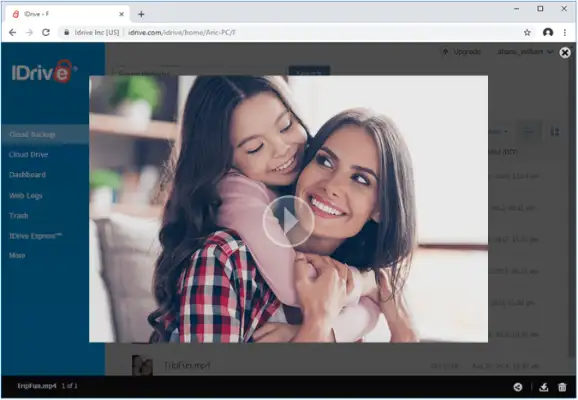
iDrive is an online backup storage solution with a built-in media player for video streaming.

You can stream video files (i.e., MP4, WebM, and FLV file formats) directly from the iDrive link using your web browser.

It comes with a free 10 GB of storage with unlimited connected devices. This means you can use and sync it on multiple devices, e.g., mobile phones and desktop computers.

iDrive is compatible with devices running iOS, Android, Windows, macOS & Linux operating systems.


Method 2: Allow the Recipient to Download the Video

If you want your recipient to be able to download the entire video onto their device, then this method is for you.

You upload your video to a reliable file-hosting site and send the link to the recipient. They will then download it onto their device.

Here are some of the file-hosting sites you can use;

  • MEGA (no upload cap, can be as high as 3TB per file size upload)
  • Google Drive (depends on account plan)
  • FileFactory (max. 5GB per file upload on the free plan)

Method 3: Use an Online Compression Service

bypass-whatsapp-video-limit-online-compression

There are several online video editors, and the most important criterion is whether they can perform video compression without watermarks and support the most popular video file formats.

Here are some that fit the criteria.

EchoWave

EchoWave is a simple online video editor that supports most video file types and does more than just video compression.

You can add subtitles, add video overlay, add an audio track, edit an audio visualizer, and add watermarks, among many other features.

Video Compressor

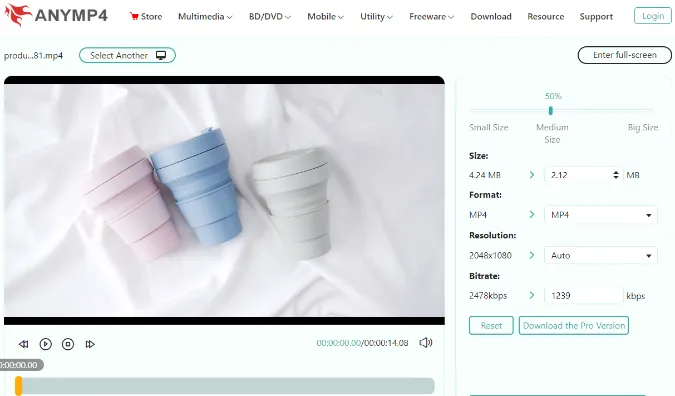
AnyMP4 Video Compressor is a free video compressor that helps to reduce file size while keeping the original quality.

The free online service shrinks video size with no watermarks and has no upload file size limit. You can upload gigabytes of the video file and use it for video compression.


Method 4: Use Video Compression Apps

For mobile devices, consider installing the following apps;

For desktop, you can use VideoLan (VLC) or QuickTime player. Below are the steps to do video compression on both tools.

VLC Player (for PC, macOS, iOS & Android)

VLC player is a popular lightweight and universal player. It can be installed on PC, Mac, iOS, and Android devices.

  • Go to <File> and choose <Convert / Stream>
  • Click <Open Media> and select the video file you want to compress
  • Choose a Profile preset
  • Click <Customize> to adjust the bitrate and video codec settings
  • Click <Apply> and <Save as file> to save your compressed file.

QuickTime (for Mac)

For macOS users, you can use the built-in QuickTime player to do a simple video compression on your video.

  • Open the video file with the QuickTime player
  • Go to <File> and choose <Export As>
  • Choose the resolution (e.g. 4K or 480p)

Method 5: Trim the Video Length

Depending on your preference. sometimes the best way is to trim (edit) it slightly to reduce the video file size. This is typically done at the beginning or toward the end of the video to have minimal impact on the video’s content.

Filmora

For both desktop and mobile devices, you can try Filmora. The video editing app is available on PC, macOS, iOS, and Android platforms.

Besides basic editing and video compression features, the app also offers the following;

  • Add animoji selfie video and compelling visuals
  • Royalty-free music and sound effects
  • Custom voiceover

5 Ways to Bypass and Increase WhatsApp Video Transfer Limit Read More »

Check-If-Number-Valid-Has-WhatsApp-Account-Or-Not

5 Ways to Check If a Number Has a WhatsApp Account Or Not

WhatsApp is one of the most popular instant messaging platforms millions of mobile users worldwide use.

It is an essential part of daily communication as it enables text messages, voice calls, and video calls between users.

Sometimes you need to know if someone has a WhatsApp account to connect with them on the app. Or you may want to find out discreetly without the person knowing (e.g., the status message and profile picture used)

How can I check if a phone number is valid on WhatsApp?

This article will list how to check if a phone number is valid on WhatsApp.

How to Check Whether a Phone Number Has a WhatsApp Account Or Not

Here are the three (3) ways to do so.


Method 1. Using WhatsApp URL address

whatsapp-phone-number-shared-via-url-is-invalid

This is a quick method to determine whether a phone number is associated with a WhatsApp account.

Enter the phone number at the end of this URL below.

For example, if you are checking on a US number “+1878205-0088

https://wa.me/+1987654321

In the example above, +1 is the US country code, 878 is the area code, followed by the phone number.

Copy and paste the URL onto the web browser of your mobile phone (where WhatsApp is installed) or laptop (if you are using WhatsApp Web).

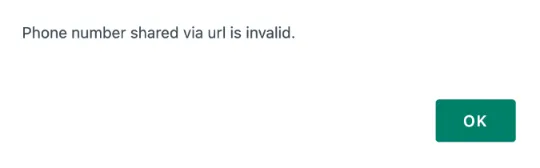
When you encounter an error message that says, “Phone number shared via URL is invalid,” this means the phone number does not have a WhatsApp account.


Method 2. Add Number to Contacts

whatsapp-add-contact-invite

One quick checking method is manually adding the phone number to your contact lists.

After that, check that number on WhatsApp;

  • Open WhatsApp and click the <Select contact> button in the bottom-right corner.
  • Search for the contact name you added using the magnifying glass icon on the top-right.
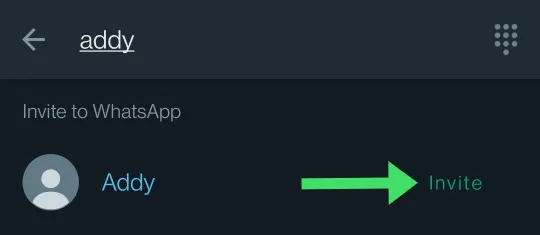
  • When you see the contact name next to the <Invite> link, this means the number is currently not registered with WhatsApp.

In short, the contact does not have a WhatsApp account.

If you wish to do so, clicking on the <Invite> link will allow you to send the person a WhatsApp invitation message via SMS.


Method 3. Install the Check Number WA app

Whatsapp-phone-number-checker-WA-android-app

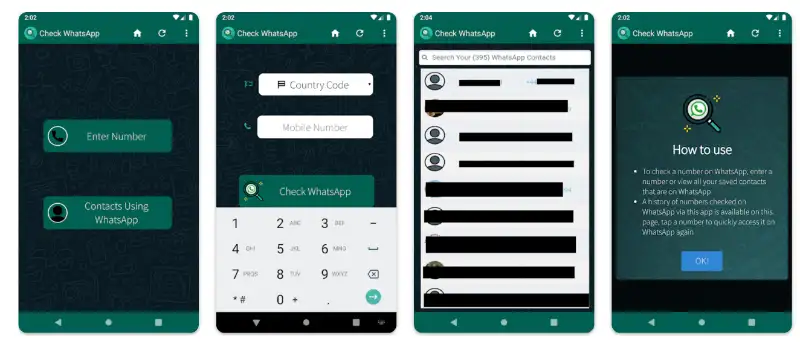
Check Number WA (for WhatsApp) is a simple Android app that checks if a particular number is using WhatsApp by validating the number.

Select the country and provide the phone number for this app to work.

Users can view the WhatsApp profile conveniently if the account is registered and made visible.


Method 4. Use WaTools (online)

watools-io-check-whatsapp-numbers

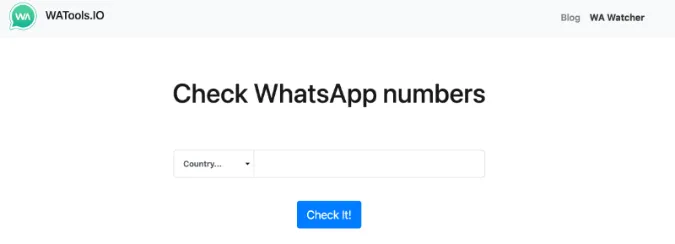
WaTools is an online free lookup service that is simple to use and will show you if the status of the WhatsApp number is registered or not.

You must choose the country code, type in the mobile number on the webpage, and click the <Check online status> button.


Method 5. Use Chrome Extension

chrome-web-browser-extension-whatsapp-number-checker

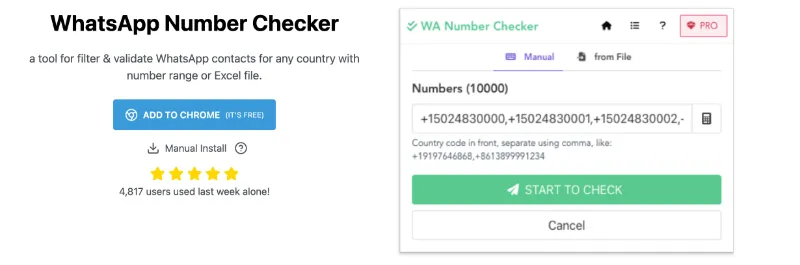
WhatsApp Number Checker is a free Chrome web browser extension that you can install and use as a tool for filtering & validating WhatsApp contacts from any country.

Some of the lookup features you can use are;

  • Free users can check up to ten (10) numbers a day.
  • Validate bulk lists of numbers
  • Validate any number from any country

5 Ways to Check If a Number Has a WhatsApp Account Or Not Read More »

Telegram-Links-not-working

9 Ways to Fix Telegram Links Not Working & Opening [Solved]

When you click on a Telegram link and realise that the website cannot be reached, it seems like your Telegram link is not working, and your web browser is not successfully opening the link. The web browser is unresponding at times.

What could be the issue/s here?

There are many reasons why this is happening. In this article, we will look at each and every issue to rectify and troubleshoot it.

What to do when Telegram links do not open and not working

Here are the nine (9) ways you can try to rectify your problem.


1. Copy the link onto another web browser

A quick and easy way is to copy the Telegram link and paste it into your web browser to open it.

You can do this on the mobile or desktop version of Telegram. To do this;

  • Long-press the Telegram link and select <Copy>.
  • Paste it on any web browser of your choice. If it does not work, try other web browsers.

2. Open the link using another Telegram account

This may happen if you are being removed or banned from a particular group or channel.

To resolve this, use another Telegram account to open the link if you have a spare phone. You may want to join back the Group or Channel.


3. Use a VPN

vpn-service

Sometimes the external link is geo-restricted or belongs to a blocked site in your country. Therefore, you cannot view the website without finding ways to bypass it.

To bypass this, you need to use an anonymous privacy VPN service.

Choose the following reliable VPN services;

  • ProtonVPN (free plan available for iOS, Android, Windows & macOS)
  • NordVPN (most number of servers in different countries)
  • IPVanish (supports all platforms, routers, and TVs)

Connect yourself to a foreign VPN country than the one you reside in, and you can now view the Telegram link successfully.

A reliable VPN service can also be helpful in many ways, such as watching Netflix using a Canadian or U.S. VPN service where more movies and shows are available.

Also, check if you reside in a country where Telegram is banned, such as Pakistan, India, and China.


4. Use the Telegram desktop version

telegram-web

Another workaround you can do is to use the desktop web version of Telegram and try to open the links from there.

You would need a Windows or Mac computer and use it to test your links. To do this;

  • Go to Telegram Web
  • Open your Telegram app (from your phone)
  • Go to Settings > Devices > Link Desktop Device
  • Login via the QR code (from your phone) or use your phone number (the one registered to your Telegram account)

5. Clear Cache and Data

clear-telegram-cache-local-database-on-android

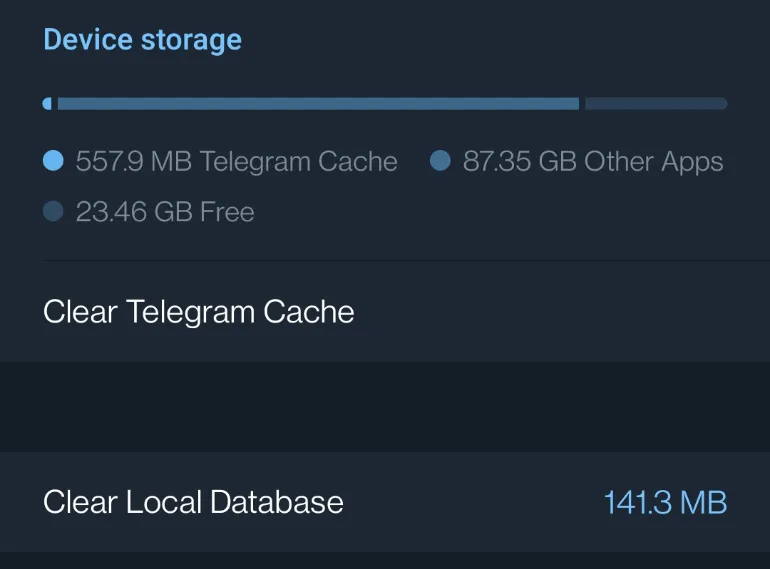
Sometimes your Telegram app may get congested with cache files and contain lots of files due to attachments. Clearing your Telegram cache and data may help the app receive a refreshing start.

On Android > Open Telegram app> Tap on the Menu on the top left > Select Settings > Select Data and Storage > Select Storage Usage > Click on Clear Telegram Cache and Clear Local Database.

On iPhone > Open Telegram app > Go to Settings > Select Data and Storage > Select Storage Usage > Click on clear Telegram cache.


6. Check the Telegram Server

Sometimes when you cannot open links in Telegram, the reason could be due to Telegram’s servers. In other words, the fault lies in the link (i.e. the website).

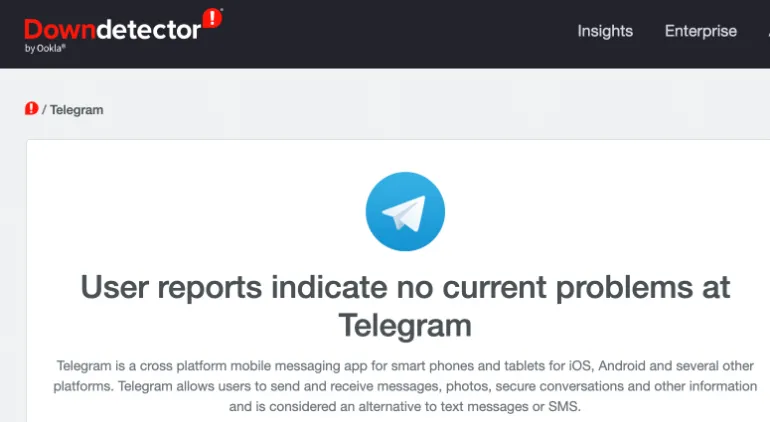
You can use Downdetector to check the current status of the Telegram app.

downdetector-telegram

The image above shows that Telegram is working correctly at the moment.

Suppose you encounter a message that Telegram is experiencing some connection difficulty. In that case, it is best to wait for Telegram to resolve its problems and check Downdetector after a while to see if the issue has been resolved.


7. Check Link Server

Sometimes the issue lies in the website link itself. For example, there is a possibility that the website server is down, resulting in Telegram not being unable to open the website link.

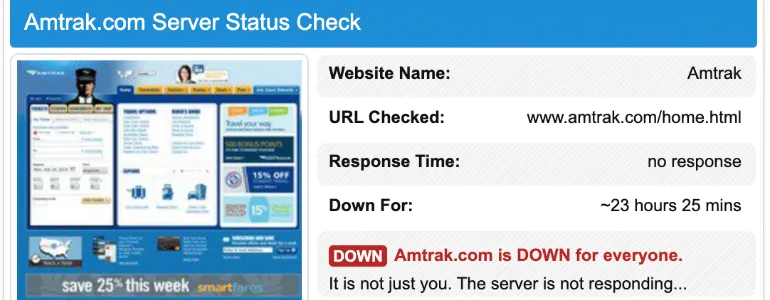
You can use IsItDownRightNow to check any website for any issues of connectivity.

isitdownrightnow-website-check-issues-down

It cannot be resolved on your end if it is a server-related issue. Therefore the best thing to do is to wait it out.


8. Check your Internet connectivity

Use a combination of your mobile data and Wi-Fi connection to test the Telegram link.

Check your Internet and router configurations to see if everything is working fine.

Use another device to connect to the Wi-Fi network and test the external link to see if it works.


9. Restart your Device

Whether you are using the mobile or desktop version of Telegram, sometimes the easiest way is often the easiest.

Restart your device and try opening the link again.


9 Ways to Fix Telegram Links Not Working & Opening [Solved] Read More »

Scan-Read-QR-Codes-Using-Mac

5 Ways to Scan and Read QR Codes using Mac [MacBook Pro, Air]

You can use your Macbook to scan and read QR codes as our mobile phones do. In addition, you can install specific macOS applications to use Mac’s built-in webcam camera to capture and scan QR codes and display the contents.

What is a QR code?

A QR Code is a matrix code, also known as a two-dimensional bar code, developed in 1994 by the Japanese company Denso-Wave.

Because the creators intended for the code’s contents to be decoded rapidly, the name “QR” is derived from “Quick Response.” However, QR Codes are now utilized in a much broader context, such as concealing website URLs, email addresses and many more.

How to Scan and Read QR Codes using a Macbook?

Here are the five (5) ways to do so.


1. QR Journal

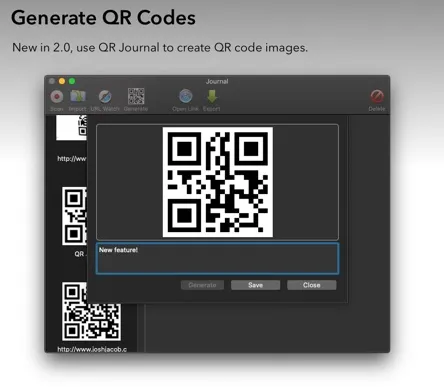
qr-journal-mac

QR Journal is a free tool that lets users scan their QR code images (e.g. from emails) and visit the website using their web browser.

If your computer has an iSight-compatible camera, it can also read the QR code. Just bring the QR code to the front camera of your Macbook for it to scan.

Some of the features include;

  • Importing of files/images to scan and read
  • Generating of own QR codes
  • Support for AppleScript to start scanning and triggering after a code has been scanned

2. QR Reader Mac

github-qr-reader-mac-zbar

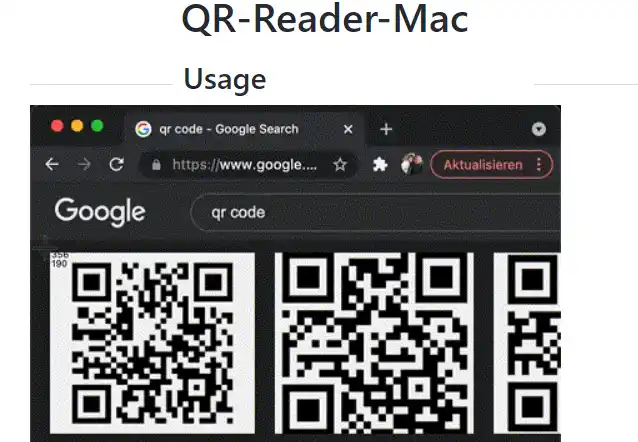
QR Reader Mac is an Applescript that reads QR codes from the computer screen, extracts the URLs, and automatically opens them in your web browser.

It is hosted as a Github project and recently has Apple M1 chip support for newer Macbooks.

Prerequisites: You need to install the open-source bar code reader script called ZBar. You can install it with the following;

brew install zbar

Go to the GitHub page, select <Code>, and click <Download ZIP>. Once downloaded, double-click to install.

Now all you need to do is to use your mouse to select the shape of the QR code you want to scan, and your web browser will open the URL site.


3. Code Reader – QR Scanner

code-reader-qr-scanner

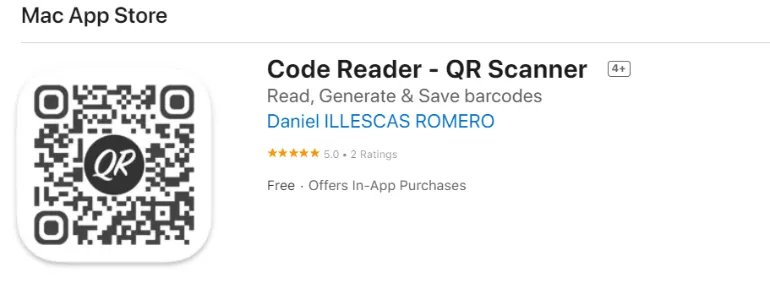
Code Reader can be found in the Apple App Store, and it is used to scan, generate and share QR codes with anyone.

It can scan codes with encoded text, links, contacts, emails, locations, etc.

When scanning QR codes using this app, web browsers will automatically open if it is a URL link. If it is an email address, it will open your email client, allowing you to send an email quickly.

Some of the app’s features include;

  • Read, display, and save multiple codes at the same time
  • Option to always use HTTPS to avoid insecure websites
  • Generate colored barcodes
  • Read QR codes using image files

4. QuickMark – QR Code Reader

quickmark-qr-code-reader

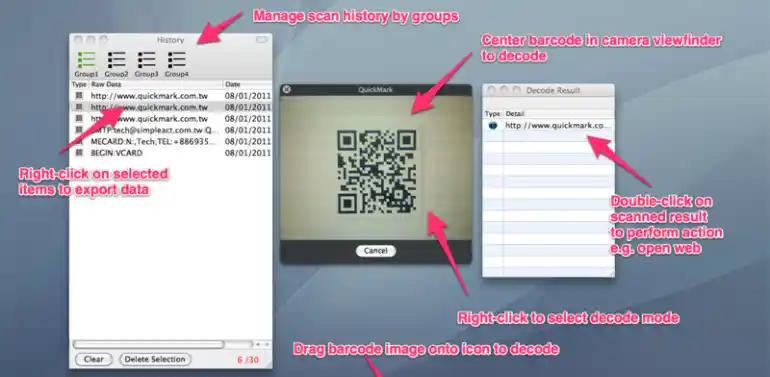
QuickMark is a Mac-based barcode reader that lets you automatically scan and generate Quick Code, QR Code, and Data Matrix barcode formats.

Some of the main features include;

  • Scanning barcodes and QR codes using the built-in webcam
  • Decoding of 2D barcodes on the screen with Transparent Mode
  • Decoding 2D barcodes from files or using drag-and-drop
  • Create your own 2D barcodes
  • Supports Structured Append QR Codes

5. QR Code Decoder – [Online]

decode-QR-code-image-online

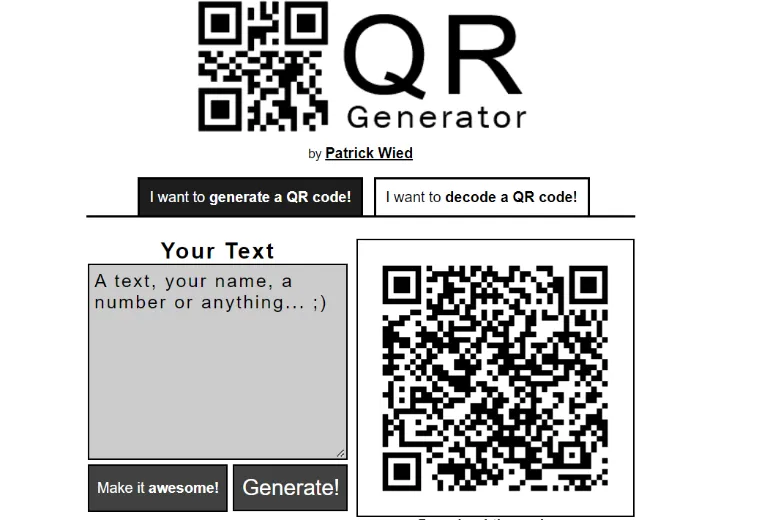
This is an online QR code decoder and generating service. All you need to do is upload your QR code image file online, which will automatically show you the text data within the code.

You can also use this service to generate your own QR code. Again, this is no need for any web browser plugins or extensions.

Write your own text and click <Generate>. Your personalized QR code image will be shown on the right, and you can right-click to save the image.


5 Ways to Scan and Read QR Codes using Mac [MacBook Pro, Air] Read More »
featured-image-screenshot-record-protected-videos

5 Ways To Screen Record Protected Apps [Fix Black Screen]

Are you trying to perform a screen capture from a restricted app, and all you got from your video recordings was a black screen?

And you realised you could not perform screenshots as well?

This article will explain the various ways to bypass these restrictions on these blocked & protected apps so that you can perform screen recording.

Reasons for Restricting

Sometimes, app developers design their apps specifically so that it does not allow screen recording. As a result, any form of screen capture, screenshot or screen recording will be blocked.

This is a security feature, and app developers will mark the application as sensitive and secure. In most circumstances, they do not want their content to be leaked.

The reason for this prevention is likely due to the content type the app contains.

Some examples are

  • apps showing payment transactions;
  • apps showing sensitive information that needs to be protected.
  • apps containing paid course content
  • copyrighted materials, e.g. Netflix
  • DRM-protected video streams

However, there are times when you would want to record the screen for various reasons, e.g. for instructional sharing with someone, technical troubleshooting and others.

How to Screen Record Protected Apps?

Below are the five (5) methods you can use to bypass and unblock the restrictions;


Method 1: Install Restricted App on Virtual Space

We use this proven and tested method to capture screen recordings on our restricted apps. This method is also the fastest way to do so.

Step 1: Download and install DisableFlagSecure on your phone. This allows you to take screenshots and screen recordings on restricted apps. This is the latest version and should work on most mobile devices. If somehow this is not working for you, you can try installing the older version.

Step 2: Find and install the latest version of the Xposed Tai-Chi APK on your phone. This allows you to run APKs (android app files) in virtual spaces as plugins, thus allowing actions such as screen recording.

Step 3: Open the Tai-Chi app, select <Manage Modules> and tick the checkbox of <DisableFlagSecure>.

Step 4: On the Tai-Chi menu, select <Create app> and choose the app you wish to make a screenshot or screen recording.

Step 5: Tai-Chi app will uninstall the original app automatically. Once done, Tai-Chi will display the wording that says <Ready to install> next to your restricted app, and you must click on it to begin your installation process.

Step 6: Now, you can start your restricted app and use any of your favourite screen recorder apps to capture the screen you need.


Method 2: Screen Mirroring

This is about copying one screen to another screen. There are two (2) ways to do so.

Phone-to-Phone

Screen mirroring is the technology that reflects (mirrors) your screen from one device to another. For this method, we will need to perform screen mirroring from phone A to phone B.

Both devices must install the same screencasting application and be connected to the same network, e.g. in the same home Wi-Fi.

You can use any of these three (3) apps below;

Phone-to-Windows

In Windows 10, an in-built feature called the <Connect> app will enable screen mirroring from your phone to your Windows machine. With that, you can then use any recording tool to record your screen.

To begin, make sure both devices are on the same Wi-Fi network. Next, search for the word “Connect” using Windows Search to find the <Connect> app. Finally, click on <Projecting to this PC>.

Depending on the make & model of your phone, search for the word “Wireless Projection” or “Cast” and enable it. You should be able to detect your PC’s name and connect to it.

On Windows 10, you will receive a prompt to confirm the connection. Click “OK“.

Use any screen recording software for Windows 10 devices, such as RecMaster, to start your screen capturing.


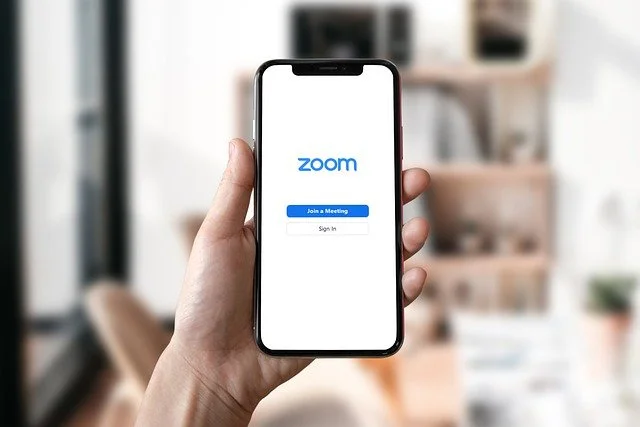
Method 3: Using the Zoom app Screen-Sharing feature

zoom-app-screen-sharing

Zoom allows you to share your entire desktop or phone screen or even a portion of your screen with another device. This means you can perform screen recording on your mirrored device.

How to start Zoom screen sharing?

For iOS, find the button in your Zoom meeting controls called <Share Content>.
For Android, Windows, Mac & Linux, it is named <Share Screen>.

Once successfully cast onto another device, use any screen recording tool to capture the screenshot or record a screen video.


Method 4: Using Screen Recorder apps (for non-rooted)

Depending on the restricted app you want to unblock, sometimes the solution can be a straightforward one.

It may boil down to just the kind of screenshot apps you should be using instead.

You can try any of these highly-rated and reliable desktop screen recorders below;

Bandicam Screen Recorder serves as a highly efficient tool for capturing screen activity. It offers the capability to record videos of the entire screen or designated sections, while simultaneously providing the functionality for taking screenshots via designated hotkeys.

This software proves invaluable for a range of applications, such as documenting in-game experiences, elucidating technical issues, or preserving specific slides from presentations.


Method 5: Using Screen Recorder apps (for rooted phones)

If you have a rooted Android phone, you can definitely capture screenshots and record screens and system audio on your device.

You should download using any of these apps that require rooted privileges on Android.


Conclusion

Try any of the methods stated above, and you will be able to fix your problem.

Method 1 is highly recommended to be safe as we have tested and proven it to work.

Use Method 5 only on a spare phone device, as it requires rooting. Do not attempt to root your Android phone if you do not know what you are doing. Rooting will void the phone manufacturer’s warranty.


Recommendations (Tested & Proven)

To bypass internet censorship, blocked sites, and browse with anonymity., only choose the following reliable VPN services;
  • NordVPN (Has the most number of servers, over 5000+, in 60 countries to choose from. Uses a unique Onion Over VPN feature to mask your online traffic for maximum anonymity.)
  • Surfshark VPN (One of the few providers that allow unlimited device connections with just a single subscription. You can connect all your devices with no logs policy)
  • IPVanish (Supports all platforms, routers, and TV. Uses SOCKS5 web proxy feature for faster anonymous connection speed)

For ease of use, simplicity, and having the most competitive prices, only BUY your favourite crypto from;

* Bitfinex
* Coinbase
* Crypto.com
* Binance

Regardless of your country, either of the above-tested exchanges will work for you.
All the above accept payment methods such as credit/debit cards, bank transfers, Apple Pay, Google Pay and more.


5 Ways To Screen Record Protected Apps [Fix Black Screen] Read More »
[hide-telegram-phone-number

Does Telegram Show Your Phone Number [And How to Hide It]

With over 700 million+ users worldwide, Telegram is one of the most popular private messaging apps.

Each Telegram account is registered uniquely to one (1) mobile number. Therefore, you cannot register two (2) Telegram accounts with one number.

Telegram lets you add users by Username and contact number.

Unlike Whatsapp, where chats are initiated directly using your phone number, Telegram uses usernames for direct communication. Therefore, everyone can only see each other’s usernames (unless they already have your number in their address book).

The mobile number Telegram asks for during signup is only for registration and account recovery purposes.

There are several privacy questions about how our mobile numbers are used and how anonymous Telegram users are.

Will any Telegram user know my number? Or If someone can track you in Telegram?

If I Add Someone on Telegram, Will My Phone Number Be Revealed?

When you register for a new Telegram account, you will provide your mobile number for SMS verification.

Once verified, the default settings in the Telegram app allow your phone contacts (i.e., address book) to see your actual phone number when communicating using Telegram chats.

In short, only your ‘friends’ who have your number stored in their address book can see your number.

This is done by syncing your phone contacts with Telegram.

To prevent this, you should hide your mobile number under Telegram Settings (see below for how to do so).

Once hidden, any future users you added to Telegram will not be able to see your phone contacts anymore.

In addition to hiding your number, you should ensure that your Profile name and Username does not reveal your real identity. You can change the anytime in Settings.


How Can I Hide My Mobile Number in Telegram?

You must configure two (2) options to hide your number from anyone using Telegram.

Here’s how to do it.


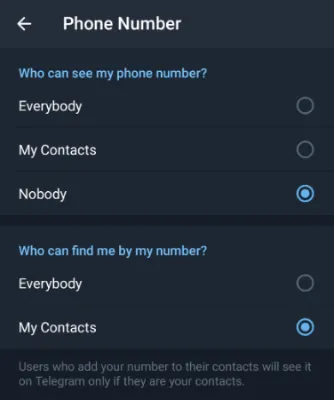
1. Set Privacy on Phone Number

telegram-configure-phone-number-privacy-hide
  • Open the Telegram app and go to <Settings>.
  • Click <Privacy and Security>
  • Select <Nobody> for the option “Who can see my phone number?”
  • Select <My Contacts> for the option “Who can find me by my number?”

In this way, no one can see your phone number in Telegram, and you decide who can search for you on Telegram based on who you kept in your contacts listing.


2. Delete Synced Contacts

telegram-hide-phone-number-delete-synced-contact

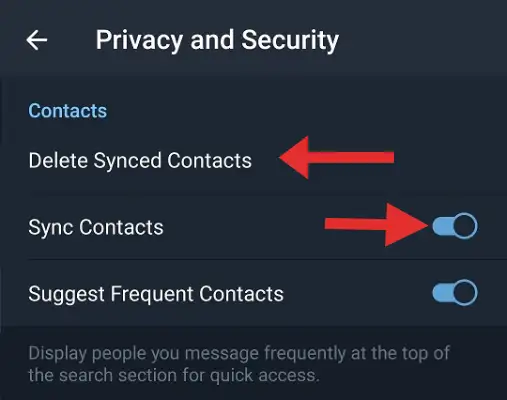
If you have been using Telegram before this, you need to remove synced contacts from your Telegram account.

  • Open the Telegram app and go to <Settings>
  • Click <Privacy and Security>
  • Click <Delete Synced Contacts> to remove your previously-synced contacts from seeing your phone number now.
  • Toggle OFF <Sync Contacts> to disable contact syncing from now onwards


Frequently Asked Questions (FAQs)

Here are some of the common questions about Telegram privacy on mobile numbers.

If I add a contact on Telegram, will they know my number?

No. They will not be able to know if you are the only one adding their number.

For them to know your number, the other party needs to know your number and save it under their address book.

How to know if someone saved your number on Telegram?

If the other party registered for Telegram, you will be notified that this person has joined Telegram.

How to find hidden numbers in Telegram?

As mentioned earlier in this article, there is no way to know hidden numbers among Telegram users. You can only see their Profile name and Username.


Does Telegram Show Your Phone Number [And How to Hide It] Read More »
fix-whatsapp-call-disconnect-drop

13 Ways to FIX WhatsApp Calls Disconnect & Dropping Problems

WhatsApp is one of the most widely used messaging apps worldwide.

One of the main reasons why people choose WhatsApp over other messaging apps is because it has a calling feature.

However, it can be annoying if an important WhatsApp call drops or disconnects abruptly while you’re on it

This problem is not unusual, and there are several potential causes. 

This article will cover how to fix WhatsApp call drops and disconnections.

How to Fix WhatsApp Calls From Not Working, Disconnecting, and Dropping Frequently?

Here are the thirteen (13) ways to fix the issue.


1. Turn off Battery Saver mode

Turn off the battery saver mode on your device if you’re using it before making a WhatsApp call. 

This mode may impact the app’s functionality and result in disconnected or dropped calls.

2. Turn off Bluetooth

Bluetooth may interfere with the Wi-Fi or cellular network signal, which is one factor that can make WhatsApp calls unreliable.

A good practice is to turn off your Bluetooth connection.

As a result, the device may struggle to maintain a stable internet connection, which can cause poor call quality or dropped calls.

Some smartphones also automatically switch to Bluetooth audio during calls, which may be problematic.

Call quality may suffer, and calls may be dropped if the Bluetooth connection is weak or unstable.

3. Check Router Settings

Your router’s security settings and firewall configurations can sometimes interfere with your internet connection and cause disruptions during WhatsApp calls.

Login to your router admin panel and ensure you use the latest security protocols, such as WPA2.

Check your firewall configurations and ensure it is not too strict, as they may block legitimate connections, including those for WhatsApp calls.

4. Disable VPN

If you’re using a VPN service, disable it before making a WhatsApp call.

Although VPNs can unblock websites and circumvent geographical censorship, they can affect your internet connection and cause calls to drop or disconnect.

5. Check your Internet connection

You should check your internet connection when experiencing call drops on WhatsApp.

Make sure your internet connection is both reliable and quick.

You can use Ookla Speedtest or Google Fiber Speedtest to analyze your connection speed.

Using Wi-Fi, you can change networks or get nearer to the router.

6. Clear App Cache

Call drops can be avoided, and the performance of WhatsApp can be enhanced by clearing its cache.

Go to Settings > Apps > WhatsApp > Storage > Clear Cache on Android to clear the app cache.

7. Update WhatsApp

Make sure WhatsApp is running at the most recent version.

Call drops can be avoided by updating the app, which can fix bugs and improve performance.

8. Disable call forwarding

It’s possible for WhatsApp calls to disconnect or drop if call forwarding is enabled on your device.

Call forwarding should be disabled before making another attempt.

9. Switch to Wi-Fi calling

Try switching to Wi-Fi calling if you have call drops while using cellular data.

You can avoid call drops and increase the stability of your internet connection by doing this.

10. Reset network settings

Your internet connection may be the source of call drops on WhatsApp; resetting your network settings can help. 

You can reset network settings by going to Settings > General Management > Reset > Reset Network Settings.

11. Restart your device

Sometimes, a simple restart can fix issues with your device, including call drops on WhatsApp. Restart your device and try making a call again.

12. Reinstall WhatsApp

If none of the above solutions work, try reinstalling WhatsApp.

This will reset the app to its default settings and may fix any issues causing call drops.

13. Contact WhatsApp Support

Contact WhatsApp support if you’ve tried all of the fixes mentioned above but still have call drops on the app.

They might be able to offer more detailed troubleshooting instructions or refer the problem to their technical team.


13 Ways to FIX WhatsApp Calls Disconnect & Dropping Problems Read More »
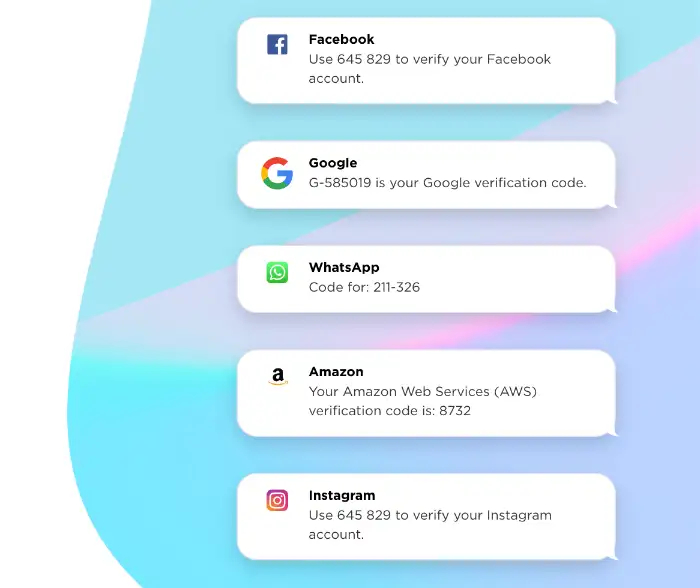
temporary-virtual-mobile-number-receive-verification-code-otp

9 Ways to Receive SMS Verification Code From Virtual Numbers

A virtual number is an actual phone number without a physical SIM card. It is commonly installed as a desktop application and as a mobile app.

Virtual mobile numbers can be used for sending & receiving SMS text messages and making local & international calls.

Besides using virtual numbers for receiving SMS OTP codes, they can act as a secondary phone number (without a physical SIM) and can be used for other means, e.g., business, travel, online dating, etc.

Virtual numbers are commonly used to register for online services like WhatsApp, Telegram, or other chat apps.

Here’s a quick summary of the most suitable apps based on your needs and preferences.

Best (FREE)Best (PAID)
OnlineSIM
(Free to try)
Hushed
(Most affordable)
Quackr.io
(Free)
Numero
(Most number of countries to choose from)

Note that free virtual numbers are always used quickly whenever they are listed online for social media sites and email registration purposes.

Always consider getting a paid virtual number if you want a fresh unused one. These temporary numbers are affordable, and you can always extend their validity whenever possible.

How to Get Virtual Phone Numbers for Receiving SMS Verification Codes?

Here are the nine (9) ways to do so.


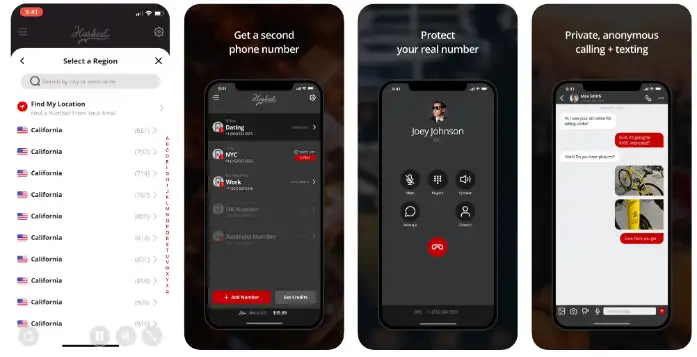
1. Hushed

hushed-virtual-mobile-temporary-number-receive-sms-verification-otp-code

Hushed is one of those apps that you can use to buy a prepaid mobile number online.

You can receive SMS verification codes (OTP), make calls, have custom voicemail greetings, call forwarding, and many other features.

You can get a single mobile number for as low as $1.99 for a limited number of days (e.g., 7 days)

  • Install the Hushed app on your mobile phone.
  • Choose the country of the mobile number you want, e.g, from Canada or the U.K.
  • Every purchased mobile number is renewable before the expiry date.
  • Payment methods include in-app purchases through PlayStore and AppStore, Bitcoin, and credit cards through the Hushed app portal.

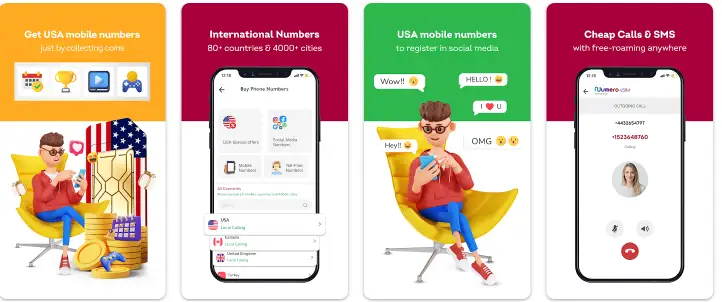
2. Numero

numero-virtual-mobile-number-secondary-app

Numero eSIM acts as a secondary mobile number for users to make cheap calls with the ability to send and receive SMS messages. In addition, you can use it to get SMS verification codes.

Users receive free calls anywhere when using Numero eSIM. This only applies to incoming calls.

You can make local and international calls at almost local rates.

You can choose virtual numbers from over 80+ countries and over 4000+ cities.

  • Make calls and receive SMS messages.
  • International WiFi calling at local rates with Local calling plans.
  • Voicemail and Call forwarding features
  • Privacy Caller-ID (hide your number) for local and international calls

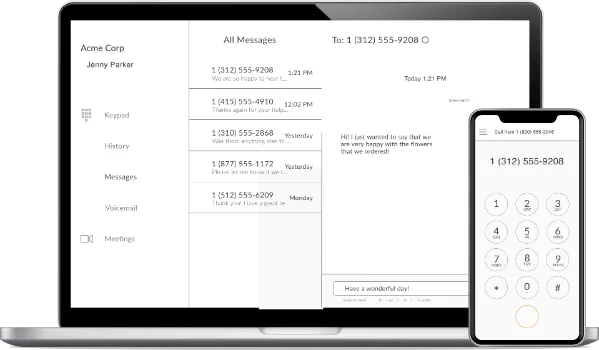
3. Talkroute

talkroute_virtual-number-receive-sms-verification-code

Talkroute is a virtual phone system suitable for businesses and individuals who are always on the move.

Users can work using their desktop computers, web browsers, and mobile devices to make & receive calls, manage SMS texts, and respond to voicemail messages.

Talkroute has a detailed history reporting feature that retrieves call data with various options (e.g., sort by a caller or specific mailbox).

  • Local, toll-free, 800, and vanity phone numbers
  • Hosting video meetings with video conferencing with up to 100 participants
  • Unlimited 3 or 4-digit direct dial extensions
  • Custom greetings and call recordings

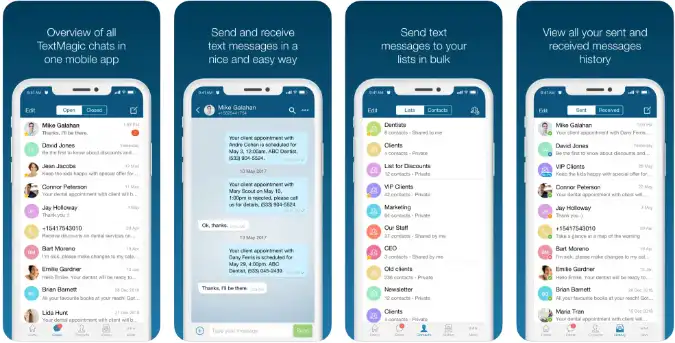
4. TextMagic

textmagic-virtual-number-receive-sms-verification-otp

TextMagic is an SMS text messaging marketing campaign software that packs several features, including the ability to send and receive SMS text messages online using its two-way chat features.

You can use that to receive SMS verification OTP codes for web services, such as registering for Gmail and signing up for social media sites.

One helpful feature is enabling users a quick and cost-effective way to send bulk (mass) messages anywhere in the world.

TextMagic has global SMS coverage with access to over 1,000 mobile networks across 190+ countries. With that, you can safely receive SMS messages from any country worldwide.

  • Choose virtual numbers from over 25+ countries for promotional campaigns, customer support, etc.
  • Send & receive SMS messages and MMS attachments.
  • Sub-accounts for team members with reporting and analytics features

5. OnlineSIM

onlinesim-virtual-number-receive-sms-verification-code-otp

OnlineSIM is an online phone service that provides free virtual mobile numbers for users so they can have private registration on various sites, services, and platforms.

These online numbers are on short and long-term virtual number renting models.

The company has access to virtual numbers from over 90+ countries and more than 1 million numbers.

You can rent a number for as short as ten (10) minutes to an hour. In addition, you can extend the number’s validity or cancel it anytime.

You can use OnlineSIM to receive SMS verification codes by signing up for services such as Gmail, Facebook, Whatsapp, and many others.


6. Quackr.io

Quackr is entirely free to use, with no signups required.

You can use Quackr as a secure temporary phone number instead of using your actual phone number on the Internet.

You can send & receive SMS text messages from the U.S., U.K., and 22 other countries using your virtual phone number.

The site updates and adds new temporary phone numbers every month.

You can use these temporary virtual numbers for setting up accounts on Facebook, WhatsApp, PayPal, Uber, Tencent, cryptocurrency exchanges & many more.


7. SMSReceiveFree.com

SMSReceiveFree can get SMS text messages from all over the world. In addition, these virtual numbers can be used to verify and register for websites like Twitter and Google.

All messages and phone numbers are thrown away after seven (7) days.

Every month, new virtual phone numbers are added to the list.

Even if the sender is located in a different nation, these virtual mobile numbers can still receive messages from anywhere in the world.


8. Anonymsms.com

AnonymSMS is a completely free online service that lets you receive SMS messages without entering your mobile or cell phone number.

These temporary numbers are based on a genuine SIM, and new virtual numbers are added daily.

In most cases, communications are received immediately. Hit the refresh button to get to it. After a while, all visible and utilized virtual numbers will become inactive, and you can choose another number to use.


9. TemporaryPhoneNumber

TemporaryPhoneNumber is a free service that allows you to use its virtual temporary phone numbers to receive SMS text messages anonymously online from anywhere in the world, regardless of your location. 

TemporaryPhoneNumber is free to use without needing to pay any fees, and no need for user registration.

Incoming SMS messages are automatically refreshed on the page between 5 seconds to 60 seconds intervals.


9 Ways to Receive SMS Verification Code From Virtual Numbers Read More »
bypass-whatsapp-phone-verification-register-without-sim-number

3 Ways to Bypass WhatsApp SMS Verification Code [Without SIM]

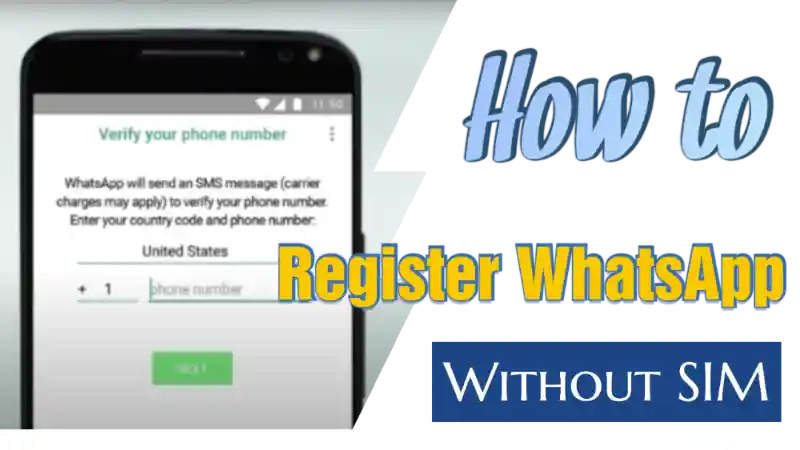
When registering for WhatsApp, you will be asked to provide a mandatory mobile number for account activation.

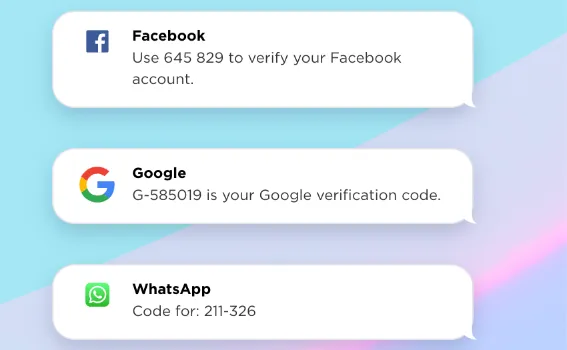
WhatsApp will send you a one-time password (OTP) via SMS text message to verify yourself.

Each WhatsApp account is tied to your unique mobile number during registration.

Sometimes you do not wish to use your personal mobile number, for example, to have privacy and to separate personal matters from work matters.

This article will focus on how to activate and bypass WhatsApp phone number restrictions without using your personal mobile number.

How to Register WhatsApp Without Using Your Personal Phone Number?

Here are the three (3) ways to do so.


Method 1. Use Voicemail

whatsapp-call-me-option-bypass-phone-verification

During registration, you provide WhatsApp with a virtual mobile number from Talkroute.

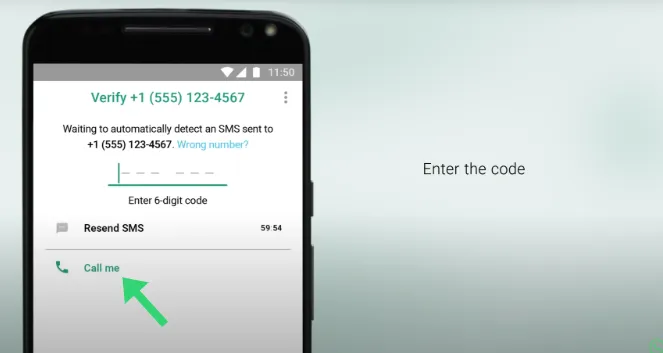
When asked to verify and enter the 6-digit SMS verification code, please select the option <Call me>.

WhatsApp will attempt to call you on the Talkroute number you provided.

You can either;

  • Pick up the phone call and listen to the verification code or,
  • WhatsApp’s automated system will leave you a voicemail with your code on it after the 5-minute countdown.

Talkroute is a virtual phone system suitable for businesses and individuals who are always on the move.

Users can work using their desktop computers, web browsers, and mobile devices to make & receive calls, manage SMS texts, and respond to voicemail messages.

Alternatively, if you can use a landline number or use a payphone if you know the number, you can provide that to WhatsApp and choose the <Call me> option to listen to the verification code.


Method 2: Use a Virtual Phone Number

You will be getting a virtual mobile number to register and activate WhatsApp.

You must install a secondary phone app on your mobile device and choose your temporary number from the available countries.

Here are some of the reliable virtual number apps you can consider;

Hushed

You can use Hushed to receive SMS verification codes (OTP), make calls, have custom voicemail greetings, call forwarding, and many other features.

You can get a single mobile number for as low as $1.99 for a limited number of days (e.g., 7 days)

  • Install the Hushed app on your mobile phone.
  • Choose the country of the mobile number you want, e.g., from Canada or the U.K.
  • Every purchased mobile number is renewable before the expiry date.

Numero eSIM

Numero eSIM acts as a secondary mobile number for users to make cheap calls with the ability to send and receive SMS messages. In addition, you can use it to get SMS verification codes for WhatsApp.

Users receive free incoming calls anywhere when using Numero eSIM.

You can choose virtual numbers from over 80+ countries and over 4000+ cities.

  • Make calls and receive SMS messages.
  • International WiFi calling at local rates with Local calling plans.
  • Voicemail and Call forwarding features
  • Privacy Caller-ID (hide your number) for local and international calls

Method 3: Receive SMS Code Online

receive-sms-online-services

Some websites offer ready-made virtual phone numbers so users can receive SMS messages and OTP codes by simply visiting their websites.

Below are some trusted websites where you can receive SMS messages and OTPs.

Please note that mobile numbers on free sites usually run out quickly, and these sites do not offer new numbers frequently.

A more reliable method is to use a paid service. For example, TextMagic and OnlineSIM provide a dedicated virtual phone number for your SMS needs. 

Keep in mind that WhatsApp may ask its users to verify their mobile numbers from time to time. As a result, consider renewing these virtual numbers if you intend to use the Whatsapp account for the long term.


3 Ways to Bypass WhatsApp SMS Verification Code [Without SIM] Read More »